







You can create a data migration task from OceanBase Database (including MySQL and Oracle compatibility modes) to PostgreSQL Database to seamlessly migrate incremental data from the source database to the target database.
Notice
If a data migration task remains inactive for an extended period (with a status of Failed, Paused, or Completed), it may become unrecoverable due to factors such as the retention period of incremental logs. Data Migration will proactively release tasks that have been inactive for more than 7 days to reclaim related resources. It is recommended that you configure alerts for your tasks and promptly handle any related exceptions.
Prerequisites
You have created a cluster and a tenant in the source OceanBase Database. For more information, see Create an instance and Create a tenant.
You have created a target database instance.
You have created dedicated database users for data migration on both the source and target sides and granted them the required permissions. For more information, see User privileges.
Limitations
Only users with the project roles of Project Owner, Project Admin, or Data Services Admin can create new data migration tasks.
Currently, data migration supports PostgreSQL databases V10.x, V11.x, V12.x, and V13.x, and OceanBase Database (including MySQL and Oracle compatible modes) V2.x, V3.x, and V4.x.
The data migration service only supports migrating objects whose database, table, and column names are in ASCII and do not contain special characters (including .|"'`()=;/& and line breaks).
The data migration service does not support triggers (Trigger) on the target side. If triggers exist, data migration may fail.
Considerations
In an incremental synchronization scenario for a table without a primary key, using full-column matching for UPDATE and DELETE operations may cause the following issues:
Performance problems may occur.
Due to the lack of a primary key index, each UPDATE and DELETE operation will be performed after a full table scan.
Data consistency issues may occur.
Since UPDATE and DELETE operations in PostgreSQL do not support the LIMIT syntax, when full-column matching finds multiple rows, more data might be updated or deleted on the target than intended. For example, consider a table t1 without a primary key, containing two columns c1 and c2. The source has two rows where c1=1 and c2=2. When one of these rows is deleted from the source, the matching condition
where c1 = 1 and c2 = 2will cause both corresponding rows on the target to be deleted, leading to data inconsistency between the source and target.
When migrating fields of the tsvector type to a PostgreSQL database, the data written to the corresponding fields in OceanBase Database must conform to the tsvector format. For example:
Writing 'a b c' to an RDS PostgreSQL instance from OceanBase Database will be converted to "'a' 'b' 'c'".
Writing 'a:1 b:2 c:3' to an RDS PostgreSQL instance from OceanBase Database will be converted to "'a':1 'b':2 'c':3".
If OceanBase Database writes non-tsvector format data "'a':cccc", the RDS PostgreSQL instance will write abnormally and fail. For more information about the tsvector format, see PostgreSQL official documentation.
If incremental synchronization is performed with OceanBase Database as the source and the database table object contains UDT columns, the incremental synchronization task may fail due to unsupported UDT columns.
Supported source and target instance types
Cloud Vendor |
Source |
destination |
|---|---|---|
| AWS | OceanBase MySQL Compatible(Transactional) | Self-managed PostgreSQL |
| AWS | OceanBase MySQL Compatible(Self-managed database) | Self-managed PostgreSQL |
| AWS | OceanBase MySQL Compatible(Transactional) | RDS PostgreSQL |
| AWS | OceanBase MySQL Compatible(Self-managed database) | RDS PostgreSQL |
| AWS | OceanBase MySQL Compatible(Transactional) | Aurora PostgreSQL |
| AWS | OceanBase MySQL Compatible(Self-managed database) | Aurora PostgreSQL |
| AWS | OceanBase Oracle Compatible(Transactional) | Self-managed PostgreSQL |
| AWS | OceanBase Oracle Compatible(Self-managed database) | Self-managed PostgreSQL |
| AWS | OceanBase Oracle Compatible(Transactional) | RDS PostgreSQL |
| AWS | OceanBase Oracle Compatible(Self-managed database) | RDS PostgreSQL |
| AWS | OceanBase Oracle Compatible(Transactional) | Aurora PostgreSQL |
| AWS | OceanBase Oracle Compatible(Self-managed database) | Aurora PostgreSQL |
| Google Cloud | OceanBase MySQL Compatible(Transactional) | Self-managed PostgreSQL |
| Google Cloud | OceanBase MySQL Compatible(Self-managed database) | Self-managed PostgreSQL |
| Google Cloud | OceanBase MySQL Compatible(Transactional) | Cloud PostgreSQL |
| Google Cloud | OceanBase MySQL Compatible(Self-managed database) | Cloud PostgreSQL |
| Google Cloud | OceanBase Oracle Compatible(Transactional) | Self-managed PostgreSQL |
| Google Cloud | OceanBase Oracle Compatible(Self-managed database) | Self-managed PostgreSQL |
| Google Cloud | OceanBase Oracle Compatible(Transactional) | Cloud PostgreSQL |
| Google Cloud | OceanBase Oracle Compatible(Self-managed database) | Cloud PostgreSQL |
| Alibaba Cloud | OceanBase MySQL Compatible(Transactional) | Self-managed PostgreSQL |
| Alibaba Cloud | OceanBase MySQL Compatible(Self-managed database) | Self-managed PostgreSQL |
| Alibaba Cloud | OceanBase MySQL Compatible(Transactional) | RDS PostgreSQL |
| Alibaba Cloud | OceanBase MySQL Compatible(Self-managed database) | RDS PostgreSQL |
| Alibaba Cloud | OceanBase Oracle Compatible(Transactional) | Self-managed PostgreSQL |
| Alibaba Cloud | OceanBase Oracle Compatible(Self-managed database) | Self-managed PostgreSQL |
| Alibaba Cloud | OceanBase Oracle Compatible(Transactional) | RDS PostgreSQL |
| Alibaba Cloud | OceanBase Oracle Compatible(Self-managed database) | RDS PostgreSQL |
Data type mappings
Data type mappings from the MySQL-compatible mode of OceanBase Database to PostgreSQL Database
OceanBase Database (MySQL-compatible mode)PostgreSQL DatabaseTINYINT SMALLINT BOOLEAN BOOLEAN SMALLINT SMALLINT SMALLINT UNSIGNED INTEGER MEDIUMINT INTEGER INTEGER/INT INTEGER INTEGER UNSIGNED BIGINT BIGINT BIGINT DECIMAL(M,D) DECIMAL
NUMERIC(M,D) NUMERIC(10,0)
The maximum value of M for DECIMAL is 65 and the maximum value of D is 30. If D is omitted, it defaults to 0. If M is omitted, it defaults to 10.
NUMERIC(M,D) NUMERIC(M,D) NUMERIC NUMERIC(10,0) FLOAT(p) - When p < 25, it is converted to FLOAT.
- When p ≥ 25, it is converted to DOUBLE PRECISION.
DOUBLE DOUBLE PRECISION BIT BIT VARYING(1) BIT(n) BIT VARYING(n) DATE DATE DATETIME DATETIME(6)
The default value is 0. The range is [0,6].
TIMESTAMP TIMESTAMP(6)
TIMESTAMP TIMESTAMP WITH TIME ZONE TIMESTAMP(p) TIMESTAMP(p) WITH TIME ZONE TIME(p) TIME(p) YEAR INTEGER CHAR CHAR(n CHAR) VARCHAR VARCHAR(n) BINARY BYTEA VARBINARY BYTEA TINYBLOB TEXT BLOB TEXT MEDIUMBLOB TEXT LONGBLOB TEXT TINYTEXT TEXT TEXT TEXT MEDIUMTEXT TEXT LONGTEXT TEXT ENUM VARCHAR SET VARCHAR JSON JSON Data type mappings from the Oracle compatible mode of OceanBase Database to PostgreSQL Database
Category OceanBase Database (Oracle compatible mode) PostgreSQL Database Numeric types NUMBER(p,s) NUMBER(p,s) NUMBER NUMERIC FLOAT(P) FLOAT(P) BINARY_FLOAT REAL BINARY_DOUBLE DOUBLE PRECISION Character types CHAR(n) CHAR(n) NCHAR(n) CHAR (n) NVARCHAR2(n) VARCHAR (n) VARCHAR2(n) VARCHAR (n) VARCHAR(n) VARCHAR (n) Time types DATE TIMESTAMP TIMESTAMP TIMESTAMP(6) TIMESTAMP(n) Converted to TIMESTAMP(6) when n >= 6; otherwise, converted to TIMESTAMP(n). TIMESTAMP WITH TIME ZONE TIMESTAMP(6) WITH TIME ZONE TIMESTAMP(n) WITH TIME ZONE Converted to TIMESTAMP(6) WITH TIME ZONE when n >= 6; otherwise, converted to TIMESTAMP(n) WITH TIME ZONE. TIMESTAMP WITH LOCAL TIME ZONE TIMESTAMP(6) WITH TIME ZONE TIMESTAMP(n) WITH LOCAL TIME ZONE Converted to TIMESTAMP(6) WITH TIME ZONE when n >= 6; otherwise, converted to TIMESTAMP(n) WITH TIME ZONE. Binary type RAW(n) VARCHAR(n) Row identifier type ROWID CHAR(18) UROWID VARCHAR(18) Large object type BLOB BYTEA CLOB TEXT JSON type JSON JSON
Procedure
Create a data migration task.
Log in to the OceanBase Cloud console.
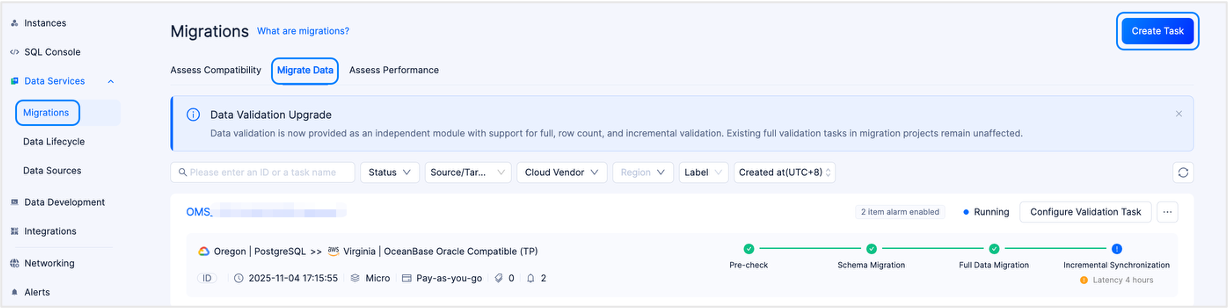
In the left-side navigation pane, click Data Services > Data Migration.
On the Data Migration page, click the Data Migration tab.
On the Data Migration tab, click Create Task in the upper-right corner.
In the Edit Task Name text box, enter a custom name for the migration task.
We recommend using a combination of Chinese characters, numbers, and letters. The name must not contain spaces and must be no longer than 64 characters long.
On the Configure Source & Target page, configure the parameters.
In the Source section, configure the parameters.
If you need to reference an existing data source, click Quick Fill next to Source and select the target data source from the drop-down list. After selection, the configurations for the source section will be automatically populated. If you want to save the current configuration as a new data source, click the Save icon in the upper-right corner of the Source area.
You can also click Manage Data Source in the Quick Fill drop-down list to go to the Data Sources page to view and manage data sources. This page provides unified management for different types of data sources. For more information, see the documentation in the Data sources module.
ParameterDescriptionCloud Provider Currently supports Alibaba Cloud, AWS, and Google Cloud. Database Type Select the source database type as OceanBase MySQL Compatible or OceanBase Oracle Compatible based on your actual situation. Instance Type Includes Cluster Instance (Transactional) and Self-managed Database. Region Select the region where the source database is located. Connection Type Includes Endpoint and Public IP. For Alibaba Cloud, AWS, and Google Cloud, you can also select Peering Connection. - If you select Endpoint, add the account ID displayed on the page to the allowlist of your Endpoint service to allow connections from this account's endpoint to the Endpoint service. For more information, see Select Private Network Connection.
- If you select Public IP, add the data source IP address displayed on the page to the allowlist of the OceanBase database instance to ensure connectivity. For more information, see Select Public Network Connection.
Note
This parameter is displayed only when the instance type is Self-Built Database. After you select the regions for the source and target, the page will display the data source IP address that needs to be added to the allowlist.
- If you select Peering Connection, choose an available peering connection from the drop-down list. Add the IP address displayed on the page to the OceanBase Database instance's inbound security group rules or allowlist to ensure connectivity. For more information, see AWS peering connection, Alibaba Cloud peering connection, and Google Cloud peering connection.
Peering Connection ID This parameter is displayed only when Instance Type is set to Self-managed Database and Connection Type is set to Peering Connection. Select an available peering connection from the drop-down list. The list displays only connections that match the current cloud provider and region and are in the Connected state. It also displays the corresponding VPC ID and CIDR block. If no connection is available, click Create to open a new tab and create a data service peering connection. Connection Information This parameter is displayed only when the instance type is Self-Built Database. - When Connection Type is set to Endpoint, enter the Endpoint service name.
- When Connection Type is set to Public IP, enter the IP address and port number of the database host.
- When Connection Type is set to Peering Connection, enter the private IP address or hostname and port number of the database host.
Instance The ID or name of the instance where the OceanBase database is located. You can view the ID or name of the target instance on the Instances page. Note
When the cloud provider is Alibaba Cloud, cross-account authorization for Alibaba Cloud root account instances is also supported. For details, see Alibaba Cloud Account Authorization.
Tenant The ID or name of the OceanBase database tenant. You can expand the target instance on the Instances page to view the ID or name of the target tenant under that instance. Database Account The username of the OceanBase database user used for data migration. Password The password of the database user. When Instance Type is set to Self-managed Database, you can also decide whether to perform advanced settings based on your actual situation.
Notice
If the newly created migration task requires incremental synchronization, you must enable both the sys tenant account and the incremental log proxy service.
ParameterDescriptionsys Tenant Account After enabling the sys tenant account, you need to enter the sys account and password. - Sys Account: The name of the sys user. This user is mainly used to read incremental logs and database object structure information from OceanBase Database. Please create it under the sys tenant of the business cluster.
- Password: The password of the sys user.
Incremental Log Proxy Service After enabling the incremental log proxy service, you need to fill in the OBLogProxy Connection Information. This parameter refers to the OceanBase Database incremental log proxy service, which provides access and management capabilities for real-time incremental projects as a service, facilitating applications' access to OceanBase Database incremental logs. It also addresses the need to subscribe to incremental logs in cases of network isolation. The format is OBLogProxy IP:OBLogProxy Port.In the Target section, configure the parameters.
If you need to reference a created and saved data source, click Quick Fill on the right side of Target and select the target data source from the drop-down list. After selection, the configurations in the target area will be automatically populated. If you need to save the current configuration as a new data source, click the Save icon in the upper-right corner of the Target section.
You can also click Manage Data Source in the Quick Fill drop-down list to go to the Data Source page to view and manage data sources. This page provides unified management for different types of data sources. For more information, see Data sources.
ParameterDescriptionCloud Vendor Currently supports Alibaba Cloud, AWS, and Google Cloud. You can choose the same cloud vendor as the source or perform data migration across cloud vendors. Note
The cross-cloud vendor data migration feature is not currently available by default. To use this feature, contact OceanBase Cloud technical support.
Database Type Select the target database type as PostgreSQL. Instance Type - When the cloud provider is AWS, the supported instance types are RDS PostgreSQL, Aurora PostgreSQL, and Self-managed PostgreSQL.
- When the cloud provider is Google Cloud, the supported instance types are Cloud PostgreSQL and Self-managed PostgreSQL.
- When the cloud provider is Alibaba Cloud, the supported instance types are RDS PostgreSQL and Self-managed PostgreSQL.
Region Select the region where the target database is located. Connection Type Includes Endpoint and Public IP. For Alibaba Cloud, AWS, and Google Cloud, you can also select Peering Connection. - If you select Endpoint, add the account ID displayed on the page to the allowlist of your Endpoint service to allow connections from this account's endpoint to the Endpoint service. For more information, see Select Private Network Connection.
- If the Cloud Vendor is set to AWS and Enable is selected for the Require Acceptance to Use Endpoint parameter when creating the Endpoint service, the data migration service prompts you to open the AWS console and perform an Accept endpoint connection request operation for the incoming request the first time it accesses the private connection.
- If the cloud vendor is set to Google Cloud, add the authorized project to Published Services. After authorization, no further manual authorization is required when you test the data source connection.
- If you select Public IP, add the data source IP address displayed on the page to the allowlist of the PostgreSQL database instance to ensure connectivity. For more information, see Select Public Network Connection.
Note
The data source IP address to be added to the allowlist is displayed on the page only after you have selected the regions for both the source and target.
- If you select Peering Connection, choose an available peering connection from the drop-down list. Add the IP address displayed on the page to the PostgreSQL instance's inbound security group rules or allowlist to ensure connectivity. For more information, see AWS peering connection, Alibaba Cloud peering connection, and Google Cloud peering connection.
Peering Connection ID This parameter is displayed only when Connection Type is set to Peering Connection. Select an available peering connection from the drop-down list. The list displays only connections that match the current cloud provider and region and are in the Connected state. It also displays the corresponding VPC ID and CIDR block. If no connection is available, click Create to open a new tab and create a data service peering connection. Connection Information - When Connection Type is set to Endpoint, enter the name of the Endpoint service.
- When Connection Type is set to Public IP, enter the IP address and port number of the database host.
- When Connection Type is set to Peering Connection, enter the private IP address or hostname and port number of the database host.
Database Name The name of the PostgreSQL database. Database Account The username of the PostgreSQL database user used for data migration. Password The password of the database user.
Click Test and Continue.
On the Select Type & Objects page, configure the parameters.
Note
Currently, migrating data from a PostgreSQL database to an OceanBase database in MySQL-compatible mode supports only unidirectional synchronization.
In the Migration Type section, select the migration type for the current data migration task.
Currently, only Incremental Synchronization is supported, which includes DML Synchronization and DDL Synchronization. You can configure them according to your needs. For details, see Configure DML/DDL synchronization.
In the Select Migration Objects section, configure the method for selecting migration objects.
You can select migration objects through two methods: Specify Objects and Match by Rule.

In the Select Migration Scope section, select the objects to migrate.
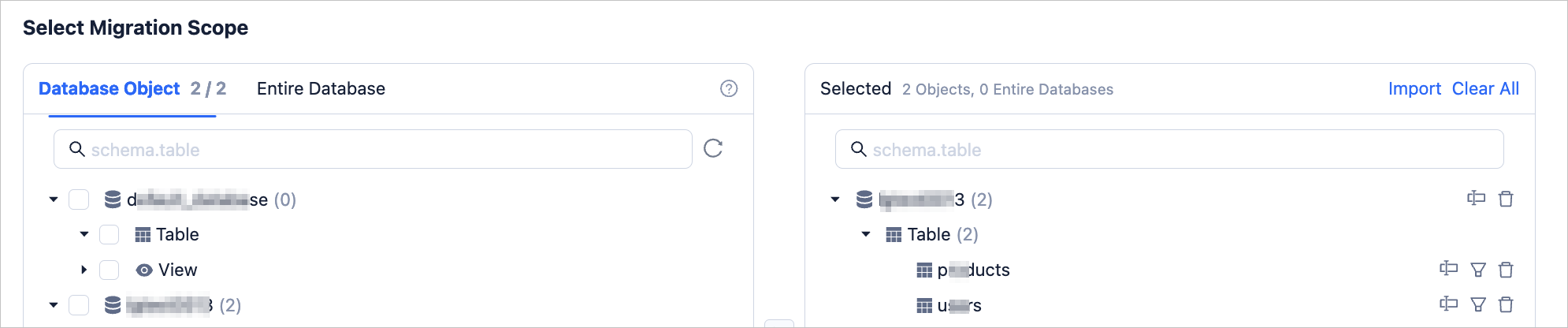
When Specify Objects is selected, data migration supports Table-level and Database-level. Database table migration allows you to select one or more tables or views from a database as migration objects. Full database migration allows you to select an entire database as the migration object. If database table migration is selected for a database, that database cannot support full database migration. If full database migration is selected for a database, that database cannot support database table migration.
After selecting the Table-level or Database-level method, select the objects to migrate in the left-side selection area and click > to add them to the list on the right.
Data migration supports importing objects via text files. You can also rename objects at the target, filter rows, view column information, and remove one or all migration objects.
Note
When you select Full Database Migration, only the database name is displayed in the list on the right; specific objects are not supported.
ActionDescriptionImport Objects In the list on the right side of the selection area, click Import Object in the upper-right corner. For more information, see Import migration objects. Rename Data migration supports renaming migration objects. For more information, see Rename a database or table. Row Filter Data migration supports filtering rows using WHEREconditions. For more information, see Filter data with SQL conditions. You can also view the column information of migration objects in the View Column section.Remove/Clear All Data migration supports removing one or more temporarily selected objects to the target during data mapping. - Remove a single migration object
In the list on the right side of the selection area, click the Remove icon next to the target object to remove it. - Remove all migration objects
In the list on the right side of the selection area, click Clear All in the upper-right corner. In the dialog box, click OK to remove all migration objects.
- Remove a single migration object
Select Match by Rule. For more information, see Configure matching rules for database-to-database migration.
Click Next. On the Migration Options page, configure the parameters for incremental synchronization.
ParameterDescriptionWrite Concurrent Configuration This parameter specifies the number of concurrent writes to the target during incremental synchronization. The maximum limit is 512. A high concurrency value may cause excessive load on the target and affect business operations. Limit Incremental Migration Rate You can decide whether to enable the incremental synchronization rate limit based on your actual needs. If enabled, set the target write RPS (the maximum number of data rows that can be synchronized to the target per second during incremental synchronization) and target write BPS (the maximum traffic that can be synchronized to the target per second during incremental synchronization). Note
The RPS and BPS values set here are only for rate limiting. The actual achievable performance during incremental synchronization is subject to factors such as the source, target, and instance specifications.
Incremental Synchronization Start Timestamp - If Full Migration was selected as the migration type, this parameter is not displayed.
- If Full Migration was not selected but Incremental Synchronization was selected, specify a point in time after which data should be migrated. The default is the current system time. For more information, see Set an incremental synchronization timestamp.
Click Pre-check to have the system perform a precheck on the data migration task.
During the Pre-check step, data migration checks whether the read/write permissions of the database user, the network connection of the database, and other requirements are met. The data migration task can only be started after all check items pass. If the precheck reports an error:
You can troubleshoot and resolve the issue, then re-execute the precheck until it succeeds.
You can also click Skip in the Actions column for the failed precheck item. A dialog box will pop up explaining the specific impact of skipping this operation. After confirming it is acceptable to skip, click OK in the dialog box.
After the precheck succeeds, click Purchase to go to the Purchase Data Migration Instance page for purchase.
After successful purchase, you can start the data migration task. For purchase details, see Purchase a data migration instance. If you do not need to purchase a data migration instance immediately, click Save to go to the data migration task details page, where you can manually purchase it later as needed.
You can click Configure Validation Task in the upper-right corner of the data migration details page to compare data differences between the source and target databases. For details, see Create a data verification task.
The data migration service supports modifying migration objects during the execution of a data migration task. For details, see View and modify migration objects. After a data migration task is started, it is executed sequentially according to the selected migration type. For details, see the "View migration details" section in View the details of a data migration task.