







In Migrations, you can import migration objects via CSV files, rename databases and tables, and set row filters.
Considerations
If you use an Excel file for editing, please save it as a comma-separated (,) CSV file before importing.
Procedure
The imported CSV file must include: source database name, source table name, target database name, target table name, and row filters.
Configure the data migration task to the Select Migration Objects step and choose the Specify Objects method.
Note
You can import objects only when you select Specify Objects.
For more information on configuring data migration tasks, see the documentation for the corresponding type of data migration task.
In the right-hand list of the Select Migration Scope area, click Import in the upper right corner.
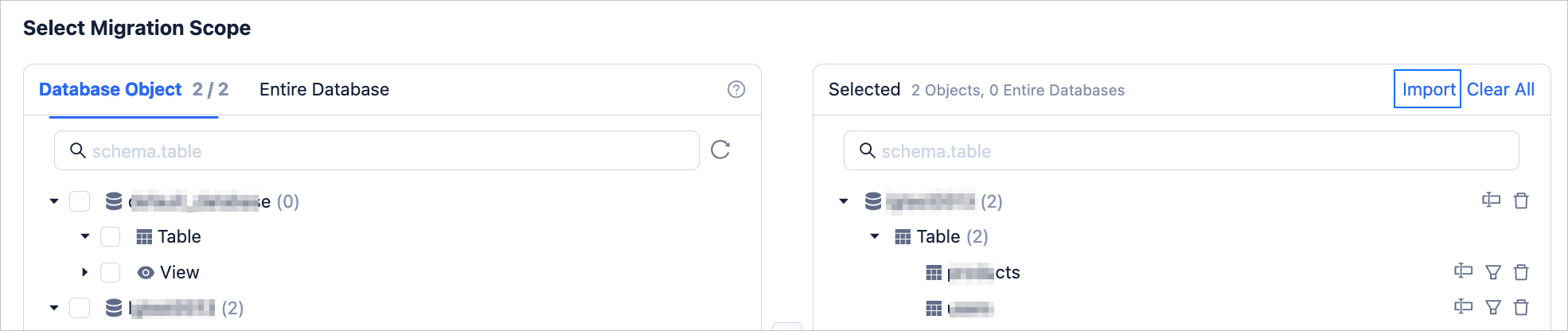
In the prompt box, click OK to enter the Import Migration Objects dialog.
Note
Importing will overwrite previous selections of entire databases and tables. Please proceed with caution.
In the Import Migration Objects dialog, click Import CSV and select your local CSV file to import.

You can also click Download Template to obtain a sample file. Modify this template according to your specific requirements, then click Import CSV to import your migration objects.
The import migration objects interface will display the contents of the CSV file. You can edit this information according to your specific requirements.
Click Validate next to Validity Check to confirm whether the source objects exist and whether the row filter objects are correct.
After passing the validation, click Import.
Configure the subsequent task according to the prompts.