







This topic describes how to archive data by submitting a data cleanup ticket.
Background information
OceanBase Cloud allows you to delete data in the source database after it is archived to the target database, to improve query performance and reduce costs of online storage.
The example in this topic describes how to create a data cleanup task in OceanBase Cloud to clean up data in the employee table in the test1 database in the OceanBase Cloud console.
Note
All data used in this example is for reference only. You can replace the data as needed.
Prerequisites
You have the database account and password to log in to the SQL console.
The table to be cleaned up has a primary key.
Create a data cleanup task
In the left-side navigation pane, click Data Services > Data Lifecycle > Data Cleanup. On the Data Lifecycle page, click Create Job > Data Cleanup.
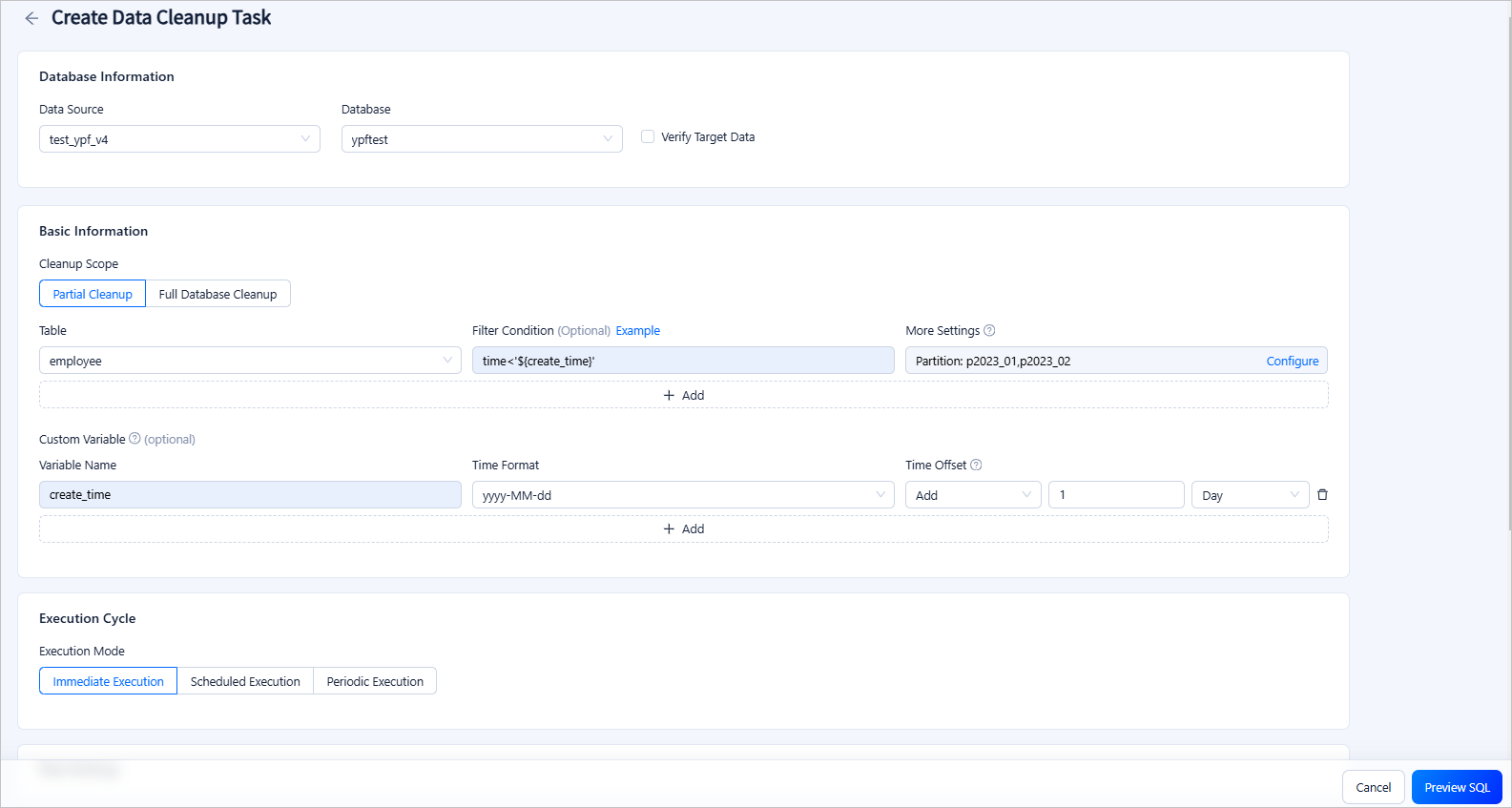
On the Create Data Cleanup Task page, configure the following parameters.
 ParameterDescription
Data Source The data source to which the table belongs. Database The database to which the table belongs. Verify Target Data You can select this option to verify whether the data in the table to be cleaned up is consistent with that in the target table. If not, the cleanup will not be executed. If you select this option, you need to specify the target data source and the target database to which the table table belongs. Cleanup Scope - Partial Cleanup: specifies to clean up only tables that meet filter conditions in the source database.
- You can configure filter conditions by using constants or referencing variables defined in Custom Variable. For example, in
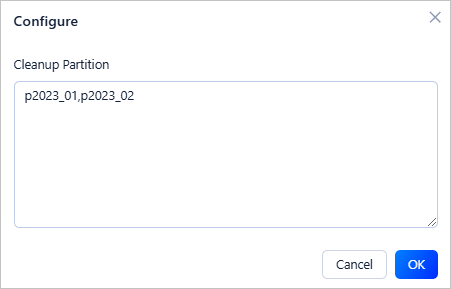
time<'${create_time}',create_timeis the name of a variable configured in Custom Variable, andtimeis a field in the table to be cleaned up. - You can click More Settings > Configure and specify the partitions to be cleaned up.
- You can configure filter conditions by using constants or referencing variables defined in Custom Variable. For example, in
- Full Database Cleanup: specifies to clean up all tables in the source database.
Custom Variable You can define variables and set time offsets to filter rows to be cleaned up. Execution Mode The execution mode of the task. Valid values: Immediate Execution, Scheduled Execution, and Periodic Execution. Task Settings Configure the throttling strategy. - Execution Timeout: If the task is not completed within the specified time, the task will be terminated.
- Data Retrieval Strategy: specifies the way to retrieve target records. Full table scan is stable, suitable for scenarios where a large proportion of the data is to be retrieved. Condition matching is fast and can avoid unnecessary scans and is suitable for scenarios where only a small proportion of the data is to be retrieved.
- Row Limit: specifies the maximum number of rows processed per second.
- Data Volume Limit: specifies the maximum data volume processed per second.
- Use Primary Key for Cleanup: specifies whether to use the primary key for cleanup.
Remarks Optional. Additional information about the task, which cannot exceed 200 characters in length. - Partial Cleanup: specifies to clean up only tables that meet filter conditions in the source database.
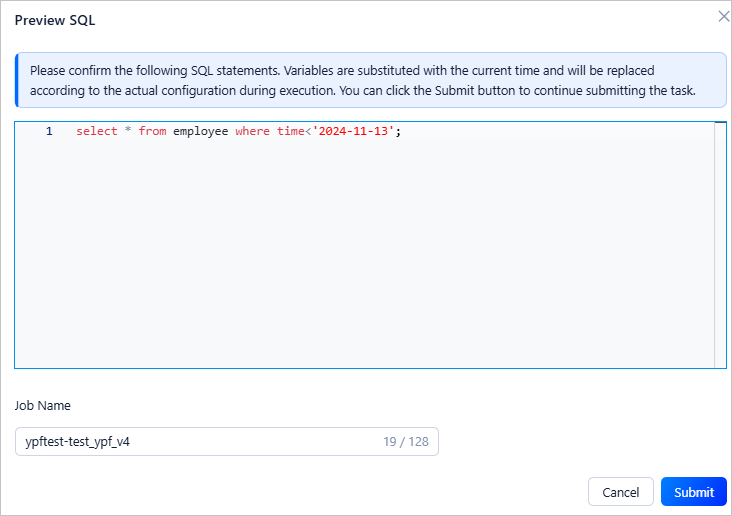
Click Preview SQL to preview the SQL statements and specify a job name. Click Submit to complete the data cleanup task creation.
After the task is generated, you can view the task information in the Data Cleanup list.

View a data cleanup task
View task information
In the data cleanup list, click Details in the Actions column.
On the Job Information tab that appears, view the task type, database name, variable settings, and cleanup scope.
View execution records
In the task details panel, click the Execution Records tab to view the task status and execution details.

View operation records
In the task details panel, click the Operation Records tab to view the task status and records.

Import a data cleanup task
After migrating an instance from ApsaraDB for OceanBase to OceanBase Cloud, you can import the data cleanup tasks of the migrated instance to OceanBase Cloud.
Step 1: Export data cleanup tasks from ApsaraDB for OceanBase
Click Instances in the left navigation bar of the ApsaraDB for OceanBase console.
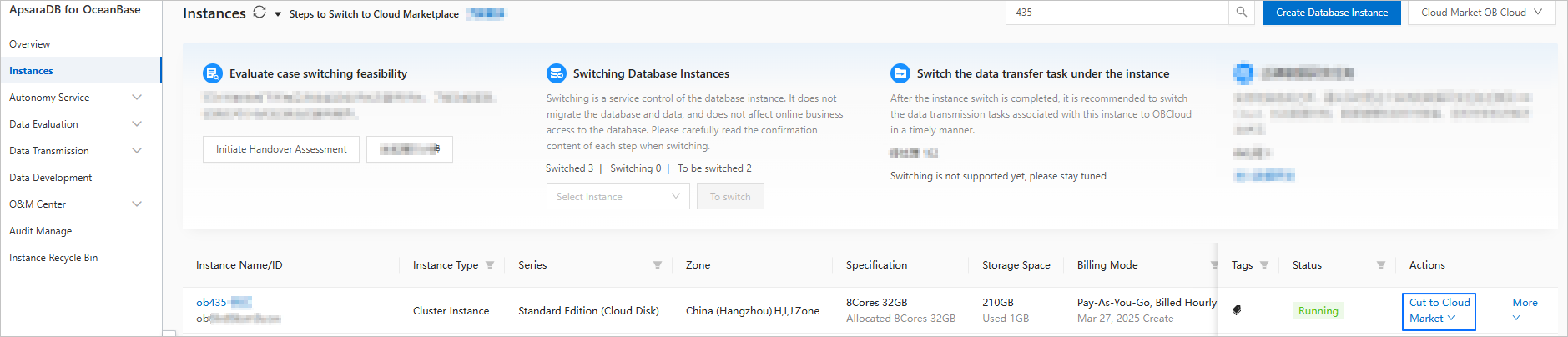
Click Cut to Cloud Market under Actions for the instance.
Click Processing data research and development tasks under Actions after the instance is switched.

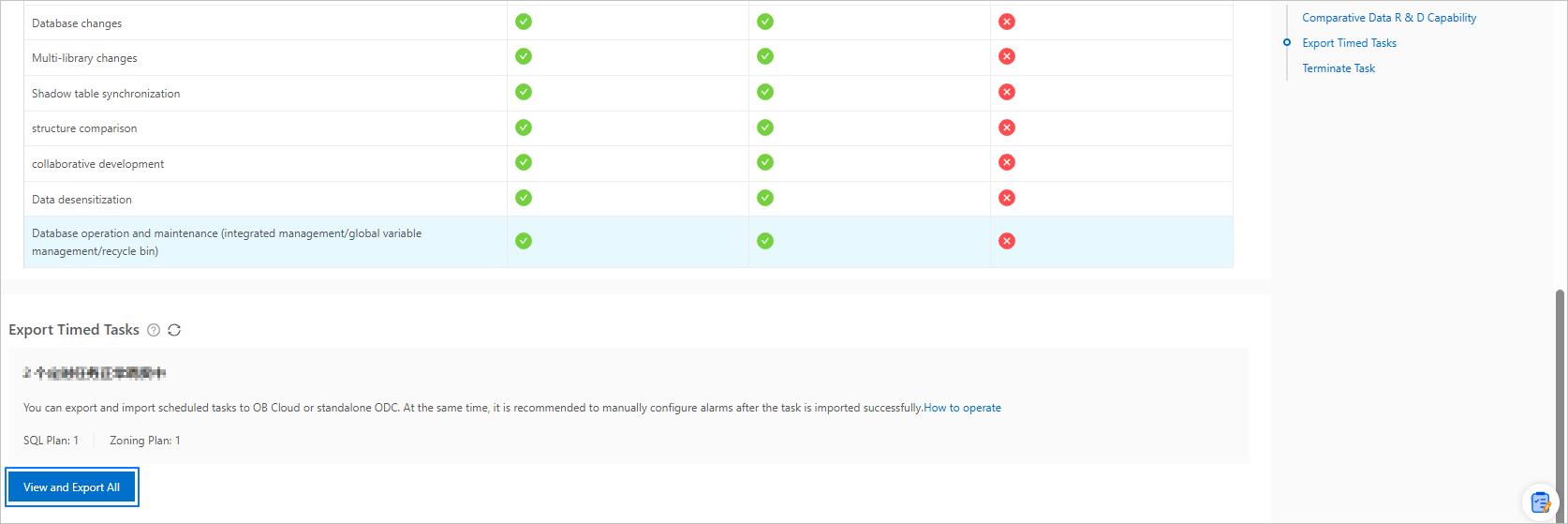
On the Processing data research and development tasks page, click View and Export All to export scheduled tasks to local.
Step 2: Import data cleanup tasks to OceanBase Cloud
Log in to the OceanBase Cloud console, click Data Services > Data Lifecycle , and click ... > Import Job on the Lifecycle page.

Upload the downloaded data cleanup configuration file to the import job page.