







OceanBase Cloud supports stopping and restarting pay-as-you-go instances.
Background information
When business requirements change and some existing database instances are no longer needed, you can stop the instances to temporarily stop their services. If needed later, you can resume the instances. During the specified retention period when the instance is stopped, you are only charged for data storage and data backups in the instance, reducing unnecessary costs and lowering instance management expenses.
Considerations
When the instance is stopped, it may fail to restart due to lack of inventory in cloud computing services. For tasks such as data migration, data archiving, and cleanup, you need to manually restore and check the execution status. Please proceed with caution.
Stop the instance only after all data migration, import, archiving, and cleanup tasks are complete. Otherwise, the runtime failure may occur.
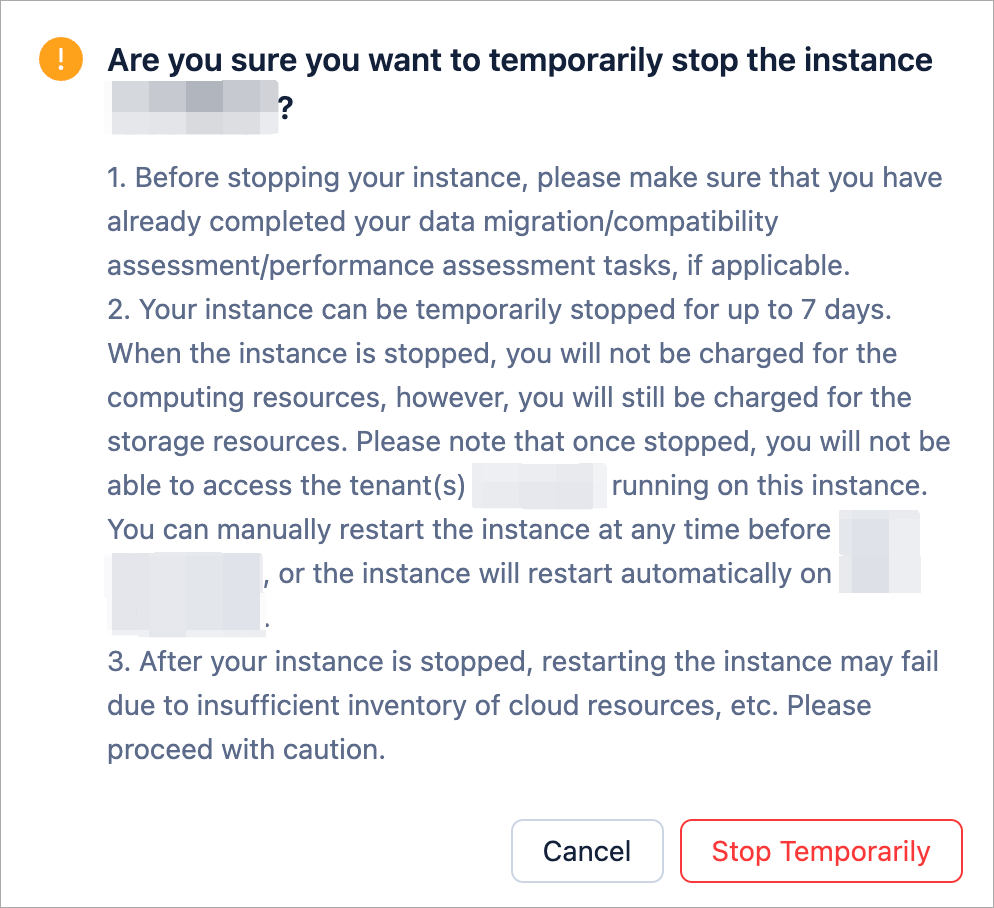
The instance can be stopped for up to 7 days. During this period, compute resources are not billed, but storage resources are still being billed. The instance backup service and the Binlog service will also be stopped. You can manually restart the instances at any time during this period, or the instances will restart automatically after 7 days.
Stop instances temporarily
Log in to the OceanBase Cloud console.
In the left-side navigation pane, click Instances.
On the instance list page, click ... > Stop Temporarily in the Actions column of the target instance.
Note
Only pay-as-you-go instances in the Running state can be stopped.
In the pop-up window, click Stop Temporarily to confirm the operation. The instance will be in the Stopping state.
Note
- No operations are allowed for instances in the Stopping state. Once the operation is completed, the instance will be in the Stopped state.
- For pay-as-you-go instances, if your instances are still in the Stopped state when the payment is overdue, the state of the instances will be changed to Payment Overdue, and the instances will not be able to be restarted.
- When the instances are stopped, you will not be charged for the computing resources, however, you will still be charged for the storage resources, including data backups.
Restart instances
Log in to the OceanBase Cloud console.
In the left-side navigation pane, click Instances.
On the instance list page, click ... > Start in the Actions column of the target instance.
Note
Only pay-as-you-go instances in the Stopped state can be restarted.
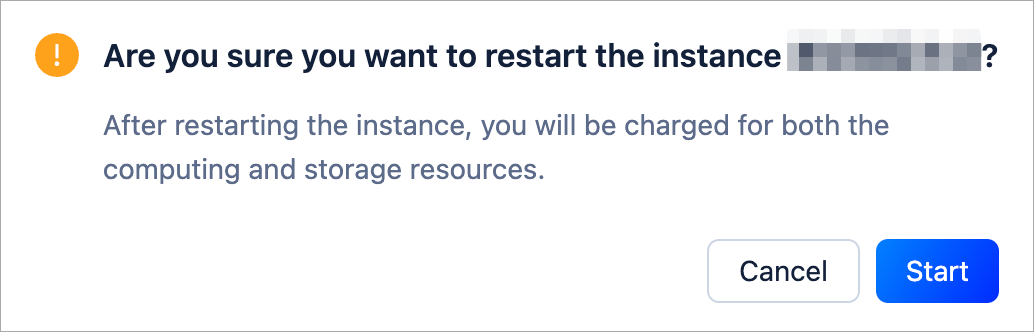
In the pop-up window, click Start to confirm the operation. The instance will be in the Starting state.
Note
No operations are allowed for instances in the Startingb> state. Once the operation is completed, the instance will be in the Running state.