







This topic describes how to manage Git repositories in a workspace.
Background information
Git is a distributed version control system that is used to efficiently manage and record file changes, especially code changes. It is mainly used for version management, collaborative development, and code history tracking in software development. Git is also a fundamental tool for multiple developers to collaborate on projects.
OceanBase Cloud Database supports Git repository management, allowing you to pull remote files to your local environment, view and modify repository files, and perform basic commit operations. This lays the groundwork for future DBT integration, ensuring the proper calling of DBT models and their maintenance. For more information about how to integrate Git, see Integrate Git.
Prerequisites
You have created an instance (analytical) and a super account. For more information, see Create an instance and Create an account.
You have created an access token with the specified permissions, including creating, fetching, and pushing branches. For more information about how to create an access token, see GitHub and GitLab.
Clone the Git repository
Log in to the OceanBase Cloud console.
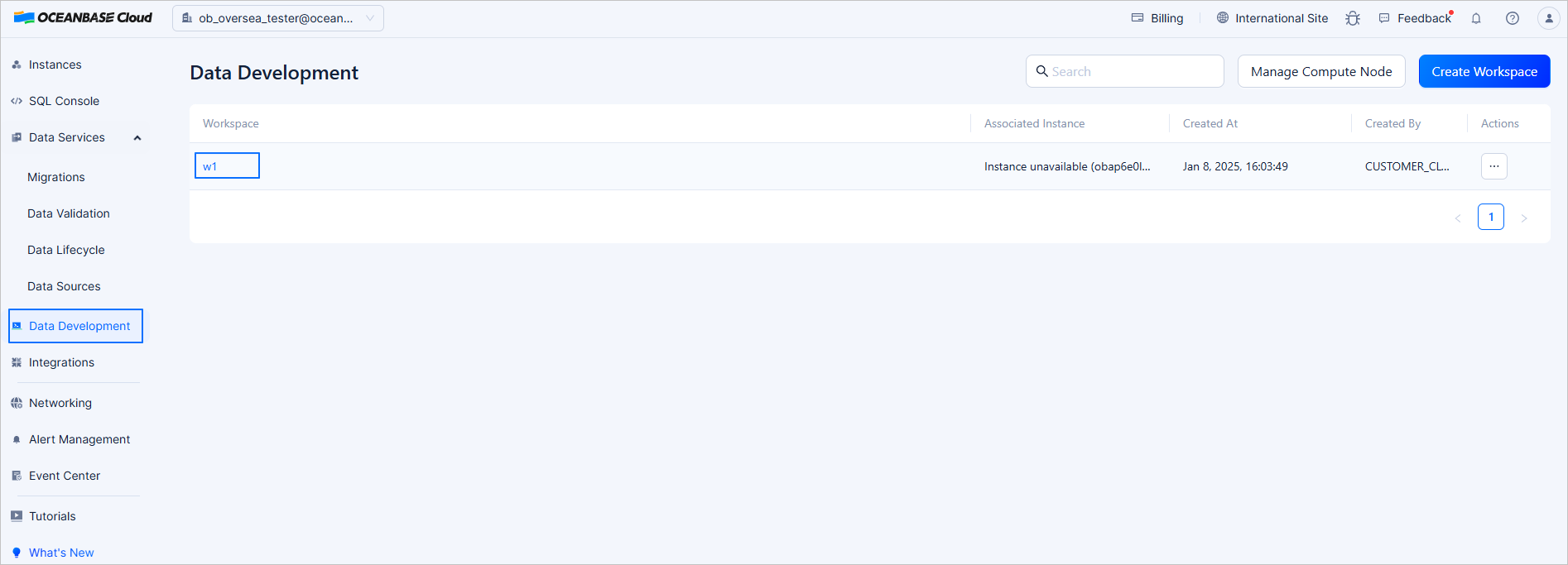
In the left-side navigation pane, select Data Development, and then click the name of the target workspace.
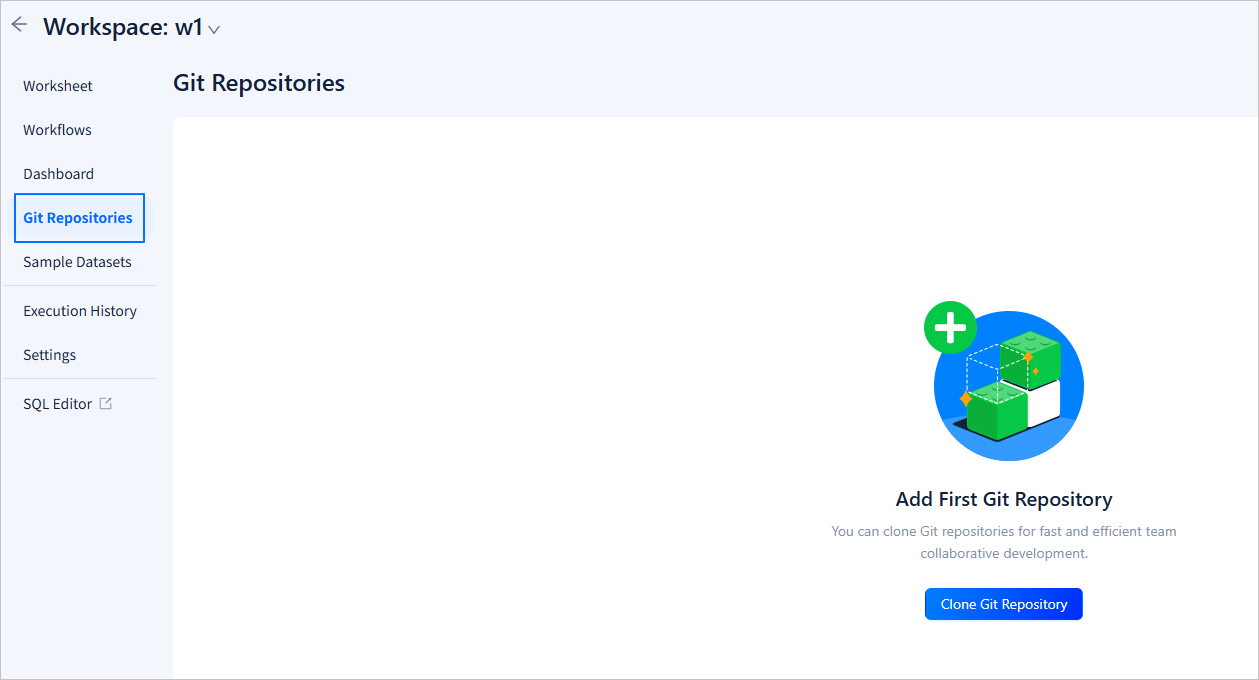
Click Git Repositories on the left and click Clone Git Repository in the upper-right corner of the page.
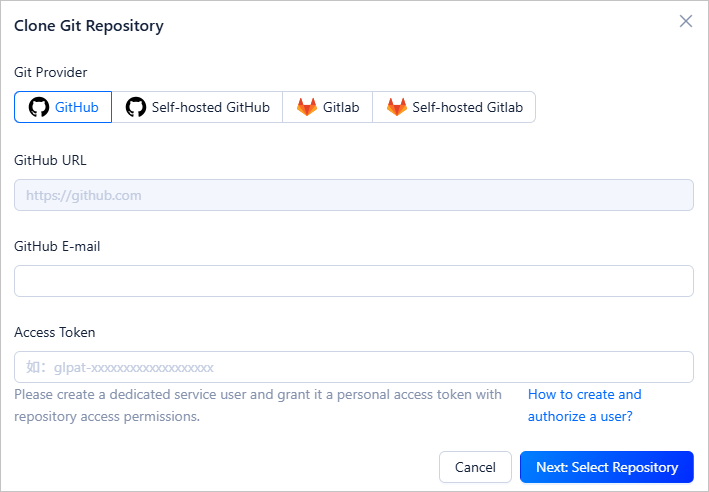
Select a Git provider and enter the account and access token of the Git repository. Then, click Next: Select Repository.
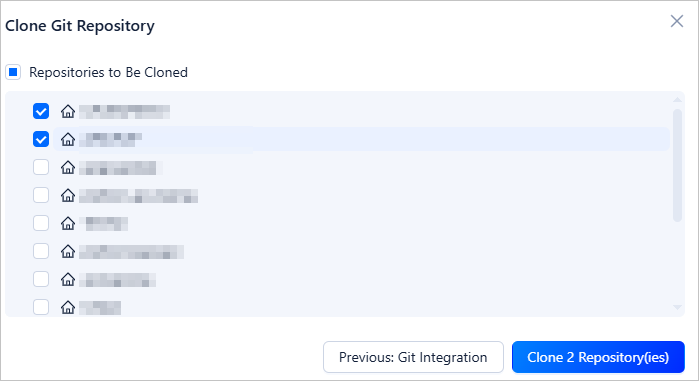
On the repository selecting page, select the target repository and click Clone Repository.
After the clone is completed, you can view the repository information in the list. You can also click the buttons in the actions column to change the access token or remove the repository.
For more information about how to edit and maintain the content of the repository, see Git integration.