







This topic describes how to create and manage worksheets in a workspace.
A worksheet contains files defined during data development, such as SQL and Python files.
In OceanBase Cloud, you can manage and share worksheets in a workspace with other users for collaborative development.
Create a worksheet
Log in to the OceanBase Cloud console, and click Instances in the left-side navigation pane to create an analytical instance and a super account. For more information about analytical cluster instances, see Overview.
In the workspace list, click the workspace name to enter the workspace.
In the left-side navigation pane of the page that appears, click Worksheets. On the Worksheets page, click Create.

Worksheet: Select this button to open the SQL window to create and edit an SQL file.
Folder: Select this button to create a worksheet folder.
Batch Import: Select this button to upload multiple SQL files at a time.
In the SQL window, write an SQL statement to create a table named
employeein thedefault_databasedatabase.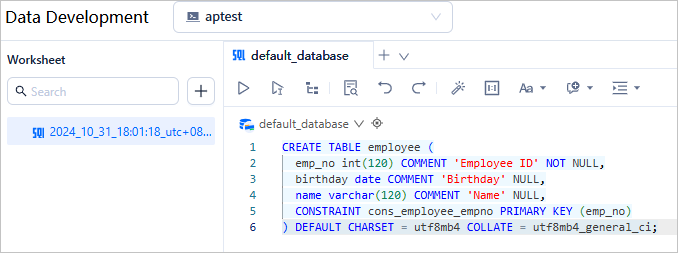
CREATE TABLE employee (emp_no int(120) COMMENT 'Employee ID' NOT NULL, birthday date COMMENT 'Birthday' NULL,name varchar(120) COMMENT 'Name' NULL,CONSTRAINT cons_employee_empno PRIMARY KEY (emp_no)) DEFAULT CHARSET = utf8mb4 COLLATE = utf8mb4_general_ci;As shown in the preceding figure, you can click the Select a database icon in the SQL window to switch the database.
- You can double-click or right-click the worksheet name in the SQL window to rename the worksheet.
In the toolbar of the SQL window, click the
 icon to save the worksheet.
Manage worksheets
In the worksheet list, you can rename, download, or delete an existing worksheet, or select multiple worksheets to download or delete them in batches.
