







After you start a data migration task, you can view the basic information, progress, and status of the task on its details page.
Access the details page
Log on to the OceanBase Cloud console.
In the left-side navigation pane, click Data Services > Migrations.
On the Migrations page, click the Migrate Data tab.
On the Migrate Data tab, click the name of the target task. On the details page that appears, view the basic task information and migration details.
On the Migrate Data tab, you can filter data migration tasks by status, source/target, cloud vendor, region, tag, creation time, task ID, or name. The operations that can be performed on a data migration task vary based on the task status. For more information about how to view or modify the tags of a data migration task, see Manage data migration tasks by using tags.
Note
Project members only have the read-only privilege on tasks.
StatusDescriptionSupported operationNot Purchased The data migration task does not purchase a data migration instance. You can click Purchase to proceed. For more information, see Purchase a data migration instance. Purchase, Alerts, Clone, View Objects, View/Modify Parameters, and Release Not Started The data migration task is not started. Start, Alerts, Clone, Change Configuration, View/Modify Objects, View/Modify Parameters, and Release Running The data migration task is running. Stop, Alerts, Change Configuration, Clone, View/Modify Objects, and View Parameters Stopped The data migration task has been manually stopped. You can click Resume next to the task to resume the task. Note
A data migration task remaining in the Stopped state for a long time may fail to be resumed depending on the retention period of incremental logs.
Resume, Alerts, Clone, View/Modify Objects, View/Modify Parameters, and Terminate Failed The data migration task failed. You can click the task name and view the error information on the details page. Resume, Alerts, Clone, View/Reduce Objects, View Parameters, and Terminate Completed The data migration task has been completed. Specifically, the data migration service has migrated specified data to the target database based on the specified migration mode. Alerts, Clone, View Objects, View Parameters, and Terminate Compacting The process of merging the data migration task of the modified migration objects with the subtask of the modified migration objects. Alerts, Stop, Clone, View Objects, and View Parameters Modifying The migration objects of the data migration task is being modified. Alerts, Clone, View Objects, and View Parameters Modifying Configurations The data migration task is upgrading or downgrading the instance specifications.
If your instance specifications cannot meet your business needs, you can upgrade or downgrade the instance specifications of the data migration task. For more information, see Migrations specification.Alerts, Clone, View Objects, View Parameters Terminating The data migration task is being terminated. View Objects and View Parameters Terminated The data migration task is terminated. Clone, View Objects, View Parameters, and Release You can modify the task name for tasks in the Not Started, Running, Stopped, and Failed states. For more information, see Rename a data migration task.
View basic information
The Basic Information section displays the basic information about a data migration task. Click the icon on the left side of the section to expand or collapse it. When collapsed, the section still displays a summary of the source and target connections.
Parameter |
Description |
|---|---|
| Connection Details | Click Connection Details to view detailed information about the source and target of the data migration task, including cloud vendor, database type, instance type, and region. |
| Task ID | The unique ID of the data migration task. |
| Migration Type | The migration type selected when the data migration task was created. |
| Created At | The time when the data migration task was created. |
| Specification | Five specifications are supported: MICRO, SMALL, MEDIUM, LARGE, and XLARGE. For more information, see Data Migration Specification Description. |
| Billing Method | Currently, only Pay-as-You-Go is supported. |
You can perform the following operations:
Rename the data migration task. For more information, see Rename a data migration task.
Start, stop, or resume the data migration task. For more information, see Start, and stop a data migration task.
If the data migration task is in the Not Started state, you can click Start in the upper-right corner.
If the data migration task is in the Running or Compacting state, you can click Stop in the upper-right corner.
If the data migration task is in the Stopped or Failed state, you can click Resume in the upper-right corner.
Configure alert monitoring
You can click Alerts next to the task name to enable alert monitoring to keep track of the running status of the data migration task. For more information, see Configure alert monitoring.
View migration objects
Click View Objects in the upper-right corner to view the migration objects of the data migration task. You can also modify the migration objects when a data migration task is running. For more information, see View and modify migration objects.
View/modify parameters
Click View Parameters or Modify Parameters in the upper-right corner to view the parameters configured when the data migration task was created. For more information, see View and modify migration parameters.
Clone the data migration task
Click More in the upper-right corner, and select Clone to clone the data migration task. During the cloning process, you can modify the settings as needed. For more information, see Clone data migration tasks.
Terminate the data migration task
You can click ... > Terminate Task in the upper-right corner of the page for a data migration task in the Stopped, Failed, or Completed state. For more information, see Terminate a data migration task.
Release the data migration task
You can click ... > Release in the upper-right corner of the page for a data migration task in the Not Purchased, Not Started, Stopped, Completed, or Failed state. For more information, refer to Release data migration tasks.
View migration details
The Migration Details section displays the status, progress, start time, completion time, and total duration of all subtasks.
Schema migration
Schema migration aims to migrate the definitions of data objects, such as tables, indexes, constraints, comments, and views, from the source database to the target database. Temporary tables are automatically filtered out during schema migration. If the source database is not an OceanBase database, the data migration service performs format conversion and encapsulation based on the syntax definition and standard of the type of the target tenant of OceanBase Database, and then replicates the data to the target database. For more information, see Instructions on Schema Migration.
Source incremental log pull
To align the status of components with the status of steps and help you identify and resolve issues quickly, data migration supports the Source Incremental Log Pull step. When the migration type includes Full Migration and Incremental Synchronization, start the Source Incremental Log Pull step before starting the full migration step. When the migration type includes Incremental Synchronization, start the Source Incremental Log Pull step before starting the incremental synchronization step.
The information displayed on the page varies depending on the status of the Source Incremental Log Pull step.
Not Started/Starting: No data is displayed.
Running/Monitoring: Displays the start time, earliest pull position, and current pull position of the corresponding Store component.
Stopped: Displays the start time, stop time, earliest pull position, and current pull position of the corresponding Store component.
Failed: Displays the start time, exception time, earliest pull position, and current pull position of the corresponding Store component.
Ended: Displays the start time and end time of the corresponding Store component.
Full migration
Full migration aims to migrate existing data from tables in the source database to corresponding tables in the target database. On the Full Migration page, you can filter objects by source and target databases, or select View Objects with Errors to filter out objects that hinder the overall migration progress. You can also view related information on the Table Objects, Table Indexes, and Full Migration Performance tabs. The status of a full migration task changes to Completed only after the table objects and table indexes are migrated.
On the Table Objects tab, you can view the names, source and target databases, estimated data volume, migrated data volume, and status of tables. Supported statuses include Migrating, Failed, Completed, and Stopping. You can filter objects based on these statuses as needed.
On the Table Indexes tab, you can view the table objects, source and target databases, creation time, end time, time consumed, and status. You can also view the index creation syntax and remove unwanted indexes.
On the Full Migration Performance tab, you can view diagrams on the performance of the current migration task, including the RPS, migration traffic, and read/write time of the source or target database, to help you identify performance-related issues, if any. You can also click Intelligent Diagnosis in the upper-right corner to perform performance diagnosis and optimization for the running full migration task. For more information, see Intelligent diagnosis.
You can combine full migration with incremental synchronization to ensure data consistency between the source and target databases. If any objects fail to be migrated during full migration, the causes of the failure are displayed. You can also remove failed objects one by one or in batches.
Notice
If you do not select Schema Migration when choosing the migration type, the data migration service migrates the fields that match those in the target database from the source database during the full migration, and does not check whether the table schemas are consistent or not.
Incremental synchronization
After incremental synchronization starts, the data migration service synchronizes the data that has been changed (added, modified, or deleted) in the source database to the corresponding tables in the target database. When there is continuous writing in the source database, the data migration service starts pulling the incremental updated data from the source database before full migration starts, and then parses, packages, and stores it.
After full migration is completed, the data migration service obtains the incremental data pulled earlier. The incremental data is synchronized to the target instance after being filtered, mapped, and converted. If you execute a DDL statement in the source database, which causes the data migration task to fail, the DDL statement and the Skip button are displayed. You can click Skip and confirm your operation.
Notice
This operation may lead to data structure inconsistency between the source and target databases. Proceed with caution.
For a data migration task in the Running state, you can view its latency, current timestamp, and incremental synchronization performance in the incremental synchronization section. The latency is displayed in the following format: X seconds (updated Y seconds ago). Normally, Y is less than 20.
For a data migration task in the Stopped or Failed state, you can enable DDL/DML statistics collection to collect statistics on database operations performed after this feature is enabled. You can also view the specific information about incremental synchronization objects and the incremental synchronization performance.
The Synchronization Objects tab displays the statistics about table-level DML statements executed for each incremental synchronization object in the current task. The numbers displayed in the Change Sum, Delete, Insert, and Update fields in the section above the Synchronization Objects tab are the sums of the corresponding columns on this tab.
The Synchronization Performance tab shows the following information:
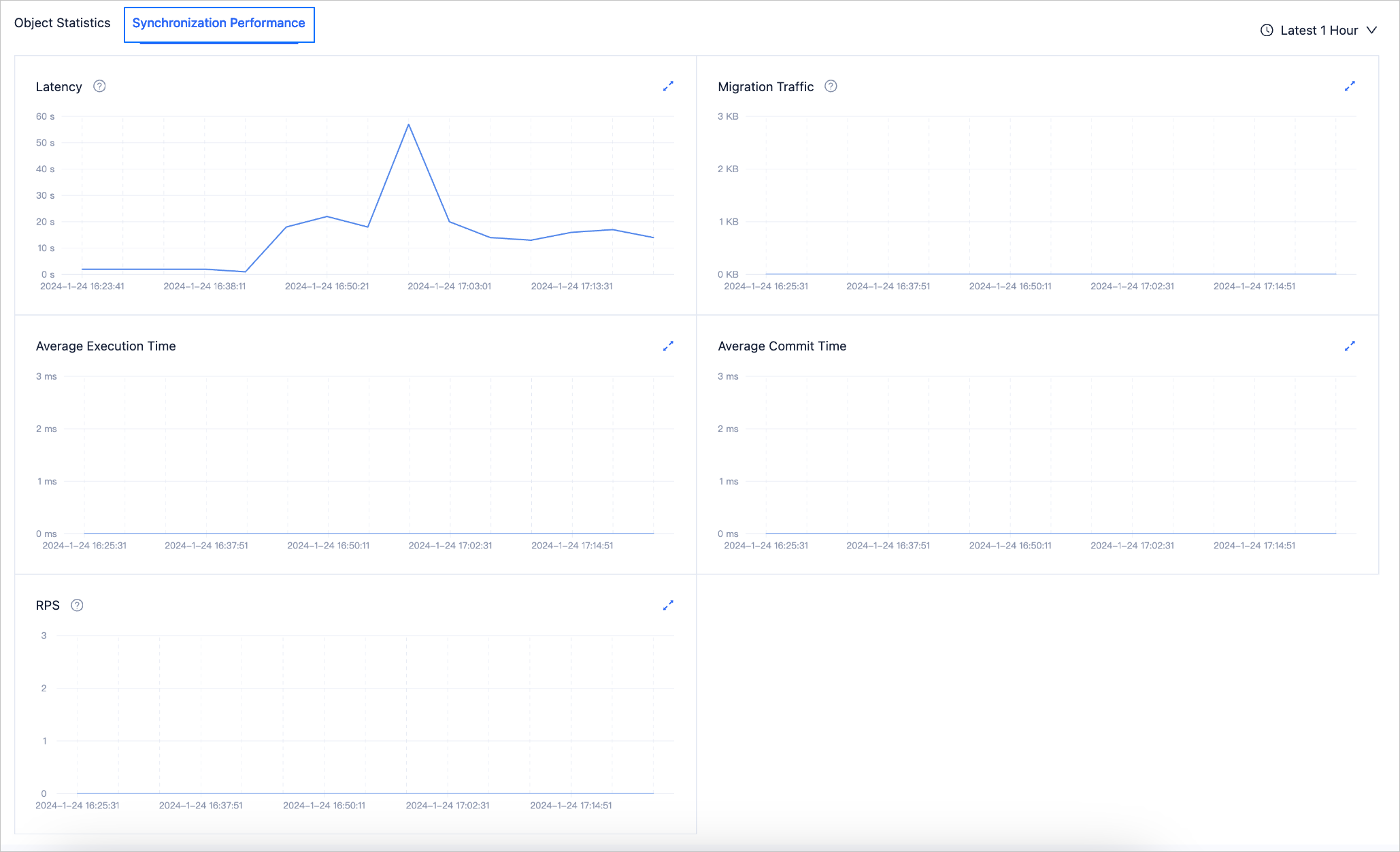
Latency: the latency in synchronizing incremental data from the source database to the target database, in seconds.
Migration Traffic: The throughput of data flow for the synchronization from the source database to the target database, measured in KB/s.
Average Execution Time: the average execution time of an SQL statement, in ms.
Average Commit Time: the average commit time of a transaction, in ms.
RPS: The number of records processed per second.
You can also click Intelligent Diagnosis in the upper-right corner to perform performance diagnosis and optimization for incremental synchronization tasks that are running or being monitored. For more information, see Intelligent Diagnosis.