







This topic describes how to view and modify the migration objects of a data migration task in OceanBase Cloud Migrations.
Background
If the limits are met, you can add or reduce migration objects of a data migration task during migration. The changes made during the running of the task will be recorded. After an object addition task is completed, it will be integrated with the original task that is associated. After the task is integrated with the original task, the original task runs normally and the object addition task is automatically released.
Limits
When the data migration task is in the Not Started, In Progress, or Paused state, you can add or reduce migration objects.
Notice
For data migration tasks that are in the Paused state, if the Full Migration or Incremental Sync steps are in the Paused state, you cannot add migration objects.
For a data migration task in the Failed state, you cannot add its migration objects.
For a data migration task in the Modifying or Integrating state, you cannot modify its migration objects again.
If a data migration task is in the Paused or Failed state in the full migration or incremental synchronization step, you cannot add its migration objects.
If you add migration objects to a data migration task between a PostgreSQL database and an OceanBase Database, and only select incremental synchronization, you cannot set the start point for incremental synchronization. The start point is based on the start time of incremental synchronization.
View migration objects
Log on to the OceanBase Cloud Console.
In the left-side navigation pane, click Data Services > Migrations.
On the Migrations page, click Migrate Data tab.
On the Migrate Data tab, click the ... next to the target task and select View Objects.
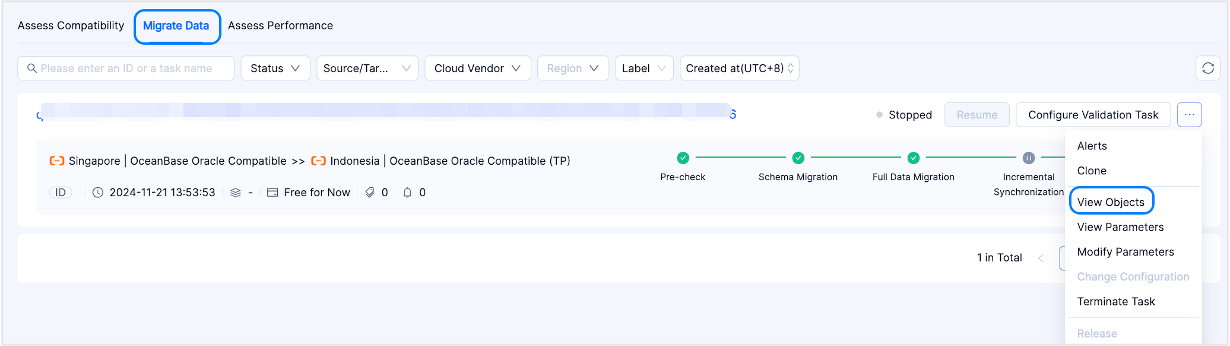
You can also click the name of the target task to enter the task details page, and then click View Objects in the upper right corner.
In the View Objects dialog box, view information on the Migration Objects and Modification History tabs.
The Migration Objects tab displays the migration objects of the current task. You can Add Objects or Remove Objects.
The Modification History tab displays the modification time, status, and operation of all object modifications.
Add migration objects
On the details page of the target task, click View Objects in the upper-right corner.
You can also go to the target task details page and click View Objects in the upper right corner.
In the View objects dialog box, click Add objects.
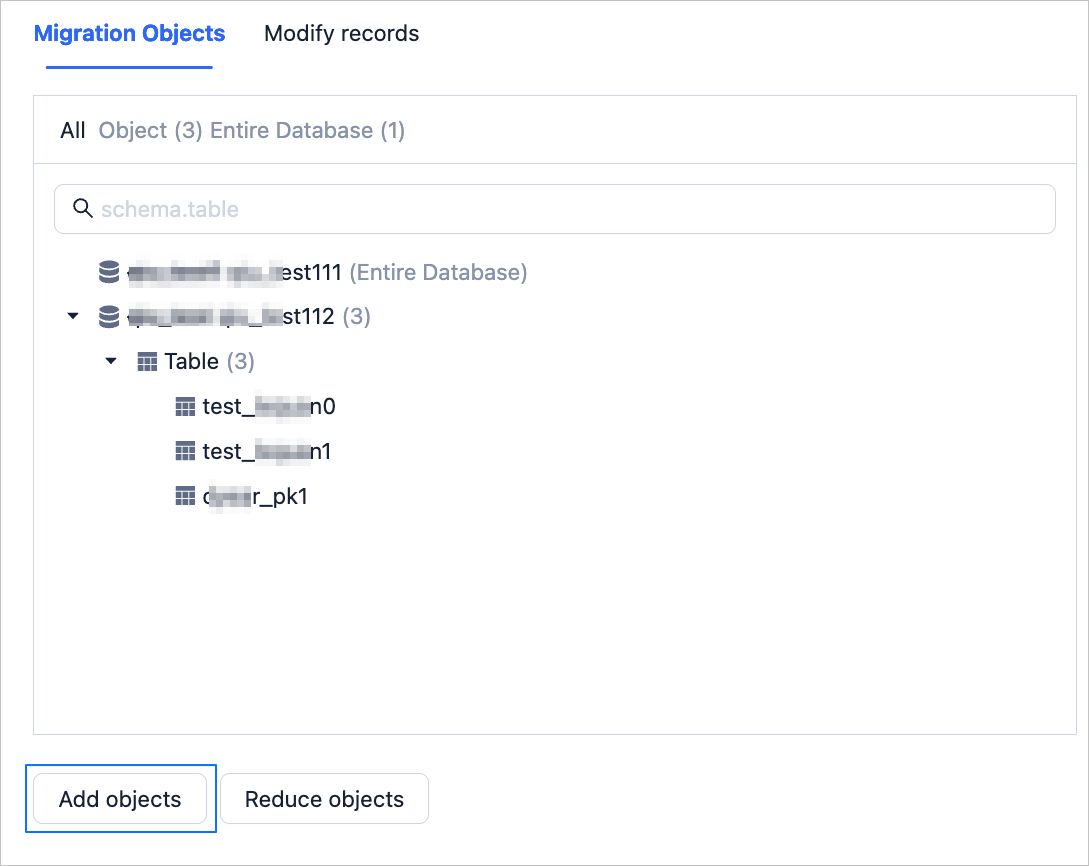
In the Add objects > Select objects, select the objects to be migrated and click > to add them to the list on the right. You can select tables and views of one or more databases as the migration objects.
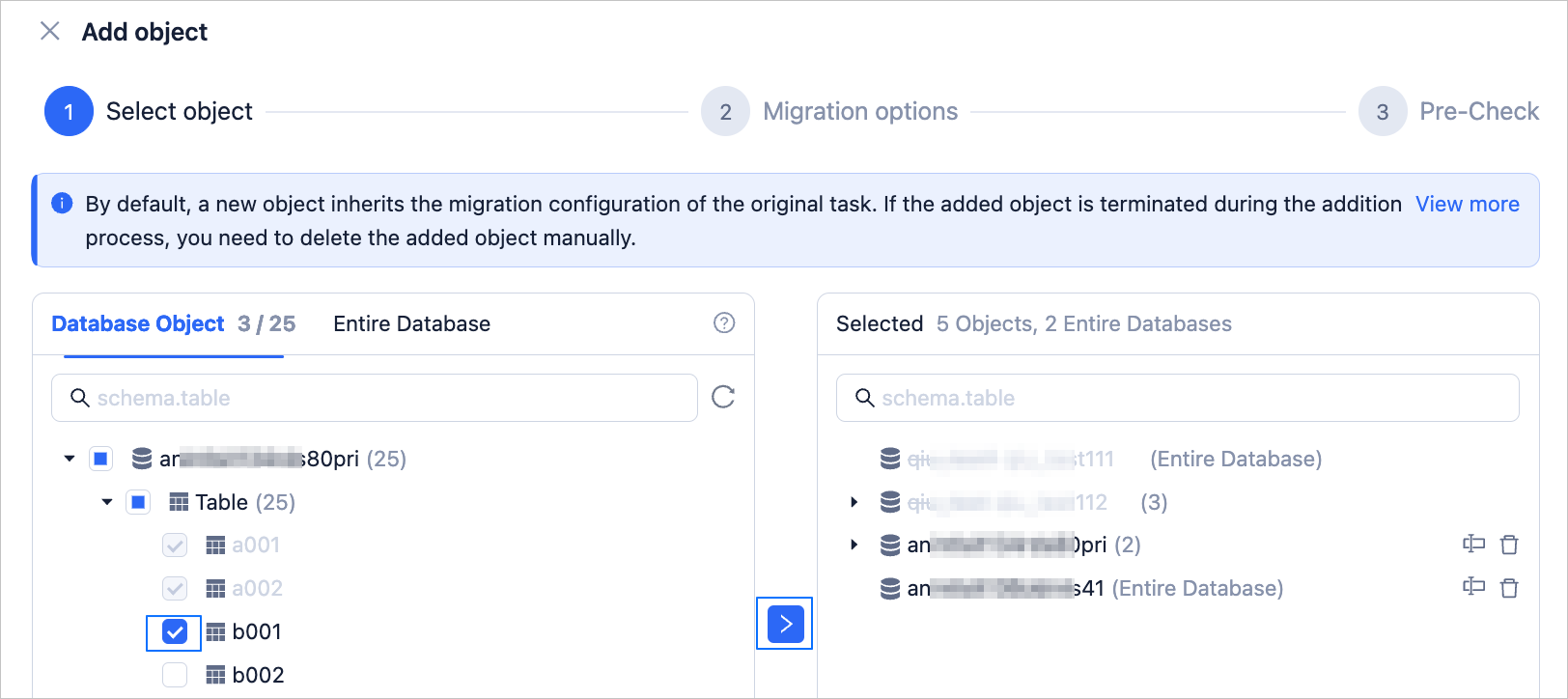
After you select the migration objects to add, you can perform operations such as renaming objects, setting row-based filtering, and viewing column information.
Notice
By default, the added objects will inherit all configurations of the data migration task. If you abort the object addition operation, you must manually delete the objects that have been added to the target database.
Then, click Next.
On the Add object > Migration Options page, configure your parameters.
ParameterDescriptionSchema Migration Responsible for migrating data objects such as databases, tables, and views from the source database to the target database. When the source and target are different types of data sources, Migrations will convert and assemble data according to the syntax definition standards of the target database and then copy data to the target database. Full Migration Full migration is responsible for migrating the existing data within the tables from the source database to the corresponding tables in the target database. After you select Full Migration, you need to configure Handle Non-empty Tables in Target Database and Post-indexing. - Handling policies include Stop Migration and Ignore.
Stop Migration: When there is data in the target table object, Migrations will throw an error and stop migration. Please process the target data before you continue the migration. If an error occurs and you click resume, Migrations will ignore this configuration option and continue to migrate table data. Please proceed with caution.
Ignore: When there is data in the target table object, if the existing data conflicts with the new data, Migrations will log the conflict data and keep the original data unchanged during the data writing process. - Post-migration Indexing can shorten the full migration time. You can set whether to allow the creation of indexes after the full data migration is completed here.
Notice
This parameter is displayed only when both Schema Migration and Full Migration are selected.
Only non-unique indexes support post-migration indexing.
Incremental Synchronization To ensure the final task state consistency, incremental synchronization here does not support modifications and remains consistent with the original task selection. - Handling policies include Stop Migration and Ignore.
After configuration is completed, click Next, and the system will automatically do a pre-check on the added objects.
After all the inspection tasks have passed, click Confirm.
After the object addition operation begins, records will be generated on the page that appears after you choose View Objects > Object Modifications. You can view details of the records on this page. The status of object addition records can be Pending, Canceled, Modifying, Running, Aborted, Integrating, Succeeded, or Failed. The operations that you can perform on an object addition record and the status of the original task vary with the status of the object addition record.
Note
If the original task is in the Not Started state, a modification record in the Successful state will be generated for an object addition operation. If the original data synchronization task is in the Paused state, a modification record in the Pending state will be generated for an object addition operation.
The status of an object addition record changes only when the original data synchronization task is in the Running state, and the status of the original task changes along with the status of the object addition record. The following table describes more information.
Status of an object addition recordSupported operationsStatus of the original taskPending View details and cancel. Running Canceled None Running Modifying None Modifying Running View details, view sub-tasks, and abort. Modifying Aborted View details, view sub-tasks. Running Integrating View details, view sub-tasks. Integrating Succeeded View details, view sub-tasks. Running Failed View details, view sub-tasks, and retry. Modifying/Integrating
Reduce migration objects
On the Migrate Data tab, click the ... next to the target task and select View Objects.
You can also click the name of the target task to enter the task details page, and then click View Objects in the upper right corner.
In the View Objects dialog box, click Remove Object.
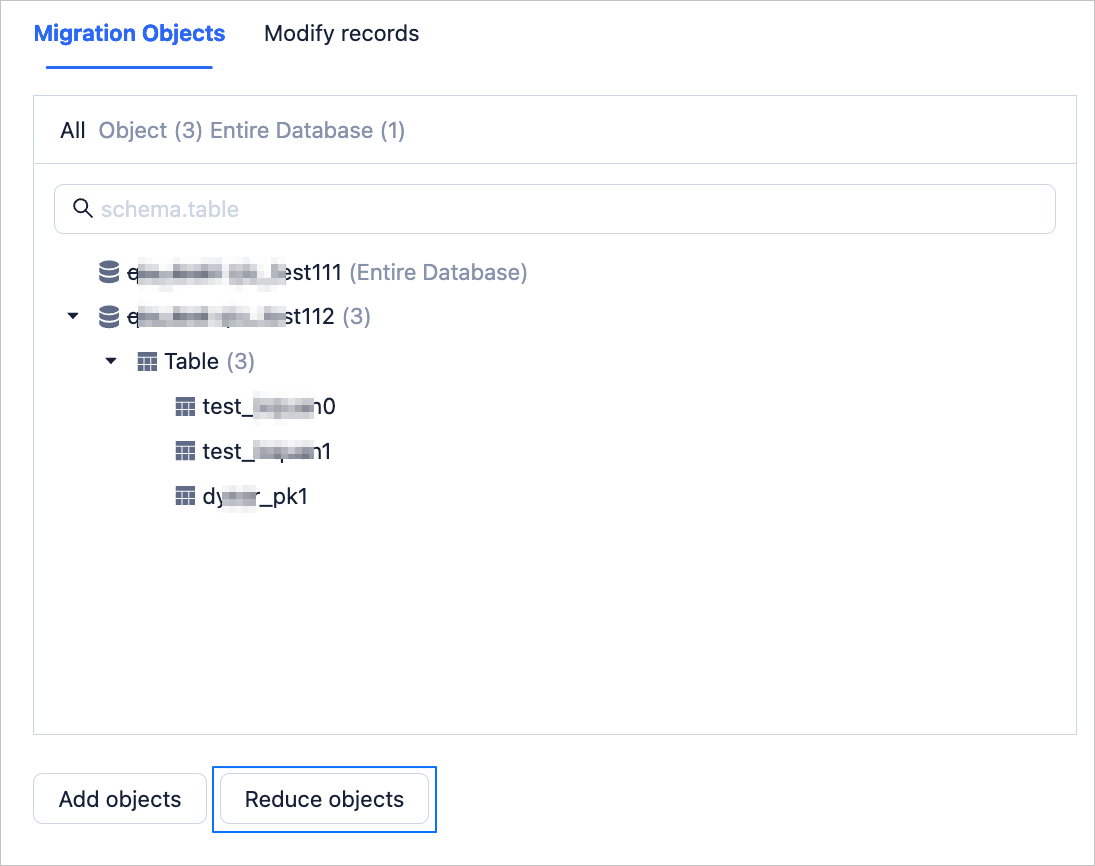
In the Selected section on the right side of the Remove Objects dialog box, click the Reduce icon next to the tables or entire databases that do not need to be migrated to add them to the list on the left side.
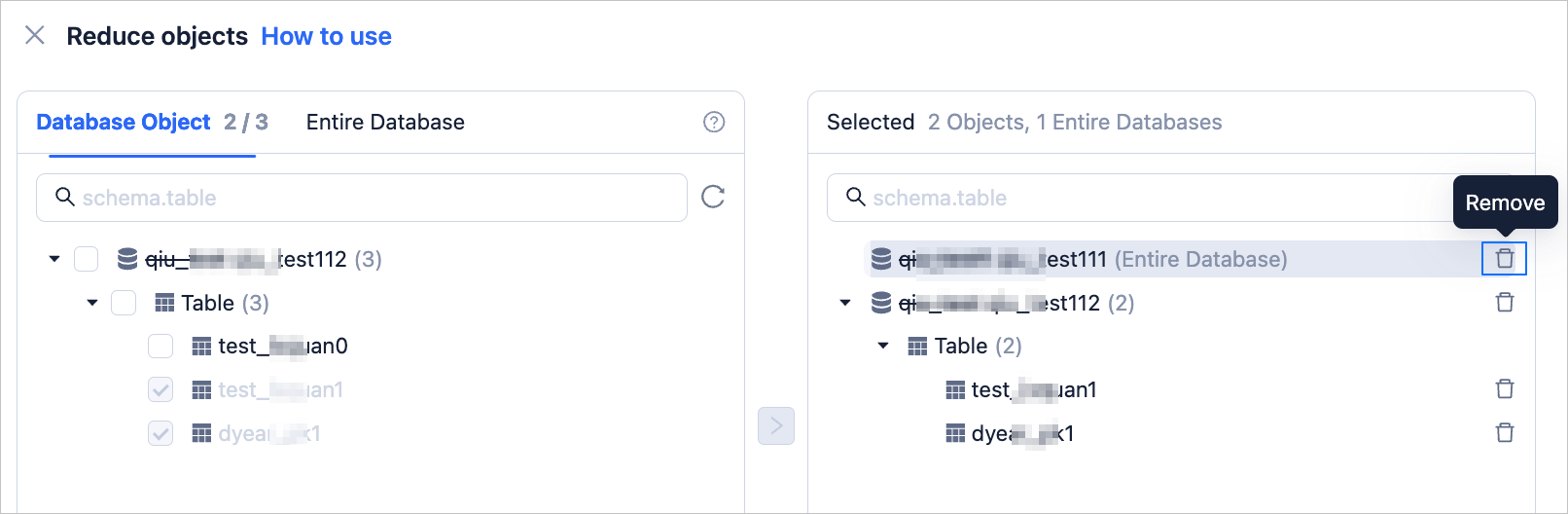
After you are done with your selections, click OK.
In the confirmation dialog box that appears, confirm the migration object to reduce and click OK.
If the task is in the paused, failed, or running state, after you click OK, the migration object is immediately reduced from the target database.
Notice
A reduced migration object cannot be recovered, so proceed with caution.
The final result of the object removal operation is either succeeded or failed for all migration objects.
After the object removal operation begins, records will be generated on the page that appears after you choose View Objects > Object Modifications. You can view details of the records on this page. The status of object removal records can be Pending, Canceled, Modifying, Succeeded, or Failed. The operations that you can perform on an object removal record and the status of the original task vary based on the status of the object removal record.
Status of an object removal recordSupported operationsStatus of the original taskPending View details and cancel. Running Canceled None Running Modifying None Modifying Succeeded View details. Running Failed View details and retry. Modifying