If you select the endpoint connection method when creating a data source or a data migration task with AWS as the cloud provider, you need to configure it first. This topic describes how to do so.
Prerequisites
You have created a database instance of the corresponding type and obtained its connection address within your VPC. For example, a MySQL instance typically has a single address pair in the address:port format, while a Kafka instance may have multiple address pairs (broker_address1:broker_port1, broker_address2:broker_port2, etc.).
You have created an Amazon MSK cluster and associated a key. For more information, see Configure SASL/SCRAM authentication for an Amazon MSK cluster.
If resources such as the load balancing service or virtual server associated with the endpoint service have security group configurations enabled, you need to add the private IP address belonging to the OB Cloud data source to the corresponding security group. For details, see Private IP address range description.
Terms
Private link: A high-availability, scalable technology that supports private connections between your VPC and supported AWS services. You can create your own VPC endpoint service (supported by private links) and enable other services to access your services.
Target group: A target group of a network load balancer used to route requests to one or more registered targets.
Network load balancer: It uses the protocol and port number specified when creating the target group to route requests received from service users to your service.
Endpoint service: Your own applications or services within your VPC. Other AWS customers can create endpoints from their VPCs to your endpoint service. If you need to use AWS Private Link, create a VPC endpoint for your service in your VPC.
Obtain the instance IP address
MySQL database instances include Aurora MySQL, RDS MySQL, and self-managed MySQL.
Oracle database instances include RDS Oracle and self-managed Oracle.
OceanBase Database instances include Cluster Instances (Transactional), Cluster Instances (Analytical), and self-managed databases. This topic only describes how to obtain the IP address for a self-managed database. Obtain the appropriate type of IP address based on your actual situation.
Kafka instances include Cloud Kafka and self-managed Kafka.
PostgreSQL database instances include Aurora PostgreSQL, RDS PostgreSQL, and self-managed PostgreSQL.
TiDB database instances currently support only self-managed TiDB.
Obtain the IP address for an Aurora MySQL/PostgreSQL instance
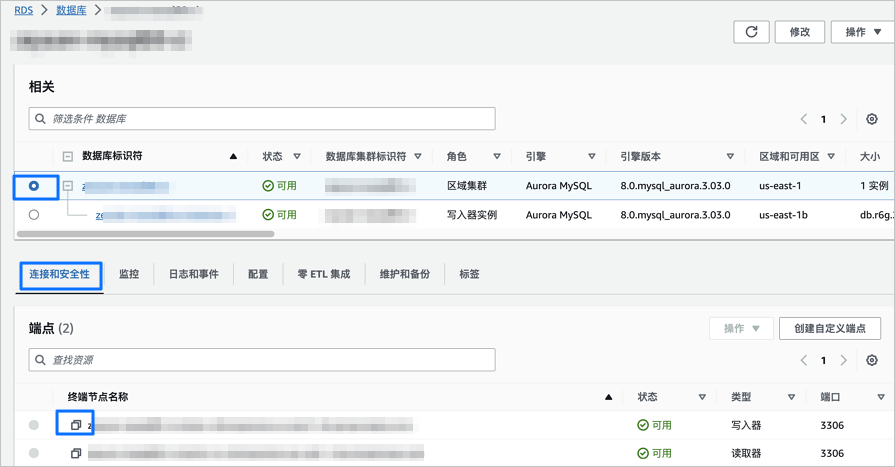
Log in to the Databases page of the Amazon RDS/PostgreSQL console.
Click the name of the target Aurora MySQL/PostgreSQL database instance. On the Connections and Security tab, copy the Endpoint Name.
If the Aurora MySQL/PostgreSQL database instance allows public access, you can run the following command on any device with public network access to obtain the instance's IP address.
// Replace the domain name example.example-region.rds.amazonaws.com with the endpoint name you copied in the previous step.
nslookup <example.example-region.rds.amazonaws.com>
A sample response is shown below.
// ...
Name: example.example-region.rds.amazonaws.com
Address: xxx.xxx.xxx.1
//...
Log in to the Network Interfaces console and search for the public IP address obtained in the previous step in the search box to find the corresponding Primary Private IPv4 Address.

Copy the obtained Primary Private IPv4 Address. This address will be used in the Create Target Group step.
Obtain the IP address of an RDS MySQL/Oracle/PostgreSQL instance
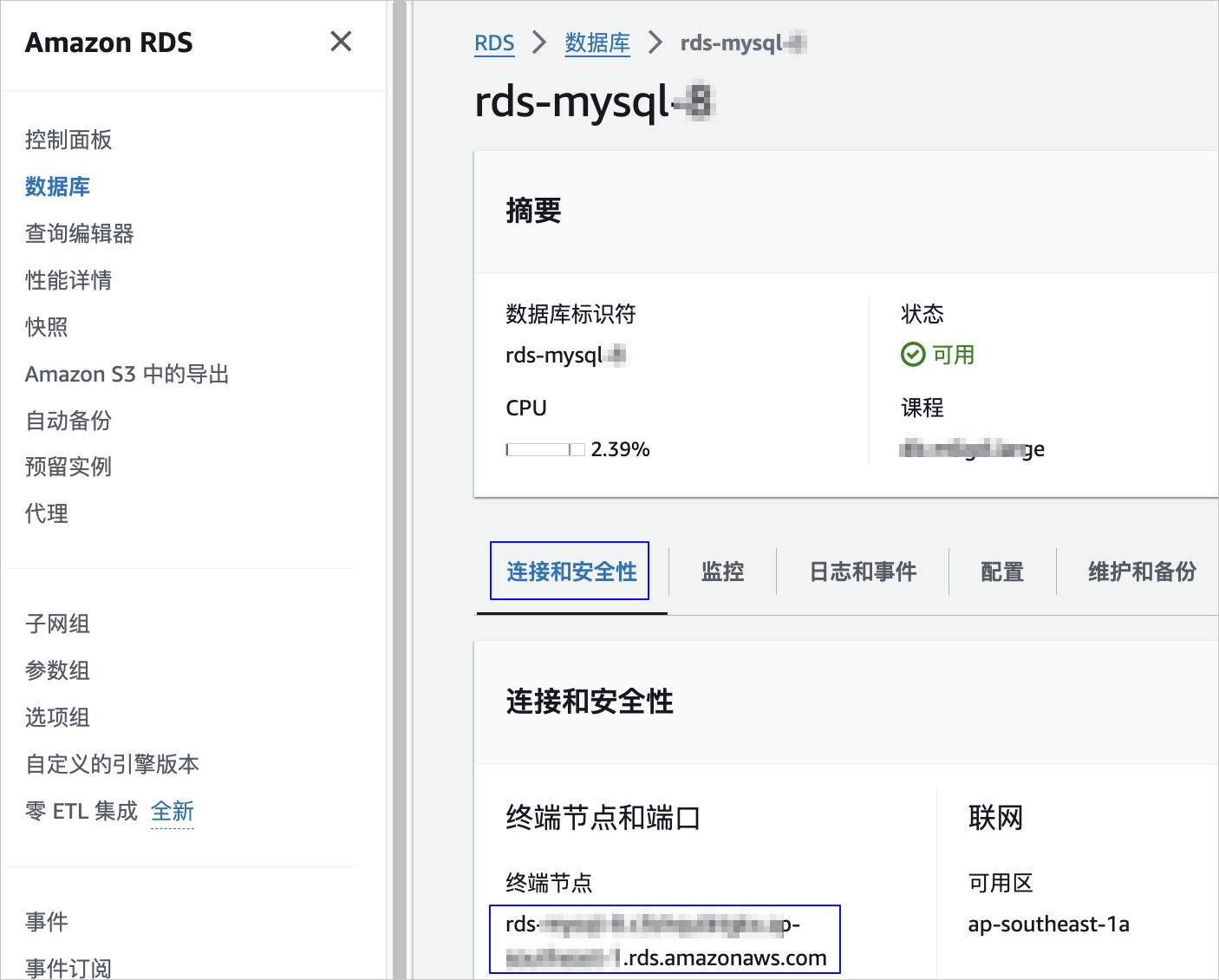
Log in to the Databases page of the Amazon RDS console.
Click the name of the target RDS MySQL/Oracle/PostgreSQL database instance. On the Connections and Security tab, copy Endpoint.
If the RDS MySQL/Oracle/PostgreSQL database instance allows public access, you can run the following command on any device with public network access to obtain the instance's IP address.
// Replace the domain name example.example-region.rds.amazonaws.com with the endpoint name copied in the previous step.
nslookup <example.example-region.rds.amazonaws.com>
A sample return result is as follows:
// ...
Name: example.example-region.rds.amazonaws.com
Address: xxx.xxx.xxx.1
//...
Log in to the Network Interfaces console and search for the public IP address obtained in the previous step in the search box to find the corresponding Primary Private IPv4 Address.
Copy the obtained Primary Private IPv4 Address. This address will be used in the Create Target Group step.
Obtain Kafka connection information and configure Nginx
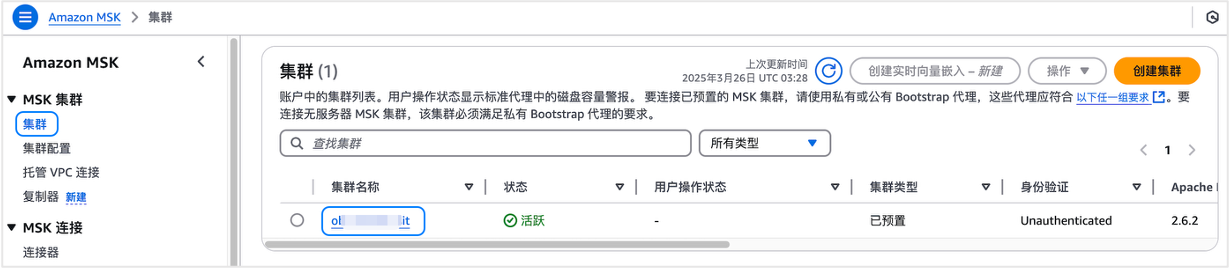
Log in to the Amazon MSK console.
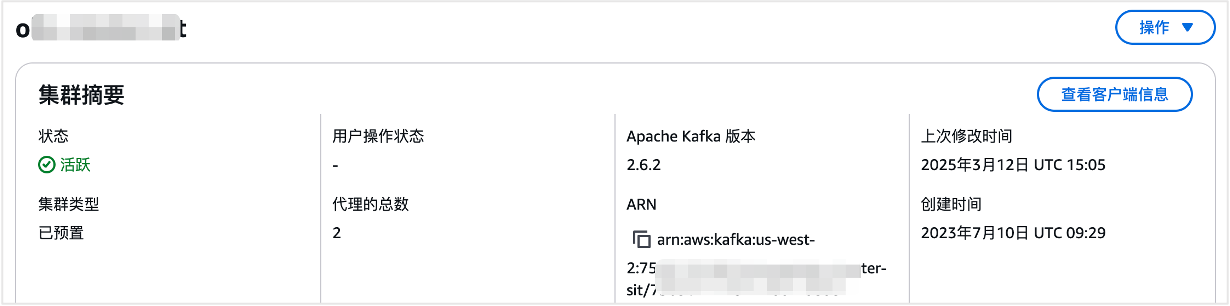
On the Cluster page, click the name of the target cluster to go to its details page.
In the upper-right corner of the Cluster Summary section, click View Client Information.
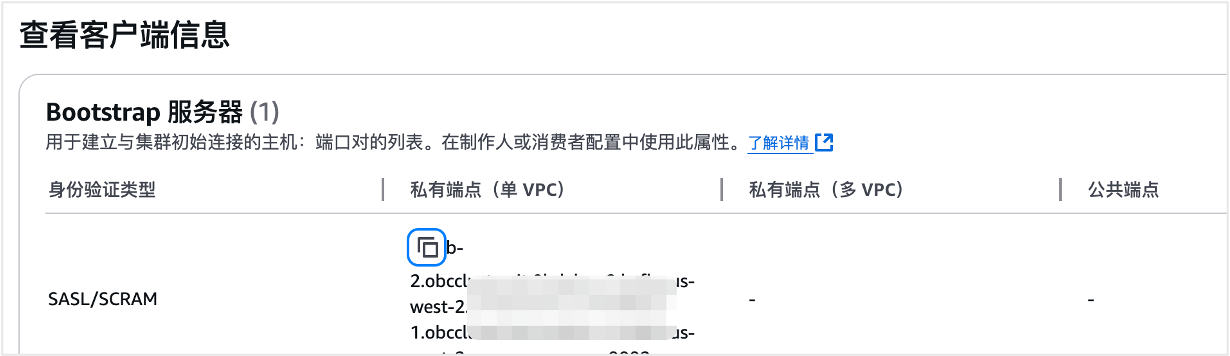
On the View Client Information page, click the Copy icon next to SASL/SCRAM Private Endpoint to obtain the Kafka connection information.
Use EC2 Instance Connect to connect to the instance.
Run the following command to install Nginx.
amazon-linux-extras install nginx1
yum install nginx-mod-stream
Modify the configuration in
/etc/nginx/nginx.conf.load_module '/usr/lib64/nginx/modules/ngx_stream_module.so'; user nginx; worker_processes auto; error_log /var/log/nginx/error.log warn; pid /var/run/nginx.pid; events { worker_connections 1024; } stream { # Each server corresponds to a Kafka bootstrap server connection address. server { listen 19092; proxy_pass b-2.omskafkaxxxx.vqn998.c11.kafka.us-east-1.amazonaws.com:9096; proxy_timeout 60s; } server { listen 19093; proxy_pass b-1.omskafkaxxxx.vqn998.c11.kafka.us-east-1.amazonaws.com:9096; proxy_timeout 60s; } }Notice
Nginx must support the
ngx_stream_module.We recommend that you set the
proxy_timeoutparameter to 60 seconds or more for Nginx.
After modifying the configuration, start Nginx.
systemctl enable nginx
systemctl start nginx
Obtain the IP address of a self-managed MySQL/Oracle/OceanBase/PostgreSQL/TiDB instance
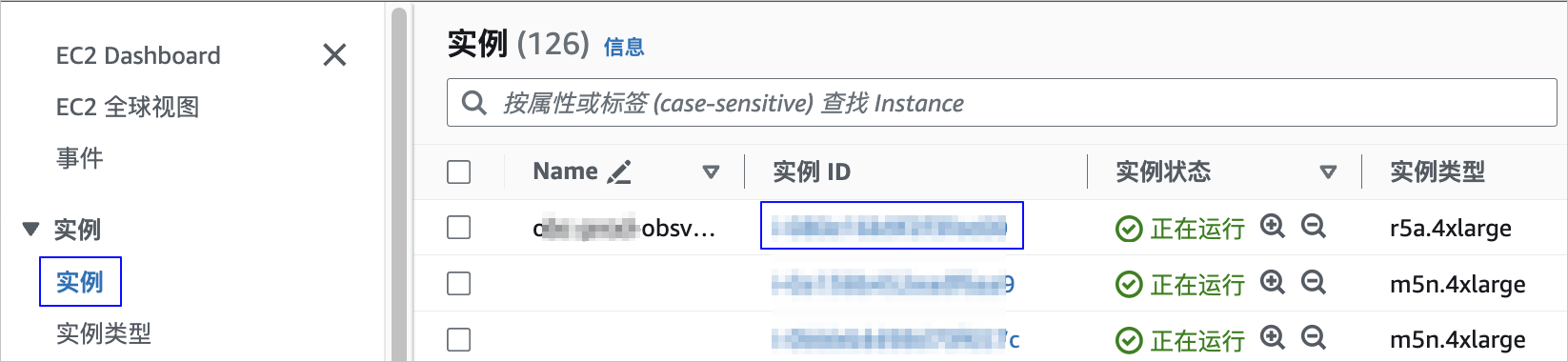
Log in to the Instances page of the EC2 console.
On the Instance page, click the Instance ID of your self-managed database instance.
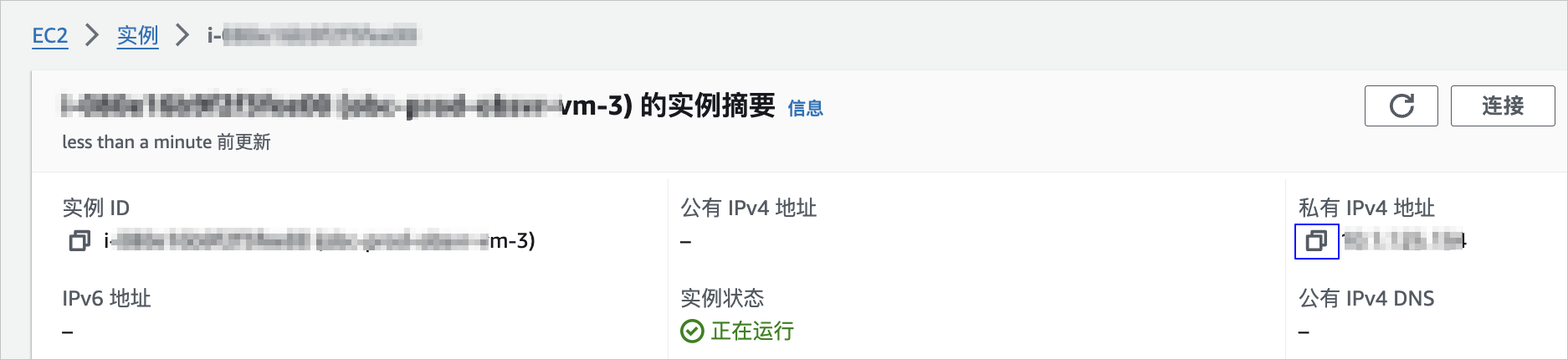
On the instance details page, copy the obtained Private IPv4 Address. This address will be used in the Create Target Group step.
Create a target group
Log in to the Target Groups page of the AWS console.
Click Create Target Group in the upper-right corner of the page.
On the Specify Group Details page, configure the parameters.
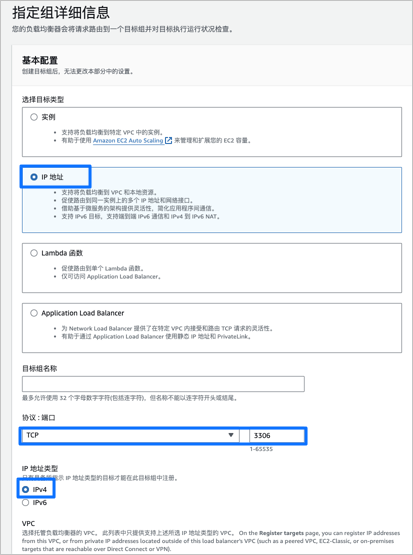 ParameterDescription
Select Target Type Select IP Address. Target Group Name Customize the target group name according to the naming convention. Protocol Select TCP. Port Enter the corresponding port number. For Kafka instances, select the corresponding Nginx port. IP Address Type Select IPv4. Click Next.
On the Register Target page, configure the parameters in the IP Address section.
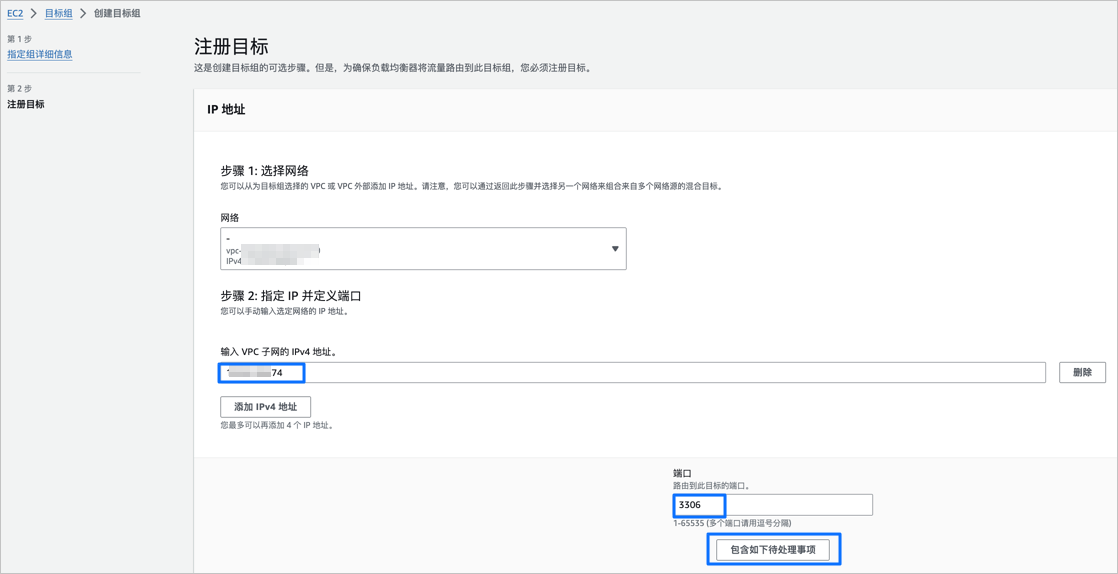 ParameterDescription
Select Network From the Network drop-down list, select the VPC where the MySQL database instance is located. Specify IP and Define Port In the Enter IPv4 Address of VPC Subnet text box, enter the IP address of the database instance. Port Enter the corresponding port number. For Kafka instances, select the corresponding Nginx port. Click Include the following pending items.
On the Register Target page, in the View Targets section, confirm that the IP targets to be included in the group are configured correctly, then click Create Target Group.
Create a network load balancer
Create a load balancer of the Network Load Balancer type.
For details, see Create a network load balancer.
On the Create Network Load Balancer page, configure the parameters.
Note that the following parameters need to be configured according to this topic. Other parameters are not mandatory.
In the Mode field of the Basic Settings section, select Private. In the IP Address Type field, select IPv4.
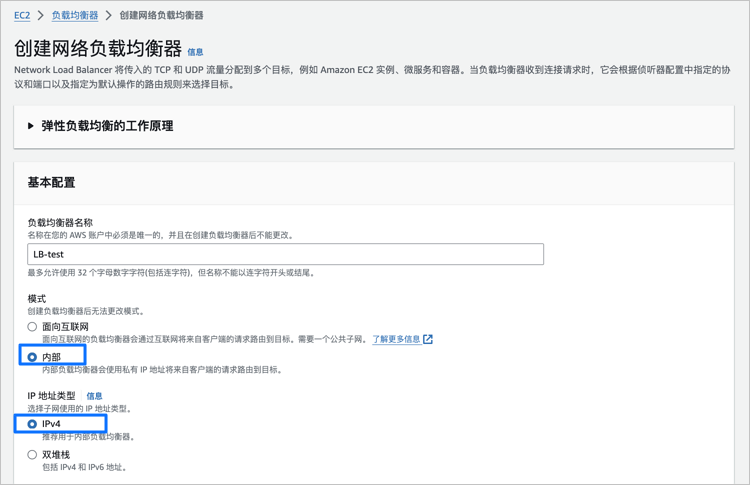
In the Network Mapping section, select the VPC where the MySQL data source is located from the VPC drop-down list. Usually, all options in the Mapping field are selected by default. You can also select at least one availability zone and one subnet based on your actual situation.
In the Security Groups section, you can select a security group to associate with the network load balancer. It is recommended that you do not select any security group for now. For more information about security groups, see Security groups of a network load balancer.
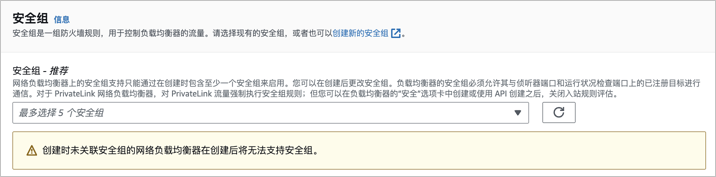
Note
If you associate a security group with the network load balancer, you need to allow access to the backend mount port.
When creating a network load balancer for a Kafka instance, do not select a security group.
The parameters in the Listeners and Routing section are configured as follows.
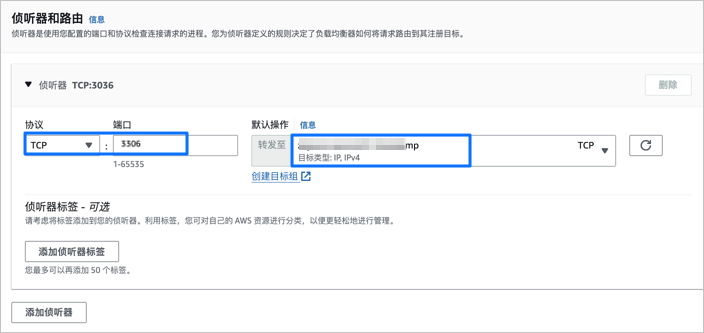 ParameterDescription
Protocol Listener protocol. Select TCP. Port Select the corresponding port number. Default Action Select the target group created in the Create Target Group step from the drop-down list.
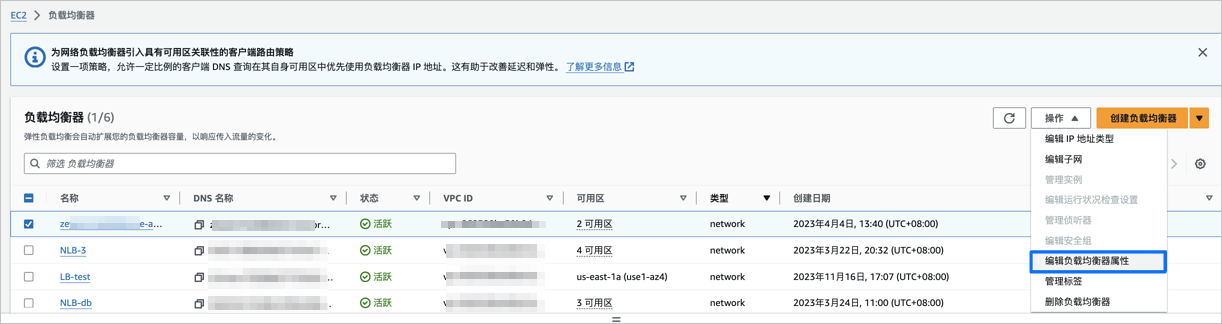
After the creation is successful, return to the Load Balancers page and select the created network load balancer.
Click Actions > Edit Load Balancer Attributes in the upper-right corner of the Load Balancers page.
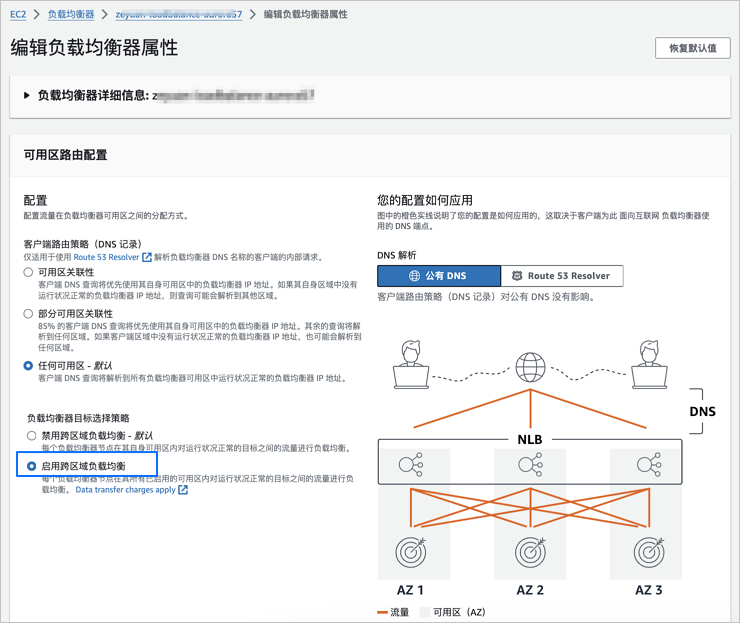
In the Load Balancer Target Selection Strategy section of the Edit Load Balancer Attributes page, select Enable Cross-Region Load Balancing and click Save Changes.
Create an endpoint service
Log in to the Endpoint Services page of the AWS console.
Click Create Endpoint Service in the upper-right corner of the page.
On the Create Endpoint Service page, configure the parameters.
ParameterDescriptionName Specify a name for the endpoint service. Load Balancer Type Select Network. Available Load Balancers Select the Load Balancer created in the Create Network Load Balancer step.
Note
If it is not displayed on the page, wait until the Load Balancer status is Active, then refresh the page to select it.In the Other Settings section, configure the parameters.
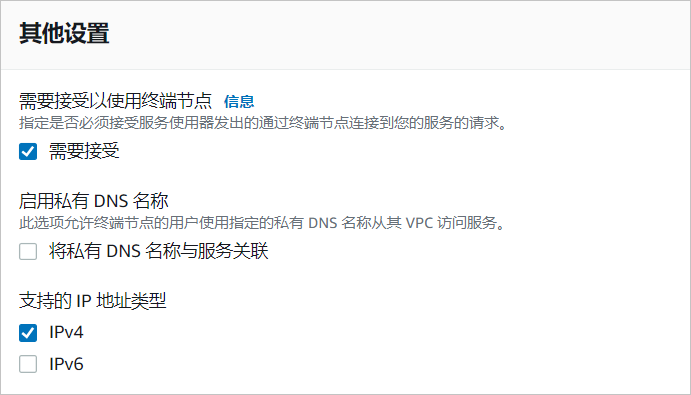 ParameterDescription
Accept Endpoints for Use (Optional) Whether requests initiated by service users require manual secondary processing. - If you select Accept, when the Data Migration Service first accesses the private link, it will prompt you to enter the AWS console to perform the Accept Endpoint Connection Request operation for the received endpoint connection request.
- If Accept is not selected, no prompt is given when the Data Migration Service first accesses the private link.
Enable Private DNS Name Do not enable a personal domain here. Supported IP Address Types Select IPv4. Click Create to complete the creation of the endpoint service.
Authorize the account that needs access to the created endpoint service.
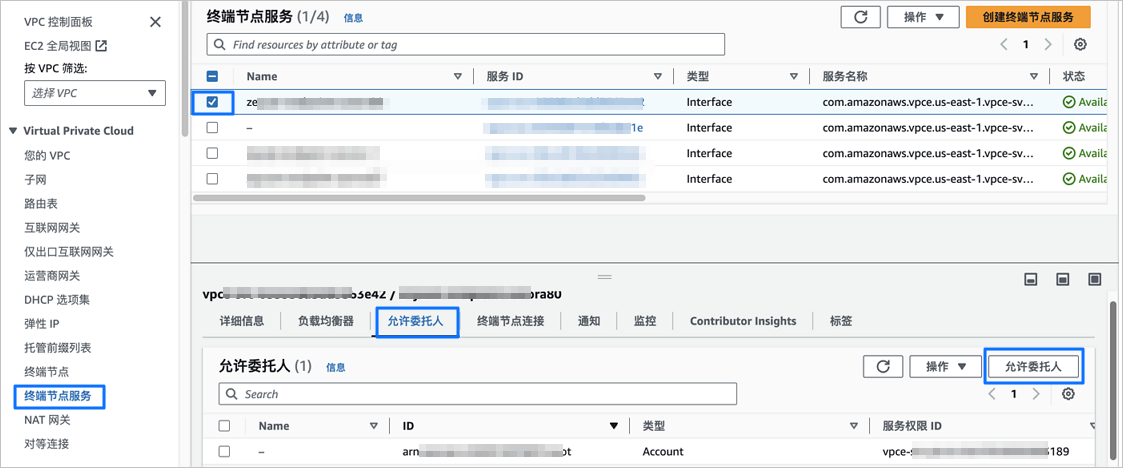
On the Endpoint Service page, select the created endpoint service.
Click the Allow Principal tab at the bottom of the page.
Click Allow Principal in the upper-right corner of the Allow Principal tab.
Obtain the account that needs authorization for the data source or data migration task.
You need to select Connection Type as Endpoint on the new data source or data migration task page of the OceanBase Cloud console. Then, copy the account that needs authorization as prompted on the page (format:
arn:aws:iam::aws-account-id:<type>/<id>). For details on creating a new data source, see Create a data source. For details on creating a new task, see the corresponding type of new data migration task documentation in the Data Migration module.
In the Add Principal section of the Allow Principal page, enter the account that needs authorization and click Allow Principal.
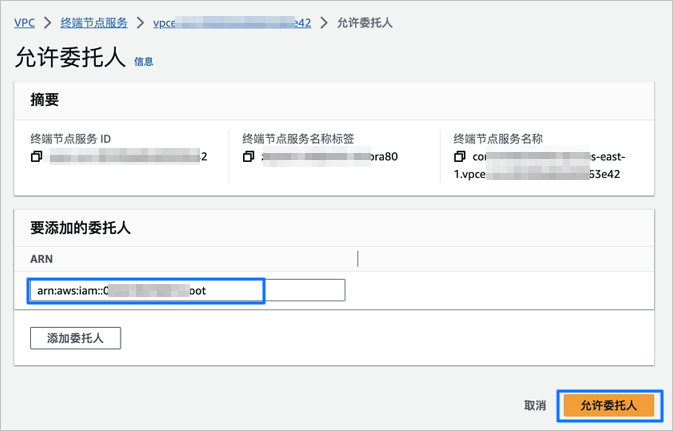
After authorization is completed, the created endpoint service becomes visible to the authorized account.
Use an endpoint service
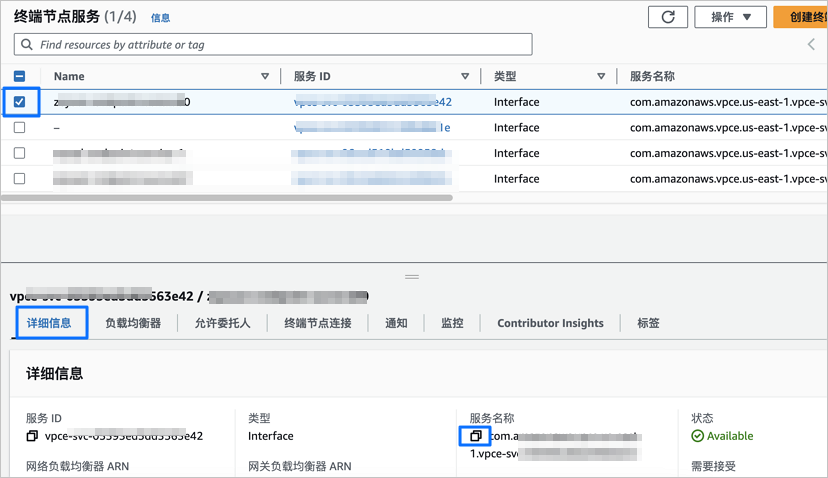
After you create an endpoint service, you need to copy its Service Name and enter it in the Connection Information section on the Create Data Source or Create Data Migration Task page. For details about creating a data source, see Create a data source. For details about creating a data migration task, see the corresponding documentation for creating a data migration task in the Data Migration module.
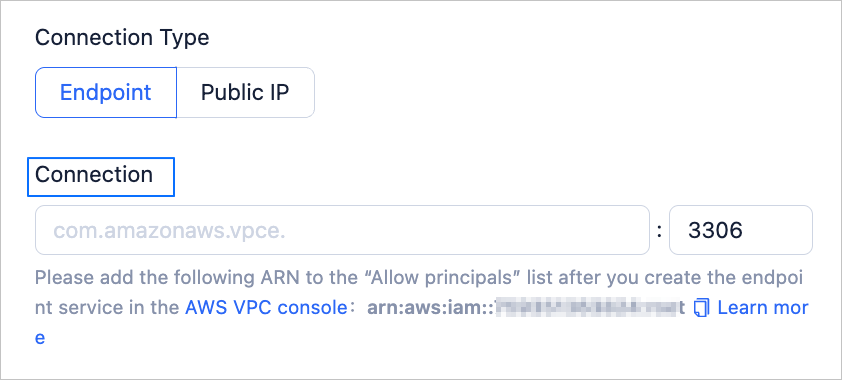
To copy the service name, perform the following steps:
Log in to the Endpoint Services page of the AWS console.
Select the target endpoint service.
In the Details section at the bottom of the page, click the copy icon next to Service Name.