







This topic describes the background information, limits, configuration and modification procedures, scenario examples, and FAQs for migration object matching rules.
Background information
When you create a data migration task, you must specify the migration objects. Data Migration provides three methods for selecting objects: specifying objects, importing objects, and using matching rules. With matching rules, you can use wildcard expressions to specify or modify migration objects and map source objects to target objects. String matching can simplify configuration when a large number of objects need to be migrated. Newly created tables that match the rules can also be automatically synchronized to the target through incremental DDL synchronization. For more information, see Supported DDL statements and limitations for synchronization.
Database-to-database wildcard rules
Data Migration supports the following wildcard rules for database-to-database migration.
Note
The asterisk (*) in the table below indicates a wildcard rule.
Database-to-database synchronization does not support database and table aggregation scenarios.
Category |
Supported wildcard rules |
Example |
Description |
|---|---|---|---|
| Database and table migration | *.* | kd_test*.person* | Migrate all tables starting with person from all databases starting with kd_test on the source to the target, keeping database and table names unchanged. |
| Database and table migration | *.<source_table> | kd_test*.person | Migrate the person table from all databases starting with kd_test on the source to the target, keeping database and table names unchanged. |
| Database and table migration | <source_database>.* | kd_test.person* | Migrate all tables starting with person from the database named kd_test on the source side to the target side, keeping database and table names unchanged. |
| Database and table migration | <source_database>.<source_table> | kd_test.person | Migrate the table named person from the database named kd_test on the source side to the target side, keeping database and table names unchanged. |
| Database and table renaming | <source_database>.<source_table>=<target_database>.<target_table> | kd_test.person=kd_test_new.person_new | Migrate the table named person from the database named kd_test on the source side to the target side, and rename the database kd_test to kd_test_new and the table person to person_new. |
| Database and table renaming | <source_database>.*=<target_database>.* | kd_test.person*=kd_test_new.person* | Migrate all tables starting with person from the database named kd_test on the source side to the target side, and rename the database kd_test to kd_test_new, keeping table names unchanged. |
| Database and table renaming | *.<source_table>=*.<target_table> | kd_test*.person=kd_test*.person_new | Migrate the table named person from all databases starting with kd_test on the source side to the target side, and rename the table person to person_new, keeping database names unchanged. |
| Database and table aggregation | <source_database>.*=<target_database>.<target_table> | kd_test.person*=kd_test.person_all | Aggregate all tables starting with person from the database named kd_test on the source side into the table person_all in the database kd_test on the target side. |
| Database and table aggregation | *.<source_table>=<target_database>.<target_table> | kd_test*.person=kd_test_all.person | Aggregate the table named person from all databases starting with kd_test on the source side into the table person in the database kd_test_all on the target side. |
| Database and table aggregation | *.*=<target_database>.<target_table> | kd_test*.person*=kd_test_all.person_all | Aggregate all tables starting with person from all databases starting with kd_test on the source into the table person_all in the database kd_test_all on the target. |
| Database and table aggregation | *.*=<target_database>.* | kd_test*.person*=kd_test_all.person* | Aggregate all tables starting with person from all databases starting with kd_test on the source into the database kd_test_all on the target, keeping table names unchanged. |
| Database and table aggregation | *.*=*.<target_table> | kd_test*.person*=kd_test*.person_all | Aggregate all tables starting with person from all databases starting with kd_test on the source side into the table person_all in databases starting with kd_test on the target side, keeping database names unchanged. |
Wildcard rule requirements are as follows:
The target database name and table name cannot both contain wildcards. For example,
kd_test*.person*=kd_test*.person*is not supported.If both the source and target database names contain wildcard expressions, the database-level expressions must be identical. This represents a direct database-to-database migration.
If both the source and target table names contain wildcard expressions, the table-level expressions must be identical. This represents a direct table-to-table migration.
If the target database name contains a wildcard, the source database name must also contain a wildcard.
If the target table name contains a wildcard, the source table name must also contain a wildcard.
Wildcard rules for mapping databases to message queues
Wildcard rules for mapping databases to message queues are supported. The following table describes the wildcard rules and their requirements.
Note
The asterisk (*) in the table indicates a wildcard rule.
Supported wildcard rule |
Example |
Description |
|---|---|---|
| *.*=<Topic Name> | *.*=topic | Maps multiple tables in multiple databases to one topic |
| *.<Source Table Name>=<Topic Name> | *.b=topic | Maps table b in multiple databases to one topic |
| <Source Database Name>.*=<Topic Name> | a.*=topic | Maps multiple tables in database a to one topic |
| <Source Database Name>.<Source Table Name>=<Topic Name> | a.b=topic | Maps table b in database a to one topic |
Usage restrictions
You can enter multiple rules. Each rule must occupy a single line and cannot contain leading or trailing spaces.
Migration object rules cannot be empty. Exclusion object rules can be empty.
DDL changes are not supported during schema migration or full migration.
When you use matching rules to select migration objects, table names cannot contain special characters, including line breaks, spaces, and .|"'`()=;/&*?[][!].
You cannot use multiple matching rules to map different tables in the same source database to different target databases. For example,
a.a* = b.a* & a.b* = c.b*is not supported.Data Migration does not currently support
CREATE DATABASEstatements. If the name of a newly created database matches a migration rule, manually create the database on the target before synchronizing data in the new database.
Considerations
After you configure migration object rules and exclusion object rules, an object can be selected if its source table name belongs to the difference between the two rule sets.
Note
For two sets, the difference is the set of elements that belong to the first set but not to the second set.
After you enable DDL synchronization, a DDL statement that creates a table or modifies a table schema on the source is synchronized to the target in real time if the table or schema name belongs to the difference between the migration object rules and exclusion object rules.
For database and table aggregation scenarios:
We recommend that you use matching rules to map source objects to target objects.
We recommend that you manually create table schemas on the target. If you use Data Migration to create them, skip any failed objects during schema migration.
If you select DDL Synchronization in a database or table aggregation scenario, unintended deletion may occur. For example, assume that multiple source databases or tables are aggregated into one database or table on the target. Deleting a source database or table may cause the aggregated database or table on the target to be deleted.
When you create a data migration task, set Processing strategy when target table object has records to Ignore.
If a table has a renaming mapping, the renaming mapping takes precedence. For example, if both
a.b[0-3]anda.b[3-5]=a.cexist, tablea.b3is renamed toa.c.If you execute a
RENAME TABLEstatement and the renamed table is not covered by the original matching rules or exclusion rules, unexpected synchronization issues may occur. Proceed with caution.
Configure matching rules for a database-to-database migration
Create a data migration task and proceed to the Select Migration Objects step.
For more information, see the instructions for creating the corresponding type of task in Data migration.
In the Select Migration Objects section, select Match by Rule.
You can select migration objects by using either Specify Objects or Match by Rule. This topic describes how to configure matching rules.
In the Synchronization Objects area, check Match by Rule.
In the Select Migration Scope area, enter Migration Object Rules and Exclusion Object Rules (optional). For more information on supported matching rules, see Wildcard rules.
To view the matching results, click Preview after validation succeeds. The wildcard migration object rules and exclusion object rules apply to both tables and views. Matching Results includes final objects, added objects, and reduced objects.
ObjectDescriptionFinal Objects The migration objects that match the configured matching rules. Added Objects The migration objects that are added compared to the previous matching result. Reduced Objects The migration objects that are reduced compared to the previous matching result. After you select migration objects by using matching rules, you can configure filter conditions.
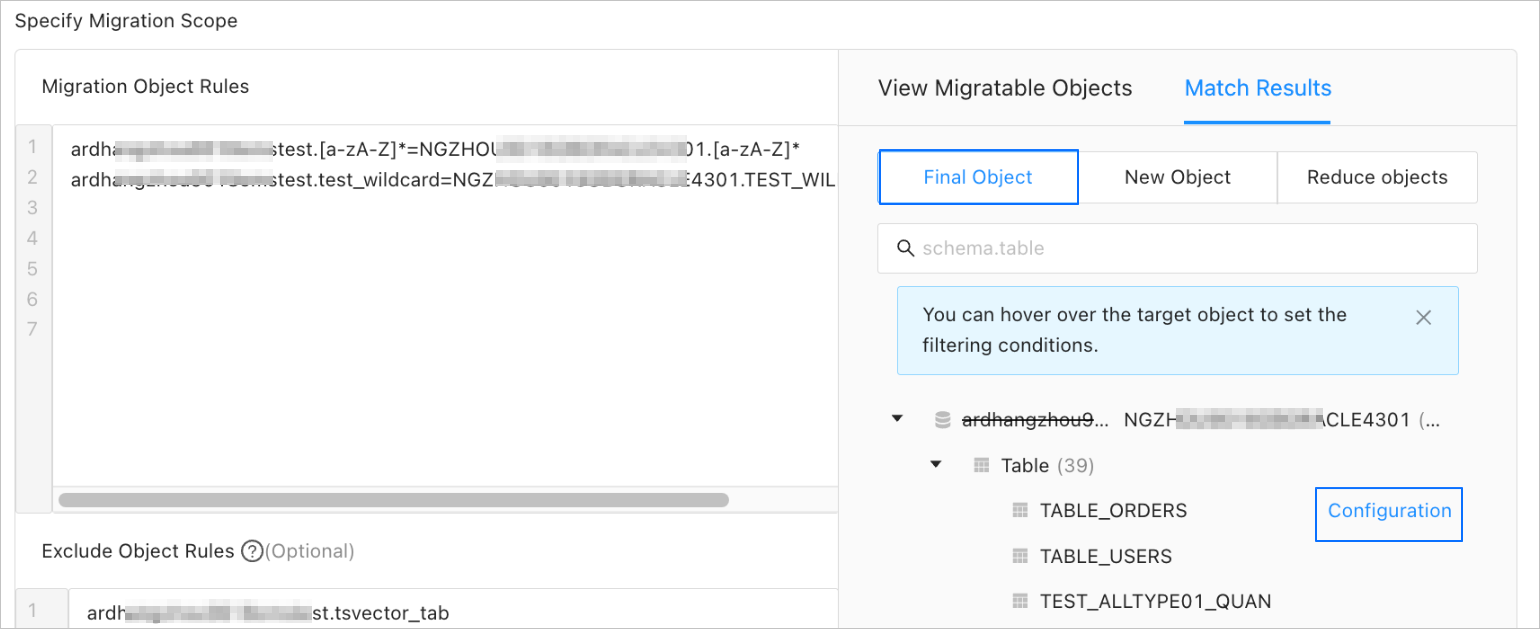
In the Matching Results > Final Objects panel, hover the pointer over the target table.
Click the Settings icon that appears.
In the Settings dialog box, enter the
WHEREclause in a standard SQL statement to configure row filtering. After you configure row filtering, click Validate Syntax. For more information, see SQL filtering.After the syntax passes validation, click OK. You can also view information about the columns of the migration object in the View Column section.
Complete the remaining task configurations as prompted.
Scenario examples
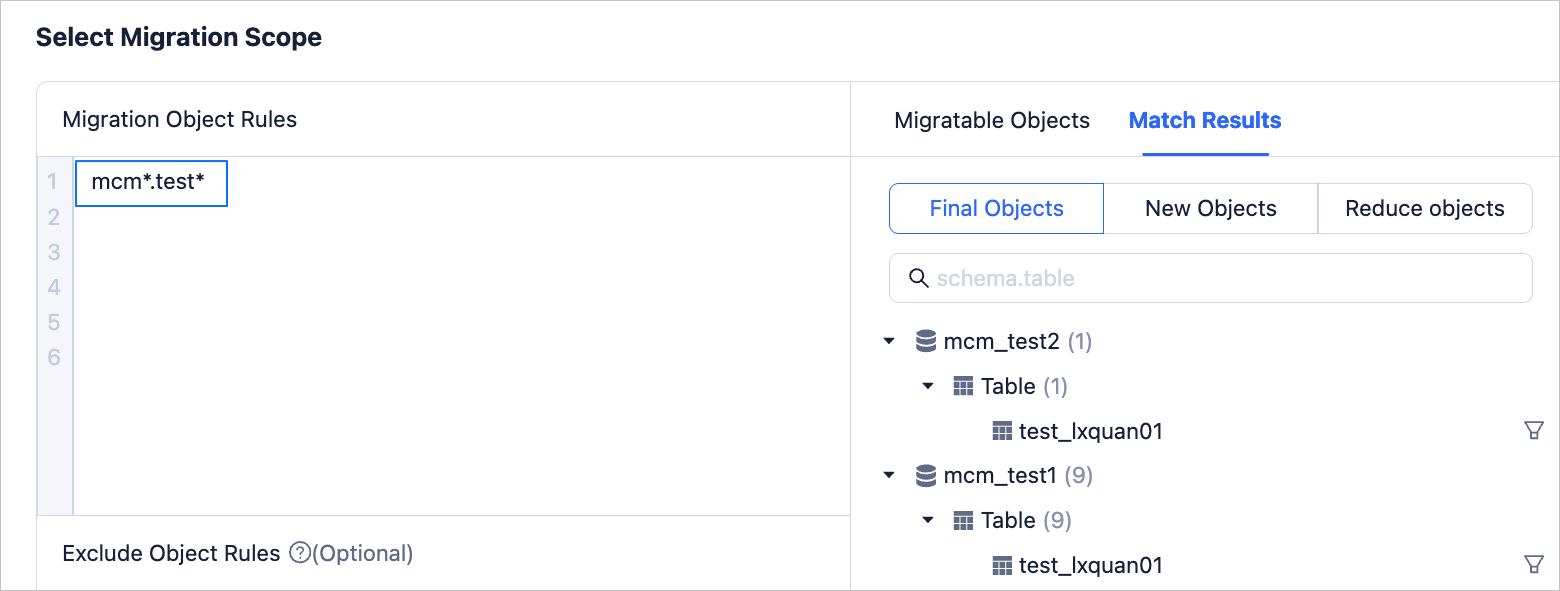
Database and table migration
Migrate all tables starting with test from all databases starting with mcm on the source side to the target side, keeping database and table names unchanged. The configuration of matching rules is as follows.
Database and table renaming
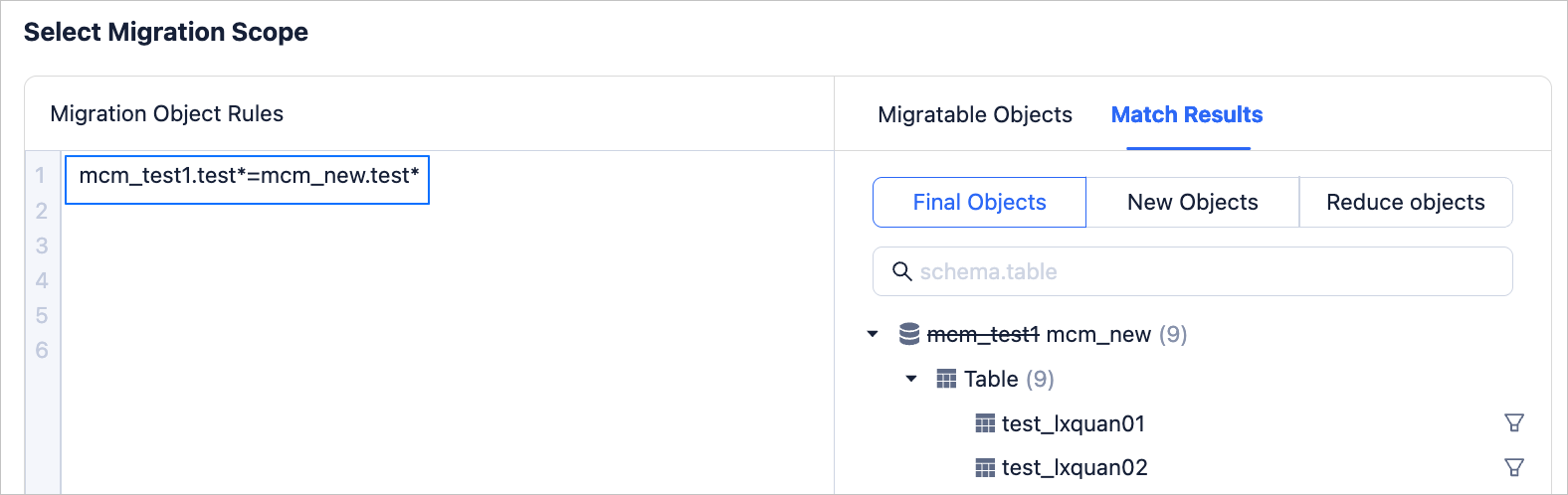
Migrate all tables starting with test from the database named mcm_test1 on the source side to the target side, and rename the database mcm_test1 to mcm_new, keeping table names unchanged. The configuration of matching rules is as follows.
Database and table aggregation
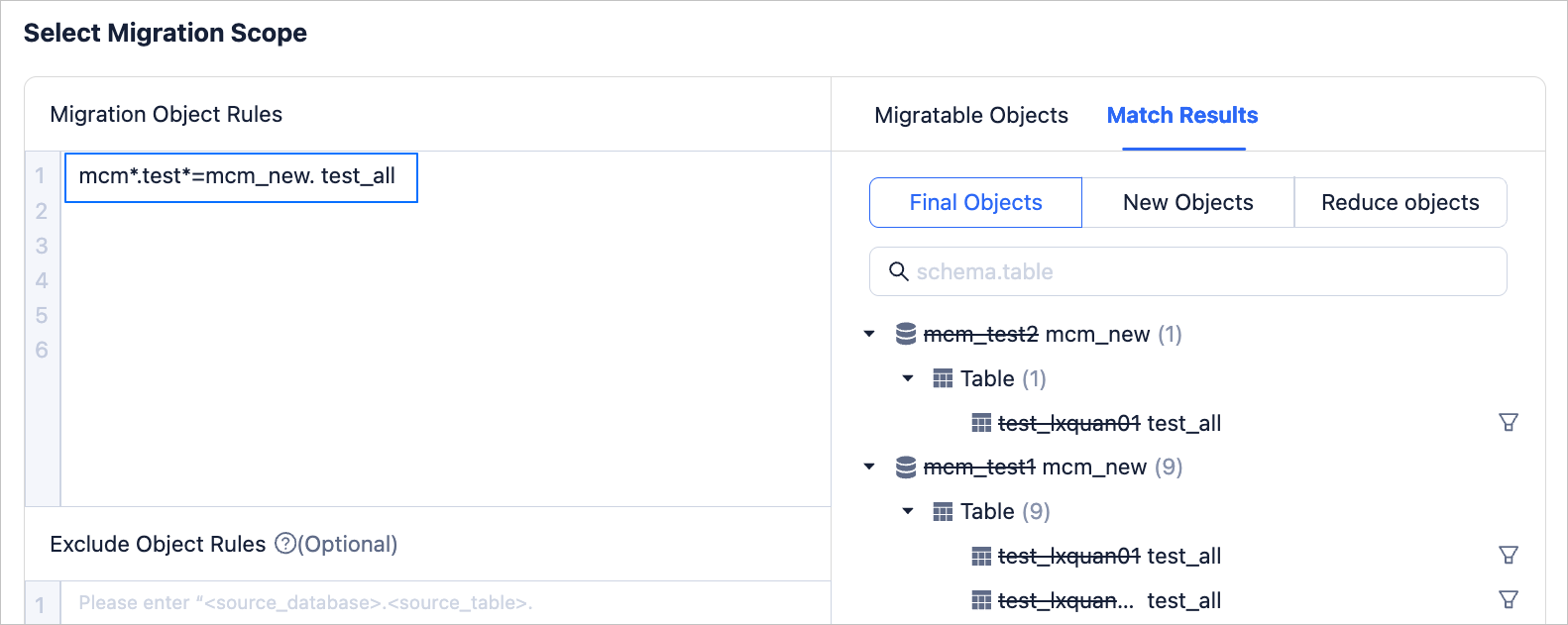
Aggregate all tables starting with test from all databases starting with mcm on the source side into the table test_all in the database mcm_new on the target side. The configuration of matching rules is as follows.
Configure exclusion object rules
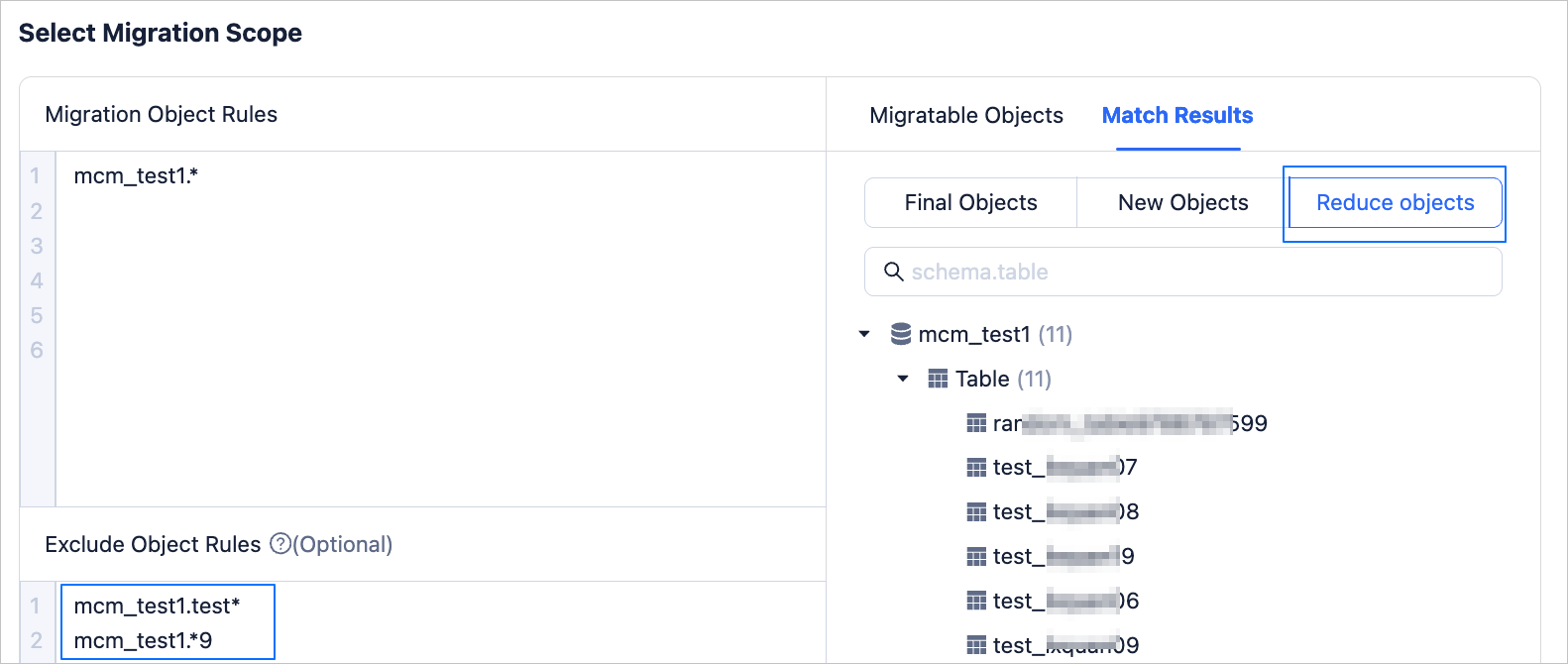
Exclude from synchronization the tables in the source database mcm_test1 whose names start with test or end with 9. The matching rule configuration is as follows.
Configure matching rules for a database-to-Kafka migration
When you migrate data from OceanBase Database to Kafka, you can use matching rules to select migration objects.
Configure the data migration task and proceed to the Select Type & Objects step.
For more information, see the instructions for creating the corresponding type of task in Data migration.
In the Select Migration Objects section, select Match by Rule.
Enter Object Migration Rules and Object Exclusion Rules (optional). For more information on supported matching rules, see Wildcard rules.
When you migrate data from OceanBase Database to Kafka, one-to-one and many-to-one mappings are supported, and rules cannot contain spaces. If Schema Migration is selected, you can specify an existing topic or create a topic. Otherwise, you can specify only an existing topic.
Click Verify.
To view the matching results, click Preview Objects after validation succeeds. Matching Results includes final objects, added objects, and reduced objects.
After you select migration objects by using matching rules, you can configure row filter conditions and sharding columns.
In the Matching Results > Final Objects panel, hover the pointer over the target object.
Click the Settings icon that appears.
In the Settings dialog box, perform the following operations.
When you migrate objects from OceanBase Database, enter the
WHEREclause in a standard SQL statement in the Row Filters section to configure row filtering. After you configure row filtering, click Validate Syntax. For more information, see SQL filtering.Select one or more target sharding columns from the Sharding Columns drop-down list. This setting is optional.
Select the primary key as the sharding column unless special requirements apply. If the primary key does not distribute the load evenly, select a field that uniquely identifies records and provides a more balanced load to avoid potential performance issues. Sharding columns provide the following functions:
Load balancing: If the target supports concurrent writes, the sharding column determines the thread used to send each message.
Ordering: Concurrent writes can result in out-of-order messages. OMS preserves the order of messages with the same sharding column value. Here, ordering refers to the order in which DML operations are performed on a column.
In the Select Columns section, select the columns to migrate. For more information, see Column filtering.
Click OK.
Modify matching rules for migration objects
Overview
The following table describes the scenarios in which you can modify matching rules for migration objects.
| Data Migration Task Step | Data Migration Task State | Step State |
| / | Not Started | / |
| Full Migration | Running | Running |
| Failed | Failed | |
| Stopped | Stopped | |
| Incremental Synchronization | Running | Running |
| Running | Monitoring | |
| Failed | Failed | |
| Stopped | Stopped |
Procedure
Go to the View Objects dialog box.
Log in to the OceanBase Cloud console.
In the left-side navigation pane, select Data Services > Migrations.
On the Migrate Data page, click the name of the target data migration task to go to its details page.
In the upper-right corner of the page, click View Objects.
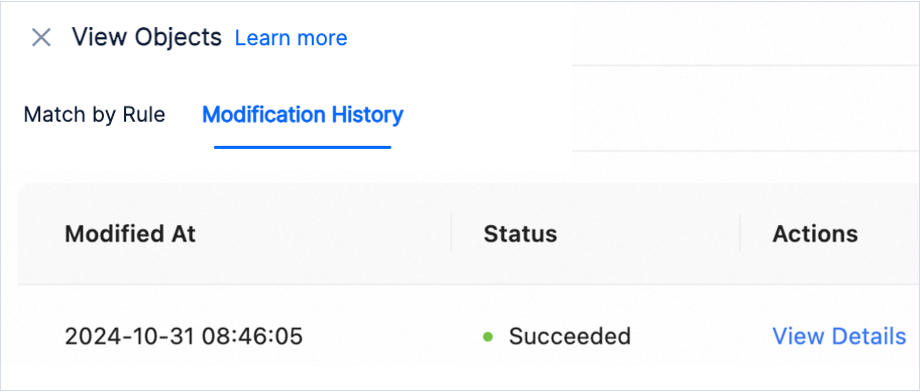
In the Migration Objects and Modification History sections, view the migration objects and modification history.
In the View Objects dialog box, click Modify Rules.
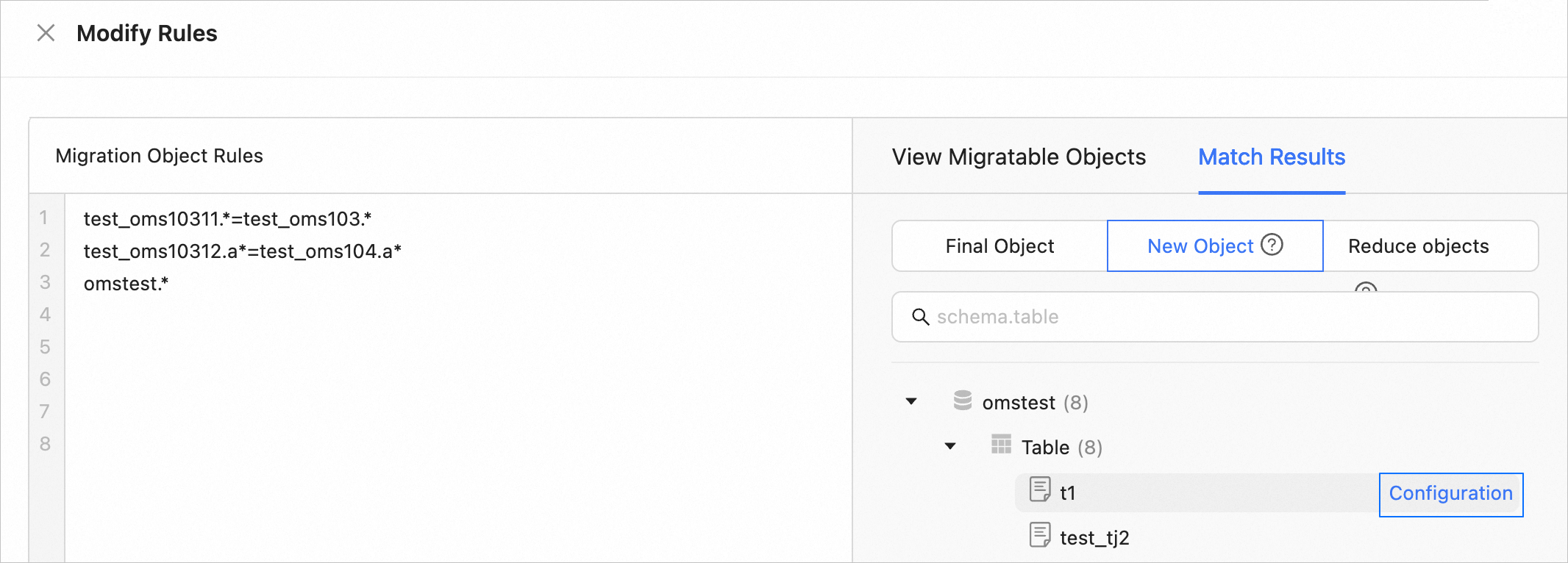
In the Modify Rules dialog box, add or remove migration objects based on the new matching rules.
Click Verify. To view the matching results, click Preview Objects after validation succeeds.
You can hover the pointer over an added object and click the Settings icon to configure filter conditions for the object.
Click Submit.
If the new rules add migration objects, reconfigure the migration type and perform a precheck.
When you migrate data from OceanBase Database to Kafka, one-to-one and many-to-one mappings are supported, and rules cannot contain spaces. If Schema Migration is selected, you can specify an existing topic or create a topic. Otherwise, you can specify only an existing topic.
If the new rules remove migration objects, the page displays the objects to be removed.
After the precheck succeeds, or after you confirm that the objects to be removed are correct, click Submit.
FAQ
Insufficient privileges
Make sure that the source user has sufficient privileges. If the user lacks privileges on some objects, Data Migration may not display those objects, which can result in incorrectly configured matching rules. Add objects for which the user does not have privileges to Exclusion Object Rules. Otherwise, the data migration task may be interrupted because the objects cannot be found.
DML filtering is not supported
If DDL synchronization is disabled, you can use matching rules to select migration objects. During incremental synchronization, if a newly created table matches the rules, its DDL statements are ignored, but its DML statements continue to be synchronized. Because the target table does not exist, the DML statements cannot be written and the data migration task is interrupted. Create the table on the target or add it to the component blocklist.