







This topic introduces how to customize DDL and DML configuration in incremental synchronization when configuring data migration tasks.
Background information
When configuring a data migration task, if you select Incremental Synchronization in the Select Type & Objects step, DML synchronization is supported by default. You can customize the configuration of DML or DDL.
DML Synchronization: When configuring a data migration task, you can set synchronization strategies for DML SQL statements that need to be synchronized. Only SQL statements that meet the set conditions will be synchronized to the target. This feature is commonly used in historical table and transaction detail table scenarios.
DDL Synchronization: When configuring a data migration task, you can set whether to synchronize DDL. Only after setting DDL synchronization will DDL statements such as
CREATE,ALTER,DROP, orTRUNCATE TABLEbe synchronized to the target. This feature is commonly used for long-term data migration tasks and can significantly reduce the cost of task maintenance.
Limitations
DML Synchronization
The scope of DML filtering applies to the entire data migration task.
Full data verification is not supported for data migration tasks with DML filtering selected.
DDL Synchronization
Except for supported incremental DDL types, other types are not supported.
Note
For the DDL statement
CREATE TABLE, Migrations only supports creating a table with the same name afterDROP TABLEusingCREATE TABLE. Currently, it does not support usingCREATE TABLEto create new tables.If the tables to be synchronized involve unsupported DDL types, the data migration task may be interrupted and cause data issues, which cannot be recovered.
Do not perform DDL operations that change the schema of databases or tables during schema migration and full migration, as this may cause the data migration task to be interrupted.
Procedure
Configure the data migration task to the Select Type & Objects step.
For more information, see the documentation on creating data migration tasks in the Data migration module for the respective types.
On the Select Type & Objects page, check Incremental Synchronization, and DML synchronization is checked by default.
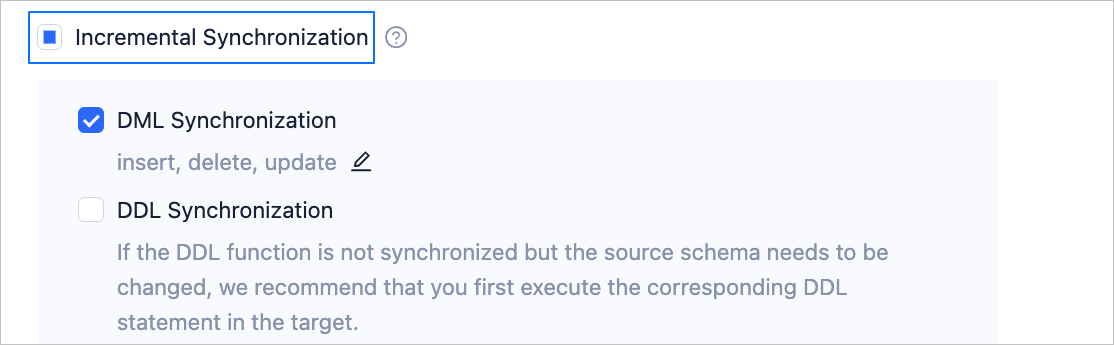
Customize DML/DDL synchronization configuration.
Customize DML synchronization configuration
Click the Edit icon in the Incremental Synchronization > DML Synchronization area. In the DML Synchronization Configuration dialog box, select the DML to be synchronized and click Save.
DML synchronization supports
INSERT,DELETE, andUPDATE. You can filter as needed.When migrating data from a Lindorm or HBase database to the HBase API compatible mode of OceanBase Database, DML synchronization also supports
PUTandDELETE.
Customize DDL synchronization configuration
After checking DDL Synchronization, click the displayed Edit icon. In the DDL Synchronization Configuration dialog box, select the DDL to be synchronized and click Save.
For the range of DDL synchronization supported by different types of data migration tasks, see DDL synchronization range. You can customize the DDL configuration based on the supported DDL synchronization range.
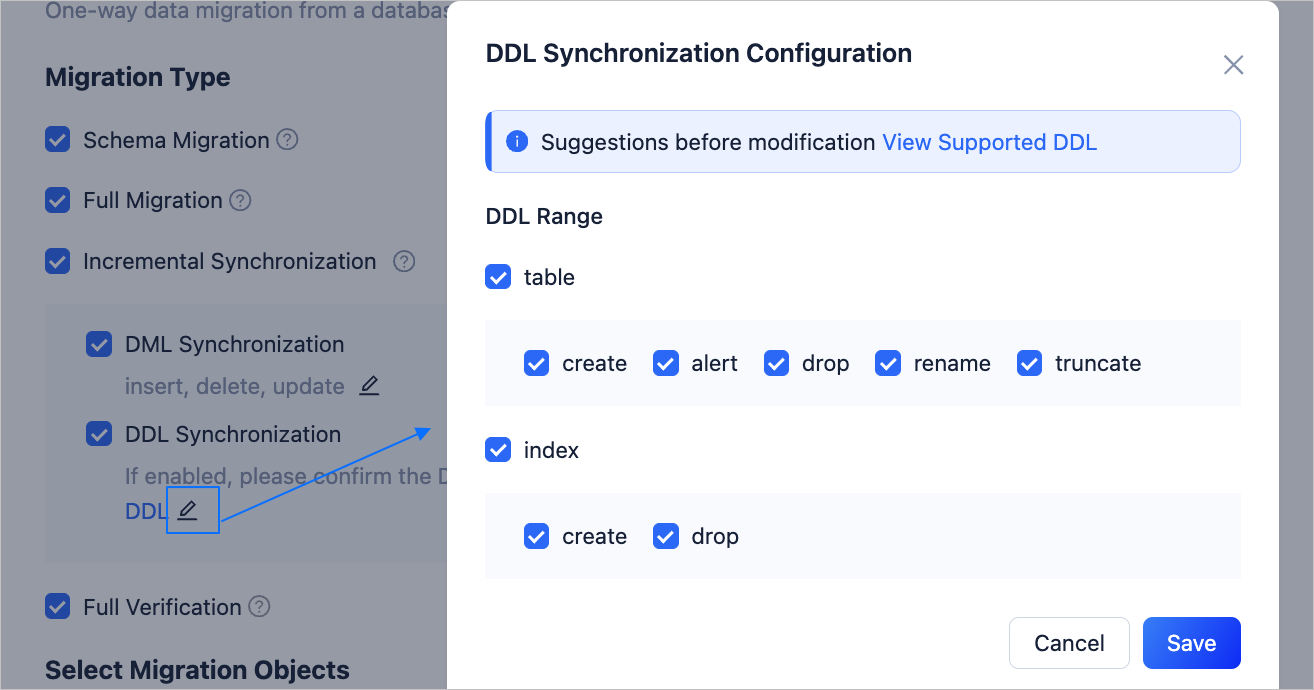
Configure the subsequent task according to the prompts.