OceanBase logo

OceanBase

A unified distributed database ready for your transactional, analytical, and AI workloads.

DEPLOY YOUR WAY

OceanBase Cloud

The best way to deploy and scale OceanBase

OceanBase Enterprise

Run and manage OceanBase on your infra

TRY OPEN SOURCE

OceanBase Community Edition

The free, open-source distributed database

OceanBase seekdb

Open source AI native search database

Customer Stories

Real-world success stories from enterprises across diverse industries.

View All
BY USE CASES

Mission-Critical Transactions

Global & Multicloud Application

Elastic Scaling for Peak Traffic

Real-time Analytics

Active Geo-redundancy

Database Consolidation

Resources

Comprehensive knowledge hub for OceanBase.

Blog

Live Demos

Training & Certification

Documentation

Official technical guides, tutorials, API references, and manuals for all OceanBase products.

View All
PRODUCTS

OceanBase Cloud

OceanBase Database

Tools

Connectors and Middleware

QUICK START

OceanBase Cloud

OceanBase Database

BEST PRACTICES

Practical guides for utilizing OceanBase more effectively and conveniently

Company

Learn more about OceanBase – our company, partnerships, and trust and security initiatives.

About OceanBase

Partner

Trust Center

Contact Us

International - English
中国站 - 简体中文
日本 - 日本語
Sign In
Start on Cloud

A unified distributed database ready for your transactional, analytical, and AI workloads.

DEPLOY YOUR WAY

OceanBase Cloud

The best way to deploy and scale OceanBase

OceanBase Enterprise

Run and manage OceanBase on your infra

TRY OPEN SOURCE

OceanBase Community Edition

The free, open-source distributed database

OceanBase seekdb

Open source AI native search database

Customer Stories

Real-world success stories from enterprises across diverse industries.

View All
BY USE CASES

Mission-Critical Transactions

Global & Multicloud Application

Elastic Scaling for Peak Traffic

Real-time Analytics

Active Geo-redundancy

Database Consolidation

Comprehensive knowledge hub for OceanBase.

Blog

Live Demos

Training & Certification

Documentation

Official technical guides, tutorials, API references, and manuals for all OceanBase products.

View All
PRODUCTS
OceanBase CloudOceanBase Database
ToolsConnectors and Middleware
QUICK START
OceanBase CloudOceanBase Database
BEST PRACTICES

Practical guides for utilizing OceanBase more effectively and conveniently

Learn more about OceanBase – our company, partnerships, and trust and security initiatives.

About OceanBase

Partner

Trust Center

Contact Us

Start on Cloud
编组
All Products
    • Databases
    • iconOceanBase Database
    • iconOceanBase Cloud
    • iconOceanBase Tugraph
    • iconInteractive Tutorials
    • iconOceanBase Best Practices
    • Tools
    • iconOceanBase Cloud Platform
    • iconOceanBase Migration Service
    • iconOceanBase Developer Center
    • iconOceanBase Migration Assessment
    • iconOceanBase Admin Tool
    • iconOceanBase Loader and Dumper
    • iconOceanBase Deployer
    • iconKubernetes operator for OceanBase
    • iconOceanBase Diagnostic Tool
    • iconOceanBase Binlog Service
    • Connectors and Middleware
    • iconOceanBase Database Proxy
    • iconEmbedded SQL in C for OceanBase
    • iconOceanBase Call Interface
    • iconOceanBase Connector/C
    • iconOceanBase Connector/J
    • iconOceanBase Connector/ODBC
    • iconOceanBase Connector/NET
icon

OceanBase Cloud

  • Product Updates & Announcements
    • Product announcements
      • Database Proxy pricing update
      • AWS instance pricing adjustment
      • Cross-AZ data transfer billing (OceanBase Cloud on AWS)
      • Optimization of Backup and Restore commercialization strategy
      • |---|
    • What's new
      • Release notes for 2026
      • Release notes for 2025
      • Release notes for 2024
      • Release history
  • Product Introduction
    • Overview
    • Management mode and scenarios
    • Supported database versions
    • Storage architecture
    • Product specifications
    • Deployment modes
    • Product billing
      • Overview
      • Backup and restore billing
      • SQL audit billing
      • Migrations billing
      • Database proxy billing
      • Binlog service billing
      • Overview of OceanBase Cloud support plans
      • Read-only replica billing
      • Instance billing
        • Tencent Cloud instance billing
        • Alibaba Cloud instance billing
        • Huawei Cloud instance billing
        • AWS instance billing
        • GCP instance billing
    • Core features
      • High availability with cross-cloud active-active architecture
      • Multi-level caching in shared storage
      • Multi-layer online scaling and on-demand adjustment
      • High availability with cross-cloud primary-standby databases
  • Get Started
    • Get started with a transactional instance
    • Get started with an analytical instance
    • Get started with a Key-Value instance
  • Work with Transactional Instances
    • Overview
    • Manage instances
      • Release an instance
      • Manage tags
      • Manage JVM-dependent services
      • Diagnostics
        • SQL audit
        • View performance monitoring data
        • Capacity diagnostics
        • Materialized view analysis
        • Optimization center
          • Manage active outlines
          • View the optimization history
          • Optimization suggestions
          • SQL review
        • Root cause diagnostics
          • Exception handling
          • Enable system autonomy
        • One-click diagnostics
          • Initiate one-click diagnostics
          • View one-click diagnostic report
            • Exceptions
            • Real-time diagnostics
            • Optimization suggestions
            • Capacity management
            • Security management
        • Real-time diagnostics
          • Request analysis
            • Request analysis
          • SQL diagnostics
            • Top SQL
            • Slow SQL
            • Suspicious SQL
            • High-risk SQL
            • SQL details
            • SQL monitoring metrics list
          • Session management
            • Session management
      • Manage tenants
        • Tenant overview
        • Create a tenant
        • Modify tenant specifications
        • Modify tenant names
        • Add an endpoint
        • Resource isolation
          • Overview
          • Manage resource groups
            • Create a resource group
            • View a resource group
            • Edit a resource group
            • Delete a resource group
          • Manage isolation rules
            • Create an isolation rule
            • View isolation rules
            • Edit an isolation rule
            • Delete a quarantine rule
        • Modify primary zone
        • Modify the maximum number of connections for a tenant proxy
        • Monitor tenant performance
          • Overview
          • View performance and SQL monitoring details
          • View transaction monitoring details
          • View storage and cache monitoring details
          • Customize a monitoring dashboard for a tenant
          • View Binlog service monitoring
        • Diagnostics
          • Real-time diagnostics
            • SQL audit
            • SQL diagnostics
              • Top SQL
              • Slow SQL
              • Suspicious SQL
              • High-risk SQL
        • Manage tenant parameters
          • Manage tenant parameters
          • Parameters for tenants
          • Parameter template overview
        • Delete a tenant
        • Manage databases and accounts
          • Create accounts
          • Create a database (MySQL compatible mode)
          • Manage databases (MySQL compatible mode)
          • Manage accounts
      • Manage read-only replicas
        • Overview
        • Instance read-only replicas
          • Add a read-only replica to an instance
          • View read-only replicas of an instance
          • Manage read-only replicas of an instance
          • Delete a read-only replica of an instance
        • Tenant read-only replicas
          • Add a read-only replica to a tenant
          • View read-only replicas of a tenant
          • Manage read-only replicas of a tenant
          • Delete a read-only replica of a tenant
      • Manage alerts
        • Overview
        • Monitoring metrics for alerts
        • View alert history
        • Manage alert templates
          • Create an alert template
          • View an alert template
          • Edit an alert template
          • Copy an alert rule template
          • Delete an alert template
        • Manage muting rules
          • Create an alert muting rule
          • View an alert muting rule
          • Edit an alert muting rule
          • Delete an alert muting rule
        • Manage alert rules
          • Create an alert rule
          • View an alert rule
          • Edit an alert rule
          • Delete an alert rule
        • Manage alert contacts
          • Add an alert contact
          • View an alert contact
          • Edit an alert contact
          • Delete an alert contact
          • Obtain a webhook URL
          • Add an alert contact group
        • Manage alert notification templates
          • Create an alert notification template
          • View an alert notification template
          • Edit an alert notification template
          • Copy an alert notification template
          • Delete an alert notification template
      • Backup and restore
        • Overview
        • Backup strategy
        • Initiate a backup immediately
        • Data backup
        • Initiate a restore
        • Data restore
        • Restore data from the instance recycle bin
      • Manage standby instances
        • Overview
        • Create a standby instance
        • Create a cross-cloud standby instance
        • Create a standby instance for an Alibaba Cloud primary instance
        • View details of primary and standby instances
        • Configure global endpoint
        • Enable automatic forwarding for write requests of standby databases
        • Primary-standby instance switchover
        • Initiate failover
        • Detach a standby instance
        • Release a standby instance
      • Manage major compactions
        • Initiate a major compaction
        • View compaction records
        • Update time for compactions
      • Manage instance parameters
        • Manage parameters
        • Parameters for cluster instances
      • Database proxy
        • Overview
        • Manage database proxy
        • Direct load
      • Monitor instance performance
        • Overview
        • Monitor the performance of databases in an instance
        • Monitor the performance of hosts in an instance
        • Customize a monitoring dashboard for an instance
        • Monitor multidimensional metrics of an instance
        • Monitor cross-cloud network performance
        • Monitor database proxy
        • Monitor database proxy hosts
      • Change instance configurations
        • Change configuration
        • View history of configuration changes
        • Enable storage auto-scaling
        • Switch the deployment mode
        • Change configuration temporarily
      • Manage instances
        • View the instance list
        • Instance overview
        • Stop and restart instances
        • Unit migration
    • Connect to an instance
      • MySQL compatible mode
        • Overview
        • Get connection string
          • Connect using AWS PrivateLink
          • Connect using a public IP address
          • Connect using Google Cloud Private Service Connect
          • Overview
          • Connect using Huawei Cloud VPC Endpoint
          • Connect using Alibaba Cloud VPC
          • Connect using a Huawei Cloud peering connection
          • Connect using Azure Private Link
        • Use database connection pool
          • Database connection pool configuration
          • Connect to OceanBase Cloud by using a Tomcat connection pool
          • Connect to OceanBase Cloud by using a C3P0 connection pool
          • Connect to OceanBase Cloud by using a Proxool connection pool
          • Connect to OceanBase Cloud by using a HikariCP connection pool
          • Connect to OceanBase Cloud by using a DBCP connection pool
          • Connect to OceanBase Cloud by using Commons Pool
          • Connect to OceanBase Cloud by using a Druid connection pool
        • Connect with drivers
          • Java
            • Connect to OceanBase Cloud using SpringBoot
            • connector-j
            • SpringBatch sample application for connecting to OceanBase Cloud
            • spring-jdbc
            • SpringDataJPA sample application for connecting to OceanBase Cloud
            • Hibernate application development with OceanBase Cloud
            • Sample program for connecting to OceanBase Cloud
            • Use TestContainers to connect to and use OceanBase Cloud
          • Python
            • Use the MySQL-connector-python driver to connect to and use OceanBase Cloud
            • Connect to OceanBase Cloud using mysqlclient
            • Connect to OceanBase Cloud using PyMySQL
            • Use SQLAlchemy to connect to an OceanBase Cloud database
            • Connect to an OceanBase Cloud database using Django
            • Connect to an OceanBase Cloud database by using peewee
          • C
            • Use MySQL Connector/C to connect to OceanBase Cloud
          • Go
            • Connect to OceanBase Cloud using the Go-SQL-Driver/MySQL driver
            • Connect to OceanBase Cloud using GORM
          • PHP
            • Use the EXT driver to connect to OceanBase Cloud
            • Connect to OceanBase Cloud by using the MySQLi driver
            • Use the PDO driver to connect to OceanBase Cloud
          • Rust
            • Rust application example for connecting to OceanBase Cloud
            • SeaORM example for connecting to OceanBase Cloud
          • ruby
            • ActiveRecord sample application for OceanBase Cloud
            • Connect to OceanBase Cloud by using mysql2
            • Connect to OceanBase Cloud by using Sequel
        • Connect with clients
          • Connect to OceanBase Cloud by using Client ODC
          • Connect to OceanBase Cloud by using a MySQL client
          • Connect to OceanBase Cloud by using OBClient
      • Oracle compatible mode
        • Overview
        • Get connection string
          • Overview
          • Connect using AWS PrivateLink
          • Connect using Azure Private Link
          • Connect using Google Cloud Private Service Connect
          • Connect using Huawei Cloud VPC Endpoint
          • Connect using a public IP address
        • Connect with clients
          • Connect to OceanBase Cloud by using OBClient
          • Connect to OceanBase Cloud by using Client ODC
        • Connect with drivers
          • Java
            • Connect to OceanBase Cloud using OceanBase Connector/J
            • Connect to OceanBase Cloud by using Spring Boot
            • SpringBatch application example for connecting to OceanBase Cloud
            • Connect to OceanBase Cloud using Spring JDBC
            • Connect to OceanBase Cloud by using Spring Data JPA
            • Connect to OceanBase Cloud by using Hibernate
            • Use MyBatis to connect to OceanBase Cloud
            • Use JFinal to connect to OceanBase Cloud
          • C
            • Connect to OceanBase Cloud using OceanBase Connector/C
            • Connect to OceanBase Cloud using OceanBase Connector/ODBC
            • Use SqlSugar to connect to OceanBase Cloud
          • Python
            • Python Driver for Oracle Mode
        • Use database connection pool
          • Database connection pool configuration
          • Sample program that uses a Tomcat connection pool to connect to OceanBase Cloud
          • C3P0 connection pool connects to OceanBase Cloud
          • Connect to OceanBase Cloud using Proxool connection pool
          • Sample program that uses HikariCP to connect to OceanBase Cloud
          • Use DBCP connection pool to connect to OceanBase Cloud
          • Connect to OceanBase Cloud by using Commons Pool
          • Connect to OceanBase Cloud by using a Druid connection pool
    • Developer guide
      • MySQL compatible mode
        • Plan database objects
          • Create a database
          • Create a table group
          • Create a table
          • Create an index
          • Create an external table
        • Write data
          • Insert data
          • Update data
          • Delete data
          • Replace data
          • Generate test data in batches
        • Read data
          • Single-table queries
          • Join tables
            • INNER JOIN queries
            • FULL JOIN queries
            • LEFT JOIN queries
            • RIGHT JOIN queries
            • Subqueries
            • Lateral derived tables
          • Use operators and functions in queries
            • Use arithmetic operators in queries
            • Use numerical functions in queries
            • Use string concatenation operators in queries
            • Use string functions in queries
            • Use datetime functions in queries
            • Use type conversion functions in queries
            • Use aggregate functions in queries
            • Use NULL-related functions in queries
            • Use the CASE conditional operator in queries
            • Use the SELECT ... FOR UPDATE statement to lock query results
            • Use the SELECT ... LOCK IN SHARE MODE statement to lock query results
          • Use a DBLink in queries
          • Set operations
        • Manage transactions
          • Roll back a transaction
          • Overview
          • Start a transaction
          • Commit a transaction
          • Savepoints
            • Roll back a transaction to a savepoint
            • Mark a savepoint
            • Release a savepoint
      • Oracle compatible mode
        • Manage transactions
          • Commit a transaction
          • Overview
          • Start a transaction
          • Roll back a transaction
          • Savepoints
            • Roll back a transaction to a savepoint
            • Mark a savepoint
        • Read data
          • Single-table queries
          • Join tables
            • FULL JOIN queries
            • LEFT JOIN queries
            • RIGHT JOIN queries
            • INNER JOIN queries
            • Subqueries
            • Lateral derived tables
          • Use operators and functions in queries
            • Use arithmetic operators in queries
            • Use numerical functions in queries
            • Use string concatenation operators in queries
            • Use aggregate functions in queries
            • Use CASE functions in queries
            • Use the SELECT ... FOR UPDATE statement to lock query results
            • Use string functions in queries
            • Use datetime functions in queries
            • Use type conversion functions in queries
            • Use NULL-related functions in queries
          • Use a DBLink in queries
          • Set operations
        • Write data
          • Insert data
          • Update data
          • Delete data
          • Replace data
          • Generate test data in batches
        • Plan database objects
          • Create a table group
          • Create a table
          • Create an index
          • Create an external table
    • Data source management
      • Create a data source
      • Manage data sources
      • User privileges
        • User privileges for compatibility assessment
        • User privileges for data migration
        • User privileges for performance assessment
        • User privileges for data archiving
        • User privileges for data cleanup
      • Connect via private network
        • AWS
        • Huawei Cloud
        • Alibaba Cloud
        • Google Cloud
        • Azure
        • Private IP address segments
      • Connect via public network
        • AWS
        • Huawei Cloud
        • Alibaba Cloud
        • Google Cloud
        • Azure
    • Create an instance
      • Overview
      • Create via OceanBase Cloud official website
      • Create via AWS Marketplace
      • Create via GCP Marketplace
      • Create via Huawei Cloud Marketplace
      • Create via Alibaba Cloud Marketplace
      • Create via Azure Marketplace
    • Data lifecycle management
      • Archive data
      • Clean up data
    • Manage recycle Bin
      • Instance recycle bin
      • Manage databases and tables in recycle bin
        • Overview
        • Instance-level recycle bin
        • Tenant-level recycle bin
  • Work with Analytical Instances
    • Overview
    • Core features
    • Create an instance
    • Connect to an instance
      • Overview
      • Connect with drivers
        • Python
          • Connect to OceanBase Cloud by using mysqlclient
          • Connect to OceanBase Cloud using MySQL Connector/Python
          • Connect to OceanBase Cloud by using PyMySQL
        • Java
          • Connect to OceanBase Cloud by using Spring Boot
          • Connect to OceanBase Cloud using MySQL Connector/J
          • Connect to OceanBase Cloud by using Spring Batch
          • Connect to OceanBase Cloud by using Spring Data JDBC
          • Connect to OceanBase Cloud by using Spring Data JPA
          • Connect to OceanBase Cloud by using Hibernate
          • Connect to OceanBase Cloud by using MyBatis
        • C
          • Connect to OceanBase Cloud using MySQL Connector/C
        • Go
          • Connect to OceanBase Cloud using Go-SQL-Driver/MySQL
        • PHP
          • Connect to OceanBase Cloud using PHP
      • Use database connection pool
        • Database connection pool configuration
        • Connect to OceanBase Cloud by using a Tomcat connection pool
        • Connect to OceanBase Cloud by using a C3P0 connection pool
        • Connect to OceanBase Cloud by using a Proxool connection pool
        • Connect to OceanBase Cloud by using a HikariCP connection pool
        • Connect to OceanBase Cloud by using a DBCP connection pool
        • Connect to OceanBase Cloud by using Commons Pool
        • Connect to OceanBase Cloud by using a Druid connection pool
      • Connect with clients
        • Connect to OceanBase Cloud by using Client ODC
        • Connect to OceanBase Cloud by using a MySQL client
        • Connect to OceanBase Cloud by using OBClient
      • Get connection string
        • Overview
        • Connect using AWS PrivateLink
        • Connect using a public IP address
    • Data table design
      • Table overview
      • Best practices
        • Unit 1: Best practices for optimizing storage structures and query performance
        • Unit 2: Best practices for creating special indexes
    • Export data
    • OceanBase data processing
    • Query acceleration
      • Statistics
      • Materialized views for query acceleration
      • Select a query parallelism level
    • Manage instances
      • Instance overview
      • Stop and restart instances
      • Release instances
      • Manage parameters
      • Manage tags
      • Modify primary zone
      • Change configuration
      • Manage databases and accounts
        • Create and manage accounts
        • Create a database
        • Manage databases
      • Manage alerts
        • Overview
        • Monitoring metrics for alerts
        • View alert history
        • Manage alert contacts
          • Add an alert contact
          • View an alert contact
          • Edit an alert contact
          • Delete an alert contact
          • Obtain a webhook URL
          • Add an alert contact group
        • Manage alert templates
          • Create an alert template
          • View an alert template
          • Edit an alert template
          • Copy an alert template
          • Delete an alert template
        • Manage muting rules
          • Create an alert muting rule
          • View an alert muting rule
          • Edit an alert muting rule
          • Delete an alert muting rule
        • Manage alert notification templates
          • Create an alert notification template
          • View an alert notification template
          • Edit an alert notification template
          • Copy an alert notification template
          • Delete an alert notification template
        • Manage alert rules
          • Create an alert rule
          • View an alert rule
          • Edit an alert rule
          • Delete an alert rule
      • Database proxy
        • Overview
        • Manage database proxy
        • Direct load
      • Diagnostics
        • View performance monitoring data
        • Capacity diagnostics
        • Real-time diagnostics
          • SQL diagnostics
            • Top SQL
            • SQL details
            • SQL monitoring metrics list
            • Slow SQL
            • Suspicious SQL
            • High-risk SQL
          • Session management
            • Session management
          • Optimization management
            • Manage active outlines
            • View the optimization history
          • Request analysis
            • Request analysis
      • Backup and restore
        • Backup overview
        • Immediate backup
        • Data backup
        • Initiate restore
        • Data restore
        • Backup strategies
      • Monitor instance performance
        • Overview
        • Monitor the performance of databases in an instance
        • Monitor the performance of hosts in an instance
      • Manage major compactions
        • Initiate a major compaction
        • View compaction records
        • Update time for compactions
    • Data lifecycle management
      • Archive data
      • Clean up data
    • Performance diagnosis and tuning
      • Use the DBMS_XPLAN package for performance diagnostics
      • Use the GV$SQL_PLAN_MONITOR view for performance analysis
      • Views related to AP performance analysis
    • Performance testing
    • Product integration
    • Manage recycle Bin
      • View instance recycle bin
      • Manage databases and tables in recycle bin
        • Instance recycle bin
        • Overview
  • Work with Key-Value Instances
    • Try out Key-Value instances
      • Create an instance
      • Create a tenant
      • Create an account for a database user
      • OBKV HBase data operation examples
    • Use HBase model
      • OBKV-HBase Overview
      • Performance test
      • Create an instance
      • Manage instances
        • Manage tags
        • Manage tenants
          • Create a tenant
          • Switch primary zone
          • Modify tenant specifications
          • Modify tenant names
          • Delete a tenant
          • Tenant overview
          • Monitor tenant performance
            • Overview
            • View performance and SQL monitoring details
            • View transaction monitoring details
            • View storage and cache monitoring details
            • OBKV-HBase
            • Customize a monitoring dashboard for a tenant
          • Manage databases and accounts
            • Create and manage accounts
            • Create a database
            • Manage databases
          • Resource isolation
            • Overview
            • Manage isolation rules
              • Create an isolation rule
              • View isolation rules
              • Edit an isolation rule
              • Delete a quarantine rule
            • Manage resource groups
              • Create a resource group
              • View a resource group
              • Edit a resource group
              • Delete a resource group
          • Diagnostics
            • Top SQL
          • Manage tenant parameters
            • Manage tenant parameters
            • Parameters for tenants
        • Monitor instance performance
          • Overview
          • Monitor the performance of databases in an instance
          • Monitor the performance of hosts in a cluster
          • Customize monitoring dashboards for an instance
          • Monitor multi-dimensional metrics of an instance
        • Database proxy
          • Overview
          • Manage database proxy
        • Manage instance parameters
          • Parameter management overview
          • Parameters for cluster instances
        • Diagnostics
          • View performance monitoring data
          • Top SQL
          • Capacity diagnostics
          • Request analysis
        • Backup and restore
          • Backup overview
          • Backup strategies
          • Immediate backup
          • Data backup
          • Initiate restore
          • Data restore
        • Manage alerts
          • Overview
          • Monitoring metrics for alerts
          • View alert history
          • Manage alert rules
            • Create an alert rule
            • View an alert rule
            • Edit an alert rule
            • Delete an alert rule
          • Manage alert contacts
            • Add an alert contact
            • Add an alert contact group
            • View an alert contact
            • Edit an alert contact
            • Delete an alert contact
            • Obtain a webhook URL
          • Manage alert templates
            • Create an alert template
            • View an alert template
            • Edit an alert template
            • Copy an alert template
            • Delete an alert template
          • Manage muting rules
            • Create an alert muting rule
            • View an alert muting rule
            • Edit an alert muting rule
            • Delete an alert muting rule
        • Manage recycle Bin
          • View instance recycle bin
          • Manage databases and tables in recycle bin
            • Overview
            • Instance-level recycle bin
            • Tenant-level recycle bin
        • Change instance configurations
          • View history of configuration changes
          • Change configuration
          • Switch the deployment mode
        • Manage major compactions
          • Initiate major compactions
          • View compaction records
          • Update time for compactions
        • Manage instances
          • View the instance list
          • Instance overview
          • Stop and restart instances
          • Release an instance
      • Develop in HBase model
        • Connect to an instance by using the OBKV-HBase client
    • Use Table model
      • Create an instance
      • Manage instances
        • Manage instances
          • View the instance list
          • Instance overview
          • Stop and restart instances
          • Release an instance
        • Manage tenants
          • Create a tenant
          • Modify tenant specifications
          • Modify tenant names
          • Delete a tenant
          • Tenant overview
          • Resource isolation
            • Overview
            • Manage resource groups
              • Create a resource group
              • View a resource group
              • Edit a resource group
              • Delete a resource group
            • Manage isolation rules
              • Create an isolation rule
              • View isolation rules
              • Edit an isolation rule
              • Delete a quarantine rule
          • Monitor tenant performance
            • Overview
            • View performance and SQL monitoring details
            • View transaction monitoring details
            • View storage and cache monitoring details
            • OBKV-Table
            • Customize a monitoring dashboard for a tenant
          • Diagnostics
            • Top SQL
          • Manage tenant parameters
            • Manage tenant parameters
            • Parameters for tenants
          • Manage databases and accounts
            • Create and manage accounts
            • Create a database
            • Manage databases
          • Switch primary zone
        • Monitor instance performance
          • Overview
          • Monitor the performance of databases in an instance
          • Monitor multi-dimensional metrics of an instance
          • Monitor the performance of hosts in a cluster
          • Customize monitoring dashboards for an instance
        • Manage major compactions
          • Initiate major compactions
          • View compaction records
          • Update time for compactions
        • Manage instance parameters
          • Parameter management overview
          • Parameters for cluster instances
        • Change instance configurations
          • View history of configuration changes
          • Change configuration
          • Switch the deployment mode
        • Database proxy
          • Overview
          • Manage database proxy
        • Manage alerts
          • Overview
          • Manage alert rules
            • Create an alert rule
            • View an alert rule
            • Edit an alert rule
            • Delete an alert rule
          • View alert history
          • Manage alert templates
            • Create an alert template
            • View an alert template
            • Edit an alert template
            • Copy an alert template
            • Delete an alert template
          • Manage muting rules
            • Create an alert muting rule
            • View an alert muting rule
            • Edit an alert muting rule
            • Delete an alert muting rule
          • Manage alert contacts
            • Add an alert contact
            • Add an alert contact group
            • View an alert contact
            • Edit an alert contact
            • Delete an alert contact
            • Obtain a webhook URL
          • Monitoring metrics for alerts
        • Backup and restore
          • Backup overview
          • Backup strategies
          • Immediate backup
          • Data backup
          • Initiate restore
          • Data restore
        • Diagnostics
          • Capacity diagnostics
          • View performance monitoring data
          • Top SQL
          • Request analysis
        • Manage tags
        • Manage recycle Bin
          • View instance recycle bin
          • Manage databases and tables in recycle bin
            • Overview
            • Instance-level recycle bin
            • Tenant-level recycle bin
    • Connect Key-Value instances
      • Overview
      • Connect using a public IP address
  • Migrations
    • Data migration and import solutions
    • Data assessment and migration quick start
    • Assess compatibility
      • Overview
      • Perform online assessment
      • Perform offline assessment
      • Manage compatibility assessment tasks
        • View a compatibility assessment task
        • View and download a compatibility assessment report
        • Stop a compatibility assessment task
        • Delete a compatibility assessment task
      • Obtain files for upload
      • Configure PrivateLink
      • Add an IP address to an allowlist
    • Migrate data
      • Overview
      • Migrations specification
      • Purchase a data migration instance
      • Migrate data from a MySQL database to a MySQL-compatible tenant of OceanBase Database
      • Migrate data from a MySQL-compatible tenant of OceanBase Database to a MySQL database
      • Migrate data between OceanBase database tenants of the same compatibility mode
      • Migrate data between OceanBase database tenants of different compatibility modes
      • Migrate data from an Oracle database to an Oracle-compatible tenant of OceanBase Database
      • Migrate data from an Oracle-compatible tenant of OceanBase Database to an Oracle database
      • Configure a two-way synchronization task
      • Migrate data from an OceanBase database to a Kafka instance
      • Migrate data from a TiDB database to a MySQL-compatible tenant of OceanBase Database
      • Migrate incremental data from a MySQL-compatible tenant of OceanBase Database to a TiDB Database
      • Migrate data from a PostgreSQL database to an OceanBase database
      • Migrate incremental data from an OceanBase Database to a PostgreSQL database
      • Manage data migration tasks
        • View details of a data migration task
        • Rename a data migration task
        • View and modify migration objects
        • View and modify migration parameters
        • Configure alert monitoring
        • Manage data migration tasks by using tags
        • Start, stop, and resume a data migration task
        • Clone a data migration task
        • Terminate and release a data migration task
      • Features
        • DDL synchronization scope
        • Rename a migration object
        • Set an incremental synchronization timestamp
        • Instructions on schema migration
        • Use SQL conditions to filter data
        • Custom DML/DDL configurations
        • Configure and modify matching rules
        • Wildcard rules
        • Import migration objects
        • Download conflict data
        • Change a topic
        • Column filtering
        • Data formats
      • Authorize an Alibaba Cloud account
      • SQL statements for querying table objects
      • Online DDL tools
      • Create a trigger
      • Modify the log level of a self-managed PostgreSQL instance
      • Supported DDL statements for synchronization and their limitations
        • DDL synchronization from Aurora MySQL DB clusters to MySQL-compatible tenants of OceanBase Database
        • DDL synchronization from MySQL-compatible tenants of OceanBase Database to Aurora MySQL DB clusters
        • DDL synchronization between MySQL-compatible tenants of OceanBase Database
        • DDL synchronization from Oracle databases to Oracle-compatible tenants of OceanBase Database
        • DDL synchronization from Oracle-compatible tenants of OceanBase Database to Oracle databases
        • DDL synchronization between Oracle-compatible tenants of OceanBase Database
        • DDL synchronization from OceanBase databases to Kafka instances
    • Data validation
      • Overview
      • Create a data validation task
      • Manage data validation tasks
        • View details of a data validation task
        • View and modify validation objects
        • View and modify validation parameters
        • Manage data validation tasks with tags
        • Start, pause, and resume data validation tasks
        • Clone a data validation task
        • Release a data validation task
      • Features
        • Import validation objects
        • Rename the validation object
        • Filter objects by using SQL conditions
        • Configure the matching rules for the validation object
    • Data subscription
      • Message formats
      • Configure consumer subscription
      • Create a data subscription task
      • Manage private connections for data subscriptions
      • Manage data subscription tasks
        • View details of a data subscription task
        • Configure subscription information
        • Modify the name of a data subscription task
        • View and modify subscription objects
        • View data subscription parameters
        • Set up data subscription alerts
        • Start, stop, and resume data subscription tasks
        • Clone a data subscription task
        • Release a data subscription task
    • Assess performance
      • Obtain traffic files from a database instance
      • Create an access key
      • Create a full performance assessment task
      • Create an SQL file parsing task
      • Create an SQL file replay task
      • Overview
      • Obtain a database instance
      • Manage performance assessment tasks
        • View the details of a performance assessment task
        • View a performance assessment report
        • Retry and stop a performance assessment task
        • Delete a performance assessment task
    • Import data
      • Sample data introduction
      • Supported file formats and encoding formats for Data Import
      • Import data
      • Direct load
    • Binlog service
      • Overview
      • Purchase the Binlog service
      • Manage Binlog Service
        • View details of the Binlog service
        • Modify the auto-scaling strategy for storage space
        • Disable the Binlog service
        • Change configuration
        • Modify the elasticity strategy for compute units
  • Security
    • OceanBase Cloud account settings
      • Modify login password
      • Multi-factor authentication
      • Manage AccessKeys
      • Time zone settings
      • Manage cloud marketplace accounts
      • Account audit
    • Organizations and projects
      • Overview
      • Manage organization information
      • Manage members
      • Permissions for roles
      • Operation audit
      • Cost management
        • Overview
        • Cost details
        • Manage cost units
      • Project management
        • Manage projects
        • Cross-project bidirectional authorization
        • Subscribe to project messages
    • Database accounts and privileges
      • AWS KMS key management
      • Account privileges
      • Support access control
      • Authorize cloud vendor accounts
    • Security and encryption
      • Set allowlist groups
      • SSL encryption
      • Transparent Data Encryption (TDE)
    • Monitoring dashboard
    • Events
  • SQL Console
    • Overview
    • Access SQL Console
    • SQL editing and execution
    • PL compilation
    • Result set editing
    • Execution analysis
    • Database object management
      • Create a table
      • Create a view
      • Create a function
      • Create a stored procedure
      • Create a program package
      • Create a trigger
      • Create a type
      • Create a sequence
      • Create a synonym
    • Session variable management
    • Functional keys in SQL Console
  • Integrations
    • Overview
    • Schema evolution
      • Liquibase
      • Flyway
    • AI
      • LlamaIndex
      • Dify
      • LangChain
      • Tongyi Qianwen
      • OpenAI
      • n8n
      • Trae
      • SpringAI
      • Cline
      • Cursor
      • Continue
      • Toolbox
      • CamelAI
      • Firecrawl
      • Hugging Face
      • Ollama
      • Google Gemini
      • Cloudflare Workers AI
      • Jina AI
      • Augment Code
      • Claude Code
      • Kiro
    • Development tools
      • Cloudflare Workers
      • Vercel
    • Data ingestion
      • Canal
      • dbt
      • Debezium
      • Flink
      • Glue
      • Informatica Cloud
      • Kafka
      • Maxwell
      • SeaTunnel
      • DataWorks
      • NiFi
    • SQL development
      • DataGrip
      • DBeaver
      • Navicat
      • TablePlus
    • Observability
      • Datadog
      • Prometheus
    • Orchestration
      • DolphinScheduler
      • Linkis
      • Airflow
    • Visualization
      • Grafana
      • Power BI
      • Quick BI
      • Superset
      • Tableau
    • Database management
      • Bytebase
  • Best practices
    • Best practices for achieving high availability through cross-cloud active-active deployment
    • High availability through cross-cloud primary-standby databases (1:1)
    • High availability through cross-cloud primary-standby databases (1:n)
    • High host CPU usage
    • Best practices for read/write splitting in OceanBase Cloud
  • References
    • System architecture
    • System management
    • Database object management
    • Database design and specification constraints
    • SQL reference
    • System views
    • Parameters and system variables
    • Error codes
    • Performance tuning
    • Open API References
      • Overview
      • Service endpoints
      • Using API
      • Differences between ApsaraDB for OceanBase APIs and OceanBase Cloud APIs
      • Open API List
        • Tenant user management
          • CreateTenantUser
          • DescribeTenantUsers
          • DeleteTenantUsers
          • ModifyTenantUserPassword
          • ModifyTenantUserRoles
        • Diagnostic management
          • DescribeOasTopSQLList
          • DescribeOasAnomalySQLList
          • DescribeOasSlowSQLList
          • DescribeOasSQLText
          • DescribeSqlAudits
          • DescribeOutlineBinding
          • DescribeSampleSqlRawTexts
          • DescribeSQLTuningAdvices
          • DescribeOasSlowSQLSamples
          • DescribeOasSQLTrends
          • DescribeOasSQLPlanGroup
        • Tag management
          • DescribeTags
          • CreateTags
          • UpdateTag
          • DeleteTag
        • Tenant management
          • DescribeTenants
          • DescribeTenant
          • CreateTenants
          • DeleteTenants
          • ModifyTenantName
          • ModifyTenant
          • ModifyTenantUserDescription
          • ModifyTenantUserStatus
          • GetTenantCreateConstraints
          • ModifyTenantPrimaryZone
          • GetTenantCreateCpuConstraints
          • GetTenantCreateMemConstraints
          • GetTenantModifyCpuConstraints
          • GetTenantModifyMemConstraints
          • CreateTenantSecurityIpGroup
          • DescribeTenantSecurityIpGroups
          • ModifyTenantSecurityIpGroup
          • DeleteTenantSecurityIpGroup
          • DescribeTenantPrivateLink
          • DeletePrivatelinkConnection
          • CreatePrivatelinkService
          • ConnectPrivatelinkService
          • AddPrivatelinkServiceUser
          • BatchKillProcessList
          • DescribeProcessStatsComposition
          • DescribeTenantAvailableRoZones
          • DescribeTenantAddressInfo
          • ModifyTenantReadonlyReplica
          • DescribeTenantParameters
          • UpdateTenantParameters
          • DescribeTenantParametersHistory
          • ModifyTenantTagList
        • Cluster management
          • DescribeInstances
          • DescribeInstance
          • ModifyInstanceName
          • DescribeNodeOptions
          • StopCluster
          • StartCluster
          • CreateInstance
          • DeleteInstance
          • ModifyInstanceSpec
          • DescribeInstanceTopology
          • DescribeReadonlyInstances
          • CreateReadonlyInstance
          • ModifyReadonlyInstanceSpec
          • ModifyReadonlyInstanceDiskSize
          • ModifyReadonlyInstanceNodeNum
          • DeleteReadonlyInstance
          • DescribeInstanceAvailableRoZones
          • DescribeInstanceparameters
          • UpdateInstanceParameters
          • DescribeInstanceparametersHistory
          • ModifyInstanceTagList
          • ModifyInstanceNodeNum
        • Database proxy management
          • CreateTenantAddress
          • CreateTenantSingleTunnelSLBAddress
          • DeleteTenantAddress
          • DescribeTenantAddress
          • ModifyOdpClusterSpec
          • ModifyTenantAddressPort
          • ModifyTenantAddressDomainPrefix
          • ConfirmPrivatelinkConnection
          • DescribeTenantAddressInfo
        • Security management
          • CreateSecurityIpGroup
          • DescribeInstanceSSL
          • ModifyInstanceSSL
          • DescribeTenantEncryption
          • ModifyTenantEncryption
          • ModifySecurityIps
          • DeleteSecurityIpGroup
          • DescribeTenantSecurityConfigs
          • DescribeInstanceSecurityConfigs
        • Database management
          • CreateDatabase
          • DescribeDatabases
          • DeleteDatabases
          • ModifyDatabaseUserRoles
        • Backup and restore
          • DescribeDataBackupSet
          • DescribeRestorableTenants
          • ModifyBackupStrategy
          • CreateTenantRestoreTask
          • CreateDataBackupTask
          • DescribeOneDataBackupSet
        • Historical event management
          • DescribeOperationEvents
        • Monitoring management
          • DescribeTenantMetrics
          • DescribeMetricsData
          • DescribeNodeMetrics
    • Download OBClient
      • Download OBClient
      • Download OceanBase Connector/J
      • Download client ODC
      • Download OceanBase Connector/ODBC
      • Download OBClient Libs
    • ODC User Guide
      • What is ODC?
        • What is ODC?
        • Limitations
      • Quick Start
        • Client ODC
          • Overview
          • Install Client ODC
          • Use Client ODC
        • Web ODC
          • Overview
          • Use Web ODC
      • Data Source Management
        • Create a data source
        • Data sources and project collaboration
        • Database O&M
          • Session management
          • Global variable management
          • Recycle bin management
      • SQL Development
        • Edit and execute SQL statements
        • Perform PL compilation and debugging
        • Edit and export the result set of an SQL statement
        • Execution analysis
        • Generate test data
        • System settings
        • Database objects
          • Table objects
            • Overview
            • Create a table
          • View objects
            • Overview
            • Create a view
            • Manage views
          • Materialized view objects
            • Overview
            • Create a materialized view
            • Manage materialized views
          • Function objects
            • Overview
            • Create a function
            • Manage functions
          • Stored procedure objects
            • Overview
            • Create a stored procedure
            • Manage stored procedures
          • Sequence objects
            • Overview
            • Create a sequence
            • Manage sequences
          • Package objects
            • Overview
            • Create a program package
            • Manage program packages
          • Trigger objects
            • Overview
            • Create a trigger
            • Manage triggers
          • Type objects
            • Overview
            • Create a type
            • Manage types
          • Synonym objects
            • Overview
            • Create a synonym
            • Manage synonyms
      • Import and Export
        • Import schemas and data
        • Export schemas and data
      • Database Change Management
        • Project collaboration management
        • Risk levels, risk identification rules, and approval processes
        • SQL check specifications
        • SQL window specification
        • Database change management
        • Batch database change management
        • Synchronize shadow tables
        • Schema comparison
        • Online schema changes
        • User Permission Management
          • Users and roles
          • Automatic authorization
          • User permission management
      • Data Lifecycle Management
        • SQL plan task
        • Partitioning Plan Management
          • Manage partitioning plans
          • Set partitioning strategies
          • Examples
      • Data Desensitization and Auditing
        • Desensitize data
        • Operation records
      • Notification Management
        • Overview
        • View notification records
        • Manage Notification Channel
          • Create a notification channel
          • View, edit, and delete a notification channel
          • Configure a custom channel
        • Manage notification rules
      • Best Practices
        • Tips for SQL development
        • Explore ODC team workspaces
        • Understanding real-time SQL diagnostics for OceanBase AP
        • OceanBase historical database solutions
        • ODC SQL check for automatic identification of high-risk operations
        • Manage and modify sharded databases and tables via ODC
        • Data masking and control practices
        • Enterprise-level control and collaboration: Safeguard every database change
    • Data Development
      • Overview
      • Workspace management
      • Worksheet management
      • Compute node pool management
      • Workflow management
      • Dashboard management
      • Manage Git repositories
      • SQL development
        • SQL editing and execution
        • Result set editing
        • Execution analysis
        • Session variable management
        • Git integration
        • Database object management
          • Create a table
          • Create a view
          • Create a function
          • Create a stored procedure
      • Sample datasets
      • Data development terms
  • Manage Billing
    • Access billing
    • View monthly bills
    • View payment details
    • View orders
    • Use vouchers for payment
    • View invoices
  • Legal Agreements
    • OceanBase Cloud Services Agreement
    • Service Level Agreement for OceanBase Cloud Migration Service
    • Service Level Agreement
    • OceanBase Data Processing Addendum

Download PDF

Database Proxy pricing update AWS instance pricing adjustment Cross-AZ data transfer billing (OceanBase Cloud on AWS) Optimization of Backup and Restore commercialization strategy|---| Release notes for 2026 Release notes for 2025 Release notes for 2024 Release history Overview Management mode and scenarios Supported database versions Storage architecture Product specifications Deployment modes Overview Backup and restore billing SQL audit billing Migrations billing Database proxy billing Binlog service billing Overview of OceanBase Cloud support plans Read-only replica billing High availability with cross-cloud active-active architecture Multi-level caching in shared storage Multi-layer online scaling and on-demand adjustment High availability with cross-cloud primary-standby databases Get started with a transactional instance Get started with an analytical instance Get started with a Key-Value instance Overview Release an instance Manage tags Manage JVM-dependent services Create a data source Manage data sources Overview Create via OceanBase Cloud official website Create via AWS Marketplace Create via GCP Marketplace Create via Huawei Cloud Marketplace Create via Alibaba Cloud Marketplace Create via Azure Marketplace Archive data Clean up data Instance recycle bin Overview Core features Create an instance Overview Table overview Export data OceanBase data processing Statistics Materialized views for query acceleration Select a query parallelism level Instance overview Stop and restart instances Release instances Manage parameters Manage tags Modify primary zone Change configuration Archive data Clean up data Use the DBMS_XPLAN package for performance diagnostics Use the GV$SQL_PLAN_MONITOR view for performance analysis Views related to AP performance analysis Performance testing Product integration View instance recycle bin Create an instance Create a tenant Create an account for a database user OBKV HBase data operation examples OBKV-HBase Overview Performance test Create an instance Create an instance Overview Connect using a public IP address Data migration and import solutions Data assessment and migration quick start Overview Perform online assessment Perform offline assessment Obtain files for upload Configure PrivateLink Add an IP address to an allowlist Overview Migrations specification Purchase a data migration instance Migrate data from a MySQL database to a MySQL-compatible tenant of OceanBase Database Migrate data from a MySQL-compatible tenant of OceanBase Database to a MySQL database Migrate data between OceanBase database tenants of the same compatibility mode Migrate data between OceanBase database tenants of different compatibility modes Migrate data from an Oracle database to an Oracle-compatible tenant of OceanBase Database Migrate data from an Oracle-compatible tenant of OceanBase Database to an Oracle database Configure a two-way synchronization task Migrate data from an OceanBase database to a Kafka instance
OceanBase logo

The Unified Distributed Database for the AI Era.

Follow Us
Products
OceanBase CloudOceanBase EnterpriseOceanBase Community EditionOceanBase seekdb
Resources
DocsBlogLive DemosTraining & Certification
Company
About OceanBaseTrust CenterLegalPartnerContact Us
Follow Us

© OceanBase 2026. All rights reserved

Cloud Service AgreementPrivacy PolicySecurity
Contact Us
Document Feedback
  1. Documentation Center
  2. OceanBase Cloud
iconOceanBase Cloud

    Add an IP address to the allowlist of a database instance in AWS

    Last Updated:2026-04-07 08:08:33  Updated
    share
    What is on this page
    Obtain the IP address to be added to the allowlist
    Add an IP address to the allowlist of an Aurora MySQL/PostgreSQL instance or an RDS for MySQL/Oracle/PostgreSQL instance
    Add an IP address to the allowlist of a cloud Kafka instance
    Add an IP address to the allowlist of a self-managed MySQL/Oracle/OceanBase/Kafka/PostgreSQL/TiDB instance

    folded

    share

    If you select public network as the connection type when you create a data source or data migration task with Amazon Web Services (AWS) as the cloud vendor, you need to add the IP address of the data source to the allowlist of the MySQL database instance (including Aurora MySQL, RDS MySQL, and self-managed MySQL), the Oracle database instance (including RDS Oracle and self-managed Oracle), the self-managed OceanBase database instance, the Kafka instance (including cloud instance Kafka and self-managed Kafka), the PostgreSQL database instance (including RDS PostgreSQL, Aurora PostgreSQL, and self-managed PostgreSQL), and the self-managed TiDB database instance. This ensures that the data source can be accessed.

    Obtain the IP address to be added to the allowlist

    1. Log in to the OceanBase Cloud console.

    2. Access the Create Data Source page.

      Here takes the procedure on the Create Data Source page as an example. You can also click Data Services > Migrations > Migrate Data, and obtain the IP address to be added to the allowlist from the Create Task page.

      1. In the left-side navigation pane, click Data Services > Data Sources.

      2. On the Data Sources page, click Create Data Source in the upper-right corner and select the data source type.

    3. On the Create Data Source page, select AWS for Cloud Vendor, Public IP for Connection Method, and the instance type as needed.

    4. Copy the IP address displayed below the Connection Information text box.

      Note

      The selected region must be the same as the region where the AWS instance is located.
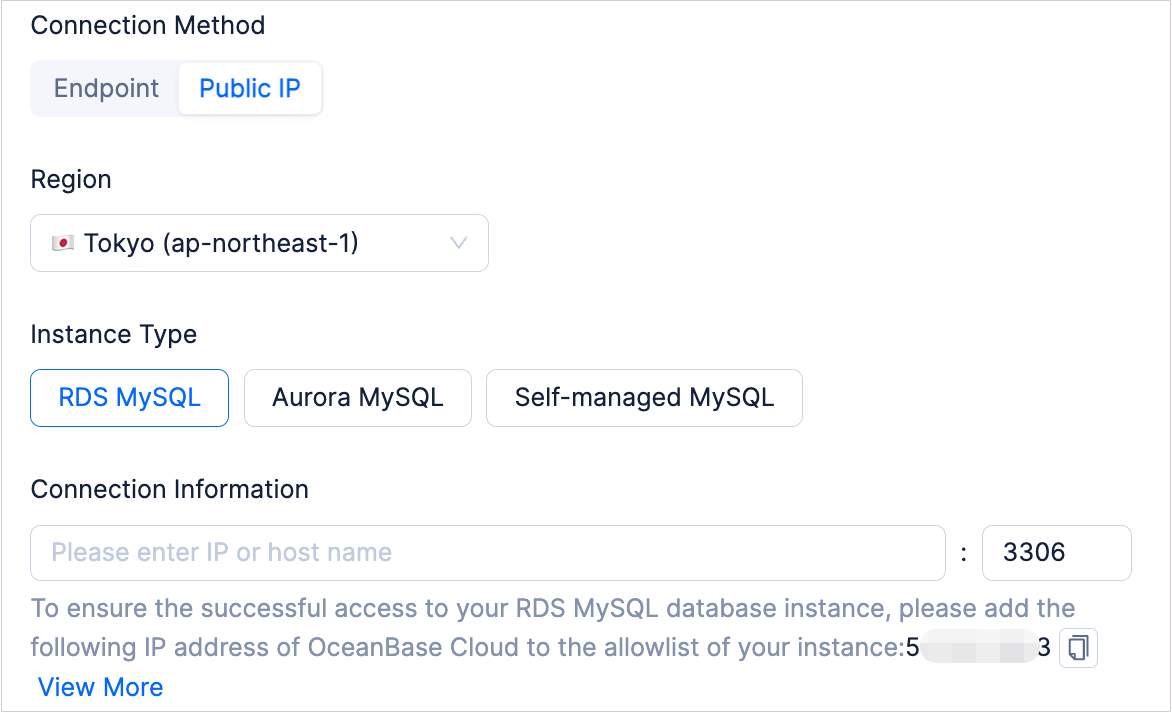
      whitelist-33-en

    Add an IP address to the allowlist of an Aurora MySQL/PostgreSQL instance or an RDS for MySQL/Oracle/PostgreSQL instance

    1. Access the Security Groups page.

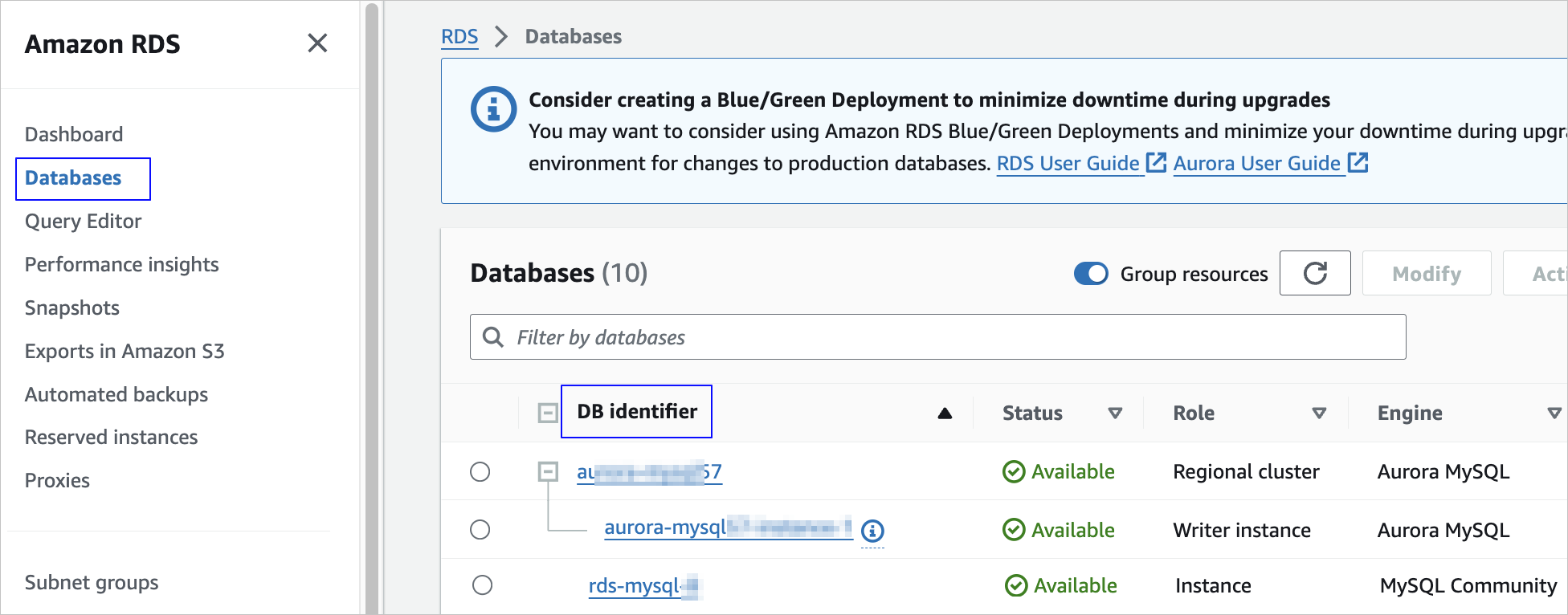
      1. Log in to the Amazon RDS console and go to the Databases page.

      2. Click the database ID of the target database instance.

        whitelist-5-en

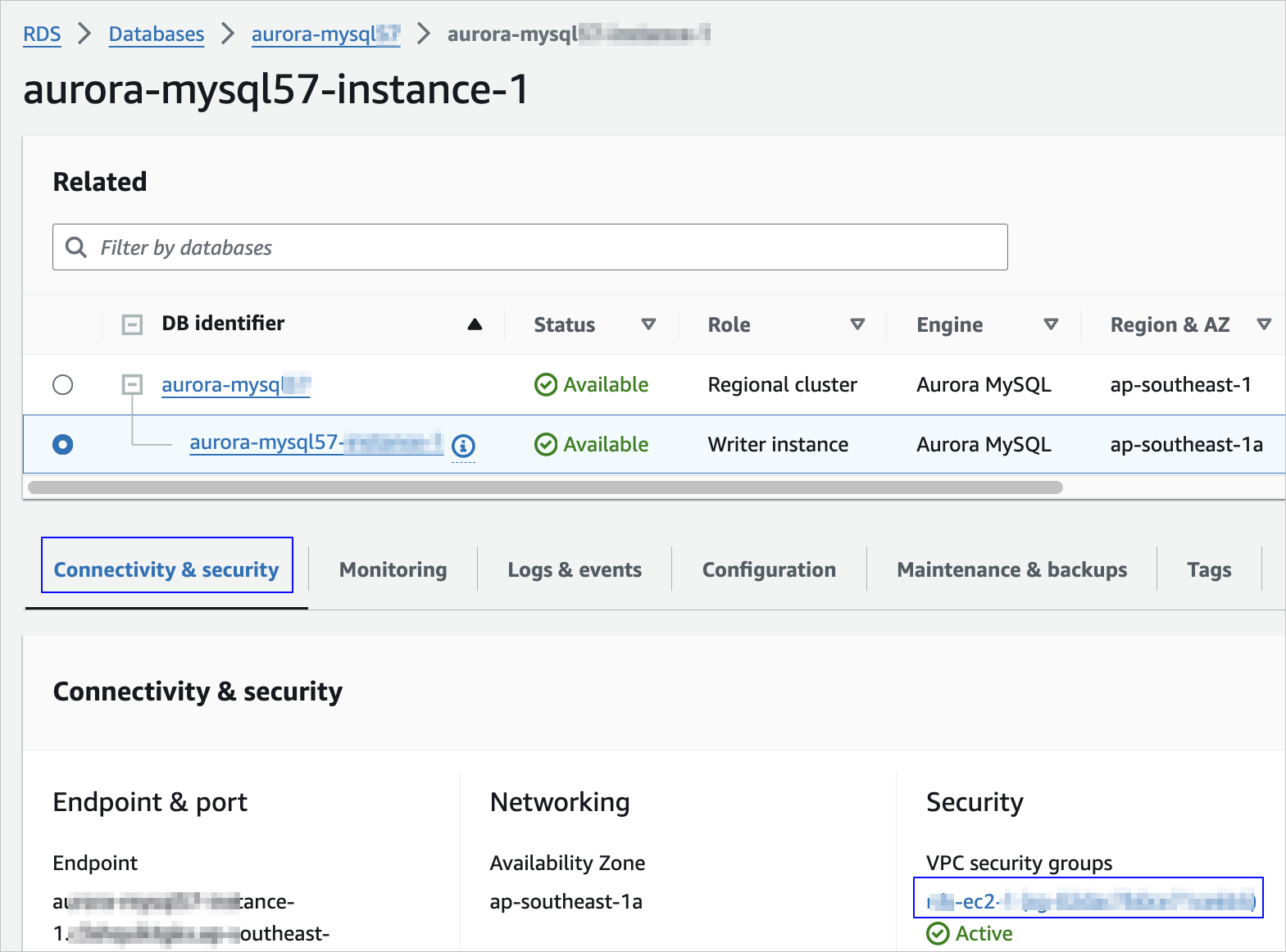
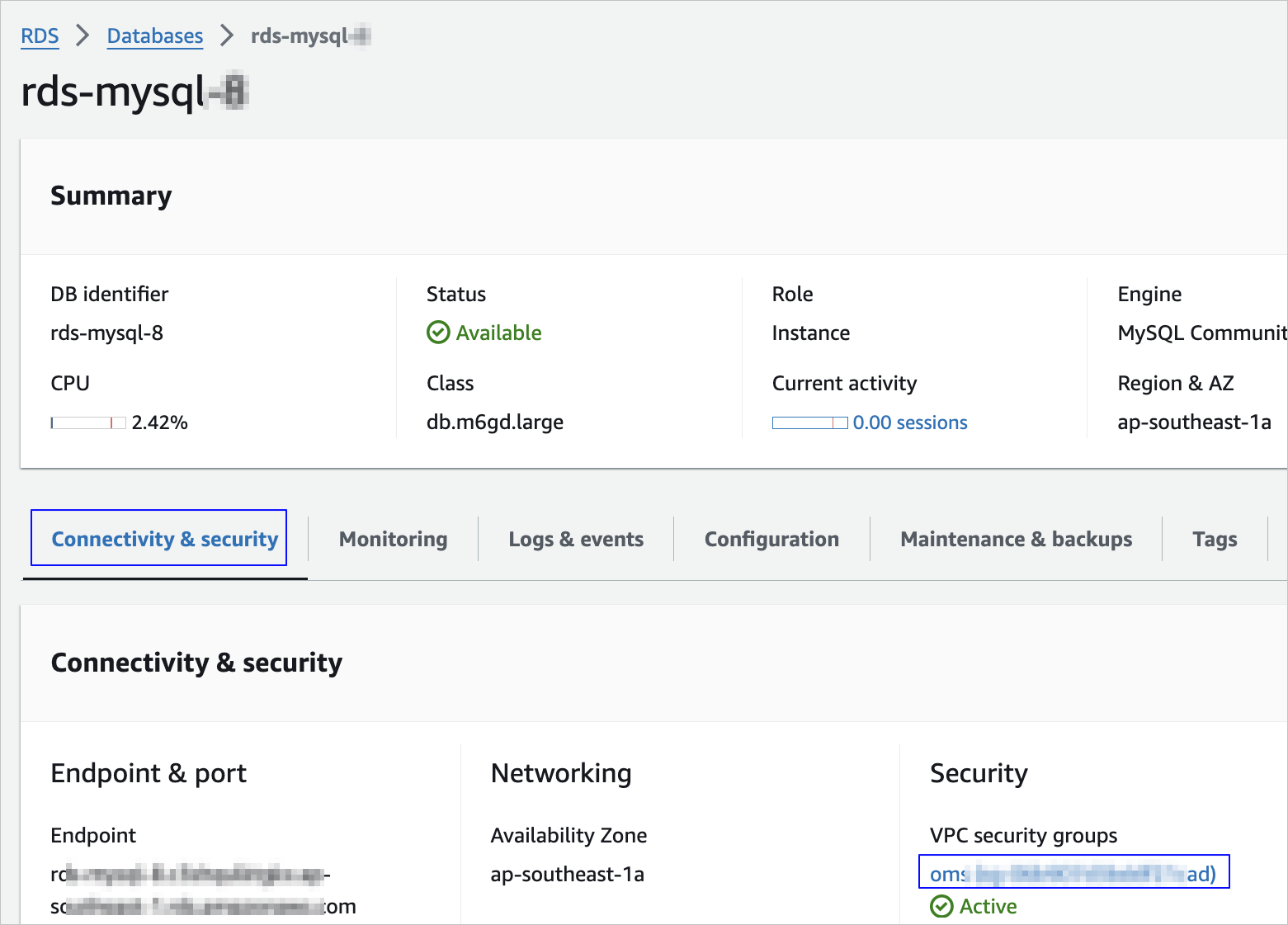
      3. On the Connectivity & security tab, click the virtual private cloud (VPC) security group in the Security section.

        • VPC security group of an Aurora MySQL/PostgreSQL instance

          whitelist-6-en

        • VPC security group of an RDS for MySQL/Oracle/PostgreSQL instance

          whitelist-7-en

    2. On the Security Groups page, click the ID of the target security group to go to its details page.

      whitelist-8-en

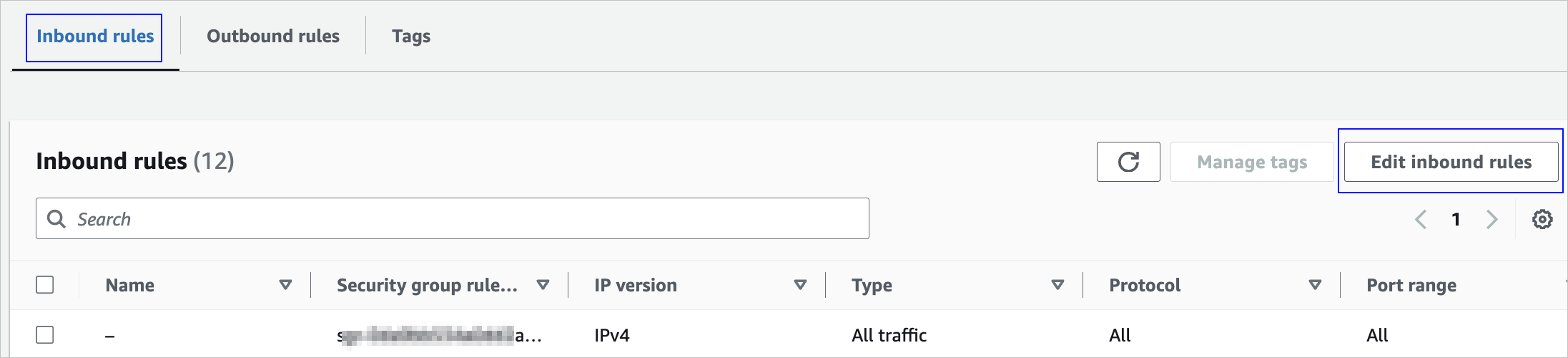
    3. In the Inbound rules section, click Edit inbound rules in the upper-right corner.

      whitelist-9-en

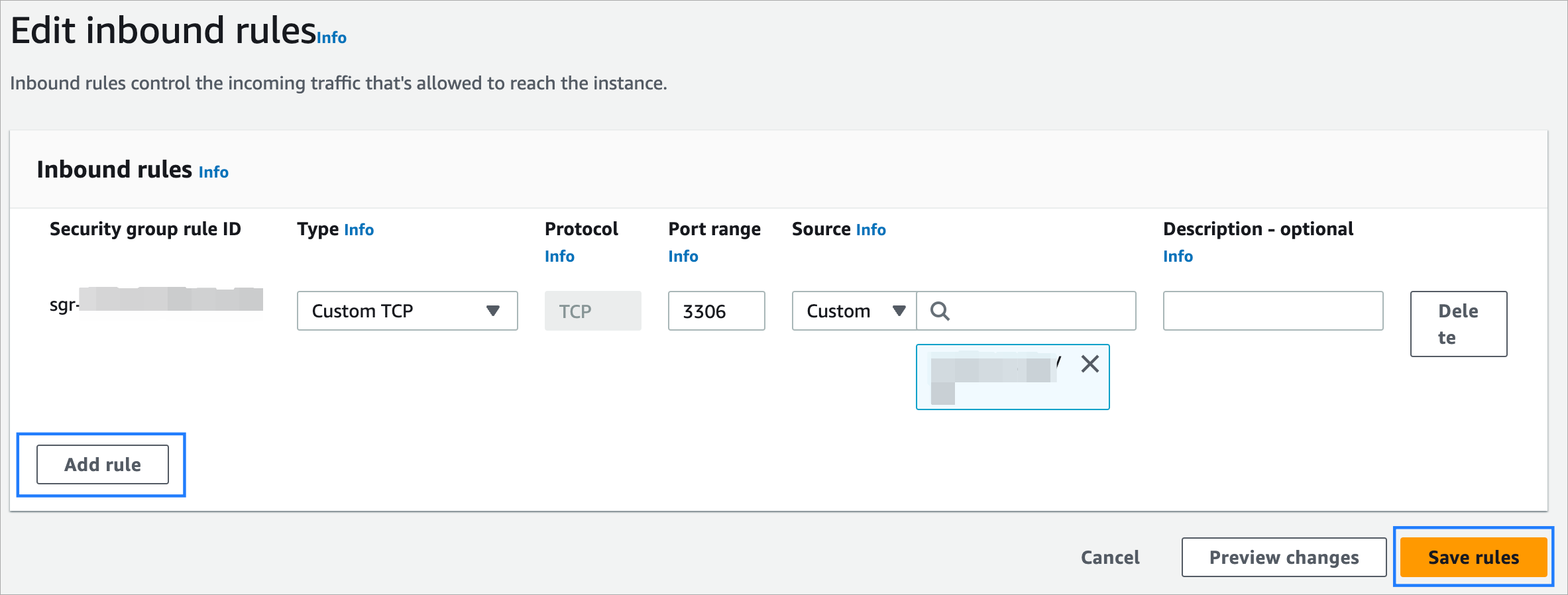
    4. On the Edit inbound rules page, click Add rule and configure the parameters.

      whitelist-4-en

      Parameter Description
      Type The rule type. Select Custom TCP.
      Protocol The protocol type. The default value is TCP.
      Port range Enter the corresponding port number.
      Source Enter the IP address copied on the page for creating a data source or data migration task.
      Description - optional The description of the rule to be added.
    5. Click Save rules.

    Add an IP address to the allowlist of a cloud Kafka instance

    1. Go to the Security Group page.

      1. Log in to the Amazon MSK console.

      2. On the Clusters page, click the name of the target cluster to go to the details page.

        private-32-en

      3. Click the Attributes tab. In the Networking settings section, click the ID of the applied security group to go to the VPC Console > Security Group page.

        whitelist-14-en

    2. In the Inbound rules section of the security group details page, click Edit inbound rules in the upper-right corner.

      whitelist-13-en

    3. On the Edit inbound rules page, click Add rule and configure the parameters.

      whitelist-12-en

      Parameter Description
      Type The rule type. Select Custom TCP.
      Protocol The protocol type. The default value is TCP.
      Port range Enter port 9092.
      Source Enter the IP address that you copied from the page for creating a data source or data migration task.
      Description (optional) The description of the rule.
    4. Click Save rule.

    Add an IP address to the allowlist of a self-managed MySQL/Oracle/OceanBase/Kafka/PostgreSQL/TiDB instance

    1. Access the Security Groups page.

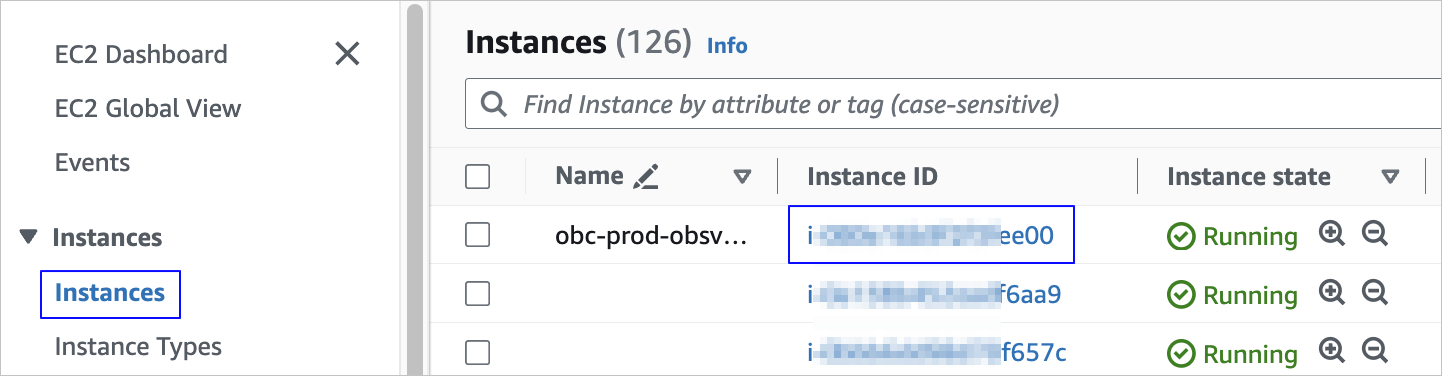
      1. Log in to the Amazon Elastic Compute Cloud (EC2) console and go to the Instances page.

      2. On the Instances page, click the ID of the self-managed database instance you created.

        private-17-en

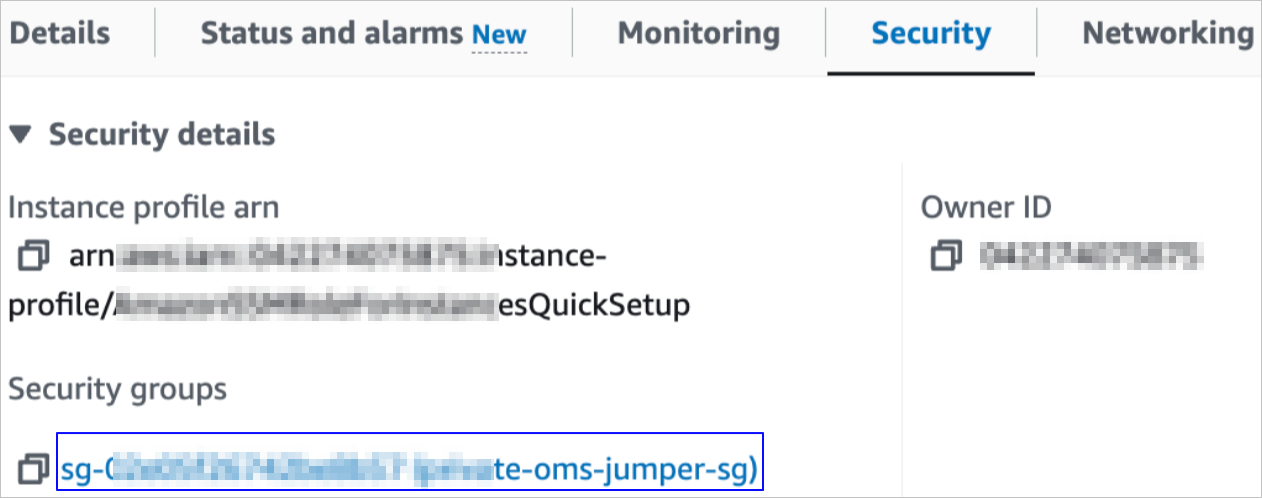
      3. On the details page of the target instance, click the security group name on the Security tab to go to the details page of the security group.

        whitelist-11-en

    2. In the Inbound rules section of the security group details page, click Edit inbound rules in the upper-right corner.

      whitelist-9-en

    3. On the Edit inbound rules page, click Add rule and configure the parameters.

      whitelist-4-en

      Parameter Description
      Type The rule type. Select Custom TCP.
      Protocol The protocol type. The default value is TCP.
      Port range Enter the corresponding port number.
      Source Enter the IP address copied on the page for creating a data source or data migration task.
      Description - optional The description of the rule to be added.
    4. Click Save rules.

    Previous topic

    Private IP address segments
    Last

    Next topic

    Huawei Cloud
    Next
    What is on this page
    Obtain the IP address to be added to the allowlist
    Add an IP address to the allowlist of an Aurora MySQL/PostgreSQL instance or an RDS for MySQL/Oracle/PostgreSQL instance
    Add an IP address to the allowlist of a cloud Kafka instance
    Add an IP address to the allowlist of a self-managed MySQL/Oracle/OceanBase/Kafka/PostgreSQL/TiDB instance