







This topic describes how to create a synonym in the SQL window.
Overview
A synonym is an alias that you create for a database object of another user. You can perform operations on the object by querying and operating the synonym.
Synonyms are similar to views. You can use synonyms to add, delete, modify, and query table data. You can define synonyms for most database objects in OceanBase Cloud, such as tables, views, materialized views, sequences, functions, stored procedures, packages, and synonyms.
Synonyms extend the availability of database objects and allow them to be accessed by different database users with the required privileges. This design simplifies and secures access to database objects.
Synonym types
OceanBase Cloud supports synonyms and public synonyms.
Synonyms: In general, a synonym created by a regular user is a private synonym. A private synonym can be accessed by the user who created it or other users who are granted the required privileges. To create a private synonym under the current user, you must have the CREATE SYNONYM privilege.
Public synonyms: A public synonym is created by a user who is granted the administrator role, such as the system user account, and can be accessed by all users.
You can create a synonym in the following 8 steps:
- Specify the synonym name.
- Specify the object owner.
- Specify the object type.
- Specify the object name.
- Specify the synonym type.
- Verify the information about the synonym.
- Edit the synonym.
- Complete the synonym creation.
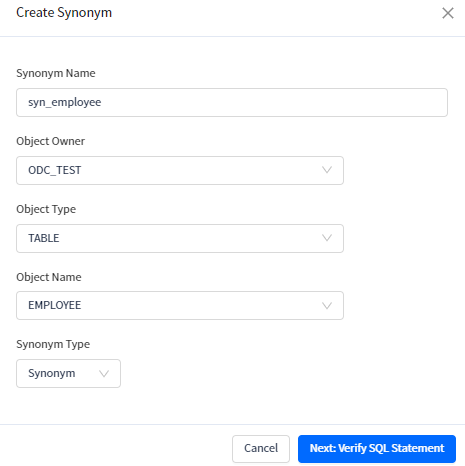
In this example, a synonym named syn_employee is created in the SQL window for an employee table in the ODC_TEST database.
Note
The data used throughout this topic are for demonstration purpose only. You can replace them with actual data as needed.
Prerequisites
You need to have the database account and password for the current tenant to log in to the SQL Console.
Procedure
Step 1: Specify the name of the synonym
After logging in to the SQL console and entering the SQL window, click the Synonym label in the database list on the left to view the synonym list. To create a synonym, click + in the upper-right corner of the synonym list.
In the Create Synonym dialog box, specify the name of the synonym.
Step 2: Specify the object owner
Specify the schema where the object is located.
Step 3: Specify the object type
Specify the object type. Valid values: Table and View.
Step 4: Specify the object name
Specify the name of the object for which the synonym is created.
Step 5: Specify the synonym type
Specify the synonym type. Valid values: Synonym and Public Synonym.
Step 6: Verify the information about the synonym
Click Next: Verify SQL Statement to go to the Create Synonym page.
Step 7: Edit the synonym

Edit the statement on the Create Synonym page.
On the statement editing page, a synonym definition statement is generated based on the information specified in the Create Synonym dialog box. You can modify this statement. After you confirm the statement, click the Create button in the upper-right corner of the page to complete the synonym creation. A synonym cannot be modified after it is created.
Before a synonym is created, you can edit the SQL statements of the synonym on the Create Synonym page. Syntax:
CREATE OR REPLACE SYNONYM syn_name FOR schema_name.object_name;
Parameters
Parameter |
Description |
|---|---|
| OR REPLACE | Updates a synonym if the synonym already exists. |
| syn_name | The name of the synonym. The name of a synonym must be unique in the specified schema. |
| schema_name | The database schema to which the object belongs. |
| object_name | The name of the object. |
Step 8: Complete the synonym creation
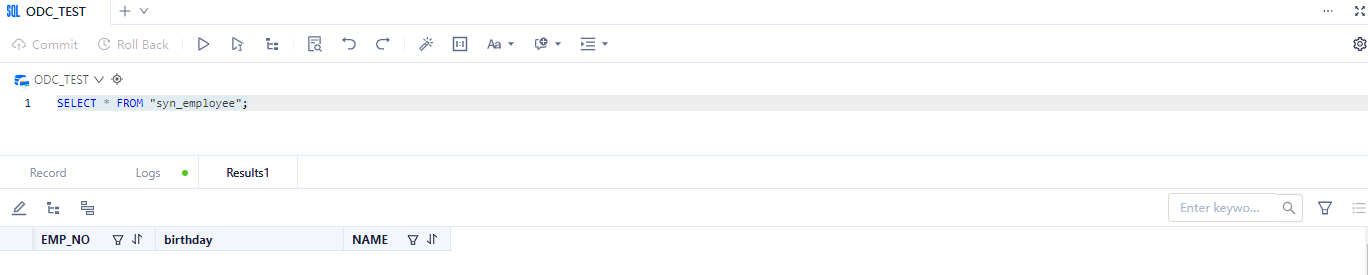
Click Create. After you create a synonym, you can use it in the same way as a built-in synonym.
Syntax:
SELECT * FROM syn_name ([syn_parameter[,...])
Example:
SELECT * FROM syn_employee;
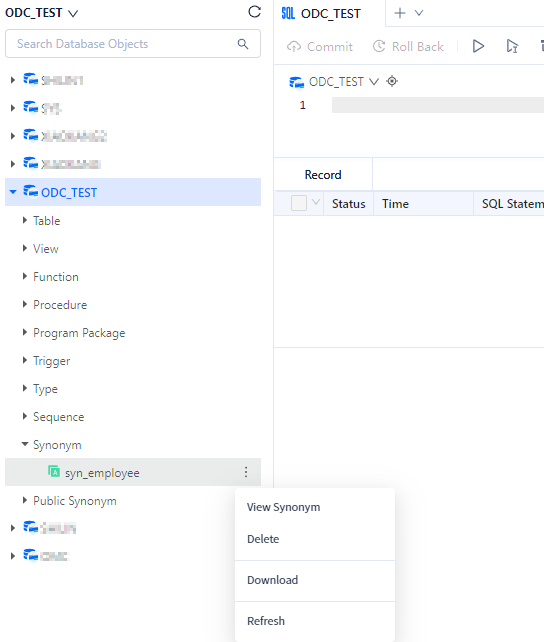
To manage a synonym, right-click the synonym name in the left-side navigation pane, and select the required operation from the context menu, which provides the following options: View, Delete, Download, and Refresh. For more information, refer to Functional keys in SQL Console.
Option |
Description |
|---|---|
| View Synonyms | Click this option to go to the synonyms management page, where you can view the basic information and codes of the synonyms. |
| Download | Download the SQL file for the synonyms object. |
| Delete | Click this option to delete the synonyms. |
| Refresh | Click this option to refresh the list after you perform management actions on the synonyms, so that the list displays the latest information. |