







This topic describes how to create a sequence in the SQL window.
Prerequisites
You need to have the database account and password for the current tenant to log in to the SQL Console.
Prerequisites
After logging in to the SQL console and entering the SQL window, click the Sequence label in the database list on the left to view the sequence list. To create a sequence, click + in the upper-right corner of the sequence list.
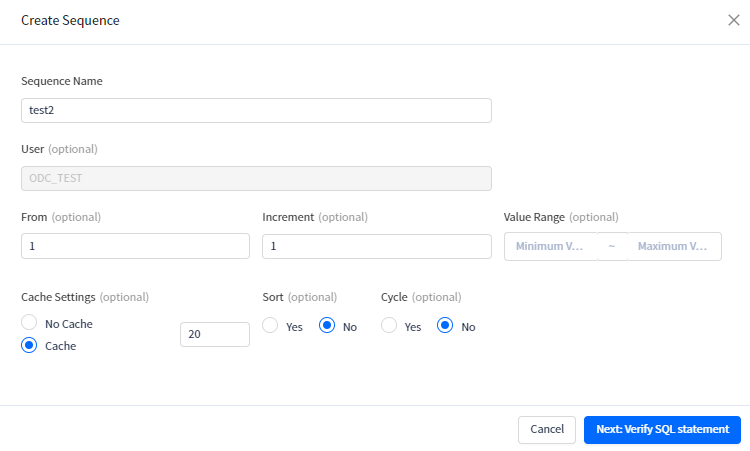
Set Basic Info. You need to specify Sequence Name and User. The User parameter is automatically specified based on the current account.
Set columns. This step is optional. You need to specify the following parameters to set columns:
ParameterDescriptionFrom Specifies the initial value of the sequence, which must not be less than the value of Minimum Value. Increment Specifies the step size for the auto-increment of sequence values. The value can be a negative number. Minimum Value Specifies the minimum value that can be obtained by the sequence. The minimum value supported by the database is -1026. Maximum Value Specifies the maximum value that can be obtained by the sequence. The maximum value supported by the database is 1027. Cache Settings Specifies the cache size for the sequence. A proper cache size can improve the performance in obtaining sequence values. You can also set the value to No Cache. Whether to Sort Specifies whether the sequence obtains values in an ordered manner. The performance of the sequence in obtaining values in an ordered manner is inferior to that in an unordered manner. Cyclic or Not Specifies whether to start from the minimum value again when the sequence value reaches the maximum value. Click Next: Verify SQL Statement to go to the Create Sequence page. An SQL script is pre-generated based on the information you specified. After the SQL script is verified, click Create in the upper-right corner to run the script and generate a sequence.

After the new sequence is created, the new sequence name will appear in the sequence list on the left navigation bar.
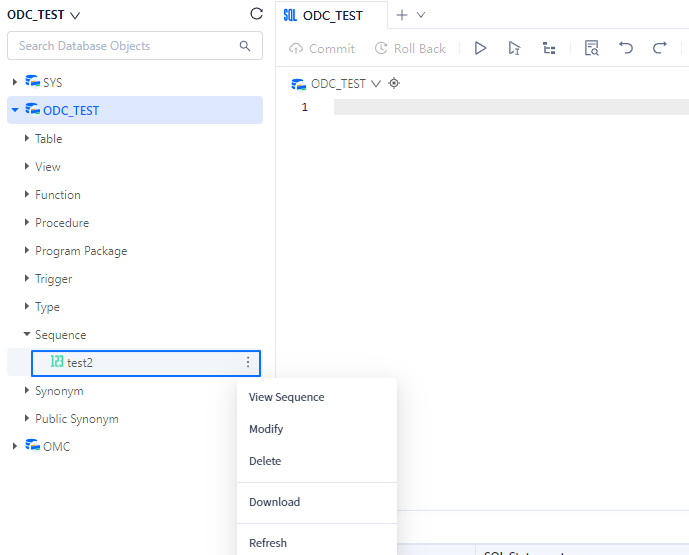
To manage a sequence, right-click the sequence name in the list of databases on the left, and select the required operation from the context menu, which provides the following options: View Sequence, Modify, Delete, Download, and Refresh. For more information, refer to Functional keys in SQL Console.