







This topic describes how to view project information, create a project, configure a project, and delete a project.
Prerequisites
- Only organization admins and project admins can create a project or instance, configure a project, or delete a project.
- Only project admins, instance admins, and project members can view project information.
Create a project
Log in to the OceanBase Cloud console. In the upper-left corner, click your organization name and select All Organizations from the drop-down list.
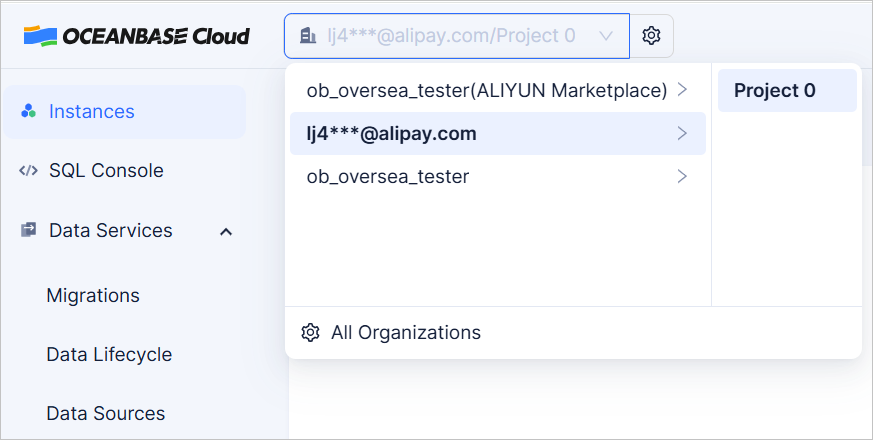
In the organization list, click the name of the target organization.
On the project page that appears, click Create Project in the upper-right corner.
In the dialog box that appears, configure the project information.
ParameterDescriptionProject Name Enter the name of the project. Supported Resource Type Select the resource type supported by the project. Valid value: DBaaS. Invite Member Enter an email address and select the project role to assign. Click OK to create the project.
Create an instance
After you create a project, click the project name to go to the project instance list and create an instance. For more information, see Create an instance.
Configure a project
After you create a project, click Configure Project in the Actions column to perform the following operations:
View project details.
You can view the project name, project ID, number of instances, number of members, and creation time.
ParameterDescriptionProject Name The name of the project. Project ID The unique identifier of the project. Supported Resource Types The resource type of the project: DBaaS. Instances The number of instances in the project. Members The number of members in the project. Cross-Project Bidirectional Authorizations The number of cross-project bidirectional authorizations. Created At The creation time of the project. Manage instances.
Click Instance to go to the instance list tab and view the instance information in the project.
In the Actions column of the target instance, click Change Project to change the instance to another project.
Manage members.
Click Members to go to the member list tab and view and manage the members in the organization.
Click Invite Member. In the dialog box that appears, enter the email address of the member to be invited and select the project role to be assigned to the member. For more information about the permissions of different roles, see Role permissions.
Manage cross-project bidirectional authorizations.
Click Cross-project Bidirectional Authorization to go to the cross-project bidirectional authorization tab and view the authorized projects and their basic information.
Click Initiate Cross-project Bidirectional Authorization. In the dialog box that appears, select the target project to initiate the authorization application. For more information, see Cross-project bidirectional authorization.
Configure AI settings.
Configure the AI feature switch and model settings. For more information, see AI settings.
Manage object storage configurations.
Create and manage object storage configurations at the project level so that features that write data to object storage can reference them. For more information, see Manage object storage configurations.
Configure project message subscription.
Configure the recipients and types of messages to be sent to the recipients by email. For more information, see Project message subscription.
Delete a project
When a project has no instances or all instances have been moved to other projects, click Delete in the Actions column to delete the project.
View the project list
Log in to the OceanBase Cloud console. In the upper-left corner, click your organization name and select All Organizations from the drop-down list.
In the organization list, click the name of the target organization.
On the project list page, you can view the basic information of each project.
ParameterDescriptionProject Name The name you entered when you created the project. Project ID The unique identifier of the project. Number of Instances The number of instances in the project. Members The number of members in the project. Cross-Project Bidirectional Authorizations The number of cross-project bidirectional authorizations. Created At The creation time of the project.