







This topic describes how to view cost details and the shortcut view features.
Considerations
- Cost allocation details are for internal cost analysis and allocation only and cannot be used as direct references for financial reconciliation or payments.
- The final data for the current month will be generated and available for viewing and exporting after 12:00 on the 7th of the next month.
- Cost allocation details will be updated within 48 hours after the bill details are issued.
- You can query and export cost allocation details for the past 12 months.
View cost details
Log in to the OceanBase Cloud console.
Click the arrow on the right of the organization name at the top of the page, and click the name of the target organization from the drop-down list.
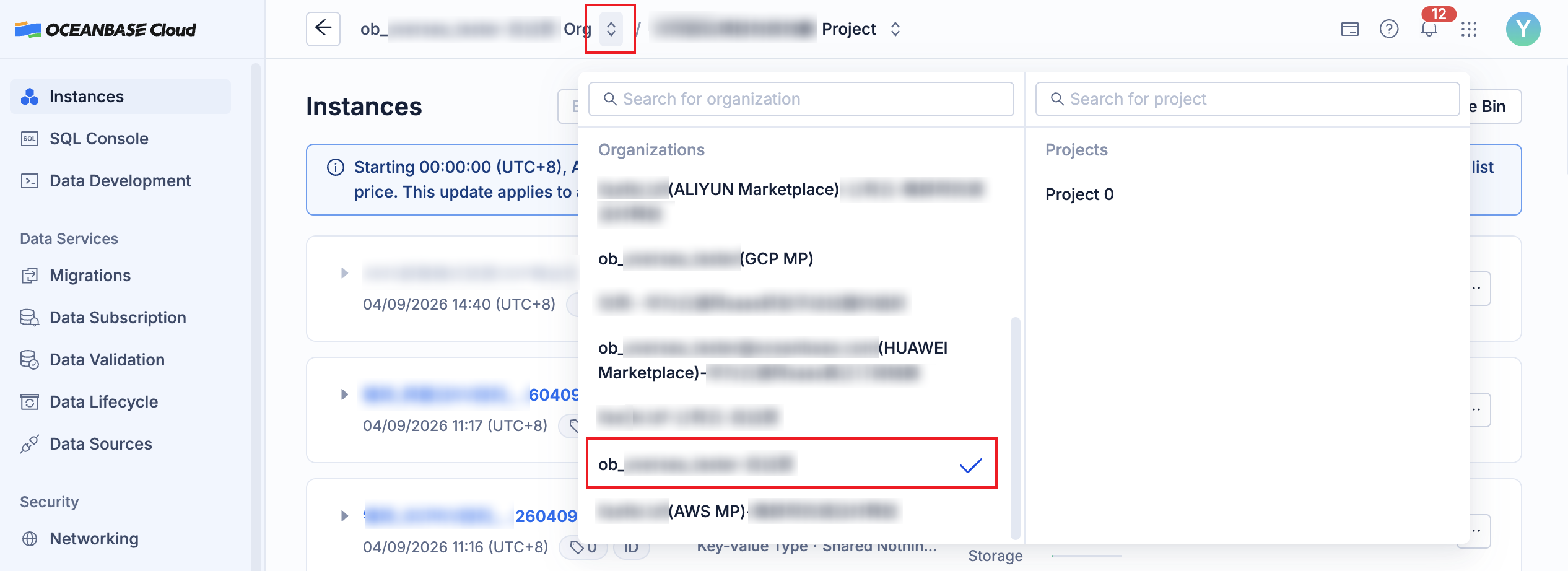
In the left-side navigation pane, click Costs.
On the cost page, click Cost Details to view the cost details of the organization.
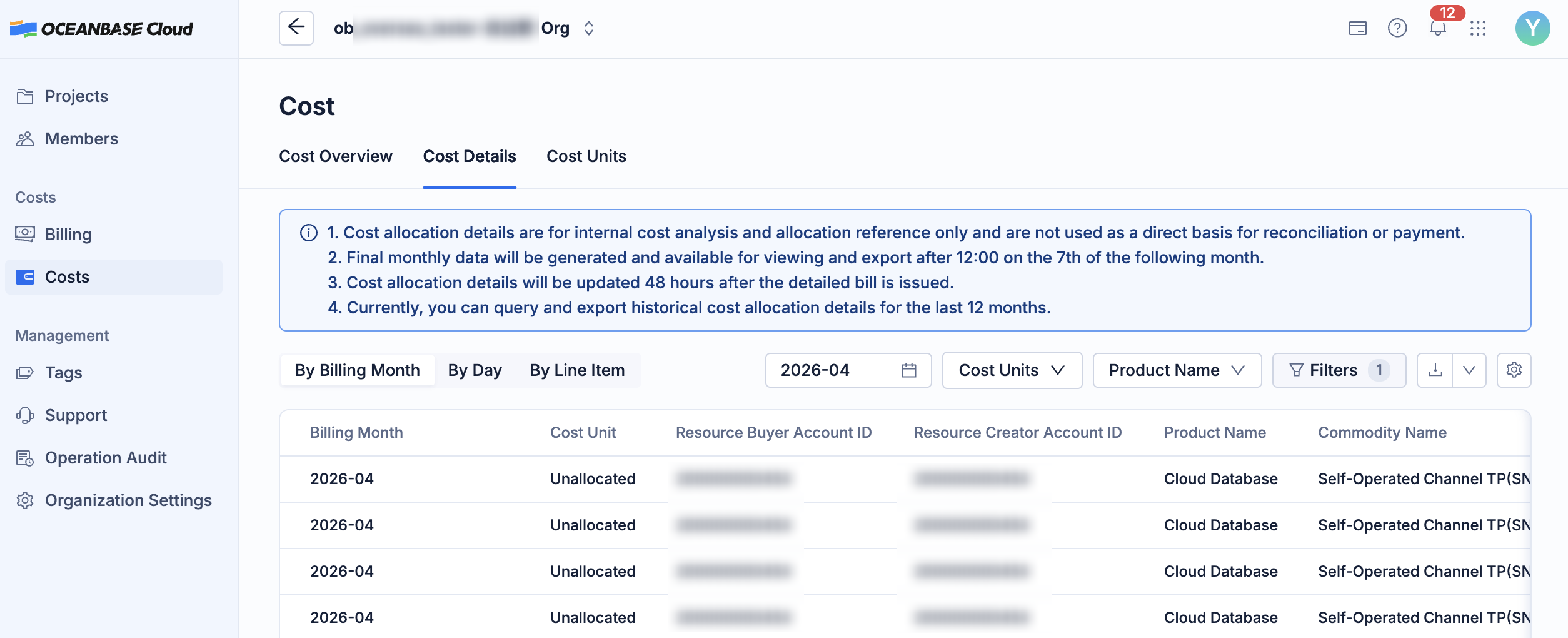
You can view the specified content in the following ways.
Filter cost details: You can filter the cost details by Billing Month, Cost Unit, Product Name, Commodity Name, Payment Type, Order Number, and whether to including $0 due items.
Sort cost details: You can sort the cost details by billing month, day, or generation time of line items.
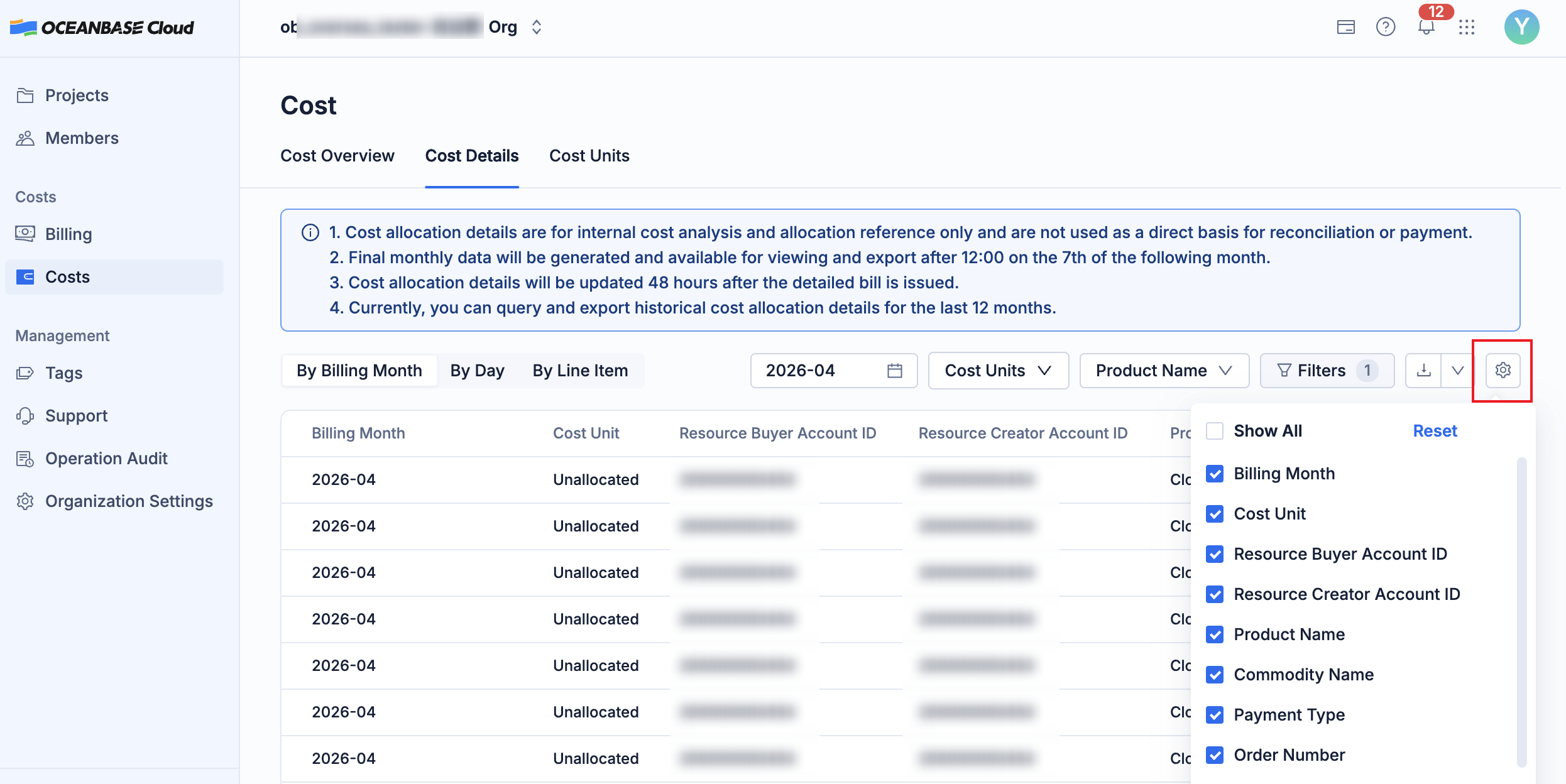
Set the list columns: In the upper-right corner of the cost details tab, click the Settings button to filter the columns displayed in the list.
Download cost details
On the cost details tab, click the Export Cost Details button in the upper-right corner.
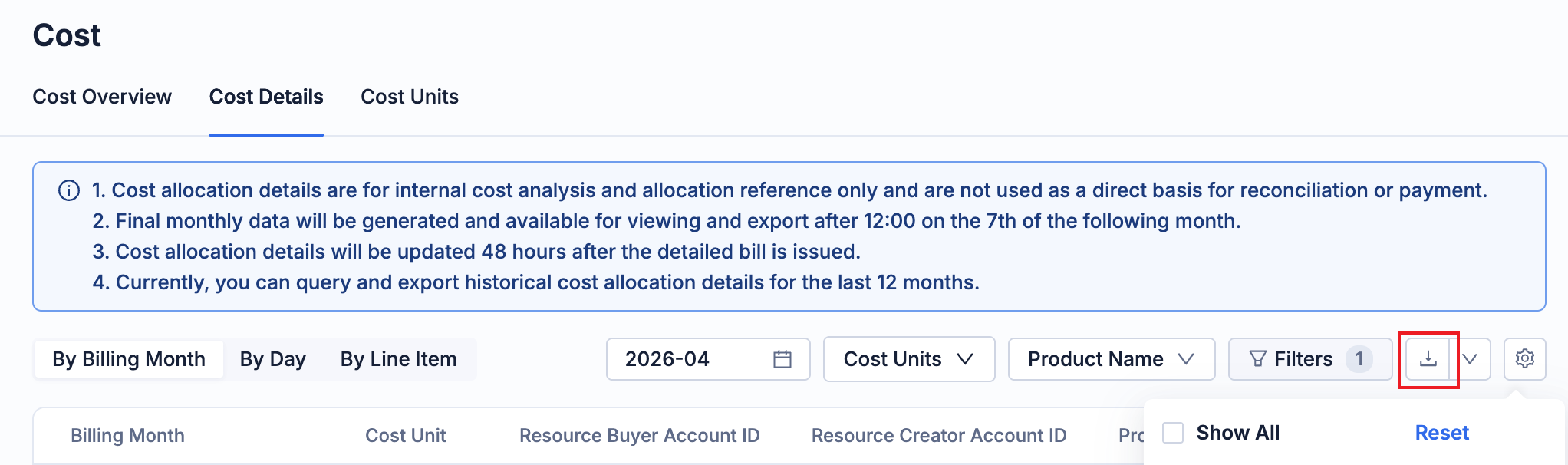
After the export is successful, click Export History on the right side of the export button.
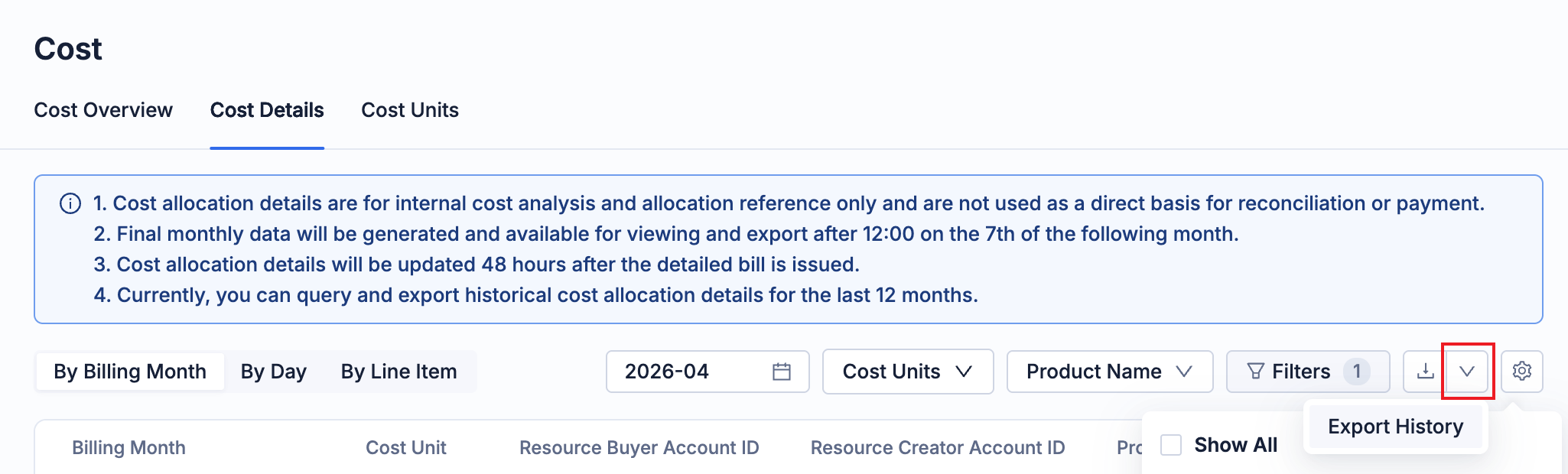
In the export history dialog box, click Download in the Actions column of the target record.
After the download is successful, you can view the file locally.