







Apache NiFi is an automated dataflow processing platform that enables efficient and reliable data transfer between systems. By reading OceanBase Cloud's Binlog data, you can distribute data to various destinations including file systems, message queues (e.g., Kafka), or HTTP endpoints.
Prerequisites
You have registered an OceanBase Cloud account and created the following resources:
created an instance with a tenant in the MySQL compatible mode. For details, see Create an instance and Create a tenant.
Created a database and user account. For details, see Create a database and Create an account.
Enabled Binlog service for the MySQL-compatible tenant. For details, see Enable the Binlog service.
The NiFi server IP has been added to the OceanBase Cloud cluster instance allowlist. For details, see Set allowlist groups.
The Java Development Kit (JDK) 1.8 or later is installed.
You have downloaded the Apache NiFi installation package.
Step 1: Configure NiFi runtime environment
Extract the NiFi installation package to your target directory.
Modify the
conf/nifi.propertiesconfiguration file as follows (using HTTP connection as example):# Disable HTTPS and configure HTTP access nifi.web.https.host= nifi.web.https.port= nifi.web.http.host=0.0.0.0 nifi.web.http.port=<custom_port_number> # Allow insecure remote connections nifi.remote.input.secure=falseUpload the MySQL driver to your NiFi server.
Execute the following commands in the NiFi installation directory. Use
bin/nifi.sh stopto stop the service.# Start service bin/nifi.sh start
Step 2: Configure dataflow pipeline
Access the NiFi console at
http://<nifi_server_ip>:<port>/nifi/through your browser.Configure CaptureChangeMySQL Processor:
Drag the Processor icon from the top toolbar to the canvas, search for and select
CaptureChangeMySQL, then click ADD.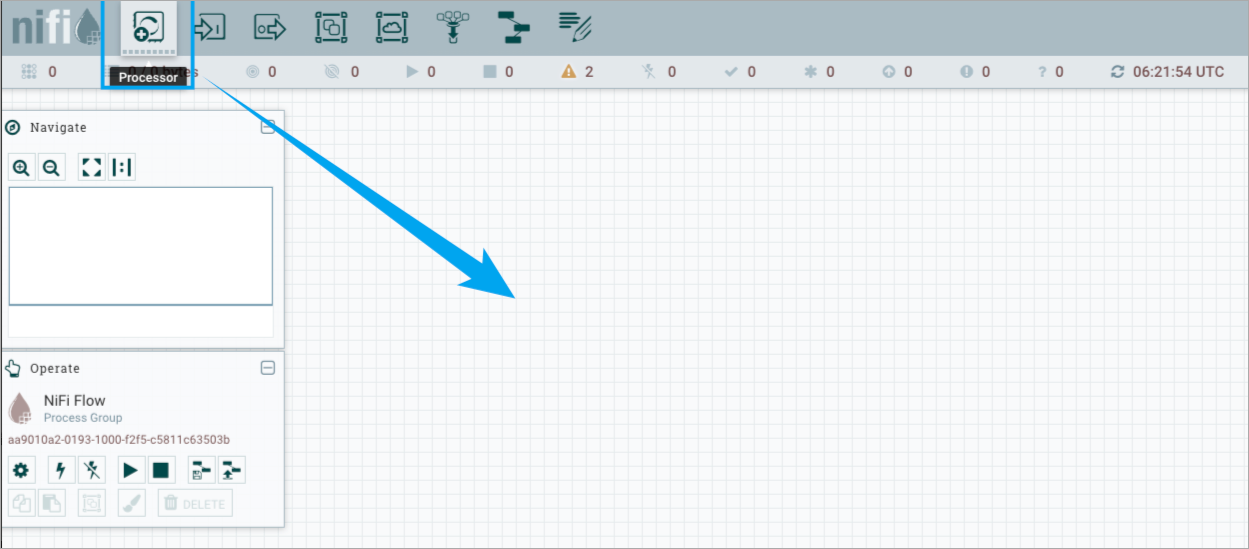
Right-click the CaptureChangeMySQL Processor and select Configure. Under the PROPERTIES tab, set these parameters and click APPLY:
PropertyDescriptionMySQL Nodes OceanBase Cloud instance address and port MySQL Driver Class Name JDBC driver class: com.mysql.cj.jdbc.DriverMySQL Driver Location Directory containing the driver JAR file Username Database username you created Password Database user password Database/Schema Name Pattern Database to capture Binlog from (supports regex) Table Name Pattern Tables to capture Binlog from (supports regex) Include DDL Events Set to trueto capture DDL changes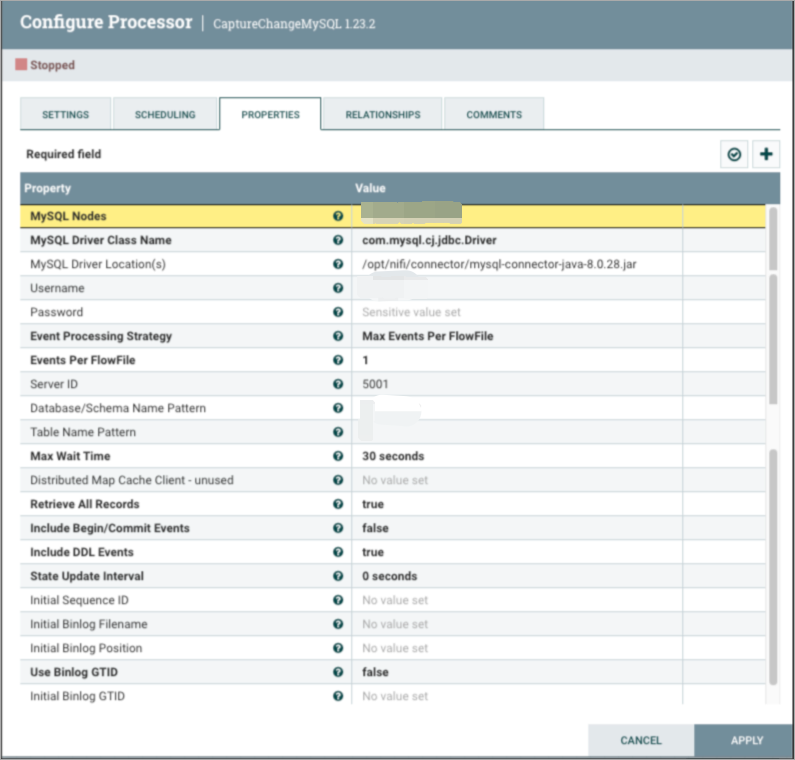
Configure PutFile Processor:
Drag another processor to the canvas, search for and select
PutFile, then click ADD.Right-click the PutFile Processor and select Configure. Under PROPERTIES, set the
Directoryproperty where Binlog files will be output. Click APPLY.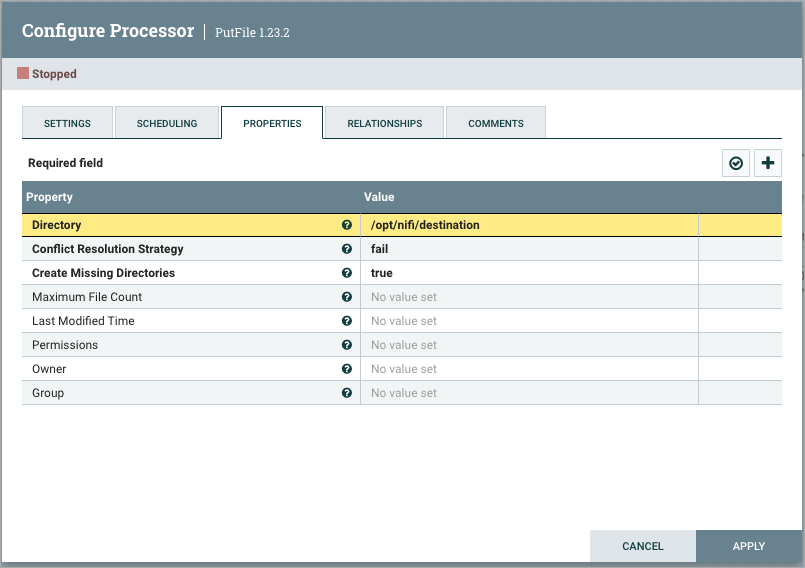
Establish dataflow connection:
On the canvas, click the arrow on
CaptureChangeMySQLand connect it toPutFile.In the Create Connection dialog, click ADD.
Right-click the PutFile Processor and select Configure. Under RELATIONSHIPS, set both
failureandsuccessto terminate. Click APPLY.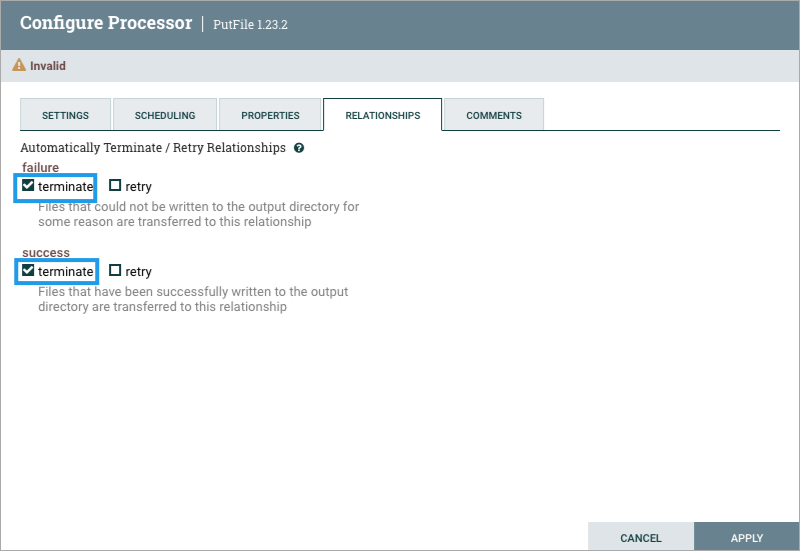
Start the dataflow:
Right-click the CaptureChangeMySQL Processor and select Start.
Similarly, right-click the PutFile Processor and select Start.
Step 3: Verify data synchronization
Insert test data into your OceanBase Cloud database.
Verify files are generated in the PutFile directory.
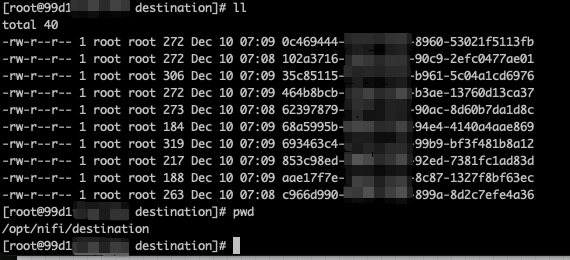
Inspect file contents to view the captured SQL statement information.
