







This topic describes how to use the Spring JDBC framework, MySQL Connector/J, and OceanBase Cloud to build an application that performs basic database operations, such as creating tables and inserting and querying data.
 Download the spring-jdbc-mysql-client sample project
  Spring JDBC example for connecting to OceanBase Cloud (MySQL compatible mode)
Features
- Supports basic CRUD operations
- Provides transaction management
- Has an exception handling mechanism
- Manages connection pools
Scenarios
- Scenarios where you need to directly use SQL statements
- Scenarios with high performance requirements
- Scenarios with simple database operations
Prerequisites
You have registered an OceanBase Cloud account and created an instance and a MySQL-compatible tenant. For more information, see Create an instance and Create a tenant.
You have installed JDK 1.8 and Maven.
You have installed Eclipse.
Note
The sample code in this topic is run in Eclipse IDE for Java Developers 2022-03. You can also use your preferred tool to run the sample code.
Procedure
Note
The following steps describe how to compile and run the project in the Windows environment by using Eclipse IDE for Java Developers 2022-03. If you use a different operating system or compiler, the steps may vary slightly.
- Import the
spring-jdbc-mysql-clientproject into Eclipse. - Obtain the URL of the OceanBase Cloud database.
- Modify the database connection information in the
spring-jdbc-mysql-clientproject. - Run the
spring-jdbc-mysql-clientproject.
Step 1: Import the spring-jdbc-mysql-client project into Eclipse
Start Eclipse and choose File > Open Projects from File System.
In the dialog box that appears, click Directory to select the project directory and click Finish.
Note
When you import a Maven project into Eclipse, it automatically detects the
pom.xmlfile in the project, downloads the required dependency libraries based on the described dependencies in the file, and adds them to the project.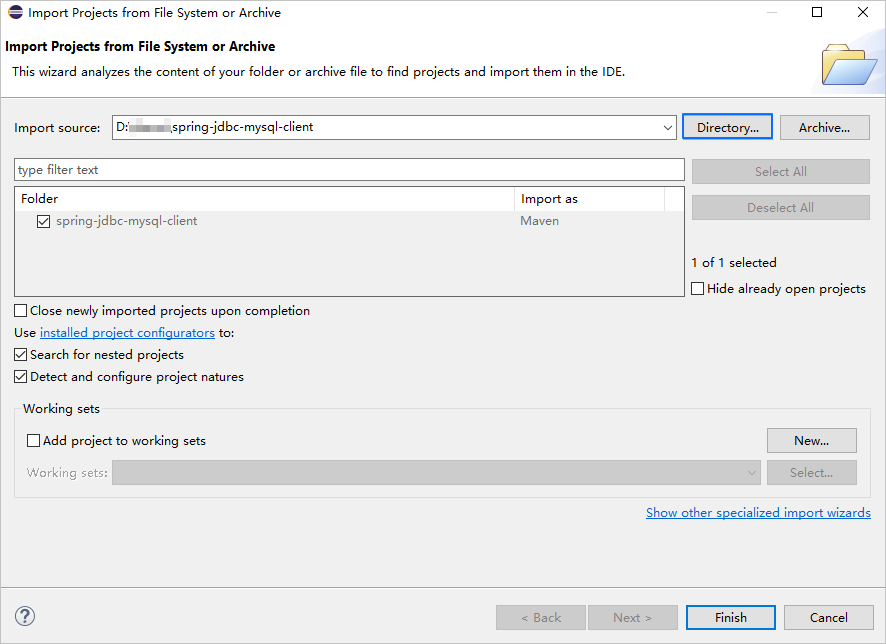
View the project.
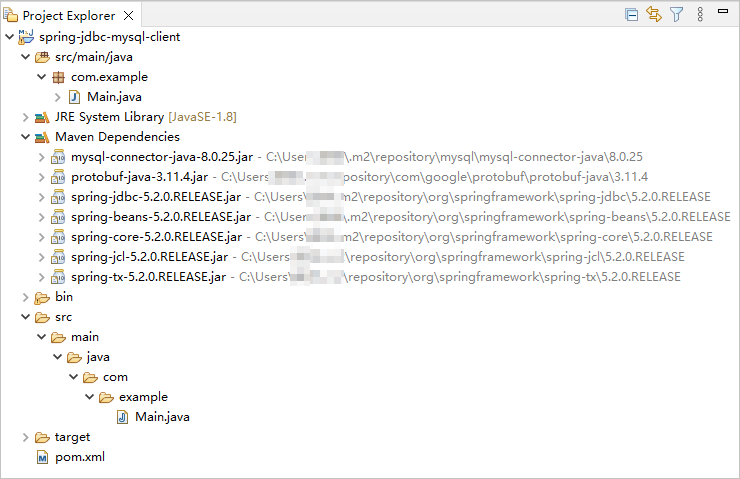
Step 2: Obtain the URL of the OceanBase Cloud database
Log in to the OceanBase Cloud console. In the instance list, expand the information of the target instance, and in the target tenant, choose Connect > Get Connection String.
For more information, see Get connection string.
Fill in the URL with the information of the created OceanBase Cloud database.
jdbc:mysql://$host:$port/$database_name?user=$user_name&password=$password&useSSL=falseParameter description:
$host: the URL of the OceanBase Cloud database, for example,t********.********.oceanbase.cloud.$port: the port of the OceanBase Cloud database. The default value is 3306.$database_name: the name of the database to be accessed.Notice
The account for connecting to the tenant must have the
CREATE,INSERT,UPDATE,DELETE,SELECT, andDROPprivileges on the database. For more information about account privileges, see Create and manage an account.$user_name: the account for accessing the database.$password: the password of the account.
For more information about the MySQL Connector/J connection properties, see Configuration Properties.
Example:
jdbc:mysql://t********.********.oceanbase.cloud:3306/test?user=mysql001&password=******&useSSL=false
Step 3: Modify the database connection information in the spring-jdbc-mysql-client project
Modify the database connection information in the spring-jdbc-mysql-client/src/main/java/com/example/Main.java file based on the information obtained in Step 2: Obtain the URL of the OceanBase Cloud database.
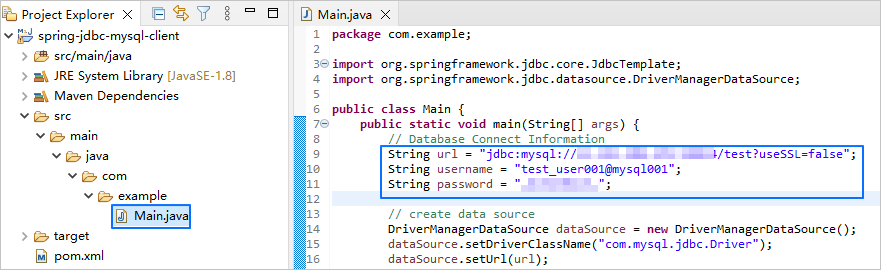
Example:
- The URL of the OceanBase Cloud database is
t5******.********.oceanbase.cloud. - The port is 3306.
- The name of the database to be accessed is
test. - The tenant account is
mysql001. - The password is
******.
Sample code:
...
        String url = "t********.********.oceanbase.cloud:3306/test?useSSL=false";
        String username = "mysql001";
        String password = "******";
...
Step 4: Run the spring-jdbc-mysql-client project
In the Project Explorer view, find and expand the src/main/java directory.
Right-click the Main.java file and choose Run As > Java Application.
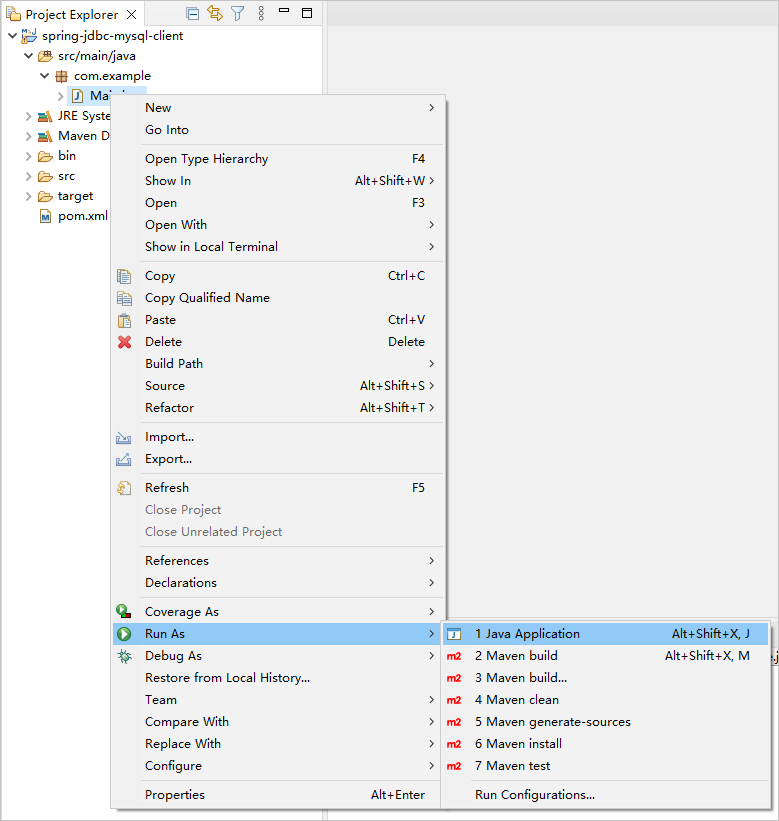
View the output in the console window of Eclipse.

FAQ
1. Connection timeout
If you encounter a connection timeout issue, you can configure the connection timeout parameter in the JDBC URL:
jdbc:mysql://host:port/database?connectTimeout=30000&socketTimeout=60000
2. Character set
To ensure correct character encoding, set the appropriate character set parameter in the JDBC URL:
jdbc:mysql://host:port/database?characterEncoding=utf8&useUnicode=true
3. SSL connection
To enable an SSL connection to the OceanBase Cloud database, add the following parameter to the JDBC URL:
jdbc:mysql://host:port/database?useSSL=true&requireSSL=true
4. Special characters in the account password
If the username or password contains special characters (such as #), you need to URL-encode them:
String encodedPassword = URLEncoder.encode(password, "UTF-8");
Notice
When using MySQL Connector/J 8.x, ensure that the username and password do not contain the number sign (#). Otherwise, you may encounter a connection error.
Project code
Click spring-jdbc-mysql-client to download the project code, which is a compressed file named spring-jdbc-mysql-client.zip.
After decompressing it, you will find a folder named spring-jdbc-mysql-client. The directory structure is as follows:
spring-jdbc-mysql-client
├── src
│   └── main
│       └── java
│           └── com
│                └── example
│                   └── Main.java
└── pom.xml
File description:
src: the root directory for source code.main: the main code directory, containing the core logic of the application.java: the directory for Java source code.com: the directory for Java packages.example: the directory for packages of the sample project.Main.java: the main class, containing logic such as table creation and data insertion.pom.xml: the configuration file for the Maven project, used to manage project dependencies and build settings.
pom.xml code
The pom.xml file is the configuration file of a Maven project. It defines the dependencies, plugins, and build rules of the project. Maven is a Java project management tool that can automatically download dependencies, compile, and package projects.
The pom.xml file in this topic contains the following parts:
File declaration statement.
This statement declares that the file is an XML file using XML version
1.0and character encodingUTF-8.Sample code:
<?xml version="1.0" encoding="UTF-8"?>Configure the namespace and POM model version.
- Use
xmlnsto specify the POM namespace ashttp://maven.apache.org/POM/4.0.0. - Use
xmlns:xsito specify the XML namespace ashttp://www.w3.org/2001/XMLSchema-instance. - Use
xsi:schemaLocationto specify the POM namespace ashttp://maven.apache.org/POM/4.0.0and the location of the POM XSD file ashttp://maven.apache.org/xsd/maven-4.0.0.xsd. - Use the
<modelVersion>element to specify the POM model version used by the POM file as4.0.0.
Sample code:
<project xmlns="http://maven.apache.org/POM/4.0.0" xmlns:xsi="http://www.w3.org/2001/XMLSchema-instance" xsi:schemaLocation="http://maven.apache.org/POM/4.0.0 http://maven.apache.org/xsd/maven-4.0.0.xsd"> <modelVersion>4.0.0</modelVersion> <!-- Other configurations --> </project>- Use
Configure basic information.
- Use
<groupId>to specify the project group ascom.example. - Use
<artifactId>to specify the project name asspring-jdbc-mysql-client. - Use
<version>to specify the project version as1.0-SNAPSHOT.
Sample code:
<groupId>com.example</groupId> <artifactId>spring-jdbc-mysql-client</artifactId> <version>1.0-SNAPSHOT</version>- Use
Configure the properties of the project source file.
Specify the Maven compiler plugin as
maven-compiler-plugin, and set both the source code and target Java versions to 8. This means that the project's source code is written using Java 8 features, and the compiled bytecode will also be compatible with the Java 8 runtime environment. This configuration ensures that the project can correctly handle Java 8 syntax and features during compilation and runtime.Note
Java 1.8 and Java 8 are different names for the same version.
Sample code:
    <build>
        <plugins>
            <plugin>
                <groupId>org.apache.maven.plugins</groupId>
                <artifactId>maven-compiler-plugin</artifactId>
                <configuration>
                    <source>8</source>
                    <target>8</target>
                </configuration>
            </plugin>
        </plugins>
    </build>
Configure the components that the project depends on.
Add the
mysql-connector-javadependency library for database interaction:Note
This part of the code defines that the project depends on MySQL Connector/J V5.1.40. For information about other versions, see MySQL Connector/J.
- Use
<groupId>to specify the dependency group asmysql. - Use
<artifactId>to specify the dependency name asmysql-connector-java. - Use
<version>to specify the dependency version as5.1.40.
Sample code:
<dependency> <groupId>mysql</groupId> <artifactId>mysql-connector-java</artifactId> <version>5.1.40</version> </dependency>- Use
Add the
spring-jdbcdependency library:- Use
<groupId>to specify the dependency group asorg.springframework. - Use
<artifactId>to specify the dependency name asspring-jdbc. - Use
<version>to specify the dependency version as5.2.0.RELEASE.
Sample code:
<dependency> <groupId>org.springframework</groupId> <artifactId>spring-jdbc</artifactId> <version>5.2.0.RELEASE</version> </dependency>- Use
Main.java code introduction
The Main.java file is part of the sample program, and the code demonstrates how to use the Spring JDBC framework to perform database operations. It first configures the database connection information and then creates a JdbcTemplate object to execute database operations. The code also includes examples of creating tables, inserting data, and querying data.
The Main.java file in this topic contains the following code:
Define the package and import the necessary classes.
- Declare the package name of the current code as
com.example. - Import the
JdbcTemplateclass, which is a core class in the Spring JDBC framework used to execute database operations. - Import the
DriverManagerDataSourceclass, which is a data source class provided by Spring that implements theDataSourceinterface and is used to configure database connection information.
Code:
package com.example; import org.springframework.jdbc.core.JdbcTemplate; import org.springframework.jdbc.datasource.DriverManagerDataSource;- Declare the package name of the current code as
Create a
Mainclass and define themainmethod.- Define a public class named
Mainas the entry point of the program. The class name must match the file name. - Define a public static method
mainas the starting point of the program. - Other database operations.
Code:
public class Main { public static void main(String[] args) { // Database connection information // Create a data source // Create a JdbcTemplate object // Create a table // Insert data // Update data // Delete data // Query data // Delete a table } }- Define a public class named
Define the database connection information.
Define the URL, username, and password for connecting to the database. You need to replace
$host,$port,$database_name,$user_name, and$passwordwith actual database connection information.Code:
        String url = "jdbc:mysql://$host:$port/$database_name?useSSL=false";
        String username = "$user_name";
        String password = "$password";
Parameter description:
$host: the connection address of the OceanBase Cloud database, for example,t********.********.oceanbase.cloud.$port: the connection port of the OceanBase Cloud database, which defaults to 3306.$database_name: the name of the database to be accessed.$user_name: the account for accessing the database.$password: the password of the account.
Create a data source.
Create a
DriverManagerDataSourceobject and configure the database connection information, including the driver class name, database URL, username, and password. The specific steps are as follows:- Create a
DriverManagerDataSourceobject to configure the database connection information. - Set the driver class name: call the
setDriverClassNamemethod to set the database driver class name tocom.mysql.jdbc.Driver. - Set the database URL: call the
setUrlmethod to set the database URL. - Set the username: call the
setUsernamemethod to set the database username. - Set the password: call the
setPasswordmethod to set the database password.
Code:
DriverManagerDataSource dataSource = new DriverManagerDataSource(); dataSource.setDriverClassName("com.mysql.jdbc.Driver"); dataSource.setUrl(url); dataSource.setUsername(username); dataSource.setPassword(password);- Create a
Create a
JdbcTemplateobject.Create a
JdbcTemplateobject, which is one of the core classes in the Spring JDBC framework. TheJdbcTemplateclass provides methods for executing database operations, such as executing SQL statements, updating data, and querying data.Code:
JdbcTemplate jdbcTemplate = new JdbcTemplate(dataSource);Create a table.
- Define an SQL statement for creating a table. The SQL statement specifies the table name as
test_springjdbcand defines two columns: one is anINTtype column namedid, and the other is aVARCHAR(20)type column namedname. - Execute the SQL statement for creating a table. The
jdbcTemplateobject calls theexecutemethod to execute the SQL statement defined above. - Output a message indicating that the table was successfully created.
Code:
String createTableSql = "CREATE TABLE test_springjdbc (id INT, name VARCHAR(20))"; jdbcTemplate.execute(createTableSql); System.out.println("Create table successfully.");- Define an SQL statement for creating a table. The SQL statement specifies the table name as
Insert data.
- Define an SQL statement for inserting data. The SQL statement specifies the table to insert data into as
test_springjdbc, with columnsidandname. The data to be inserted includes three rows:(1,'A1'),(2,'A2'), and(3,'A3'). - Execute the SQL statement for inserting data. The
jdbcTemplateobject calls theupdatemethod to execute the SQL statement defined above. - Output a message indicating that the data was successfully inserted.
Code:
String insertDataSql = "INSERT INTO test_springjdbc (id,name) VALUES (1,'A1'), (2,'A2'), (3,'A3')"; jdbcTemplate.update(insertDataSql); System.out.println("Insert data successfully.");- Define an SQL statement for inserting data. The SQL statement specifies the table to insert data into as
Update data.
- Define an SQL statement for updating the
namefield of the record withidequal to1in thetest_springjdbctable toA11. - Execute the SQL statement using the
jdbcTemplateobject to apply the update operation to the database. - Output a message indicating that the data was successfully updated.
Code:
String updateDataSql = "UPDATE test_springjdbc SET name = 'A11' WHERE id = 1"; jdbcTemplate.update(updateDataSql); System.out.println("Update data successfully.");- Define an SQL statement for updating the
Delete data.
- Define an SQL statement for deleting the record with
idequal to2from thetest_springjdbctable. - Execute the SQL statement using the
jdbcTemplateobject to apply the delete operation to the database. - Output a message indicating that the data was successfully deleted.
Code:
String deleteDataSql = "DELETE FROM test_springjdbc WHERE id = 2"; jdbcTemplate.update(deleteDataSql); System.out.println("Delete data successfully.");- Define an SQL statement for deleting the record with
Query data.
- Define an SQL statement for querying data. The SQL statement uses
SELECT *to select all columns from thetest_springjdbctable. - Execute the SQL statement for querying data. The
jdbcTemplateobject calls thequerymethod to execute the SQL statement defined above and receives a callback function as a parameter. - The code in the callback function uses the
ResultSetobject (rs) to obtain each row of data from the query result and process it. The callback function uses thegetIntandgetStringmethods to obtain the values of theidandnamecolumns from theResultSetobject and prints them to the console. Finally, the callback function returnsnull. - Output a message indicating that the data was successfully queried.
Code:
String selectDataSql = "SELECT * FROM test_springjdbc"; jdbcTemplate.query(selectDataSql, (rs, rowNum) -> { int id = rs.getInt("id"); String name = rs.getString("name"); System.out.println("id: " + id + ", name: " + name); return null; }); System.out.println("Query data successfully.");- Define an SQL statement for querying data. The SQL statement uses
Delete a table.
- Define an SQL statement to drop the
test_springjdbctable in the database. - Execute the SQL statement through the
jdbcTemplateobject to drop the table in the database. - Output a message indicating that the table was successfully dropped.
Sample code:
String deleteTableSql = "DROP TABLE test_springjdbc"; jdbcTemplate.execute(deleteTableSql); System.out.println("Table drop successfully.");- Define an SQL statement to drop the
Complete code
<?xml version="1.0" encoding="UTF-8"?>
<project xmlns="http://maven.apache.org/POM/4.0.0"
         xmlns:xsi="http://www.w3.org/2001/XMLSchema-instance"
         xsi:schemaLocation="http://maven.apache.org/POM/4.0.0 http://maven.apache.org/xsd/maven-4.0.0.xsd">
    <modelVersion>4.0.0</modelVersion>

    <groupId>com.example</groupId>
    <artifactId>spring-jdbc-mysql-client</artifactId>
    <version>1.0-SNAPSHOT</version>

    <build>
        <plugins>
            <plugin>
                <groupId>org.apache.maven.plugins</groupId>
                <artifactId>maven-compiler-plugin</artifactId>
                <configuration>
                    <source>8</source>
                    <target>8</target>
                </configuration>
            </plugin>
        </plugins>
    </build>

    <dependencies>
        <dependency>
            <groupId>mysql</groupId>
            <artifactId>mysql-connector-java</artifactId>
            <version>5.1.40</version>
        </dependency>
        <dependency>
            <groupId>org.springframework</groupId>
            <artifactId>spring-jdbc</artifactId>
            <version>5.2.0.RELEASE</version>
        </dependency>
    </dependencies>

</project>
package com.example;

import org.springframework.jdbc.core.JdbcTemplate;
import org.springframework.jdbc.datasource.DriverManagerDataSource;

public class Main {
    public static void main(String[] args) {
        // Database Connect Information
        String url = "jdbc:mysql://$host:$port/$database_name?useSSL=false";
        String username = "$user_name";
        String password = "$password";

        // create data source
        DriverManagerDataSource dataSource = new DriverManagerDataSource();
        dataSource.setDriverClassName("com.mysql.jdbc.Driver");
        dataSource.setUrl(url);
        dataSource.setUsername(username);
        dataSource.setPassword(password);

        // Create a JdbcTemplate object
        JdbcTemplate jdbcTemplate = new JdbcTemplate(dataSource);

        // Create table
        String createTableSql = "CREATE TABLE test_springjdbc (id INT, name VARCHAR(20))";
        jdbcTemplate.execute(createTableSql);
        System.out.println("Create table successfully.");

        // Insert data
        String insertDataSql = "INSERT INTO test_springjdbc (id,name) VALUES (1,'A1'), (2,'A2'), (3,'A3')";
        jdbcTemplate.update(insertDataSql);
        System.out.println("Insert data successfully.");

        // Update data
        String updateDataSql = "UPDATE test_springjdbc SET name = 'A11' WHERE id = 1";
        jdbcTemplate.update(updateDataSql);
        System.out.println("Update data successfully.");

        // Delete data
        String deleteDataSql = "DELETE FROM test_springjdbc WHERE id = 2";
        jdbcTemplate.update(deleteDataSql);
        System.out.println("Delete data successfully.");

        // Query data
        String selectDataSql = "SELECT * FROM test_springjdbc";
        jdbcTemplate.query(selectDataSql, (rs, rowNum) -> {
            int id = rs.getInt("id");
            String name = rs.getString("name");
            System.out.println("id: " + id + ", name: " + name);
            return null;
        });
        System.out.println("Query data successfully.");

        // Delete table
        String deleteTableSql = "DROP TABLE test_springjdbc";
        jdbcTemplate.execute(deleteTableSql);
        System.out.println("Table drop successfully.");
    }
}
Best Practices
Transaction Management
@Transactional
public void transferMoney(String fromAccount, String toAccount, BigDecimal amount) {
    // Transaction operations
}
References
For more information about MySQL Connector/J, see Overview of MySQL Connector/J.