







This topic describes how to create a trigger in the SQL window.
Prerequisites
You need to have the database account and password for the current tenant to log in to the SQL Console.
Procedure
After logging in to the SQL console and entering the SQL window, click the Trigger label in the database list on the left to view the trigger list. To create a trigger, click + in the upper-right corner of the trigger list.
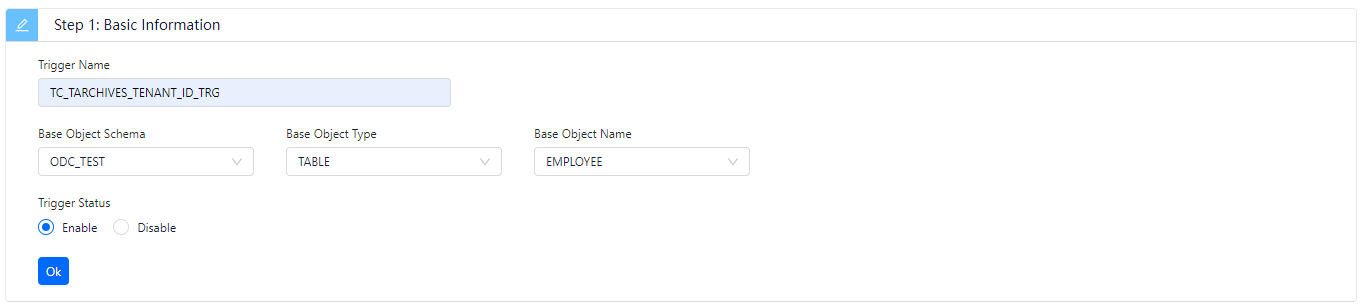
The Basic Information section contains the following parameters:
Trigger Name : specifies the name of the trigger.
Base Object Mode : specifies the schema where the object that the trigger works on is located.
Base Object Type : specifies the type of the object that the trigger works on. The current version supports only TABLE objects.
Base Object Name : specifies the name of the object that the trigger works on.
Trigger Status : specifies the state of the trigger. Valid value: On or Disable.
Configure the advanced settings.

The Advanced Settings section contains the following parameters:
Trigger: specifies whether the trigger is activated before or after the triggering event. Valid value: BEFORE or AFTER.
Level: specifies the level of the trigger. The current version supports only row-level triggers.
Event: specifies the type of operation that activates the trigger. Valid value: INSERT, UPDATE, or DELETE.
Column (Optional): specifies the range that the event specified in Event applies to. This parameter is displayed when you set Event to UPDATE. The current version allows you to create only row-level triggers in a table. Therefore, the range here is the columns that the event applies to.
Referencing Old (Optional): specifies an alias for the referenced object that corresponds to the value specified for
REFERENCEING OLDin the trigger creation statement.Referencing New (Optional): specifies an alias for the referenced object that corresponds to the value specified for
REFERENCEING NEWin the trigger creation statement.Clause Condition (Optional): specifies a logical expression for the trigger. After you specify a clause condition, the action specified by the trigger is executed only if the value of the expression is True.
Verify the SQL statement.

After you specify all the information in the Basic Info and Advanced Settings sections, click Next: Verify SQL Statement to go to the statement editing page.
Edit the trigger.

The trigger definition statement is generated on the statement editing page based on the information that you specified in the Basic Info and Advanced Settings sections. You only need to complete the trigger body, which specifies the action to be executed. After you complete the trigger body, click the Create button in the upper-right corner of the page to complete the creation of the trigger.