







OceanBase Cloud provides you with the capability of organization and project management, allowing you to manage members within your organization based on actual business needs and assign different permissions for managing and maintaining one or multiple projects.
Concepts
Organizations
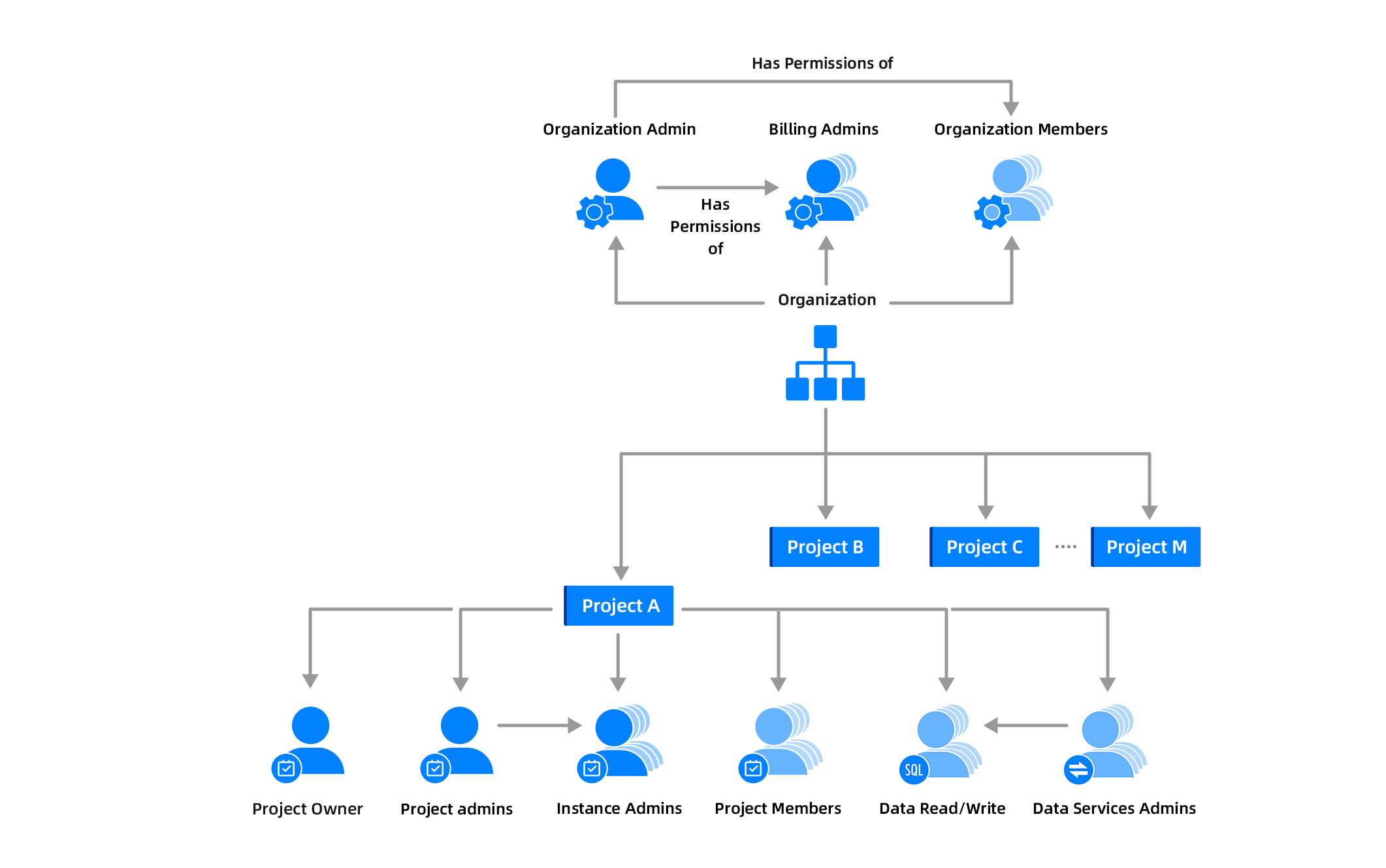
An organization generally represents a company or institution. A member can belong to different organizations, and within an organization, roles such as organization admin, organization member, billing admin, project admin, instance admin, and project member are defined based on the different responsibilities of the members. Upon the initial login to the OceanBase Cloud console, a default organization will be created for you.
Projects
Projects generally refer to divisions or business units within a company. Each business unit manages IT resources and development/maintenance/monitoring operations related to resources independently. Upon the initial login to the OceanBase Cloud console, a default project will be created for you under the default organization.
Members
A member refers to the user entity logging into the OceanBase Cloud console (UID unique). Different members can establish relationships through organizations and manage resources and operations differentially within the organization by being assigned different roles.
Roles
Different roles generally represent different functional positions within organizations or projects. For example, the billing admin can focus solely on operations related to cost and billing. Currently, roles supported include organization admin, organization member, billing admin, project admin, instance admin, and project member. For detailed information, refer to Role permissions.
- Organization admin: Owner of the organization, having the highest level of permissions within the organization. Each organization has only one organization admin.
- Organization member: Has read-only permissions for the current organization and can be invited to be the instance admin or project member.
- Billing admin: Has access and operational permissions for all features within the billing module.
- Project owner: Creator or owner of the project, having the highest level of permissions within the project. A project can have multiple project owners, who can invite others to serve as project admins.
- Project admin: Can use only the balance for billing, with the same other permissions as the project owner. Each project can have multiple project admins.
- Instance admin: Has read and write permissions for all instances within the project.
- Project member: Has read-only permissions for all instances within the project.
- Data read/write: Allows reading and writing data stored in instances within the project through the SQL window, as well as viewing SQL audit logs. Also includes all the permissions of a project member.
- Data services admin: Can manage tasks under Data Services and perform instance data imports, while also having all the permissions of a project member.
Scenarios
Initial login
Take the example of your initial login to the OceanBase Cloud console to introduce the process of organization and project management:
- Upon your initial login to the OceanBase Cloud console, a default organization and project will be created for you, and you will be granted the organization admin role.
- You can create projects, which allows you to create instances, change the project of instances, invite members to join projects, and delete projects. For more information, see Manage projects.
- Invite your organization members and assign roles and projects to them. For more information, see Manage members.
Note
If you log in to the OceanBase Cloud console through the Huawei Cloud Marketplace, your roles and permissions will be synchronized from Buyer Center of Huawei Cloud Marketplace - Joint Venture Services - Enterprise Management. You need to invite your organization members and assign roles and projects to them on the Huawei Cloud console.
Invited to join an organization
When invited to join an organization by the organization admin, you will receive a text message or email. Upon accepting the invitation, you can perform actions based on your organization role. For detailed information about permissions of different roles, see Role permissions.