







This topic describes how to connect to a database by using an Azure private network connection.
Prerequisites
- You have registered an Azure account, subscribed to the OceanBase Cloud product in the Azure Marketplace using an Azure Subscription, and have a valid Virtual Network and Subnets under the Azure Subscription.
- You have registered an OceanBase Cloud account and created a cluster instance and a tenant. For more information, see Create a cluster instance and Create a tenant. This topic uses a MySQL-compatible tenant as an example.
- Ensure that your client IP address has been added to the allowlist of the tenant. For specific operations, refer to Configure an IP address allowlist.
Procedure
Step 1: Create your endpoint service
Log in to the OceanBase Cloud console and click Networking in the left navigation pane.
On the Private Connectivity tab, click Create Private Connection.
In Step 1: Create your endpoint service, select Azure as the cloud service provider, and select the target instance and tenant.
Open the Azure console and click Subscriptions under Navigate.
On the Subscriptions page, view the target subscription name.
Return to the OceanBase Cloud console and enter this subscription name in the Azure Account ID field of Step 1.
Step 2: Create Endpoint on Azure and Connect
Log in to the Azure console to create a Private Endpoint. This process takes about 10 minutes.
Log in to the Azure console.
Go to the Network foundation > Private Link > Private endpoints page.
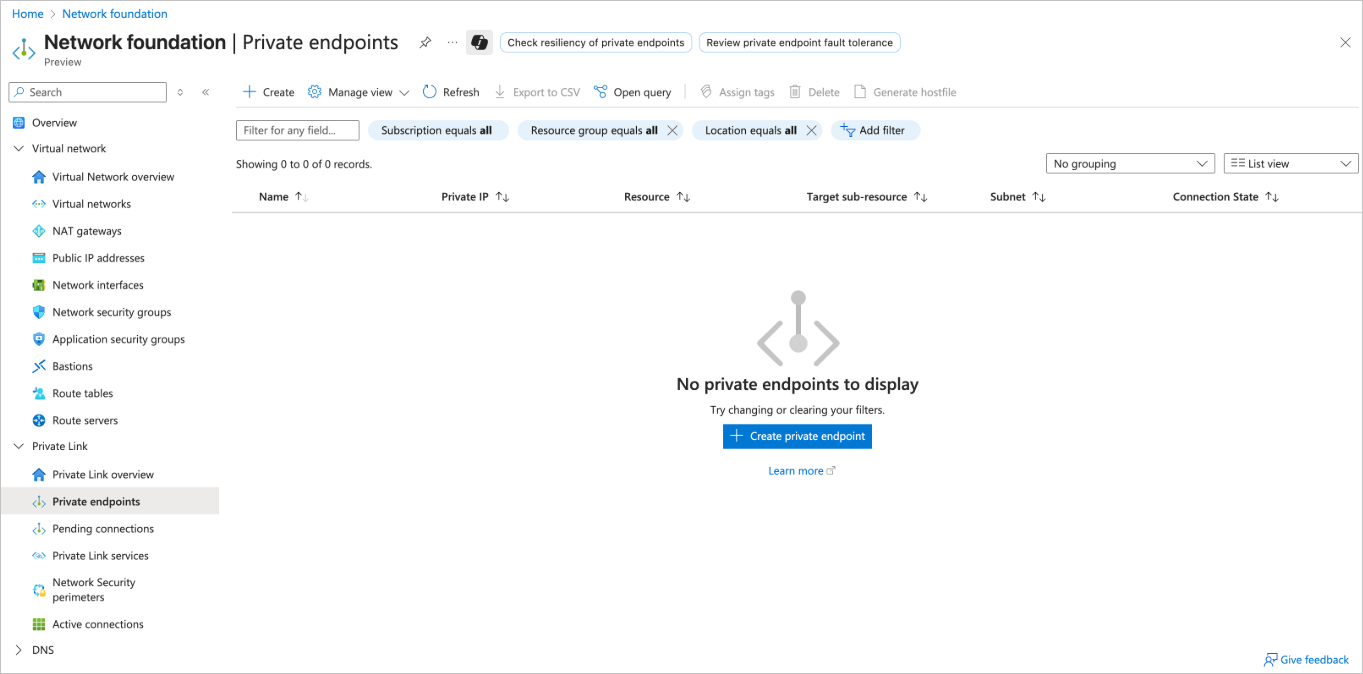
Click Create.

On the Create a private endpoint page, enter the following information as configured:
basic
ParameterDescriptionSubscription Select a subscription. Resource group Select a resource group. Name Enter the name of the private endpoint. Network Interface Name Automatically generated based on the name. Region The region information. 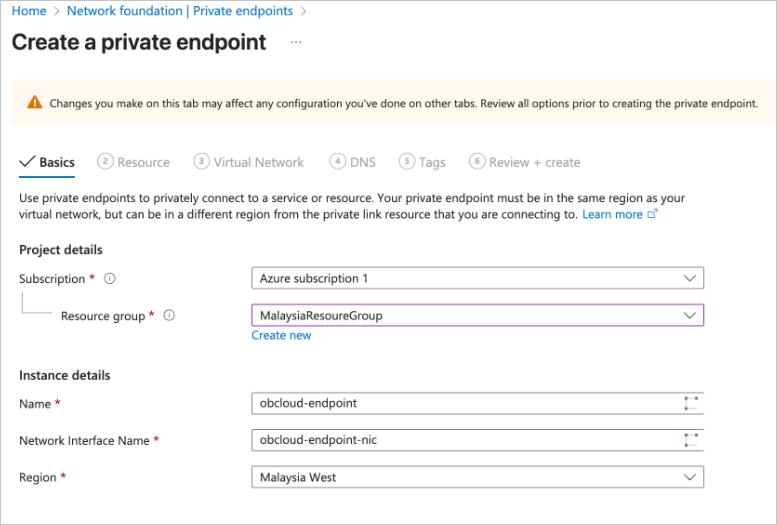
Resource
ParameterDescriptionConnection method Select Connect to an Azure resource by resource ID or alias. Resource ID or alias Enter the Service ID provided in Step 2 of the OceanBase Cloud console. 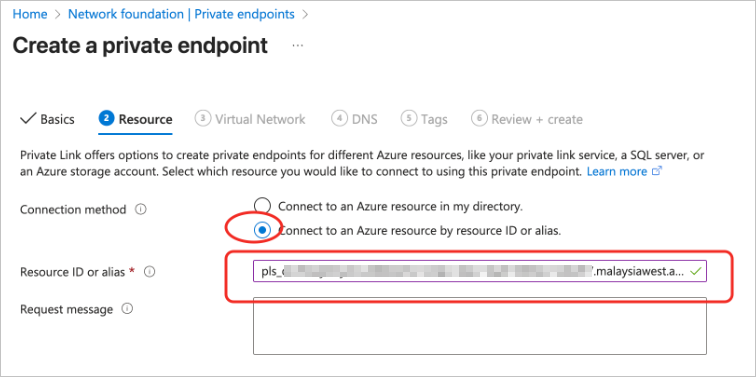
Virtual Network
ParameterDescriptionVirtual network Select the VNet to which you want to connect. Subnet The subnet configuration of the target VNet. 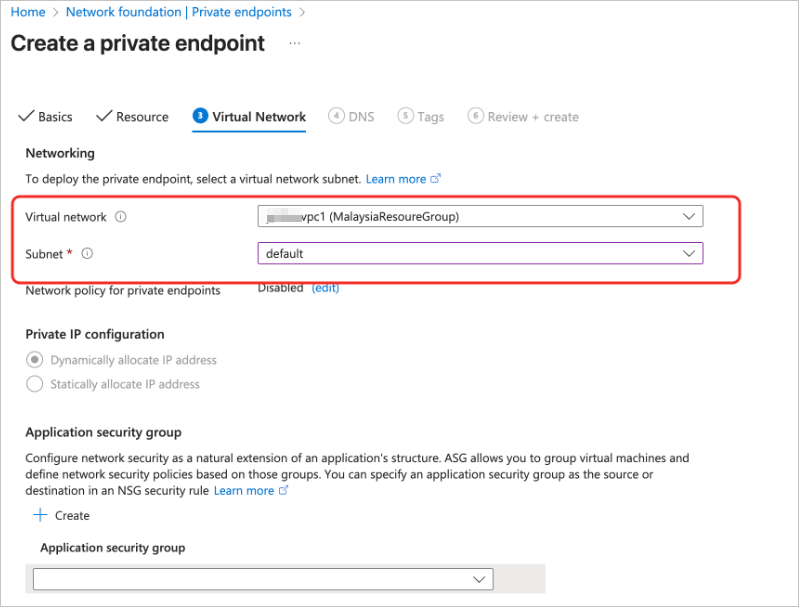
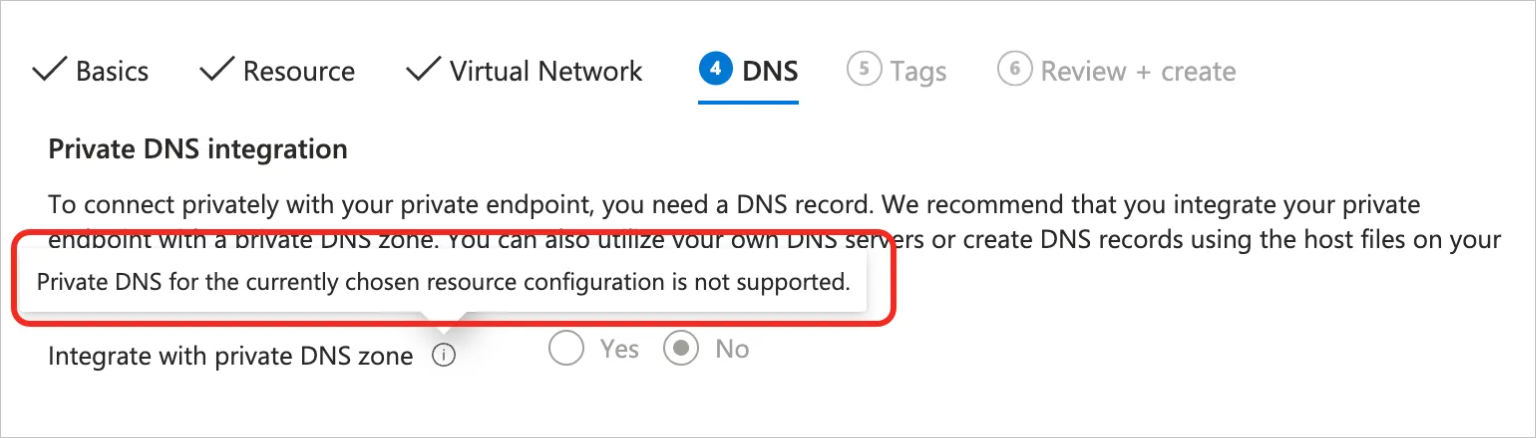
DNS
The current Azure Private Endpoint does not support DNS integration in this mode.
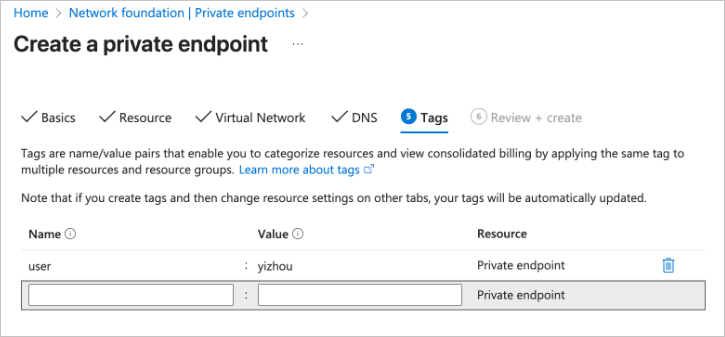
Tags
Configure tags as needed.
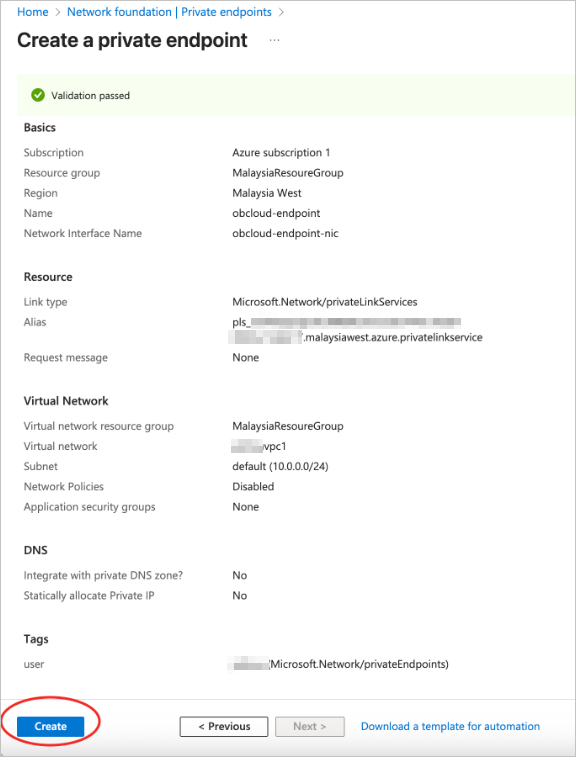
On the details confirmation page, click create.
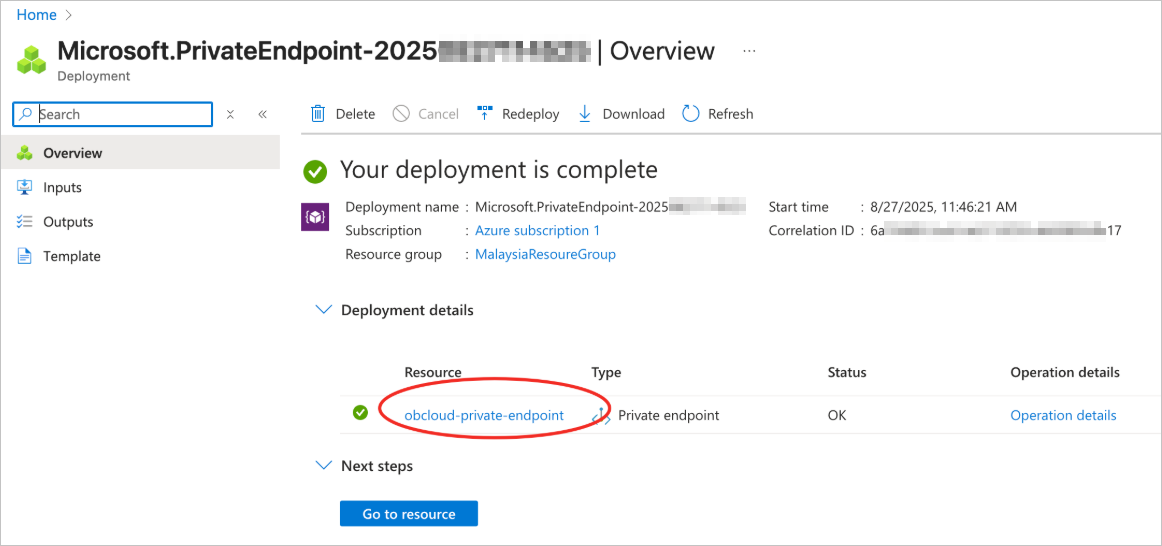
On the Private Endpoint details page, wait for the Status to change to Ok, then click the resource name to go to its details.
Obtain the endpoint configuration information.
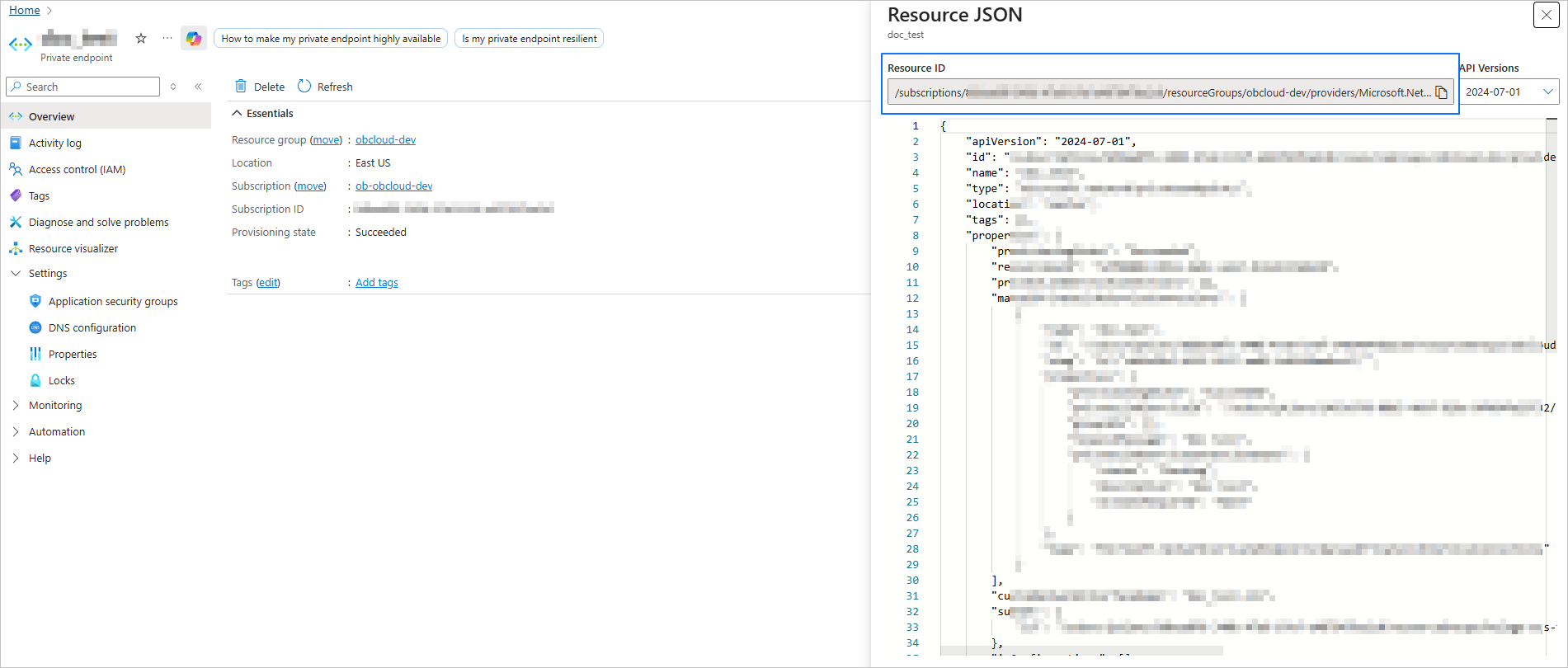
On the details page, click the JSON View button in the upper-right corner.
In the opened Resource JSON dialog box, copy the Resource ID.
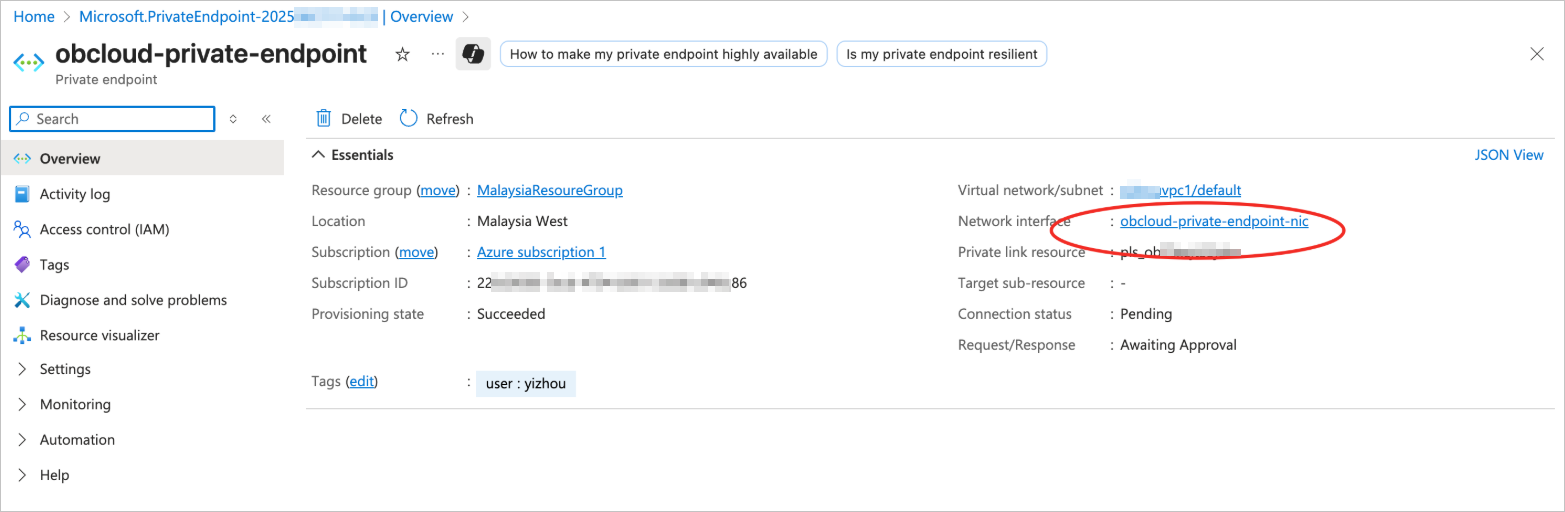
On the details page, click Network interface to go to the NIC details page.
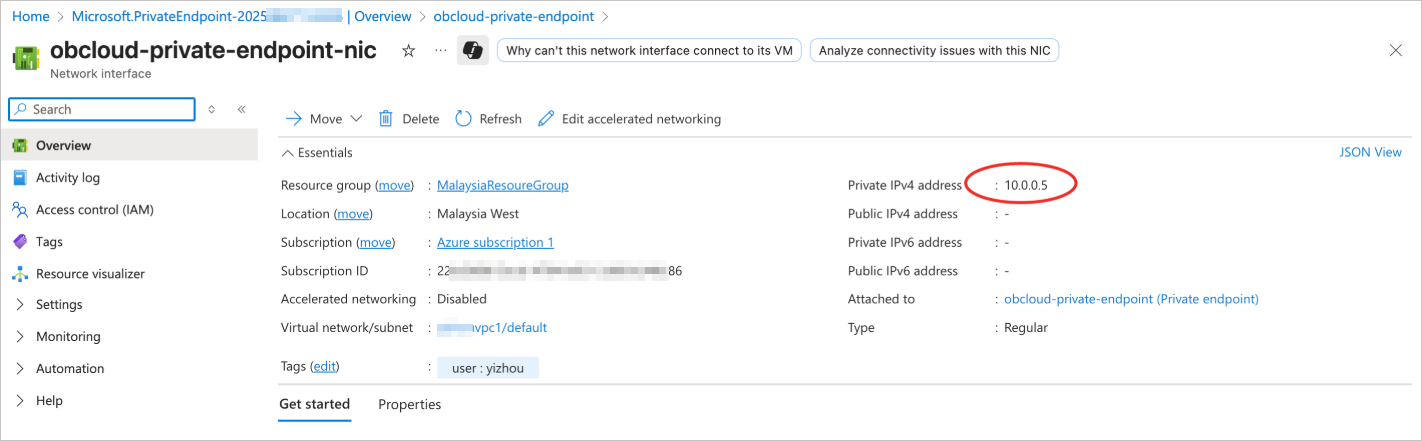
On the details page, view the IP address of the Private IPv4 address. This address is used to access the OceanBase Cloud database instance.
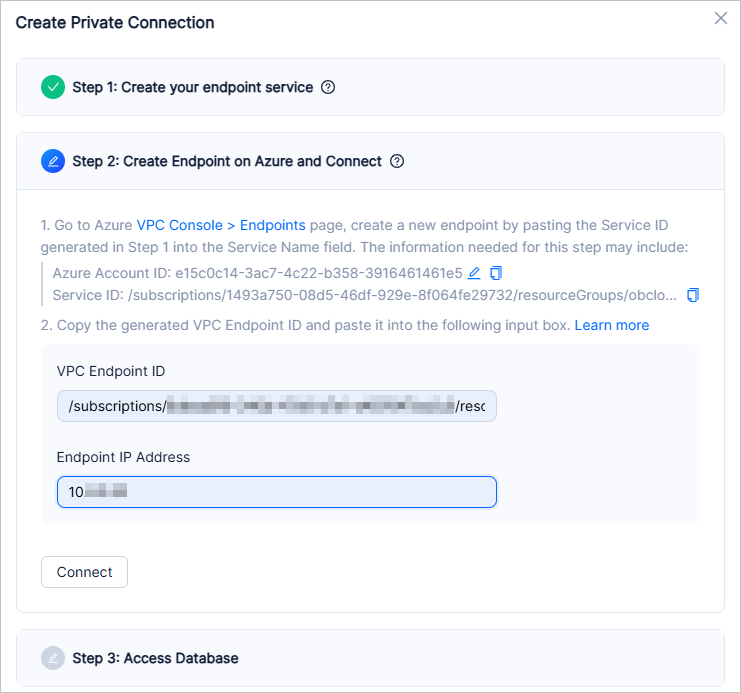
In the OceanBase Cloud console, enter the Endpoint ID and Endpoint IP Address.
- Endpoint ID: The resource ID obtained in step 7-2.
- Endpoint IP Address: The IP address of the Private IPv4 address obtained in step 7-4.
Step 3: Access Database
After completing the Private Link configuration, you can select the access information on the Step 3: Access Database page to generate a connection string for verification access.
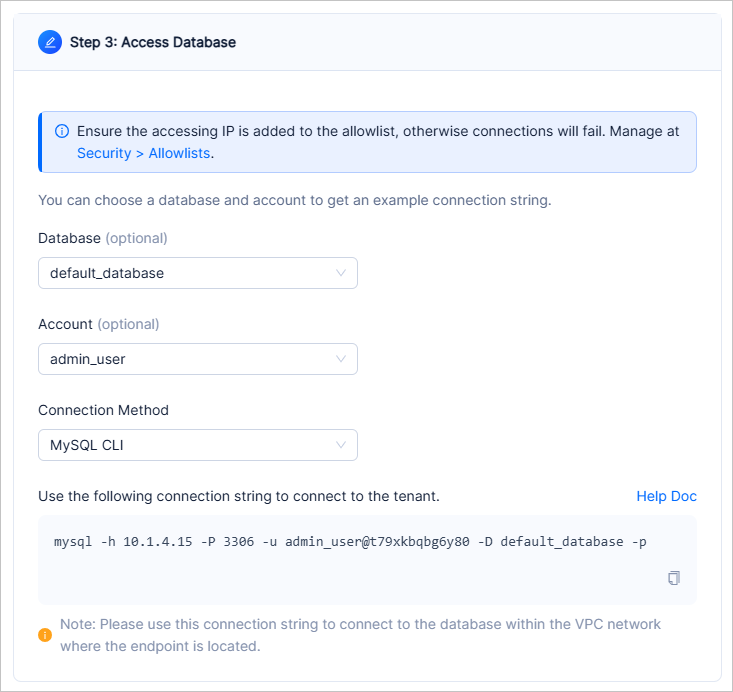
Verify access to the database using the following command:
mysql -h<host> -P<port> -u<username>@<tenantId> -p
Parameter description:
- host: The IP address of the Private Endpoint.
- port: The database access port, default is 3306.
- username: The database account used for the connection.
- tenantId: The tenant ID, which can be viewed and copied on the tenant list page and tenant details page.
Example:
mysql -h10.0.0.5 -P3306 -utest@t70zh******** -p
You can click the Enable One-Part Connection String button on the page to enable the one-part connection string feature. After enabling, the connection string format changes to:
obclient -h <host> -P <port> -u <username> --ssl-ca=<path>/ca.pem -p
Note
- A two-part connection string requires specifying both the ODP host address and port, while a one-part connection string only requires the database service address, making it more concise.
- After clicking the Enable One-Part Connection String button, the page will display a one-part connection string for you to copy and use.
- Before using a one-part connection string, ensure your client IP address has been added to the allowlist; otherwise, you will not be able to access the database.
- Existing two-part connection strings remain usable after you enable this feature.
- If the Enable One-Part Connection String button is grayed out, the current ODP version is earlier than v4.3.6 and does not support this feature. Contact OceanBase Cloud Technical Support to request an upgrade.