







This topic describes how to connect to an OceanBase Cloud database by using Google Cloud Private Service Connect.
Prerequisites
- You have registered a Google Cloud account and created a project.
- You have registered an OceanBase Cloud account, and have created an instance and a tenant. For more information, refer to Create an instance and Create a tenant. In this topic, a MySQL-compatible tenant is used.
Procedure
Log in to the OceanBase Cloud console, and in the left-side navigation pane, click Networking.
Under the tab Private Connectivity, click Create Private Connection.
Under Step 1: Create your Private Service Connect service, select Google Cloud as the cloud vendor, and select the target instance and tenant for the connection.
Navigate to the Google Cloud console, and copy the project ID displayed on the page.
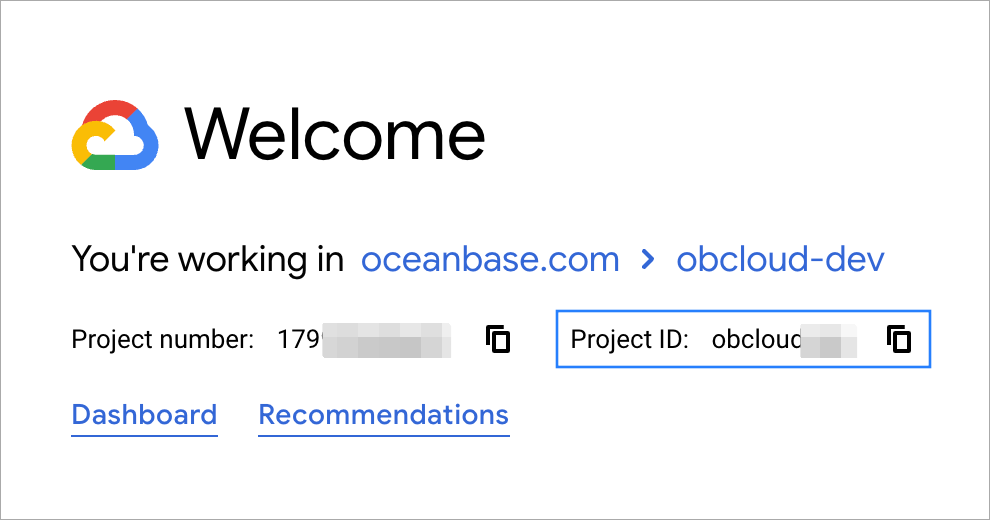
Navigate back to the OceanBase Cloud console. Enter the project ID under 3. Create a Private Service Connect service in Step 1: Create your Private Service Connect service and click Create.
After the service is created, under Step 2: Create an endpoint and connect, copy the information of Target Service.
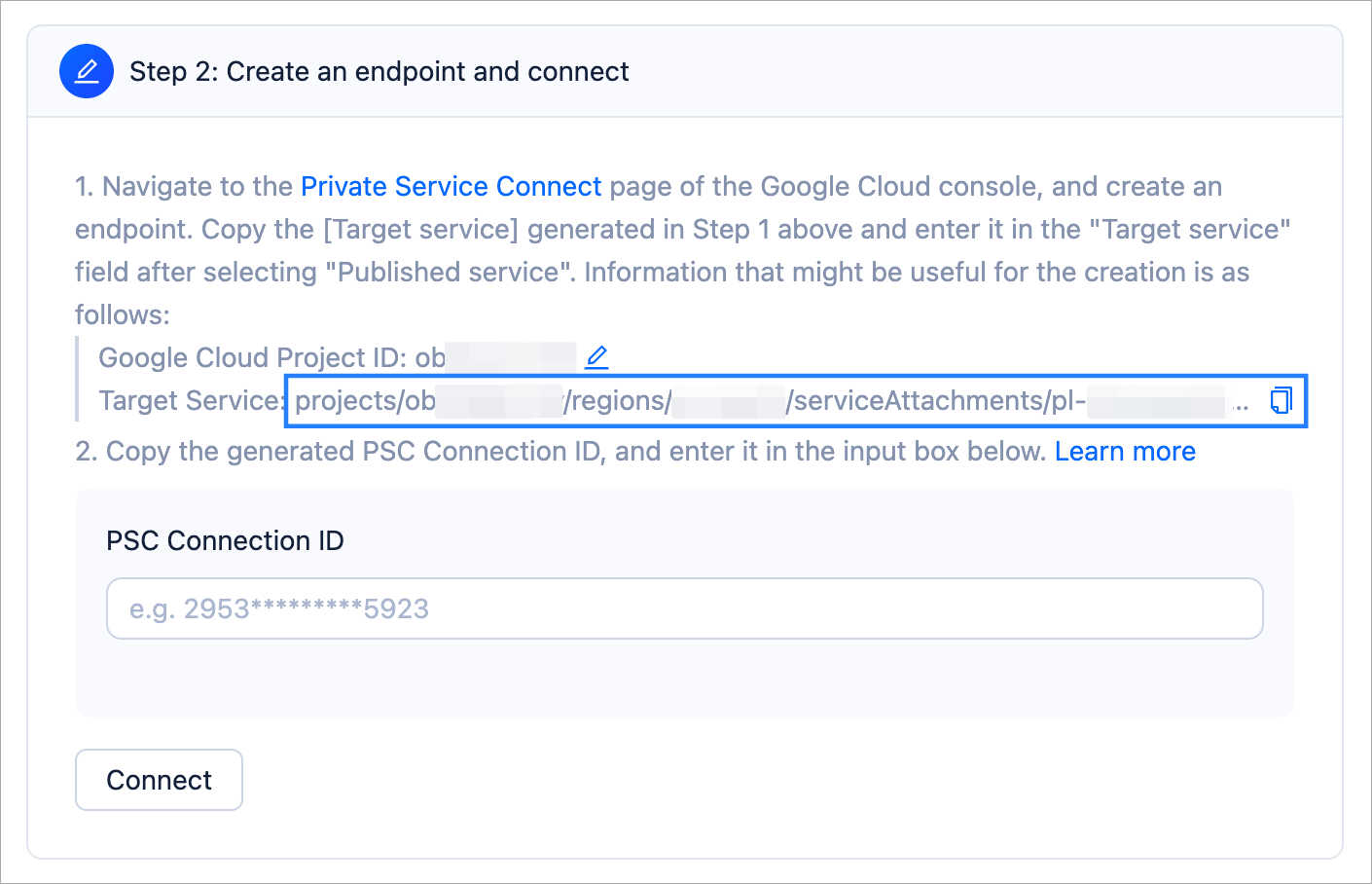
Navigate to the Private Service Connect page in the Network services console of Google Cloud, and click + CONNECT ENDPOINT in the Endpoints section of the page.
Complete the following information on the Connect endpoint page.
ParameterDescriptionTarget Select Published service. Endpoint name Specify a name for your endpoint. Network Select a network for your endpoint. Subnetwork Select a subnetwork for your endpoint. IP Address Select an IP address for your endpoint. You can also create a new one if needed. 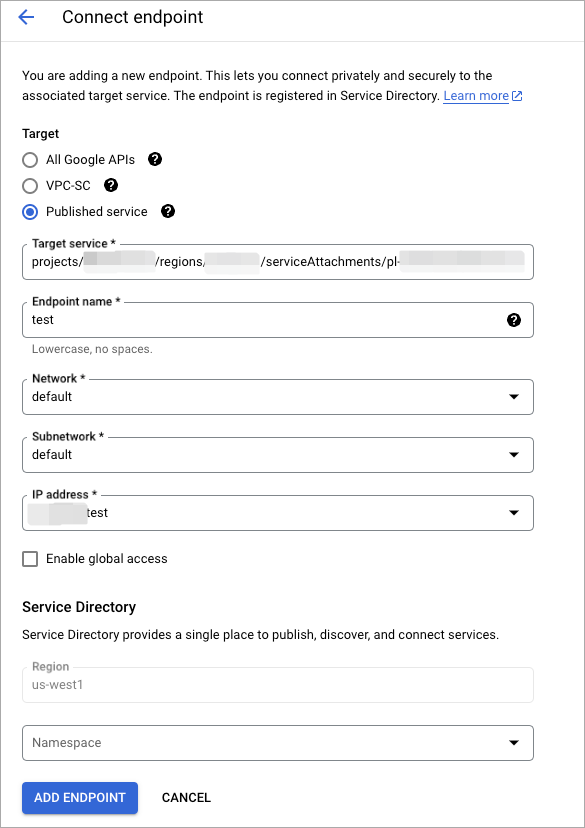
Click ADD ENDPOINT.
On the Private Service Connect page, locate the endpoint just created and copy the PSC Connection ID.
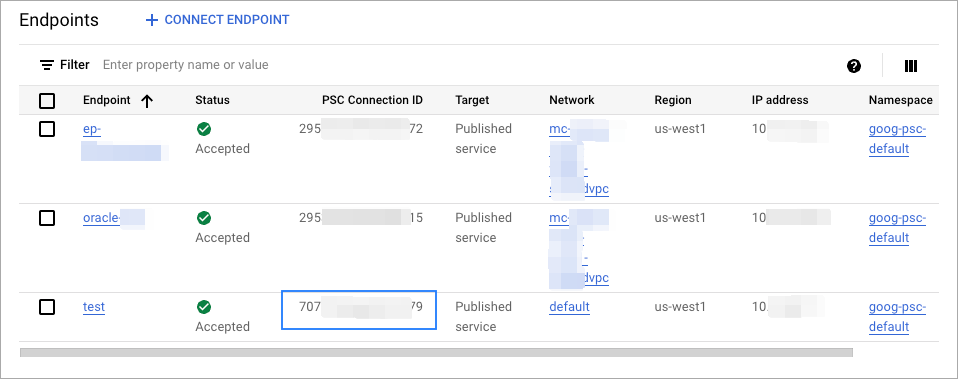
Navigate back to the OceanBase Cloud console. Enter the PSC Connection ID in the PSC Connection ID field under Step 2: Create an endpoint and connect, then click Connect.
Under Step 3: Connect, select an existing database and account, or create new ones, and select MySQL CLI as the connection method. Copy the generated connection string to your client.
Currently, OceanBase Cloud supports a wide range of clients, drivers, and languages. For more information, see Overview.
In the CLI of your MySQL client, enter the account name and password generated in Step 12. Then, you can connect to and use OceanBase Cloud.
What's next
After creating the endpoint, you can view its details on the Topology Diagram tab on the Overview page of the tenant. If you need to update the endpoint due to VPC changes, OceanBase Cloud allows you to delete the existing endpoint and recreate it.
To delete an endpoint:
In the OceanBase Cloud console, navigate to the Instances page and click the target tenant name to enter the Overview page of the tenant.
In the Topology Diagram, click the delete button to remove the existing endpoint.