







This topic describes how to use the SqlSugar framework, OceanBase Connector/ODBC, and OceanBase Cloud to build an application that can perform basic operations such as creating tables, inserting data, and querying data.
 Download the sqlsugar-oceanbase-odbc sample project
  Use SqlSugar to connect to OceanBase Cloud
 Prerequisites
You have registered an OceanBase Cloud account, created an instance and an Oracle-compatible tenant. For more information, see Create an instance and Create a tenant.
You have installed Visual Studio, the NuGet package manager plug-in, and the .NET Framework components.
You have installed the OceanBase Connector/ODBC driver.
Note
Download the OceanBase ODBC driver for Windows from the Middleware section on the Download Center of the OceanBase Cloud website. The OceanBase Connector/ODBC driver for Windows is a one-click installation package. You can install it by following the default instructions.
Procedure
Note
The following procedure shows how to compile and run the project in a Windows environment by using Visual Studio Community 2019. If you are using a different operating system or compiler, the procedure may vary slightly.
- Open the
sqlsugar-oceanbase-odbcproject. - Install the required packages for SqlSugar.
- Configure the data source.
- Modify the data source in the
sqlsugar-oceanbase-odbcproject. - Build the project.
- Run the application.
- View the output.
Step 1: Open the sqlsugar-oceanbase-odbc project
Start Visual Studio Community 2019.
Open an existing project.
On the start page of Visual Studio Community 2019, click File > Open > Project/Solution (P). Or on the start page of Visual Studio Community 2019, click Open below Get Started.
Browse to the folder of the sqlsugar-oceanbase-odbc project, select the project file (
sqlsugar-oceanbase-odbc.slnorsqlsugar-oceanbase-odbc.csproj), and then click Open.
Step 2: Install the SqlSugar package
On the start page of Visual Studio Community 2019, select Tools > NuGet Package Manager > Manage NuGet Packages for Solution.
In the search box under Browse, enter
sqlsugarand then download the SqlSugar package.In the search box under Browse, enter
sqlsugar.odbcand then download the SqlSugar.Odbc and SqlSugar.OdbcCore packages.After the installation is complete, you can use the SqlSugar namespace and type in the code files of the project.
Step 3: Configure the data source
Log in to the OceanBase Cloud console. On the instance list page, expand the information of the target instance, go to the target tenant, and choose Connect > Get Connection String.
For more information, see Get the connection string.
Fill in the following URL with the information of the created OceanBase Cloud database.
Here is an example:
obclient -h t********.********.oceanbase.cloud` -P1521 -u oracle001 -p******Parameter description:
-h: the endpoint of the OceanBase Cloud database, for example,t********.********.oceanbase.cloud.-P: the port of the OceanBase Cloud database, which is 1521 by default.-u: the username for accessing the database.-p: the password.
For more information, see Connect to an OceanBase tenant by using OBClient.
Check whether the OceanBase Connector/ODBC driver is installed.
Choose Control Panel > System and Security > Administrative Tools > ODBC Data Sources (64-bit) > Drivers. If the OceanBase Connector/ODBC driver is installed, it is displayed here.
Create a new data source.
Choose User DSN > Add > Select Driver, and then click Complete.
In the dialog box that appears, specify the data source name Name and the description Description, and then click Next.
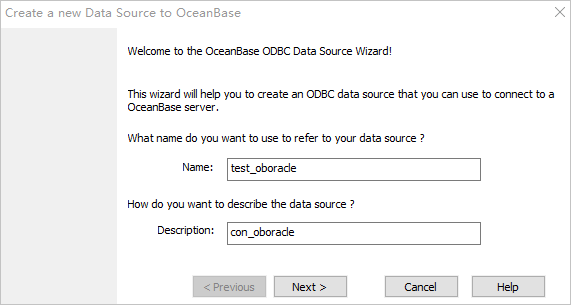
In the dialog box that appears, specify the database connection information. You can also click Next to set the initialization statement, TLS, cursor, and result set.
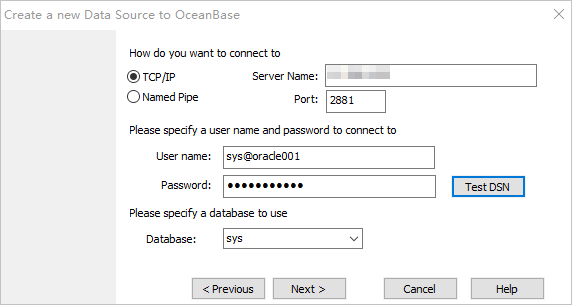
Note
After you specify the database connection information, you can click Test DSN to check whether the data source is connected.
Click Finish after the settings are completed. The data source is added. Click OK.
Step 4: Modify the data source in the sqlsugar-oceanbase-odbc project
Modify the data source in the Program.cs file based on the data source created in Step 3: Configure the data source.
Here is an example:
Replace your_dsn with the data source test_oboracle created in Step 3: Configure the data source.
public static string ConnectionString = "DSN=test_oboracle";
Step 5: Build the project
Choose Build > Build Solution. The compiler output and any error or warning information are displayed during the build.
Step 6: Run the application
Choose Debug > Start Debugging or Start Execution (No Debugging) to run the application.
Step 7: View the output
The output will be displayed in the Debug console. You can determine how to handle the output based on the program's design logic and code.
Project code
Click sqlsugar-oceanbase-odbc to download the project code. The file is named sqlsugar-oceanbase-odbc.zip.
After decompressing the file, you will find a folder named sqlsugar-oceanbase-odbc. The directory structure is as follows:
sqlsugar-oceanbase-odbc
├─ Program.cs
├─ sqlsugar-oceanbase-odbc.csproj
└─ sqlsugar-oceanbase-odbc.sln
File description:
Program.cs: This is the main program file of the project, containing the entry point and source code files that define the structure of the data table and implement data table operations.sqlsugar-oceanbase-odbc.csproj: This is the main project file for Visual Studio, used to define the project's configuration, dependencies, and build information.sqlsugar-oceanbase-odbc.sln: This is the solution file for Visual Studio, containing information about the project and its related projects. It is used for unified management and building of multiple projects.
Program.cs file code
The Program.cs file shows how to use SqlSugar to operate on the database of OceanBase Cloud, and implements basic operations such as creating tables, inserting data, and querying data. It also sets up event callback functions for logging through the AopEvents object, which facilitates debugging and troubleshooting.
The Program.cs file in this topic contains the following parts:
Namespace references.
The
usingkeyword is used to reference theSystem,SqlSugar,System.Linq,System.Data, andSystem.Data.Odbcnamespaces, which are used to reference related data access classes and methods for operating on the database.Code:
using System;
using SqlSugar;
using System.Linq;
using System.Data;
using System.Data.Odbc;
Define a namespace to store related classes and methods.
A namespace named
GbaseTestis defined. In this namespace, theProgramandTestEntityclasses are defined.Code:
namespace GbaseTest
{
    internal class Program
    {
        ...
        ...
    }

    public class TestEntity
    {
        ...
        ...
    }
}
Define a class named
Programthat contains the main logic of the program.A class named
Programis defined, which contains the main logic of the program. The steps are as follows:Define a public static string variable named
ConnectionStringto store the database connection string. This variable can be accessed anywhere in the current assembly.DSN=your_dsnindicates that the ODBC connection method is used, and the data source namedyour_dsnis used.Notice
When you run the program, replace
your_dsnwith the data source name that you created in Step 3.Main method: The entry point of the program, which contains the main logic.
try-catchblock:- Use the
trykeyword to wrap a block of code that may throw an exception, includingusingstatements and database operations. - Use the
catchkeyword to catch and handle exceptions.
- Use the
- Finally, output
Program End.before the program ends.
Code:
internal class Program { public static string ConnectionString = "DSN=your_dsn"; static void Main(string[] args) { try { using (...) { //Database operations } } catch (Exception ex) { ... ... } Console.WriteLine("Program End."); } }usingstatement.The
ConnectionConfigstatement is used to configure the database connection information and other options, including the database type as ODBC, the connection string asConnectionString, the primary key type asAttribute, automatic connection closure, and the log execution event callback function. TheSqlSugarClientobject can be used to conveniently execute database operations, including creating tables, inserting data, and querying data. Theusingstatement automatically releases related resources, including closing the database connection. The steps are as follows:Create a
SqlSugarClientobject and assign it to thedbvariable.Create a connection configuration instance and use an object initializer to initialize the
DbType,ConnectionString,InitKeyType,IsAutoCloseConnection, andAopEventsproperties.Set the database type to ODBC.
Set the connection string to
ConnectionString.Set the primary key type to
Attribute.Set automatic connection closure.
Set the log execution event callback function of
AopEvents. The implementation logic of the log execution event callback function is set, wheresqlindicates the executed SQL statement andpindicates the parameter list of the SQL statement. In the implementation logic, the SQL statement and parameter list are output to the console.
Code:
                using (SqlSugarClient db = new SqlSugarClient(new ConnectionConfig()
                {
                    DbType = SqlSugar.DbType.Odbc,
                    ConnectionString = ConnectionString,
                    InitKeyType = InitKeyType.Attribute,
                    IsAutoCloseConnection = true,
                    AopEvents = new AopEvents
                    {
                        OnLogExecuting = (sql, p) =>
                        {
                            Console.WriteLine(sql);
                            Console.WriteLine(string.Join(",", p?.Select(it => it.ParameterName + ":" + it.Value)));
                        }
                    }
                }))
Database operations.
The
SqlSugarClient.Ado.ExecuteCommandmethod is used to execute SQL statements to create tables and insert data. TheSqlSugarClient.Ado.SqlQuerymethod is used to query data, and the query results are traversed and output. TheSqlSugarClientobject can be used to conveniently execute database operations, including creating tables, inserting data, and querying data. The steps are as follows:Output a prompt message indicating the start of table creation.
Execute an SQL statement to create a table named
test_tbl1with two columns,idandname.Output a prompt message indicating the start of data insertion.
Define a variable named
tableNameand assign it the valuetest_tbl1, which is used to store the table name.Execute an SQL statement to insert data into the
test_tbl1table. Three records are inserted, withidvalues of1,2, and3, andnamevalues ofJohn,Jack, andAmy.Output a prompt message indicating the start of data query.
Execute an SQL statement to query all data from the
test_tbl1table and assign the query results to thedatavariable.TestEntityis the entity type of the query results.Output a prompt message indicating the start of traversal of the query results.
Traverse the query results and assign each record to the
itemvariable. Output theidandnamefields of each record.
Code:
                {
                    Console.WriteLine("Create Table:");
                    db.Ado.ExecuteCommand("CREATE TABLE test_tbl1(id NUMBER PRIMARY KEY, name VARCHAR2(50))");

                    Console.WriteLine("Insert Data:");
                    string tableName = "test_tbl1";
                    int intValue = db.Ado.ExecuteCommand($"INSERT INTO {tableName} (id, name) VALUES (1, 'John'), (2, 'Jack'), (3, 'Amy')");

                    Console.WriteLine("Query Data");
                    var data = db.Ado.SqlQuery<TestEntity>($"SELECT * FROM {tableName}");
                    Console.WriteLine("Query Results:");
                    foreach (var item in data)
                    {
                        Console.WriteLine($"id: {item.id}, name: {item.name}");
                    }
                }
Use the
catchkeyword to catch and handle exceptions.When an exception occurs in the program, the related information of the exception is output. By catching and outputting the exception information, you can debug and locate the problem, which ensures the robustness and reliability of the program. The steps are as follows:
Use the
catchkeyword to catch the exception and assign the captured exception object to theexvariable. The exception object is an instance of theExceptionclass or a subclass thereof.Output a prompt message indicating that an exception occurs in the program.
Convert the captured exception object to a string and output it. The string contains information such as the type, message, and stack trace of the exception.
Code:
            catch (Exception ex)
            {
                Console.WriteLine("Program Exception:");
                Console.WriteLine(ex.ToString());
            }
Define a class named
TestEntity.Define a public class named
TestEntitywith two properties,idandname, which represent theidandnamefields of the entity object. The steps are as follows:Define a public class named
TestEntity.Define a public integer property named
idto represent theidfield of the entity object. Thegetandsetmethods of the property can be used to read and set the field.A public string type attribute
nameis defined to represent thenamefield of the entity object. You can read and set the field by using thegetandsetmethods of the attribute.
Sample code:
    public class TestEntity
    {
        public int id { get; set; }
        public string name { get; set; }
    }
Full code
using System;
using SqlSugar;
using System.Linq;
using System.Data;
using System.Data.Odbc;

namespace GbaseTest
{
    internal class Program
    {
        public static string ConnectionString = "DSN=your_dsn";

        static void Main(string[] args)
        {
            try
            {
                using (SqlSugarClient db = new SqlSugarClient(new ConnectionConfig()
                {
                    DbType = SqlSugar.DbType.Odbc,
                    ConnectionString = ConnectionString,
                    InitKeyType = InitKeyType.Attribute,
                    IsAutoCloseConnection = true,
                    AopEvents = new AopEvents
                    {
                        OnLogExecuting = (sql, p) =>
                        {
                            Console.WriteLine(sql);
                            Console.WriteLine(string.Join(",", p?.Select(it => it.ParameterName + ":" + it.Value)));
                        }
                    }
                }))
                {
                    Console.WriteLine("Create Table:");
                    db.Ado.ExecuteCommand("CREATE TABLE test_tbl1(id NUMBER PRIMARY KEY, name VARCHAR2(50))");

                    Console.WriteLine("Insert Data:");
                    string tableName = "test_tbl1";
                    int intValue = db.Ado.ExecuteCommand($"INSERT INTO {tableName} (id, name) VALUES (1, 'John'), (2, 'Jack'), (3, 'Amy')");

                    Console.WriteLine("Query Data");
                    var data = db.Ado.SqlQuery<TestEntity>($"SELECT * FROM {tableName}");
                    Console.WriteLine("Query Results:");
                    foreach (var item in data)
                    {
                        Console.WriteLine($"id: {item.id}, name: {item.name}");
                    }
                }
            }
            catch (Exception ex)
            {
                Console.WriteLine("Program Exception:");
                Console.WriteLine(ex.ToString());
            }

            Console.WriteLine("Program End.");
        }
    }

    public class TestEntity
    {
        public int id { get; set; }
        public string name { get; set; }
    }
}
References
For more information about how to connect to OceanBase Cloud, see Overview of connection methods.
For more information about OceanBase Connector/ODBC, see OceanBase Connector/ODBC.