







This topic describes how to use the JFinal framework to connect to OceanBase Cloud and perform basic operations such as creating a table, inserting data, and querying data.
 Download the Java OceanBase JFinal sample project
  Use JFinal to connect to OceanBase Cloud (Oracle compatible mode)
Prerequisites
- You have registered an account for OceanBase Cloud, created an instance and an Oracle-compatible tenant. For more information, see Create an instance and Create a tenant.
- You have installed JDK 1.8 and Maven.
- You have installed IntelliJ IDEA.
Note
The code examples in this topic are run in IntelliJ IDEA 2021.3.2 (Community Edition). You can also use other tools that you prefer to run the code examples.
Procedure
Note
The steps provided in this topic are based on the Windows environment. If you are using a different operating system or compiler, the steps may vary slightly.
- Obtain the connection string of OceanBase Cloud.
- Import the
java-oceanbase-Jfinalproject into IDEA. - Set up the Tomcat environment for the
java-oceanbase-Jfinalproject. - Modify the database connection information in the
java-oceanbase-Jfinalproject. - Run the
java-oceanbase-Jfinalproject.
Step 1: Obtain the connection string of the OceanBase Cloud database
Log in to the OceanBase Cloud console. In the instance list, expand the information of the target instance, and in the target tenant, choose Connect > Get Connection String.
For more information, see Obtain the connection string.
Fill in the URL with the information of the created OceanBase Cloud database.
Note
The URL information is required in the
config.propertiesfile.jdbc:oceanbase://host:port/schema_name?user=$user_name&password=$passwordParameter description:
$host: the connection address of the OceanBase Cloud database, for example,t********.********.oceanbase.cloud.$port: the connection port of the OceanBase Cloud database. The default value is 1521.$schema_name: the name of the schema to be accessed.$user_name: the account for accessing the database.$password: the password of the account.
For more information about the URL parameters, see Database URL.
Step 2: Import the java-oceanbase-Jfinal project into IDEA
Open IntelliJ IDEA and choose File > Open....

In the Open File or Project window that appears, select the project file and click OK.
IntelliJ IDEA automatically identifies various files in the project and displays the project directory structure, file list, module list, and dependency relationships in the Project tool window. The Project tool window is usually located on the left side of the IntelliJ IDEA interface and is open by default. If it is closed, you can click View > Tool Windows > Project in the menu bar or press Alt + 1 to open it.
Note
When you import a project using IntelliJ IDEA, it automatically detects the pom.xml file in the project, downloads the required dependency libraries based on the described dependencies in the file, and adds them to the project.
View the project.
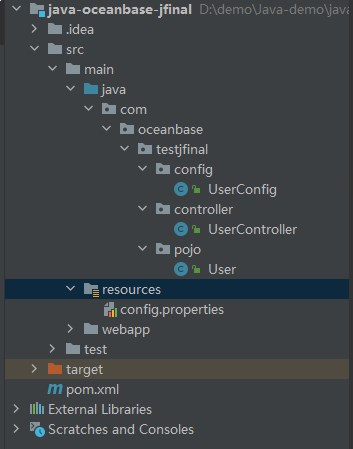
Step 3: Set up the Tomcat runtime environment for the java-oceanbase-Jfinal project
Download Tomcat 8.5.95. Download the Tomcat 8.5.95 compressed package from the Apache Tomcat official website and decompress it to the directory where you want to install Tomcat.
Configure Tomcat in IDEA. Open IntelliJ IDEA, choose Settings > Plugins from the File menu. In the search box in the middle of the Settings window, search for Smart Tomcat, download it, and choose Apply. The Tomcat Server tab appears at the bottom of the left side of the Settings window. Enter the Tomcat Server tab, click the + button on the right, select the decompressed Tomcat directory, click Apply, and then click OK.
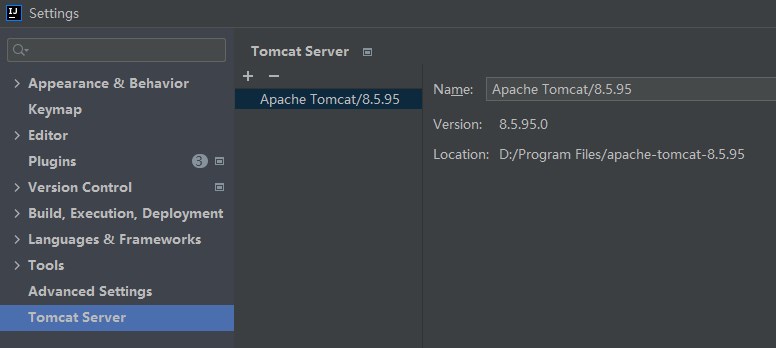
Create a Tomcat run configuration.
In the top toolbar of IDEA, choose Run > Edit Configurations. In the Run/Debug Configurations window, click + and select Tomcat Server. Enter the server name in the Name field, select the installed Tomcat version in the Configuration drop-down list, set the Context path to
/, and set the SSL port to8080. In the Before launch drop-down list, click + and select Launch Web Browser. Enter the URLhttp://localhost:8080/hello/getDatain the Edit field. Click Apply and then OK.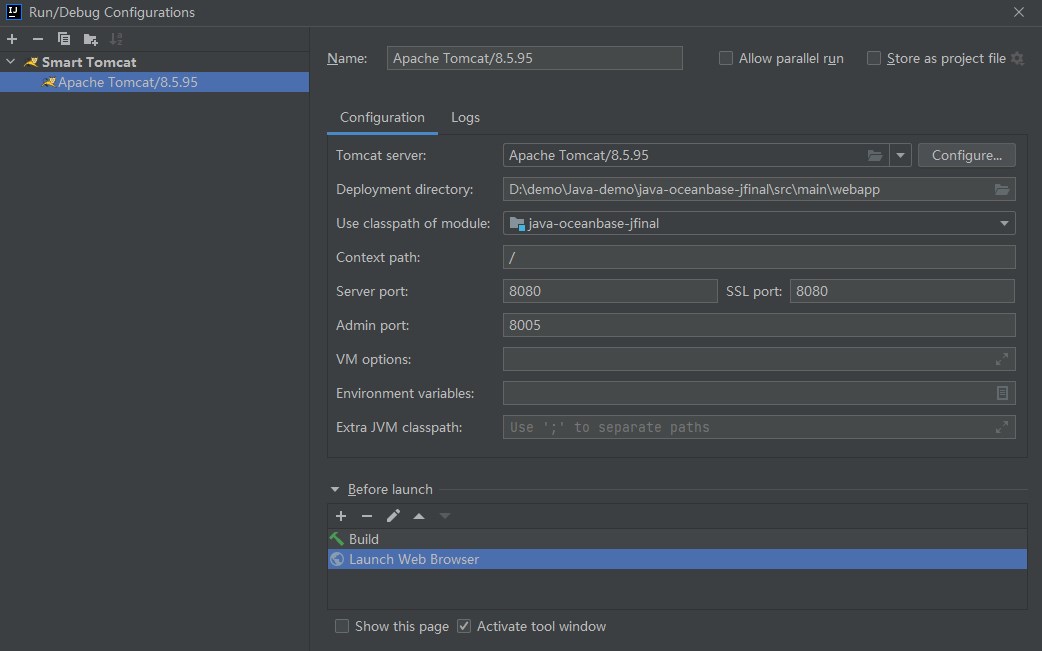
Run the Tomcat server.
In the top toolbar of IDEA, select the Tomcat run configuration that you just created. Click the green triangle button to start the Tomcat server. You can view the startup log of the Tomcat server in the Run window of IDEA.
Step 4: Modify the database connection information in the java-oceanbase-Jfinal project
Modify the database connection information in the config.properties file based on the information obtained in Step 1: Obtain the connection string of the OceanBase Cloud database.
Here is an example:
- The name of the database driver is
com.oceanbase.jdbc.Driver. - The connection address of the OceanBase Cloud database is
t5******.********.oceanbase.cloud. - The port is 1521.
- The name of the schema to be accessed is
sys. - The tenant account is oracle001.
- The password is
******. Here is the sample code:
db.app.driver=com.oceanbase.jdbc.Driver
db.app.url=jdbc:oceanbase://t5******.********.oceanbase.cloud:1521/sys
db.app.user=oracle001
db.app.password=******
db.app.poolInitialSize=3
db.app.poolMaxSize=10
db.app.connectionTimeoutMillis=100
db.app.validationQuery=select 1 from dual
Step 5: Run the java-oceanbase-Jfinal project
Run the project.
In the top toolbar of IDEA, select the Tomcat run configuration that you just created. Click the green triangle button to start the Tomcat server. Open the path
http://localhost:8080/hello/getDatain Google or Internet Explorer to view the running results.View the running results.
[{"ID":1,"NAME":"John"},{"ID":2,"NAME":"Jane"}]
Project code
Click java-oceanbase-Jfinal to download the project code. This is a compressed package named java-oceanbase-Jfinal.
After decompressing it, you will find a folder named java-oceanbase-Jfinal. The directory structure is as follows:
│--pom.xml
│
├─.idea
│
├─src
│  ├─main
│  │  ├─java
│  │  │  └─com
│  │  │      └─oceanbase
│  │  │          └─testjfinal
│  │  │              ├─config
│  │  │              │   └─UserConfig.java
│  │  │              │
│  │  │              ├─controller
│  │  │              │   └─UserController.java
│  │  │              │
│  │  │              └─pojo
│  │  │                  └─User.java
│  │  │
│  │  ├─resources
│  │  │    └─config.properties
│  │  │
│  │  └─webapp
│  │      └─WEB-INF
│  │          └─web.xml
│  │
│  │
│  │
│  └─test
│      └─java
│
│
└─target
File description:
pom.xml: the configuration file of the Maven project. It contains information about the project's dependencies, plugins, and build process..idea: a directory used in the IDE (Integrated Development Environment) to store project-related configuration information.src: a directory typically used to store the source code of the project.main: a directory that stores the main source code and resource files.java: a directory that stores the Java source code.com: the root directory for storing Java packages.oceanbase: the root directory for storing the project.testjfinal: a directory that stores the code related to the JFinal framework.config: a directory that stores the configuration files of the application.UserConfig.java: the user configuration class file.controller: a directory that stores the controller class files of the application.UserController.java: the user controller class file.pojo: a directory that stores the JavaBean or entity classes.User.java: the user entity class file.resources: a directory that stores resource files, such as configuration files and SQL files.config.properties: the configuration file that stores the database connection information.webapp: the directory of the Web application, which stores the static resources and configuration files of the Web application.WEB-INF: the WEB-INF directory of the Web application, which stores the configuration files and other protected resource files.web.xml: the deployment descriptor file of the Web application.test: a directory that stores the test code and resource files.target: a directory that stores the compiled Class files, Jar packages, and other files.
Introduction to the pom.xml file
Note
If you want to verify the example, you can use the default code without any modifications. You can also modify the pom.xml file as needed based on the following instructions.
The content of the pom.xml configuration file is as follows:
File declaration statement.
This statement declares the file as an XML file using XML version
1.0and character encodingUTF-8.Sample code:
<?xml version="1.0" encoding="UTF-8"?>Configure the namespaces and model version of the POM.
- Use
xmlnsto set the POM namespace tohttp://maven.apache.org/POM/4.0.0. - Use
xmlns:xsito set the XML namespace tohttp://www.w3.org/2001/XMLSchema-instance. - Use
xsi:schemaLocationto set the POM namespace tohttp://maven.apache.org/POM/4.0.0and the location of the POM XSD file tohttp://maven.apache.org/xsd/maven-4.0.0.xsd. - Use
<modelVersion>to set the POM model version used by the POM file to4.0.0.
Sample code:
<project xmlns="http://maven.apache.org/POM/4.0.0" xmlns:xsi="http://www.w3.org/2001/XMLSchema-instance" xsi:schemaLocation="http://maven.apache.org/POM/4.0.0 http://maven.apache.org/xsd/maven-4.0.0.xsd"> <modelVersion>4.0.0</modelVersion> </project>- Use
Configure basic information.
- Use
<groupId>to set the project identifier tocom.oceanbase. - Use
<artifactId>to set the project dependency tojava-oceanbase-jfinal. - Use
<version>to set the project version to1.0-SNAPSHOT. - Use
<packaging>to set the project packaging method to WAR (Web Application Archive).
Sample code:
<groupId>com.oceanbase</groupId> <artifactId>java-oceanbase-jfinal</artifactId> <version>1.0-SNAPSHOT</version> <!-- Packaging method (default to jar) --> <packaging>war</packaging>- Use
Configure the Maven version.
Use
<maven.compiler.source>and<maven.compiler.target>to set the source code version and target code version of the compiler to Java 8.Sample code:
 <properties>
     <maven.compiler.source>8</maven.compiler.source>
     <maven.compiler.target>8</maven.compiler.target>
 </properties>
Configure core dependencies.
Set the organization of the dependency to
com.jfinal, the name tojfinal, and the version to5.0.6. This dependency allows you to use the features of the JFinal framework.Sample code:
<dependency>
    <groupId>com.jfinal</groupId>
    <artifactId>jfinal</artifactId>
    <version>5.0.6</version>
</dependency>
Set the organization of the dependency to
com.alibaba, the name todruid, and the version to1.2.8. This dependency allows you to use the Druid library for managing and optimizing database connection acquisition and release.Sample code:
<dependency>
    <groupId>com.alibaba</groupId>
    <artifactId>druid</artifactId>
    <version>1.2.8</version>
</dependency>
Set the organization of the dependency to
com.oceanbase, the name tooceanbase-client, and the version to2.4.3. This dependency allows you to use the client features provided by OceanBase, such as connection, query, and transaction.Sample code:
    <dependencies>
    <dependency>
        <groupId>com.oceanbase</groupId>
        <artifactId>oceanbase-client</artifactId>
        <version>2.4.3</version>
    </dependency>
    </dependencies>
Introduction to the config.properties file
The config.properties file configures the database connection information required to connect to the cloud database on OceanBase Cloud. This includes the class name of the database driver, the connection URL, the username, the password, and the connection pool settings. These configuration items are used to obtain and manage database connections in the application for database operations.
Use
db.app.driverto set the database driver tocom.oceanbase.jdbc.Driver, which is used to establish a connection with the cloud database on OceanBase Cloud.Use
db.app.urlto set the URL for connecting to the database.Use
db.app.userto set the username for connecting to the database.Use
db.app.passwordto set the password for connecting to the database.Use
db.app.poolInitialSizeto set the initial size of the database connection pool to3, meaning that 3 database connections are created initially.Use
db.app.poolMaxSizeto set the maximum size of the database connection pool to10, meaning that up to 10 database connections can be created in the pool.Use
db.app.connectionTimeoutMillisto set the timeout for database connections to100 ms, meaning that if a connection is not obtained within 100 ms, a timeout exception is thrown.Use
db.app.validationQueryto set the SQL query statement for validating database connections toselect 1 from dual, meaning that this query is executed when a connection is obtained from the connection pool to verify its validity.Sample code:
  db.app.driver=com.oceanbase.jdbc.Driver
  db.app.url=jdbc:oceanbase://host:port/schema_name
  db.app.user=user_name
  db.app.password=******
  db.app.poolInitialSize=3
  db.app.poolMaxSize=10
  db.app.connectionTimeoutMillis=100
  db.app.validationQuery=select 1 from dual
Introduction to the web.xml file
The web.xml file is used to configure filters for a Web application.
The content of the web.xml configuration file is as follows:
A file declaration statement.
This statement declares the file as an XML file using XML version
1.0and character encodingUTF-8.Sample code:
<?xml version="1.0" encoding="UTF-8"?>Configure the XML namespace and XML model version.
- Use
xmlns:xsito specify the XML namespace ashttp://www.w3.org/2001/XMLSchema-instance. - Use
xmlnsto specify the XML namespace ashttp://java.sun.com/xml/ns/javaee. - Use
xsi:schemaLocationto specify the XML namespace ashttp://java.sun.com/xml/ns/javaeeand the location of the XML XSD file ashttp://java.sun.com/xml/ns/javaee/web-app_3_0.xsd. - Use the
<id>and<version>elements to specify the ID of the Web application asWebApp_IDand the version number as3.0.
Sample code:
<web-app xmlns:xsi="http://www.w3.org/2001/XMLSchema-instance" xmlns="http://java.sun.com/xml/ns/javaee" xsi:schemaLocation="http://java.sun.com/xml/ns/javaee http://java.sun.com/xml/ns/javaee/web-app_3_0.xsd" id="WebApp_ID" version="3.0">- Use
Configure the JFinal filter.
A filter named
jfinalis configured to use the JFinal framework in the Web application. The class of the filter is specified ascom.jfinal.core.JFinalFilter. The initialization parameterconfigClassis specified to indicate the location of the configuration class for the JFinal framework ascom.oceanbase.testjfinal.config.UserConfig. This filter is used to use the JFinal framework in the Web application and configure the behavior of the JFinal framework based on the specified configuration class.Sample code:
 <filter>
     <filter-name>jfinal</filter-name>
     <filter-class>com.jfinal.core.JFinalFilter</filter-class>
     <init-param>
         <param-name>configClass</param-name>
         <!-- your jfinal configuration location -->
         <param-value>com.oceanbase.testjfinal.config.UserConfig</param-value>
     </init-param>
 </filter>
Configure the mapping of the JFinal filter.
Apply the
jfinalfilter to all request paths, meaning the filter will be applied to all requests in the application.Sample code:
 <filter-mapping>
     <filter-name>jfinal</filter-name>
     <url-pattern>/*</url-pattern>
 </filter-mapping>
UserConfig.java
The UserConfig.java file is used to configure the routing, plugins, database connections, and other related information of an application.
The code in the UserConfig.java file mainly includes the following parts:
Import other classes and interfaces.
Declare the interfaces and classes included in the current file:
StatFilterclass: used to statistics the performance of database access.JdbcConstantsclass: used to define constants for database types.WallFilterclass: used to prevent SQL injection attacks.PropKitclass: used to read configuration files.ActiveRecordPluginclass: used to operate databases.Dbclass: used to execute database operations.OracleDialectclass: used to specify the dialect of a database.DruidPluginclass: used to connect to a database.Engineclass: used to configure a template engine.UserControllerclass: used to handle requests related to users.Userclass: used to pass and store user data.
Sample code:
import com.alibaba.druid.filter.stat.StatFilter;
import com.alibaba.druid.util.JdbcConstants;
import com.alibaba.druid.wall.WallFilter;
import com.jfinal.config.*;
import com.jfinal.kit.PropKit;
import com.jfinal.plugin.activerecord.ActiveRecordPlugin;
import com.jfinal.plugin.activerecord.Db;
import com.jfinal.plugin.activerecord.dialect.OracleDialect;
import com.jfinal.plugin.druid.DruidPlugin;
import com.jfinal.template.Engine;
import com.oceanbase.testjfinal.controller.UserController;
import com.oceanbase.testjfinal.pojo.User;
Define the
UserConfigclass.By overriding the methods of the
JFinalConfigclass, you can configure constants, routing, plugins, and database connections.Define the
configConstantmethod.This method is used to configure constants of the JFinal framework. It uses the
PropKitclass to read configurations from the configuration file.Sample code:
@Override
public void configConstant(Constants constants) {
    PropKit.use("config.properties");
}
Define the
configRoutemethod.This method is used to configure route mappings. It uses the
routes.addmethod to map the"/hello"path to the default access page of theUserControllerclass.Sample code:
@Override
public void configRoute(Routes routes) {
    routes.add("/hello", UserController.class, "/");
}
Define the
configEnginemethod.This method is used to configure a template engine.
Sample code:
@Override
public void configEngine(Engine engine) {
}
Define the
configPluginmethod.This method is used to configure plugins of an application. It initializes database connections and table structures by calling the
initmethod, creates theDruidPluginandActiveRecordPluginplugins, and adds them to thepluginslist. It also adds the mapping between database tables and entity classes by calling theaddMappingmethod of theactiveRecordPluginclass, and maps theTEST_USERtable to theUserclass.Sample code:
@Override
public void configPlugin(Plugins plugins) {
    init();
    DruidPlugin druidPlugin = createDruidPlugin();
    plugins.add(druidPlugin);

    ActiveRecordPlugin activeRecordPlugin = createActiveRecordPlugin(druidPlugin);
    activeRecordPlugin.addMapping("TEST_USER", User.class);
    plugins.add(activeRecordPlugin);
}
Define the
createDruidPluginmethod.This method is used to create the
DruidPluginplugin and configure related parameters, including the connection pool size, SQL firewall, and connection error handling.It calls the
getmethod of thePropKitclass to obtain database connection-related attribute values from the configuration file, including the URL, username, password, and driver class. Then, it creates aDruidPluginobject and initializes it using the obtained attribute values.It calls the
addFiltermethod to add aStatFilterinstance to theDruidPluginobject. TheStatFilterinstance is used to statistics the performance of database access. It creates aWallFilterinstance, sets the database type to OceanBase by calling thesetDbTypemethod, and adds theWallFilterinstance to theDruidPluginobject for SQL firewall filtering.It calls the
setInitialSizemethod to set the initial size of the connection pool; thesetMaxPoolPreparedStatementPerConnectionSizemethod to set the maximum number of prepared statements per connection pool; thesetTimeBetweenConnectErrorMillismethod to set the time interval between two connection errors; and thesetValidationQuerymethod to set the connection validation query statement. Finally, it returns the createdDruidPlugininstance.Sample code:
private DruidPlugin createDruidPlugin() {
    DruidPlugin druidPlugin = new DruidPlugin(
            PropKit.get("db.app.url"),
            PropKit.get("db.app.user"),
            PropKit.get("db.app.password"),
            PropKit.get("db.app.driver")
    );

    druidPlugin.addFilter(new StatFilter());
    WallFilter wallFilter = new WallFilter();
    wallFilter.setDbType(JdbcConstants.OCEANBASE);
    druidPlugin.addFilter(wallFilter);

    druidPlugin.setInitialSize(PropKit.getInt("db.app.poolInitialSize"));
    druidPlugin.setMaxPoolPreparedStatementPerConnectionSize(PropKit.getInt("db.app.poolMaxSize"));
    druidPlugin.setTimeBetweenConnectErrorMillis(PropKit.getInt("db.app.connectionTimeoutMillis"));
    druidPlugin.setValidationQuery("select 1 from dual");

    return druidPlugin;
}
Define the
initmethod.This method is used to initialize database connections and create database tables. It calls the
initDbConnectionmethod to initialize database connections and returns anActiveRecordPlugininstance. It then executes an SQL statement to query whether theTEST_USERuser table exists. If theTEST_USERuser table does not exist, it executes theCREATE TABLEstatement to create a database table namedTEST_USER, which contains theIDandNAMEfields. Finally, it closes the connection of theActiveRecordPluginplugin to release the database connection.Sample code:
public void init() {
    ActiveRecordPlugin arp = initDbConnection();
    boolean tableExists = Db.queryInt("SELECT COUNT(*) FROM USER_TABLES WHERE TABLE_NAME = 'TEST_USER'") > 0;
    if (!tableExists) {
        String sql = "CREATE TABLE TEST_USER (ID NUMBER(10), NAME VARCHAR2(50))";
        Db.update(sql);
    }
    arp.stop();
}
Define the
initDbConnectionmethod.This method is used to initialize database connections. It first calls the
createDruidPluginmethod to create aDruidPluginobject and assigns it to thedruidPluginvariable. ThecreateDruidPluginmethod is responsible for creating and configuring theDruidPluginobject for managing the database connection pool. It then calls thecreateActiveRecordPluginmethod to create anActiveRecordPluginobject and passes theDruidPluginobject as a parameter to this method. ThecreateActiveRecordPluginmethod is responsible for creating and configuring theActiveRecordPluginobject for managing database operations. It then calls thedruidPlugin.startmethod to start theDruidPluginobject and initialize the database connection pool. Finally, it calls theactiveRecordPlugin.startmethod to start theActiveRecordPluginobject, which initializes the relevant settings for database operations based on the configuration.Sample code:
private ActiveRecordPlugin initDbConnection() {
    DruidPlugin druidPlugin = createDruidPlugin();
    ActiveRecordPlugin activeRecordPlugin = createActiveRecordPlugin(druidPlugin);

    druidPlugin.start();
    activeRecordPlugin.start();

    return activeRecordPlugin;
}
Define the
ConfigInterceptorandConfigHandlermethods.These methods are used for global configuration during system initialization.
Sample code:
@Override
public void configInterceptor(Interceptors interceptors) {
}

@Override
public void configHandler(Handlers handlers) {
}
Introduction to the UserController.java file
The UserController.java file inserts data into the database and queries data using the getData method, and returns the query results in JSON format to the client. It uses the Db class provided by the JFinal framework to perform database operations and the custom User class for data mapping to achieve database operations and data return functionality.
The code in the UserController.java file mainly includes the following parts:
Import other classes and interfaces.
Declare the interfaces and classes included in the current file:
Controllerclass: used to handle requests and responses.Dbclass: used to perform database operations.Userclass: used to map database tables.Listinterface: used to operate on query result sets.
Code:
import com.jfinal.core.Controller;
import com.jfinal.plugin.activerecord.Db;
import com.oceanbase.testjfinal.pojo.User;

import java.util.List;
Define the
UserControllerclass.Provide a controller for the JFinal framework and use the
getDatamethod to perform data insertion and query operations on the database.- Insert data. Use the
Db.updatemethod to execute an SQL insert statement and insert two data records into theTEST_USERtable with IDs1and2, and namesJohnandJane, respectively. - Query data. Use the
User.dao.findmethod to execute an SQL query statement and query all data from theTEST_USERtable. The query results are assigned to aListtype variable namedusers. - Render JSON data. Use the
renderJsonmethod to render the data stored in theusersobject into JSON format and return it to the client. - Exception handling. If an exception is captured during the execution, the exception stack information is printed using the
catchstatement block.
Code:
public class UserController extends Controller { public void getData(){ try { // Insert data String insertDataSql = "INSERT INTO TEST_USER (ID, NAME) VALUES (?, ?)"; Db.update(insertDataSql, 1, "John"); Db.update(insertDataSql, 2, "Jane"); // Query data List<User> users; users = User.dao.find("SELECT * FROM TEST_USER"); renderJson(users); }catch (Exception e){ e.printStackTrace(); } } }- Insert data. Use the
Introduction to the User.java file
The User.java file is used to implement the mapping between database tables and Java objects.
The code in the User.java file mainly includes the following parts:
Import the
Modelclass.The
Modelclass is used to map database tables and operate on data.Define the
Userclass.The
Userclass uses the methods provided by the inheritedModelclass to perform database operations.Code:
import com.jfinal.plugin.activerecord.Model;


    public class User extends Model<User> {
        public static final User dao = new User();

}
Complete code
<?xml version="1.0" encoding="UTF-8"?>
<project xmlns="http://maven.apache.org/POM/4.0.0"
         xmlns:xsi="http://www.w3.org/2001/XMLSchema-instance"
         xsi:schemaLocation="http://maven.apache.org/POM/4.0.0 http://maven.apache.org/xsd/maven-4.0.0.xsd">
    <modelVersion>4.0.0</modelVersion>

    <groupId>com.oceanbase</groupId>
    <artifactId>java-oceanbase-jfinal</artifactId>
    <version>1.0-SNAPSHOT</version>
    <!-- Packaging method (default to jar) -->
    <packaging>war</packaging>

    <properties>
        <maven.compiler.source>8</maven.compiler.source>
        <maven.compiler.target>8</maven.compiler.target>
    </properties>
    <dependencies>
        <dependency>
            <groupId>com.jfinal</groupId>
            <artifactId>jfinal</artifactId>
            <version>5.0.6</version>
        </dependency>


        <dependency>
            <groupId>com.alibaba</groupId>
            <artifactId>druid</artifactId>
            <version>1.2.8</version>
        </dependency>

        <dependency>
            <groupId>com.oceanbase</groupId>
            <artifactId>oceanbase-client</artifactId>
            <version>2.4.3</version>
        </dependency>
    </dependencies>
</project>
db.app.driver=com.oceanbase.jdbc.Driver
db.app.url=jdbc:oceanbase://host:port/schema_name
db.app.user=user_name
db.app.password=
db.app.poolInitialSize=3
db.app.poolMaxSize=10
db.app.connectionTimeoutMillis=100
db.app.validationQuery=select 1 from dual
<?xml version="1.0" encoding="UTF-8"?>
<web-app xmlns:xsi="http://www.w3.org/2001/XMLSchema-instance" xmlns="http://java.sun.com/xml/ns/javaee" xsi:schemaLocation="http://java.sun.com/xml/ns/javaee http://java.sun.com/xml/ns/javaee/web-app_3_0.xsd" id="WebApp_ID" version="3.0">
    <filter>
        <filter-name>jfinal</filter-name>
        <filter-class>com.jfinal.core.JFinalFilter</filter-class>
        <init-param>
            <param-name>configClass</param-name>
            <!-- your jfinal configuration location -->
            <param-value>com.oceanbase.testjfinal.config.UserConfig</param-value>
        </init-param>
    </filter>

    <filter-mapping>
        <filter-name>jfinal</filter-name>
        <url-pattern>/*</url-pattern>
    </filter-mapping>
</web-app>
package com.oceanbase.testjfinal.config;

import com.alibaba.druid.filter.stat.StatFilter;
import com.alibaba.druid.util.JdbcConstants;
import com.alibaba.druid.wall.WallFilter;
import com.jfinal.config.*;
import com.jfinal.kit.PropKit;
import com.jfinal.plugin.activerecord.ActiveRecordPlugin;
import com.jfinal.plugin.activerecord.Db;
import com.jfinal.plugin.activerecord.dialect.OracleDialect;
import com.jfinal.plugin.druid.DruidPlugin;
import com.jfinal.template.Engine;
import com.oceanbase.testjfinal.controller.UserController;
import com.oceanbase.testjfinal.pojo.User;

public class UserConfig extends JFinalConfig {
    @Override
    public void configConstant(Constants constants) {
        // Read properties configuration
        PropKit.use("config.properties");
    }

    @Override
    public void configRoute(Routes routes) {
        // Set the default access page for project startup, which does not need to be set in the web.
        routes.add("/hello", UserController.class, "/");
    }

    @Override
    public void configEngine(Engine engine) {
    }

    @Override
    public void configPlugin(Plugins plugins) {
        init();
        DruidPlugin druidPlugin = createDruidPlugin();
        plugins.add(druidPlugin);

        ActiveRecordPlugin activeRecordPlugin = createActiveRecordPlugin(druidPlugin);
        activeRecordPlugin.addMapping("TEST_USER", User.class);
        plugins.add(activeRecordPlugin);
    }

    private DruidPlugin createDruidPlugin() {
        DruidPlugin druidPlugin = new DruidPlugin(
                PropKit.get("db.app.url"),
                PropKit.get("db.app.user"),
                PropKit.get("db.app.password"),
                PropKit.get("db.app.driver")
        );

        druidPlugin.addFilter(new StatFilter());
        WallFilter wallFilter = new WallFilter();
        wallFilter.setDbType(JdbcConstants.OCEANBASE);
        druidPlugin.addFilter(wallFilter);

        druidPlugin.setInitialSize(PropKit.getInt("db.app.poolInitialSize"));
        druidPlugin.setMaxPoolPreparedStatementPerConnectionSize(PropKit.getInt("db.app.poolMaxSize"));
        druidPlugin.setTimeBetweenConnectErrorMillis(PropKit.getInt("db.app.connectionTimeoutMillis"));
        druidPlugin.setValidationQuery("select 1 from dual");

        return druidPlugin;
    }

    private ActiveRecordPlugin createActiveRecordPlugin(DruidPlugin druidPlugin) {
        ActiveRecordPlugin activeRecordPlugin = new ActiveRecordPlugin(druidPlugin);
        activeRecordPlugin.setDialect(new OracleDialect());

        return activeRecordPlugin;
    }

    public void init() {
        ActiveRecordPlugin arp = initDbConnection();
        boolean tableExists = Db.queryInt("SELECT COUNT(*) FROM USER_TABLES WHERE TABLE_NAME = 'TEST_USER'") > 0;
        if (!tableExists) {
            String sql = "CREATE TABLE TEST_USER (ID NUMBER(10), NAME VARCHAR2(50))";
            Db.update(sql);
        }
        arp.stop();
    }

    private ActiveRecordPlugin initDbConnection() {
        DruidPlugin druidPlugin = createDruidPlugin();
        ActiveRecordPlugin activeRecordPlugin = createActiveRecordPlugin(druidPlugin);

        druidPlugin.start();
        activeRecordPlugin.start();

        return activeRecordPlugin;
    }

    @Override
    public void configInterceptor(Interceptors interceptors) {
    }

    @Override
    public void configHandler(Handlers handlers) {
    }
}
package com.oceanbase.testjfinal.controller;

import com.jfinal.core.Controller;
import com.jfinal.plugin.activerecord.Db;
import com.oceanbase.testjfinal.pojo.User;

import java.util.List;

public class UserController extends Controller {
    public void getData(){

        try {

            // Insert data
            String insertDataSql = "INSERT INTO TEST_USER (ID, NAME) VALUES (?, ?)";
            Db.update(insertDataSql, 1, "John");
            Db.update(insertDataSql, 2, "Jane");
            // Query data
            List<User> users;
            users = User.dao.find("SELECT * FROM TEST_USER");
            renderJson(users);
        }catch (Exception e){
            e.printStackTrace();
        }
    }

}
package com.oceanbase.testjfinal.pojo;

import com.jfinal.plugin.activerecord.Model;


    public class User extends Model<User> {
        public static final User dao = new User();

}
References
For more information about OceanBase Connector/J, see OceanBase JDBC driver.