







This topic describes how to create a function in the SQL window.
Overview
A function is a subprogram defined in a database. You can call functions by using built-in SQL statements. If the built-in functions cannot meet your business requirements, OceanBase Cloud allows you to create functions. User-defined functions not only help you perform some calculations and special operations, but also reduce coding redundancy to improve the program readability.
A function is a procedural object that is similar to a stored procedure in a database. Like a stored procedure, a function is a code snippet of SQL statements and procedural statements, and can be called by applications and other SQL statements.
Differences between a user-defined function and a stored procedure:
A function returns only one result and is suitable for data processing that generates one result. A stored procedure may return zero or multiple results and is suitable for batch insertion and batch update.
You can call a function by using a
SELECTstatement. You can call a stored procedure by using aCALLstatement.
You can create a function in the following 6 steps:
Specify the function name.
Specify the data type of the return value.
Specify parameters.
Verify the parameters of the new function.
Edit the function.
Complete the function creation.
In the following example, a function named function_emp is created in the SQL window to obtain the employee name from an employee table based on the employee ID. The function_emp function contains an INT type id parameter.
Note
The data used throughout this topic are for demonstration purpose only. You can replace them with actual data as needed.
Prerequisites
A super account has been created in the OceanBase Cloud console for connecting to the analytical database.
You have permission to manage accounts under the analytical cluster instance.
You have created or joined a workspace.
Procedure
Step 1: Specify the function name
Log in to the OceanBase Cloud console and enter the workspace. Click Function in the database list on the left to get a list of functions. To create a function, click + in the upper-right corner of the function list.
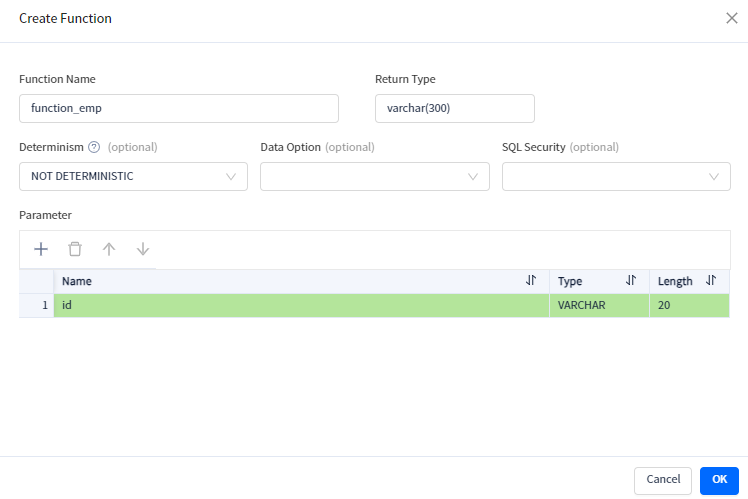
Step 2: Specify the data type of the return value
For specific data types, refer to OceanBase Database reference guide.
Step 3: Specify parameters
Parameters specify the information passed to a function when the function is called.
In the Oracle compatible mode, specify the following fields: Name, Mode, Type, and Default Value.
In the MySQL compatible mode, specify the following fields: Name, Type, and Length.
You can specify parameters by using one of the following three methods.
MethodDescriptionUse the quick access toolbar In the quick access toolbar, you can add, delete, and move up and down parameters. Click the row number - You can click a row number to select a row and display the quick access toolbar that allows you to delete the row or move the row up or down.
- You can click a row number to select the row, and then drag the row to adjust its order.
Right-click Right-click the mouse to select the entire row, copy row or move down the row. Note
After copying a row, you can select a row and paste it using the keyboard shortcut Command + V / Ctrl + V.
You need to specify the mode for the parameters.
The parameter mode setting is unavailable in the MySQL compatible mode. The Oracle compatible mode supports the following parameter modes: IN, OUT, and INOUT.
ParameterTypeIN Indicates an input parameter. When a function is called, the input parameter is passed to the function and used in the execution of the function. OUT Indicates an output parameter. When a function is called, the value of the output parameter is ignored and an empty value is passed to the function. The output parameter in the function body can be modified. The modified result is returned and passed to the argument that the output parameter represents. INOUT Indicates an inout parameter. An inout parameter is both an input parameter and an output parameter. Note
In the Oracle compatible mode, both functions and stored procedures support IN, OUT, and INOUT modes. In the MySQL compatible mode, functions support only IN mode, and stored procedures support IN, OUT, and INOUT modes.
Step 4: Verify the parameters of the new function
Click OK to go to the Create Function page.
Step 5: Edit the function
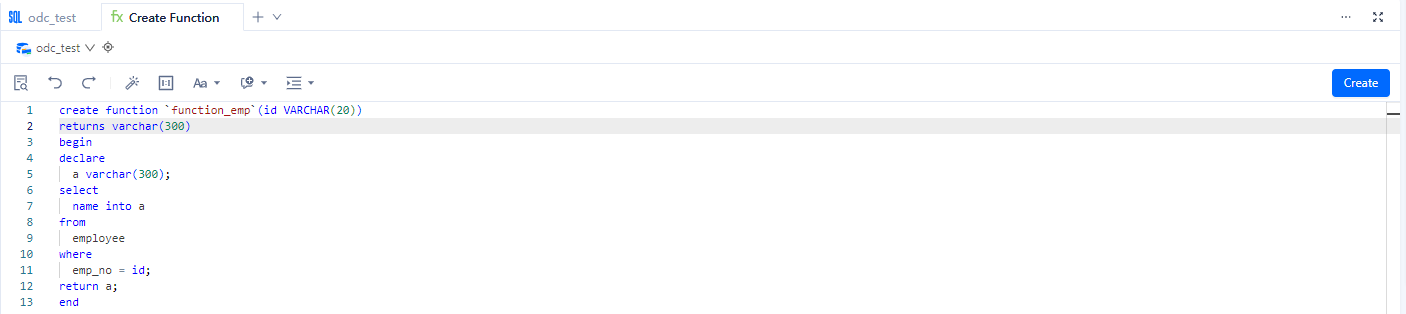
Edit the function statement on the Create Function page. You can edit the SQL statements of the created function on the Create Function page. Syntax:
CREATE FUNCTION function_name ([var_name var_type[,...]])
RETURNS return_type
 delarification_block
BEGIN
    function_body
EXCEPTION
    exception_handler
END;
Parameters:
Parameter |
Description |
|---|---|
| < function name > | The name of the user-defined function.
Notice |
| < parameter >< type > | Parameters of the function. This field contains only the name and type. You cannot specify the IN, OUT, or INOUT keyword. |
| RETURNS< type > | The data type of the return value. <type> specifies the data type of the return value.
Notice |
| < function body > | The body of the user-defined function. The function body must contain a RETURN <value> statement, where <value> specifies the return value of the user-defined function. |
Example:
CREATE FUNCTION `function_emp` ( `id` int(20)) RETURNS VARCHAR(300)

-- The start of the function body.
BEGIN

-- Declare a variable.
DECLARE
  a VARCHAR(300);

-- Assign a value to the variable.
SELECT
  name INTO a
FROM
  employee
WHERE
  emp_no = id;

-- The return value.
RETURN a;

-- The end of the function body.
END
Step 6: Complete the function creation
Click Create in the upper-right corner to create the function. After a user-defined function is created, you can use the SELECT statement to call it, just like how you call a built-in function.
Syntax:
SELECT function_name ([function_parameter [,...]])
Example:
SELECT function_emp(2);
MySQL compatible mode

Oracle compatible mode
Notice
In the Oracle compatible mode, if a user-defined function contains an OUT parameter, you must call the function by using the
CALLstatement. A yellow icon in the function list indicates an error or alert.
To manage a function, right-click the function name in the left-side navigation pane, and select the required operation from the context menu, which provides the following options: View, Create, Edit, Run, Download, Delete, and Refresh. Edit , Compile , and Debug are not supported in the MySQL compatible mode. For more information, refer to Functional keys in SQL Console.
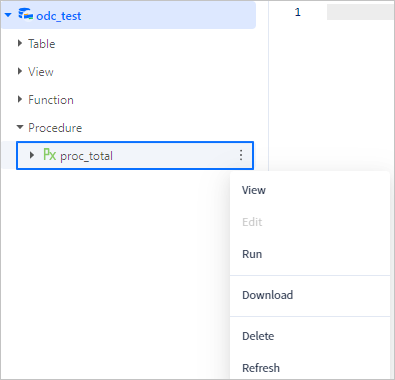
Action |
Description |
|---|---|
| View | Click this option to go to the function management page. On this page, you can view comprehensive information such as the basic information, parameters, and code of the function. |
| Edit | Click this option to go to the function management page, which displays the statements that define the function and where you can edit the function.
NoteThe editing function is not supported in OceanBase MySQL compatible mode. |
| Run | Click this option to execute the function. |
| Download | Download the SQL file for the function object. |
| Delete | Click this option to delete the function. |
| Refresh | Click this option to refresh the structure tree after you perform management actions on the function, so that the structure tree displays the latest information. |