







This topic outlines how to create or modify AWS KMS (Key Management Service) keys and authorize OceanBase Cloud for data encryption.
Background information
When creating an instance in OceanBase Cloud and choosing AWS as the cloud vendor, you can enhance security by using custom keys for data encryption. You can configure the keys on the AWS Management Console.
- Create a new key: Generate a new key specifically for use with OceanBase Cloud.
- Configure an existing key: Add account permissions for OceanBase Cloud to an existing key.
Create a new key
Log in to the AWS Management Console and navigate to the Key Management Service console.
In the left-side navigation pane, click Customer managed keys, then click Create key in the upper right corner.

Configure the key: Set the key type and key usage based on your requirements, and click Next.

Add labels: Fill in the Alias, Description, and Tags fields, then click Next.

Define key administrative permissions: Choose key administrators, and click Next.

Define key usage permissions: After adding key users, in the Other AWS accounts section, add the OceanBase Cloud account (contact OceanBase Technical Support to obtain this account information), and click Next.
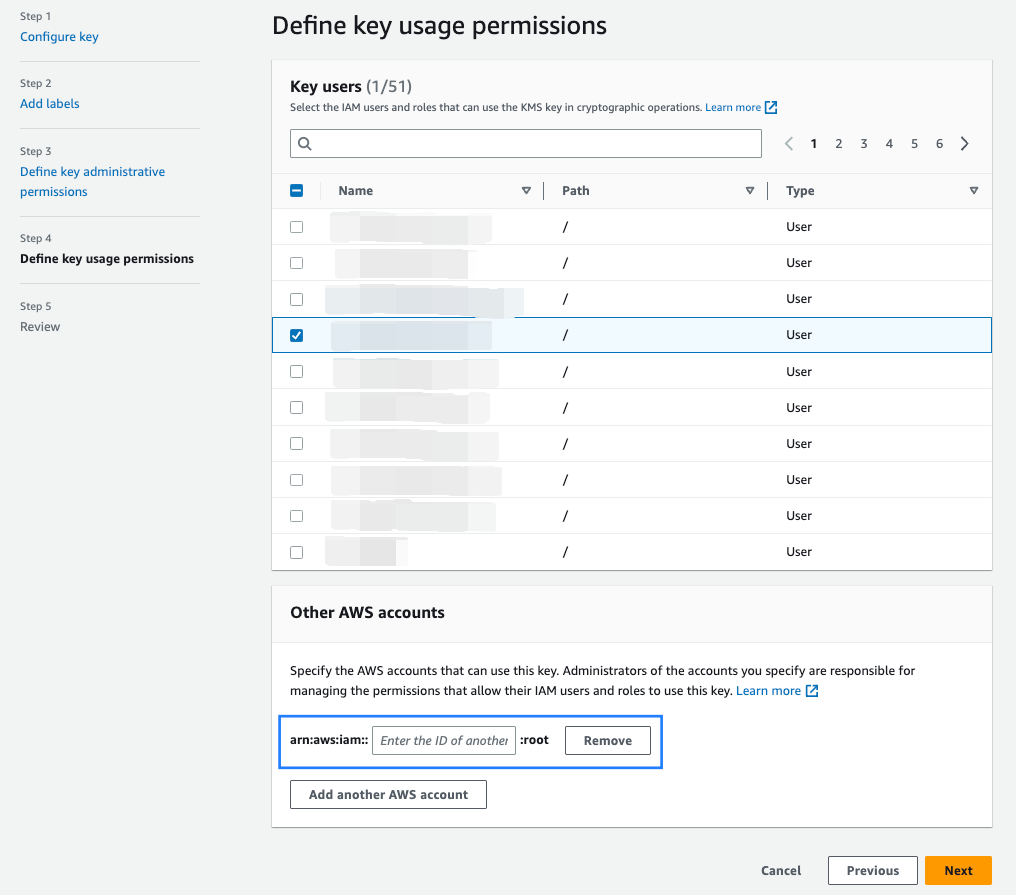
Review: Check the information you have provided, and once verified, click Finish.
After creation, you will be redirected to the Customer managed keys page, where you can view the list of created keys.
On the Customer managed keys page, click the alias of the key that you just created.
In the General configuration section of the key details page, locate the ARN of the key.
This information will be used when creating the instance on the OceanBase Cloud console to enable data encryption. For detailed instructions, refer to Create an instance.

Configure an existing key
Log in to the AWS Management Console and navigate to the Key Management Service console.
In the left-side navigation pane, click Customer managed keys, and then click the name of the key you wish to configure.
In the Other AWS accounts section under the Key policy tab on the key details page, click Add other AWS accounts.

In the pop-up dialog box, enter the OceanBase Cloud account (contact OceanBase Technical Support to obtain this account information), and then click Save changes.

On the key details page, locate the ARN of the key.
This information will be used when creating the instance on the OceanBase Cloud console to enable data encryption. For detailed instructions, refer to Create an instance.