







AWS Glue is a serverless data integration service. It helps users easily discover, prepare, move, and integrate data from multiple sources to support analytics, machine learning, and application development. AWS Glue provides comprehensive data integration capabilities, including data discovery, modern ETL, data cleansing and transformation, and centralized cataloging, all integrated into a single service. AWS Glue does not require users to manage infrastructure, supports various workloads such as ETL, ELT, and streaming, and can scale on demand to accommodate any data size and type. This topic uses OceanBase Cloud. AWS Glue migrates data from one OceanBase instance to another. As for data streaming, you need to write ETL scripts and schedule tasks.
Note
Connect OceanBase Cloud by using Glue
Follow these steps to connect to the OceanBase Cloud by using Glue:
Create an EC2 instance.
Set up the AWS S3 VPC Gateway Endpoint. AWS Glue cannot connect to data sources via public IP, so this topic uses a private IP to connect to OceanBase Cloud. Make sure that your Glue subnet has an Amazon S3 VPC gateway endpoint or a NAT gateway route in the subnet routing table. Follow these steps to set up the AWS S3 VPC Gateway Endpoint:
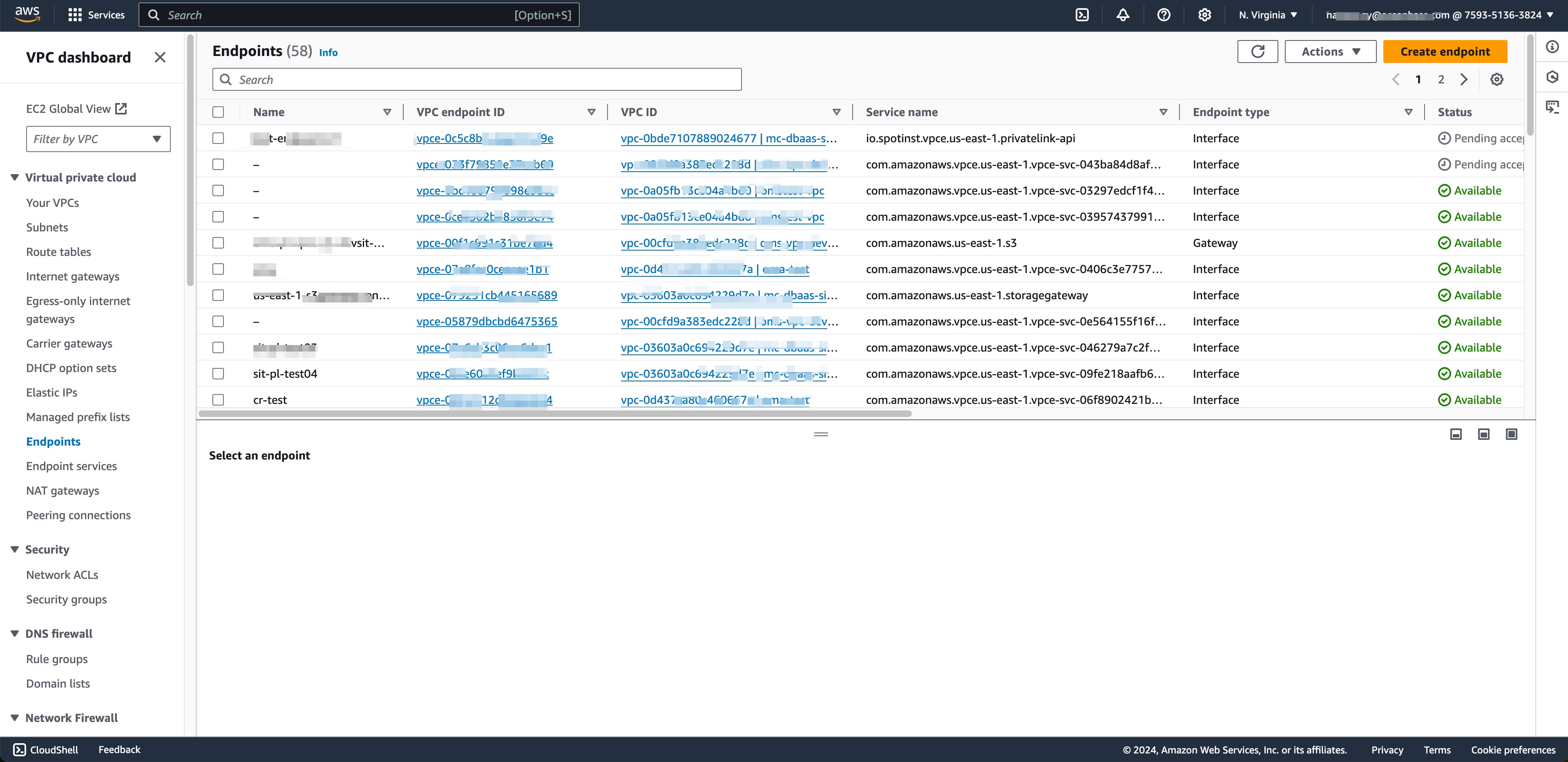
- Open the Amazon VPC console. In the navigation pane, select Endpoints.
- Select Create Endpoint.
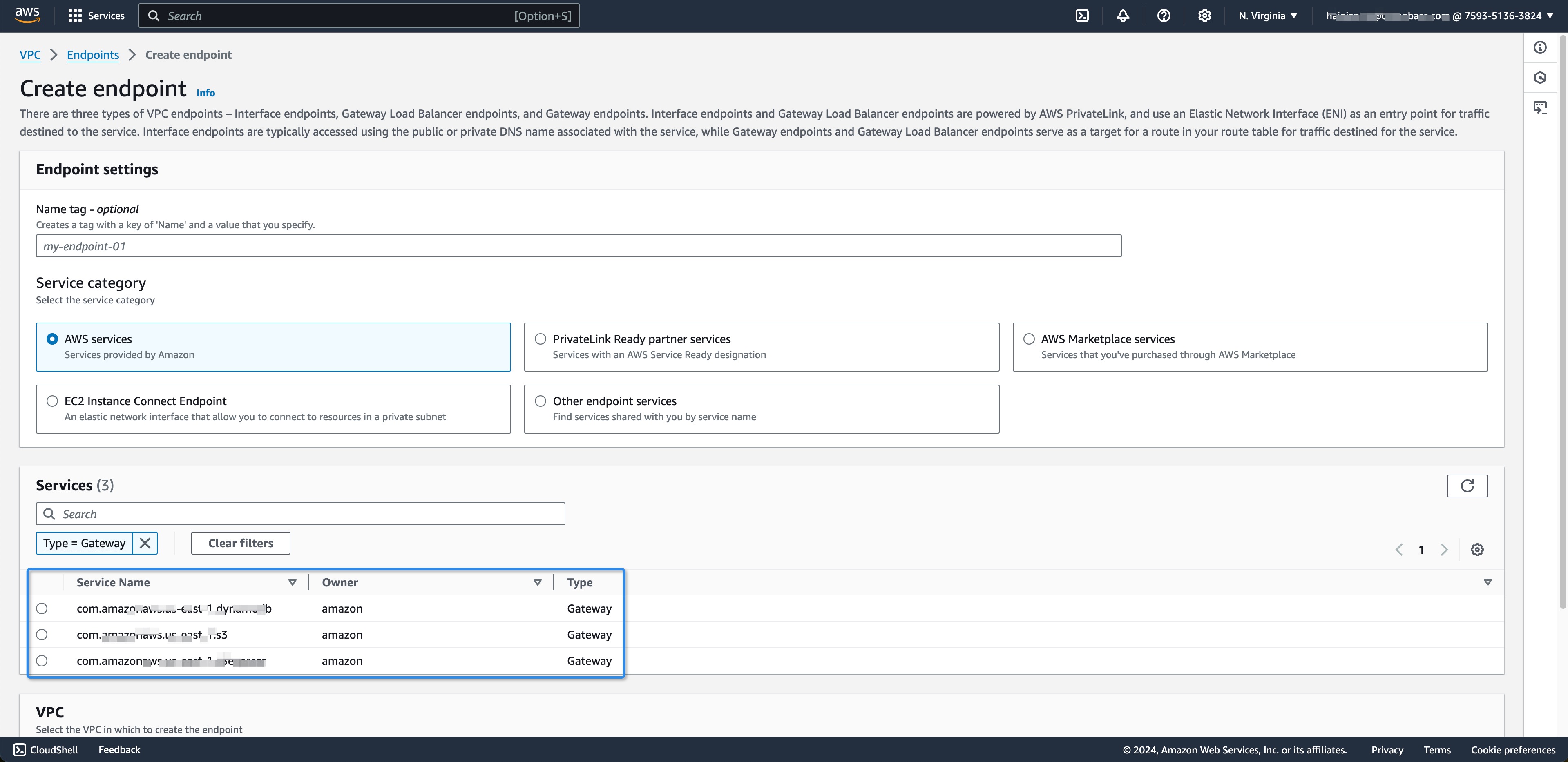
- For Service Name, select
com.amazonaws.us-east-1.s3. Make sure that the Type column indicates Gateway.Note
You must replace us-east-1 with the AWS region you choose.
- For VPC, select the VPC in which you want to create the endpoint.
- For Configure routing table, the system will automatically add routes to the S3 VPC endpoint.
- For Policy, retain the default option Full Access.
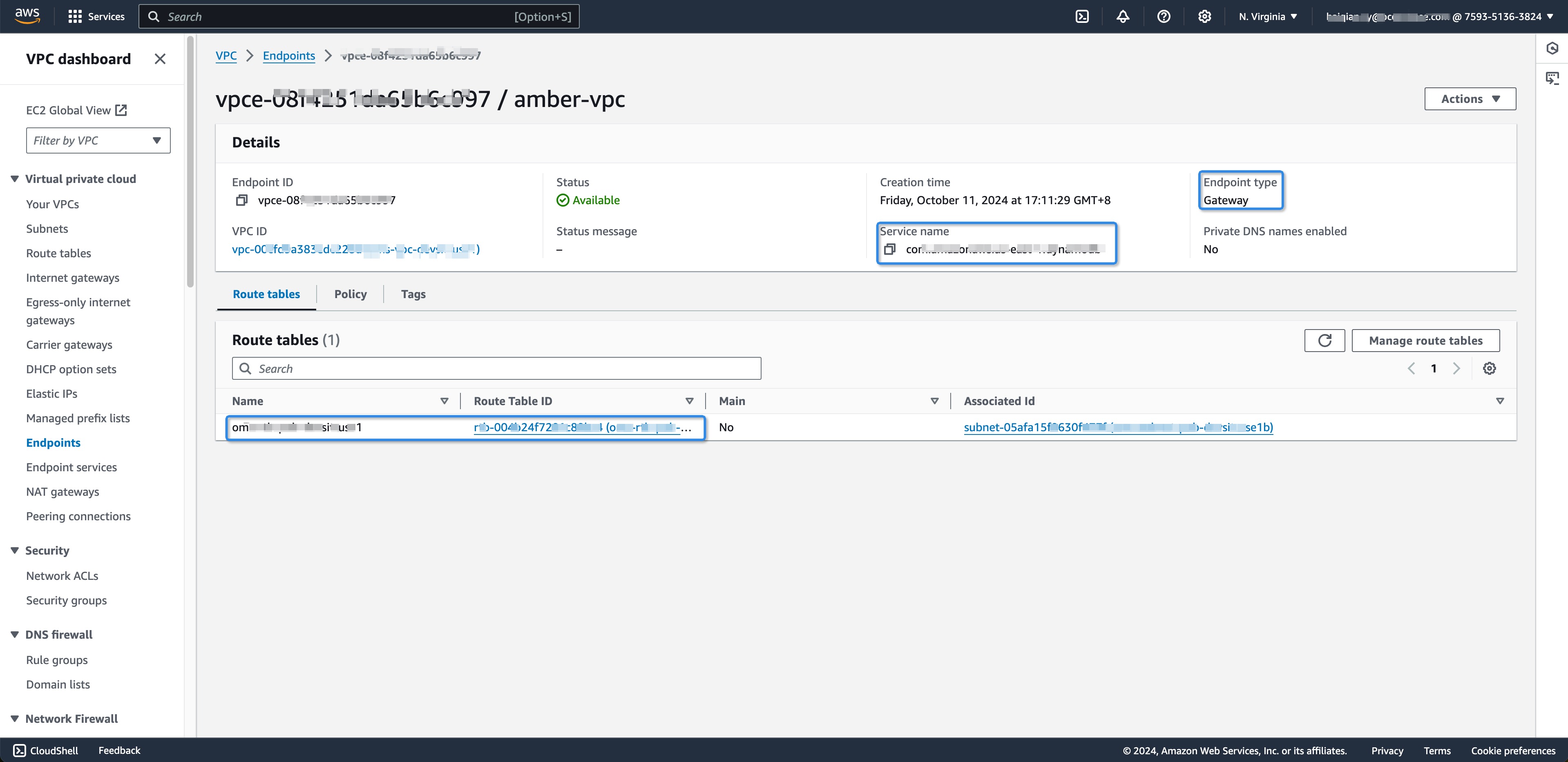
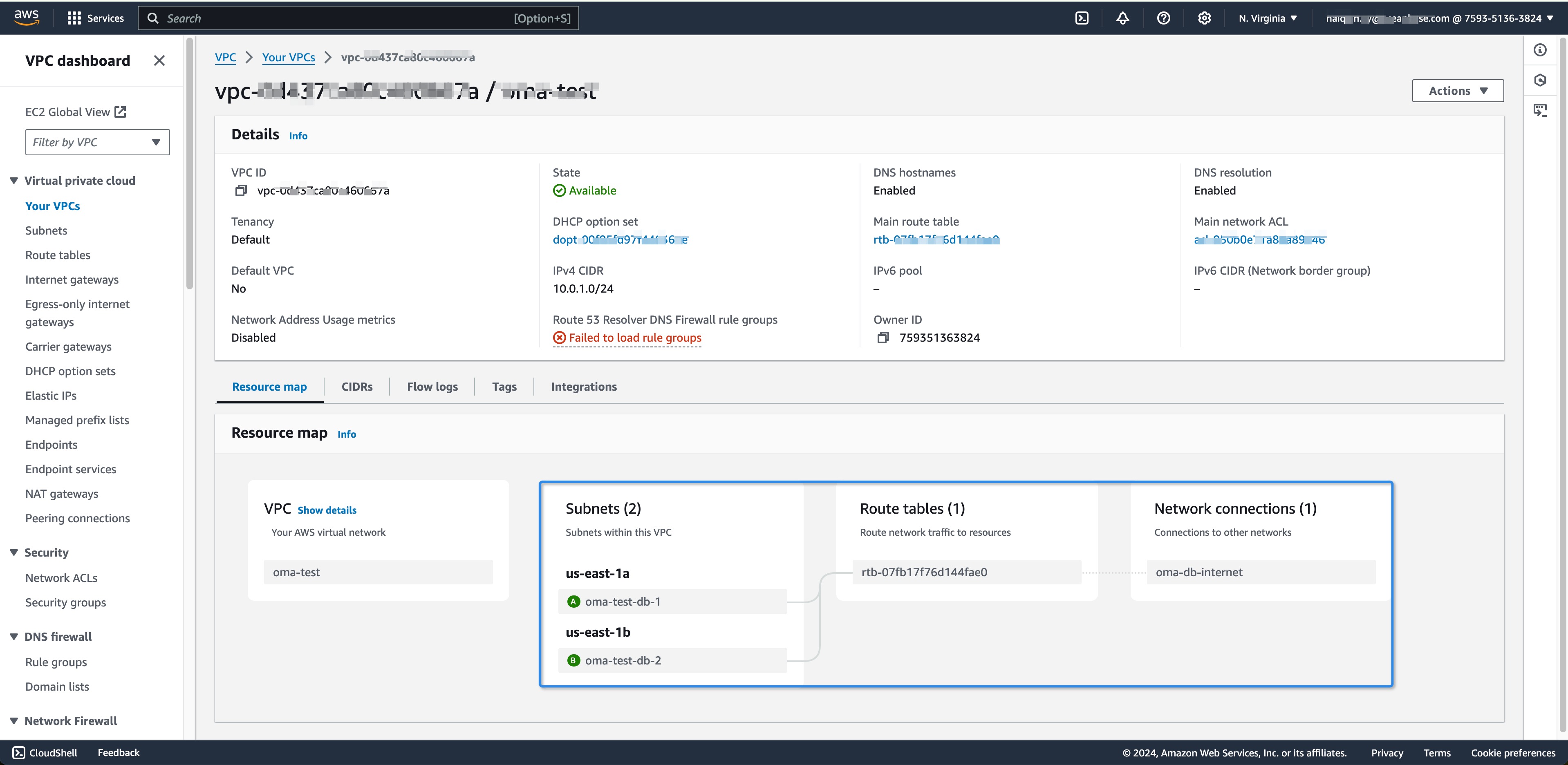
- Select Create Endpoint. After the endpoint is created, you can view the endpoint details and subnet information.
Test the Glue Connection.
- Open the AWS Glue Console, select JDBC.
- Use a private IP for JDBC.
- Set Network Options. Use the subnet information configured in the endpoint step for the subnet to S3 VPC link.
- Click Next to complete creation.
- Test the connection.
Use Glue ETL Tasks
Follow these steps to use Glue ETL tasks, connect to OceanBase instances, and transform data to OceanBase instances.
Add the OceanBase Source Database.
- Click Connections, select the JDBC type.
- Fill in the OceanBase data source information.
- Complete creation.
- Test the connection.
Add the OceanBase Target Database. This topic uses Crawlers for target database mapping.
- Click Crawlers -> Create Crawler.
- Fill in the Crawler information.
- Add data sources.
- Select the JDBC connection type and database table.
- Click Next and assign users.
- Add the location for table mapping.
- Select the database and complete, click Next to finish creating the Crawler.
- Pre-create the table in the target database.
- Run the Crawler and view the table mapping information.
Create an ETL Task.
- Click Visual ETL to create a job.
- Select MySQL for the Source type.
- Click the MySQL node, select JDBC Source and Table Name to preview data.
- Click Targets, select MySQL for the Target type.
- Save and run the task.
- View the execution results.