







MCP (Model Context Protocol) is an open-source protocol introduced by Anthropic in November 2024. It allows large language models to interact with external tools or data sources. With MCP, you do not need to manually copy and execute the output of large language models. Instead, the large language model can directly command tools to perform specific actions.
OceanBase MCP Server enables large language models to interact with OceanBase Database through the MCP protocol and execute SQL statements. It allows you to quickly build a project prototype with the help of an appropriate client and has been open-sourced on GitHub.
Cursor is an AI-powered code editor that supports multiple operating systems, including Windows, macOS, and Linux.
This topic demonstrates how to integrate Cursor with OceanBase MCP Server to quickly build a backend application.
Prerequisites
A transactional instance is available in your environment. For instructions on how to create the instance, see Create an transactional instance.
You have created a MySQL-compatible tenant in the instance. For instructions on how to create the tenant, see Create a MySQL-compatible tenant.
You have a MySQL database and account available under the tenant, and you have granted read and write permissions to the database account. For more information, see Create an account and Create a database (MySQL only).
You are a project admin or instance admin and have the permissions required to read and write data in the instance. If not, contact your organization admin to grant the required permissions.
You have installed Python 3.11 or later and the corresponding pip. If your machine has a low Python version, you can use Miniconda to create a new Python 3.11 or later environment. For more information, see Miniconda installation guide.
Install Git based on your operating system.
Install uv, a Python package manager. After the installation, run the
uv --versioncommand to verify the installation:pip install uv uv --versionDownload Cursor and install the version suitable for your operating system. Note that when you first use Cursor, you need to register an account or log in with an existing account. After logging in, you can create a new project or open an existing project.
Step 1: Obtain the database connection information
Log in to the OceanBase Cloud console.
In the instance list page, expand the the information of the target instance.
Select Connect > Get Connection String under the target tenant.
In the pop-up window, select Public Network as the connection method.
Follow the prompts in the pop-up window to obtain the public endpoint and the connection string.
Step 2: Configure the OceanBase MCP server
Clone the OceanBase MCP server repository
Run the following command to download the source code to your local machine:
git clone https://github.com/oceanbase/mcp-oceanbase.git
Go to the source code directory:
cd mcp-oceanbase
Install dependencies
Run the following command in the mcp-oceanbase directory to create a virtual environment and install dependencies:
uv venv
source .venv/bin/activate
uv pip install .
Create a working directory for the Cursor client and configure the OceanBase MCP server
Manually create a working directory for the Cursor client and use Cursor to open it. All files generated by Cursor will be placed in this directory. The sample directory name is cursor.
Press the shortcut key Ctrl + L (Windows) or Command + L (MacOS) to open the chat window and click the gear icon in the upper right corner, then select MCP Tools.
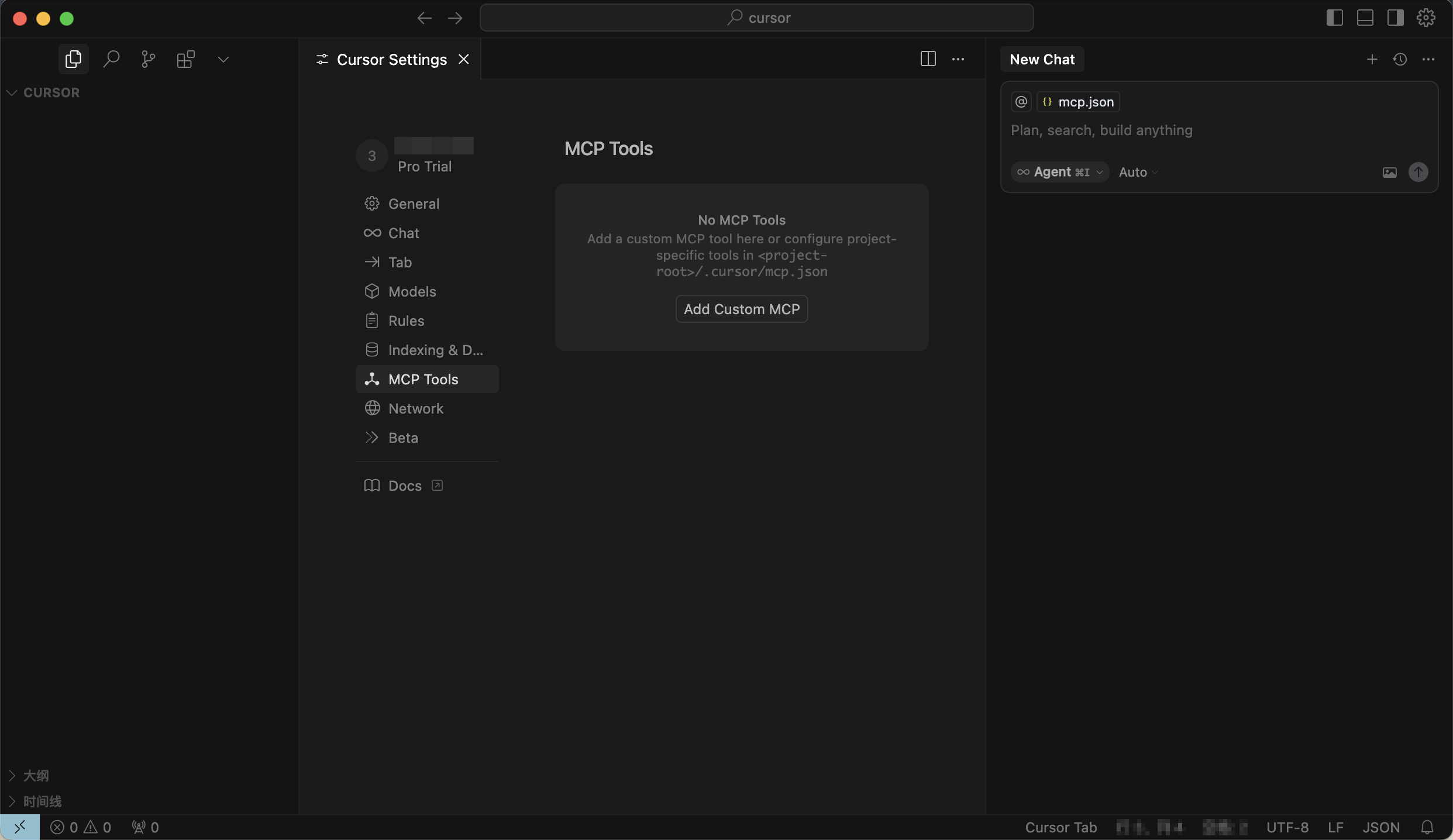
Add and configure MCP servers
Click Add Custom MCP and fill in the configuration file.
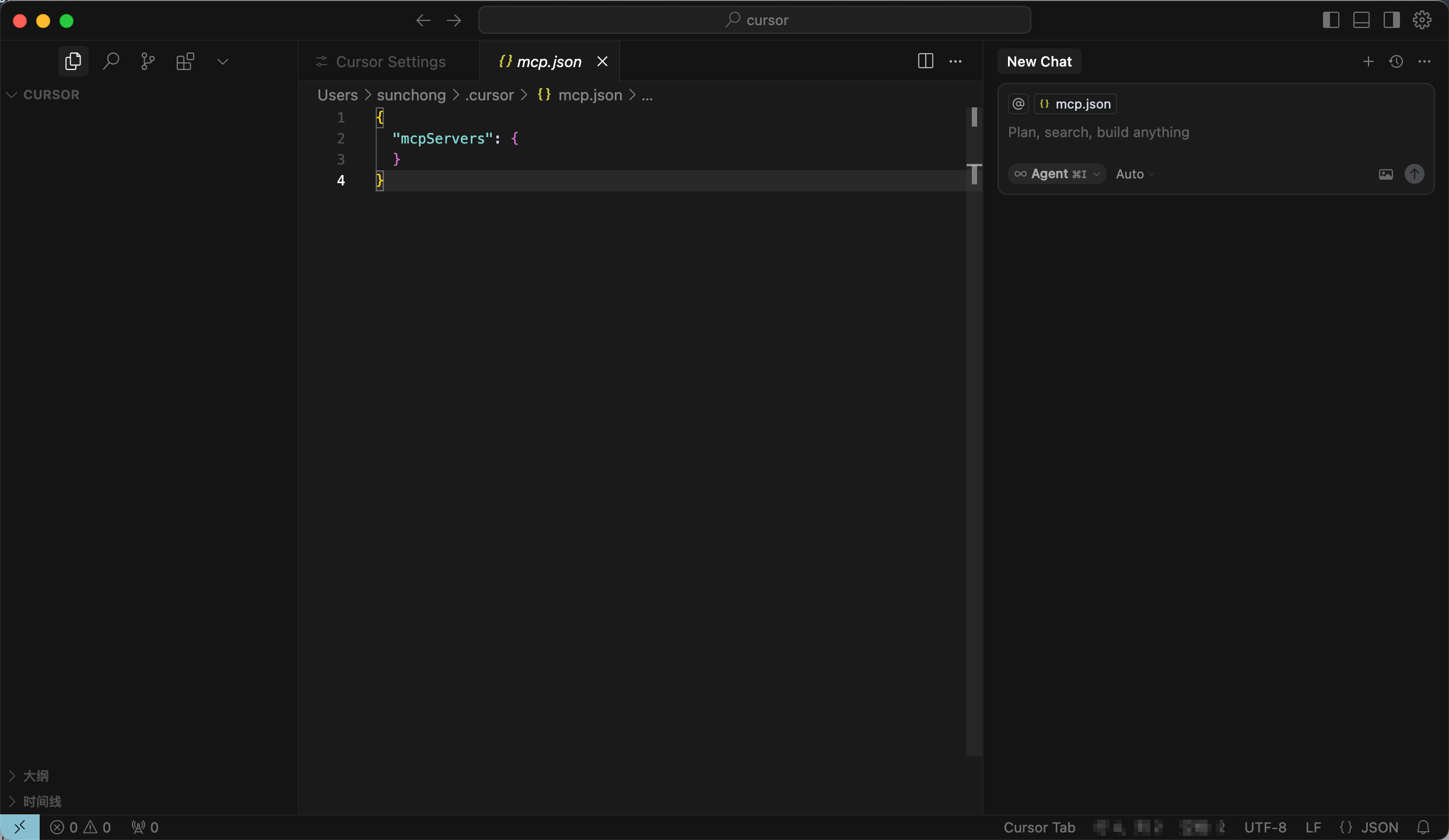
Fill in the configuration file and click OK.
/path/to/your/mcp-oceanbase/src/oceanbase_mcp_serverneeds to be replaced with the absolute path of the mcp-oceanbase folder, andOB_HOST,OB_PORT,OB_USER,OB_PASSWORD, andOB_DATABASEneed to be replaced with your database's corresponding information:{ "mcpServers": { "oceanbase": { "command": "uv", "args": [ "--directory", "/path/to/your/mcp-oceanbase/src/oceanbase_mcp_server", "run", "oceanbase_mcp_server" ], "env": { "OB_HOST": "***", "OB_PORT": "***", "OB_USER": "***", "OB_PASSWORD": "***", "OB_DATABASE": "***" } } } }If the configuration is successful, the status will change to
Available.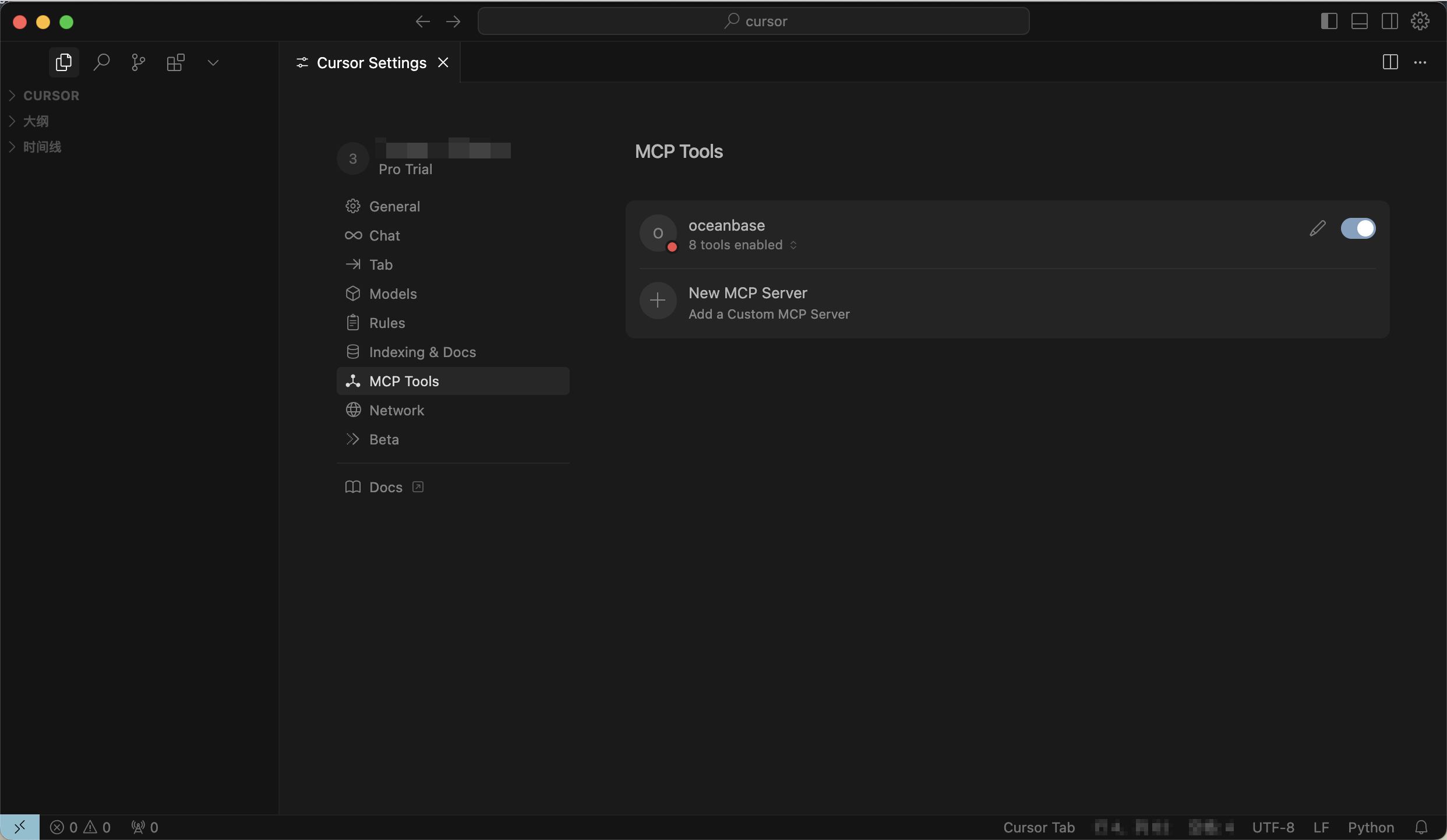
Test the MCP server
In the chat window, enter the prompt:
How many tables are there in the test database. The Cursor client will display the SQL statement about to be executed. Confirm the SQL statement and click theRun toolbutton. The Cursor client will show the number of the tables in thetestdatabase, indicating a successful connection to OceanBase Database.
Create a RESTful API project using FastAPI
You can use FastAPI to quickly create a RESTful API project. FastAPI is a Python web framework that allows you to build RESTful APIs quickly.
Create a customer table
In the dialog box, enter the prompt:
Create a "customer" table with "Id" as the primary key, including the fields of "name", "age", "telephone", and "location". Confirm the SQL statement and click theRun toolbutton.Insert test data
In the dialog box, enter the prompt:
Insert 10 test data entries. After confirming the SQL statement, click theRun toolbutton to execute the query. After the data is inserted, a message indicating that 10 test data records were inserted into the customer table will be displayed.Create a FastAPI project
In the dialog box, enter the prompt:
Create a FastAPI project and generate a RESTful API based on the "customer" table. After confirming the SQL statement, click theRun toolbutton to execute the query.This step will automatically generate two files. We recommend that you select
Accept Allfor the first time, as the content of the AI-generated files may be uncertain, and you can adjust it as needed later.Create a virtual environment and install dependencies
Run the following command to create a virtual environment using the uv package manager and install the required packages in the current directory:
uv venv
source .venv/bin/activate
uv pip install -r requirements.txt
Start the FastAPI project
Run the following command to start the FastAPI project:
uvicorn main:app --reloadView the data in the table
Run the following command in the command line or use another request tool to view the data in the table:
curl http://127.0.0.1:8000/customersThe response is as follows:
[{"id":1,"name":"Alice","age":28,"telephone":"1234567890","location":"Beijing"},{"id":2,"name":"Bob","age":32,"telephone":"2345678901","location":"Shanghai"},{"id":3,"name":"Charlie","age":25,"telephone":"3456789012","location":"Guangzhou"},{"id":4,"name":"David","age":40,"telephone":"4567890123","location":"Shenzhen"},{"id":5,"name":"Eve","age":22,"telephone":"5678901234","location":"Chengdu"},{"id":6,"name":"Frank","age":35,"telephone":"6789012345","location":"Wuhan"},{"id":7,"name":"Grace","age":30,"telephone":"7890123456","location":"Hangzhou"},{"id":8,"name":"Heidi","age":27,"telephone":"8901234567","location":"Nanjing"},{"id":9,"name":"Ivan","age":29,"telephone":"9012345678","location":"Tianjin"},{"id":10,"name":"Judy","age":31,"telephone":"0123456789","location":"Chongqing"}]You can see that the RESTful APIs for creating, deleting, modifying, and querying data have been successfully generated:
from fastapi import FastAPI, HTTPException, Depends
from pydantic import BaseModel
from typing import List
from sqlalchemy import create_engine, Column, Integer, String
from sqlalchemy.ext.declarative import declarative_base
from sqlalchemy.orm import sessionmaker, Session

# OceanBase connection configuration (modify as needed)
DATABASE_URL = "mysql://***:***@***:***/***"

engine = create_engine(DATABASE_URL, echo=True)
SessionLocal = sessionmaker(autocommit=False, autoflush=False, bind=engine)
Base = declarative_base()

class Customer(Base):
    __tablename__ = "customer"
    id = Column(Integer, primary_key=True, index=True)
    name = Column(String(100))
    age = Column(Integer)
    telephone = Column(String(20))
    location = Column(String(100))

class CustomerCreate(BaseModel):
    id: int
    name: str
    age: int
    telephone: str
    location: str

class CustomerUpdate(BaseModel):
    name: str = None
    age: int = None
    telephone: str = None
    location: str = None

class CustomerOut(BaseModel):
    id: int
    name: str
    age: int
    telephone: str
    location: str
    class Config:
        orm_mode = True

def get_db():
    db = SessionLocal()
    try:
        yield db
    finally:
        db.close()

app = FastAPI()

@app.post("/customers/", response_model=CustomerOut)
def create_customer(customer: CustomerCreate, db: Session = Depends(get_db)):
    db_customer = Customer(**customer.dict())
    db.add(db_customer)
    try:
        db.commit()
        db.refresh(db_customer)
    except Exception as e:
        db.rollback()
        raise HTTPException(status_code=400, detail=str(e))
    return db_customer

@app.get("/customers/", response_model=List[CustomerOut])
def read_customers(skip: int = 0, limit: int = 100, db: Session = Depends(get_db)):
    return db.query(Customer).offset(skip).limit(limit).all()

@app.get("/customers/{customer_id}", response_model=CustomerOut)
def read_customer(customer_id: int, db: Session = Depends(get_db)):
    customer = db.query(Customer).filter(Customer.id == customer_id).first()
    if customer is None:
        raise HTTPException(status_code=404, detail="Customer not found")
    return customer

@app.put("/customers/{customer_id}", response_model=CustomerOut)
def update_customer(customer_id: int, customer: CustomerUpdate, db: Session = Depends(get_db)):
    db_customer = db.query(Customer).filter(Customer.id == customer_id).first()
    if db_customer is None:
        raise HTTPException(status_code=404, detail="Customer not found")
    for var, value in vars(customer).items():
        if value is not None:
            setattr(db_customer, var, value)
    db.commit()
    db.refresh(db_customer)
    return db_customer

@app.delete("/customers/{customer_id}")
def delete_customer(customer_id: int, db: Session = Depends(get_db)):
    db_customer = db.query(Customer).filter(Customer.id == customer_id).first()
    if db_customer is None:
        raise HTTPException(status_code=404, detail="Customer not found")
    db.delete(db_customer)
    db.commit()
    return {"ok": True}