OceanBase Developer Center (ODC) allows you to create a table on a GUI. This topic describes how to create a table in the ODC console.
Background information

The procedure comprises seven steps:
Specify the basic information.
Set columns.
Set indexes.
Set constraints.
Set partitioning rules.
Verify the SQL statement.
Complete the table creation.
Procedure
The following example describes how to create a table named employee in the odc_test database in the SQL window. The table contains the emp_no, birthday, name, and gender columns.
Note
All data in this example is for reference only. You can replace the data as needed.
Step 1: Specify the basic information
Log in to the ODC console and go to the SQL window. You can click Table in the left-side navigation pane to view tables. To create a table, click the plus sign (+) next to Table in the left-side navigation pane.
On the CreateTable tab that appears, set the Table Name, Storage Mode, and Description parameters in the Basic Information section.
Step 2: Set columns
Note
In ODC V4.2.3 and later, you can create a table that contains columns of spatial data types in the MySQL compatible mode of OceanBase Database or in MySQL Database.
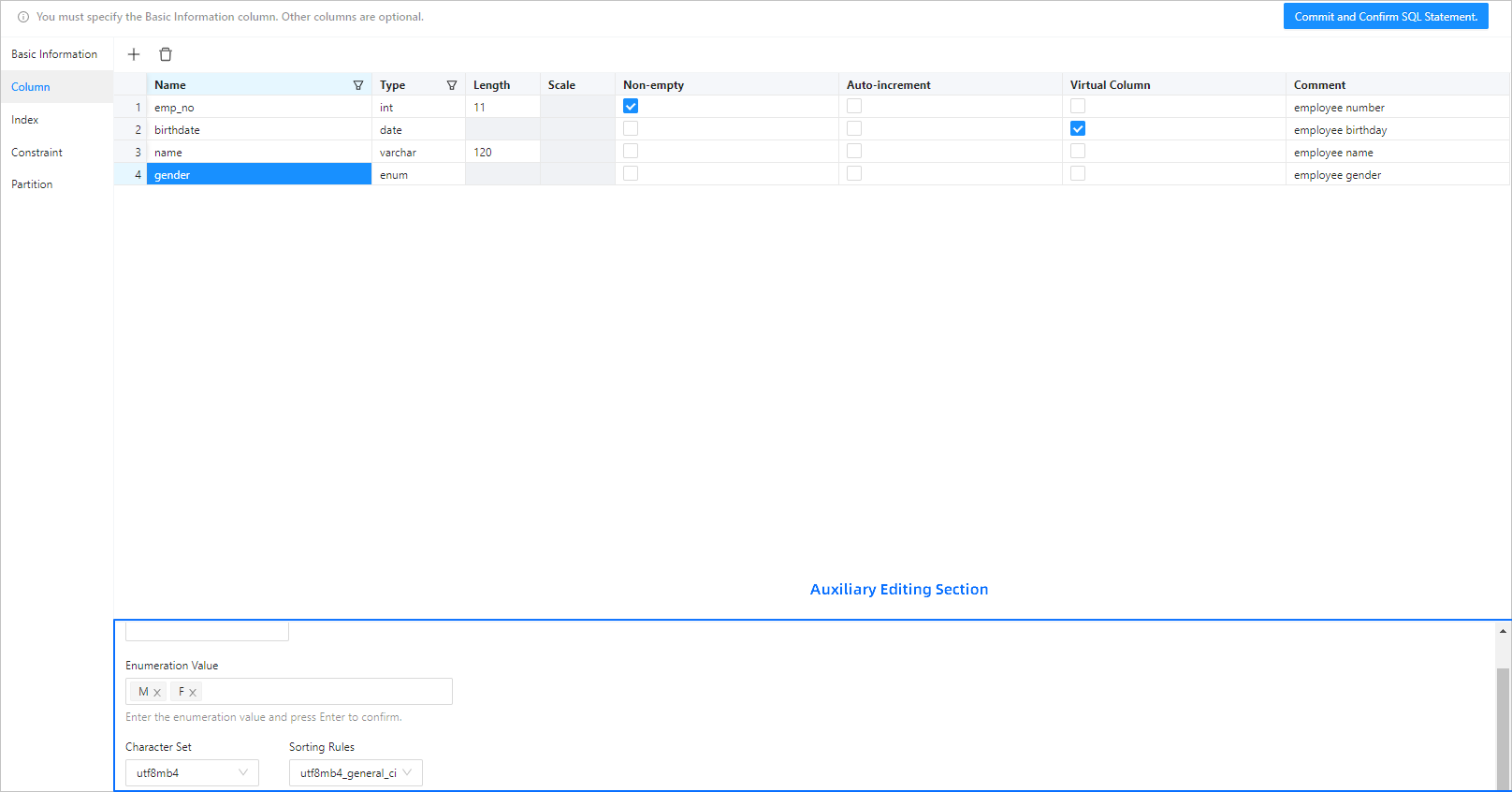
The following figure shows the information that you need to specify when you add a column.
Note
- After you copy a row, you can paste the row by using the Command+V or Ctrl+V shortcut keys.
- The auxiliary editing section at the bottom of the page displays additional information about the selected column.
- The basic information and column settings are required. The settings in other configuration steps are optional. After you specify the basic information and column settings, you can submit the settings and confirm the SQL statement to create the table.
Step 3: Set indexes
If a table contains a large amount of data, you can use indexes to accelerate data queries. An index is a data structure that pre-sorts the values of one or more columns in a table. By using indexes, you can directly locate records that meet the conditions.
The following figure shows the information that you need to specify when you set an index.

Step 4: Set constraints
Constraints are used to specify data rules for a table. A data operation that violates the constraints is terminated.

ODC supports the following four types of table constraints:
PRIMARY KEY constraint: Defines a primary key to uniquely identify each row of data in the table. A PRIMARY KEY constraint can be a field or a group of fields. You can set only one PRIMARY KEY constraint for a table, and you cannot modify the PRIMARY KEY constraint after you configure the constraint.
UNIQUE constraint: Ensures that the data in a field or a group of fields is unique in the table. You can set multiple UNIQUE constraints in one table.
FOREIGN KEY constraint: Associates one or more columns in two tables. A FOREIGN KEY constraint is used to maintain the data consistency and integrity between associated tables. After you complete the setting of FOREIGN KEY constraints, you cannot create new constraints or modify existing constraints.
CHECK constraints: Checks the data in the database based on the configured check rules when you edit the data. Data modification is allowed only after the check is passed.
Step 5: Set partitioning rules
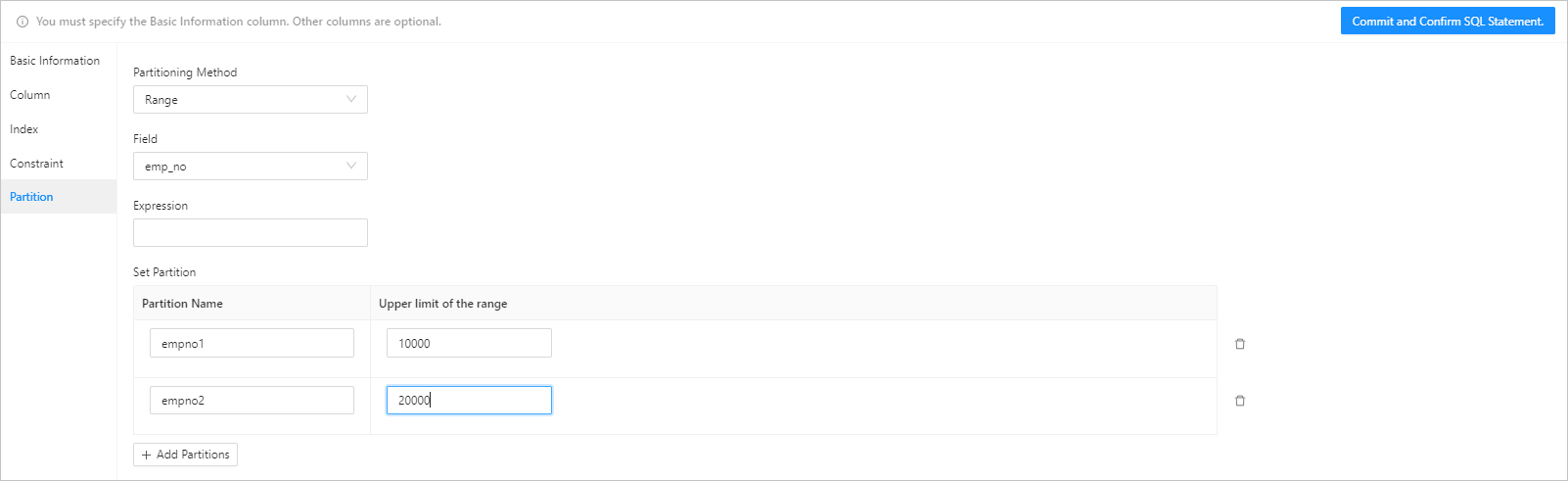
You can partition a table that contains a large amount of data. After a table is partitioned, data in the table is stored in multiple tablespaces. The database does not scan the entire table for a query. In ODC V4.3.3 and later, you can view subpartitions.
In the MySQL compatible mode, OceanBase Database supports the following partitioning methods: KEY, HASH, RANGE, RANGE COLUMNS, LIST, and LIST COLUMNS.
In the Oracle compatible mode, OceanBase Database supports the following three partitioning methods: LIST, RANGE, and HASH.
Step 6: Confirm the SQL statement
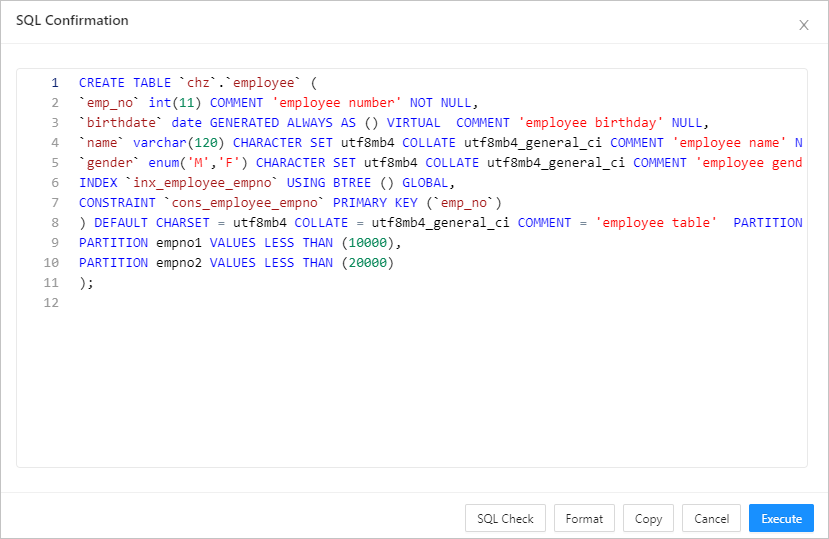
After you click Submit, you can view, check, and format the statement on the SQL Confirmation page.
The syntax is as follows:
CREATE TABLE table_name (column_name column_type, column_name column_type,.......);
The following table describes the parameters.
Parameter |
Description |
|---|---|
| CREATE TABLE | The statement that creates a table with a specified name. You must have the privilege to create tables. |
| table_name | The name of the table. The table name must conform to the identifier naming rules. |
| column_name column_type | The name and data type of each column in the table. Separate the tuples of multiple columns with commas (,). |
Step 7: Complete the table creation
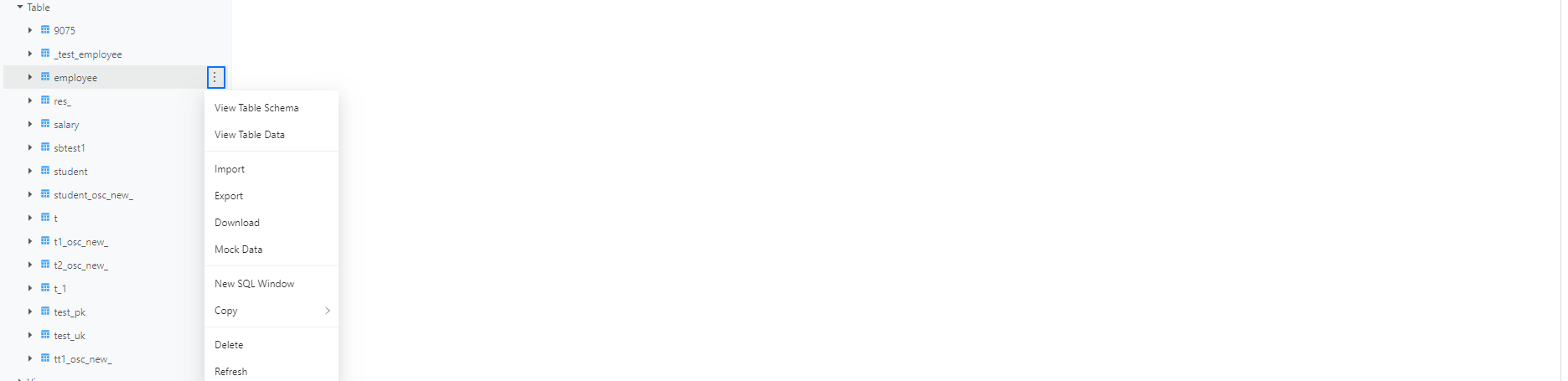
Click Execute. After the table is created, the employee table appears in the table list in the left-side navigation pane.
Note
You can click the More icon next to a table name in the table list in the left-side navigation pane, and select View Table Schema, View Table Data, Import, Export, Download, Mock Data, New SQL Window, Copy, Delete, or Refresh from the context menu to manage or operate the table.
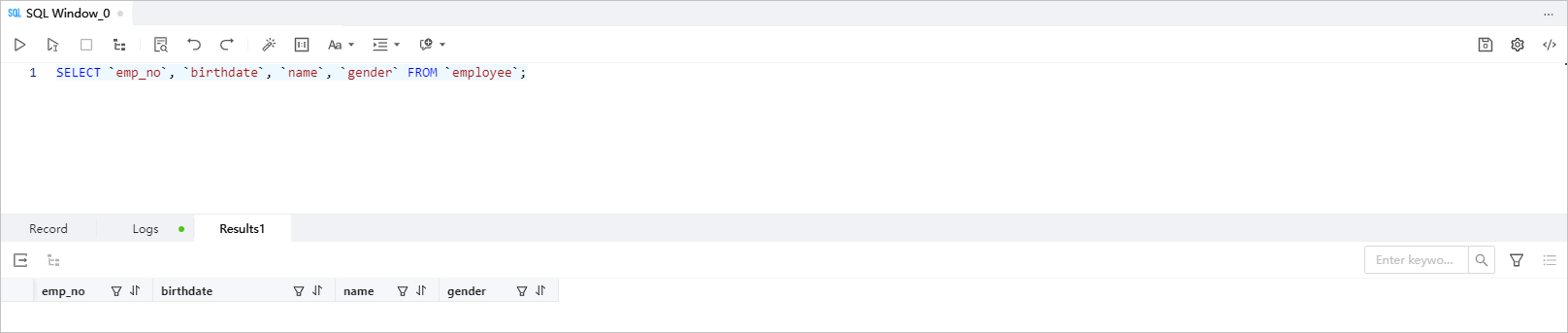
You can use the SELECT statement to query data in the new table.
The syntax is as follows:
SELECT
 column_name,
 column_name
FROM
 table_name [WHERE Clause] [LIMIT N] [ OFFSET M]
The following table describes the parameters.
Parameter |
Description |
|---|---|
| SELECT | The keyword that indicates the name of the statement. You can use the SELECT statement to read one or more records. |
| column_name | The name of the column to be queried. An asterisk (*) is usually used to query all columns in a table. |
| WHERE | The keyword of the condition clause. |
| LIMIT | The number of records to be returned. |
| OFFSET | The data offset from which the SELECT statement starts to query. The default offset is 0. |
Here is an example:
SELECT `emp_no`, `birthdate`, `name`, `gender` FROM `employee`;