







This topic explains how to connect to OceanBase Cloud using the MySQL Connector/J driver.
Prerequisites
- You have registered an OceanBase Cloud account and have created an instance. For details, refer to Create an instance.
- You have downloaded and installed IntelliJ IDEA.
- You have downloaded JDK 1.8.0.
- You have downloaded and configured Maven in IntelliJ IDEA.
- You have downloaded the project example code used in this document.
 Click to download the MySQL Connector/J sample project
 Post-installation check
Check if JDK is installed successfully.
java -versionCheck if Maven is installed successfully.
mvn -version(Optional) Check if the Maven configuration in IntelliJ IDEA is correct.
Note
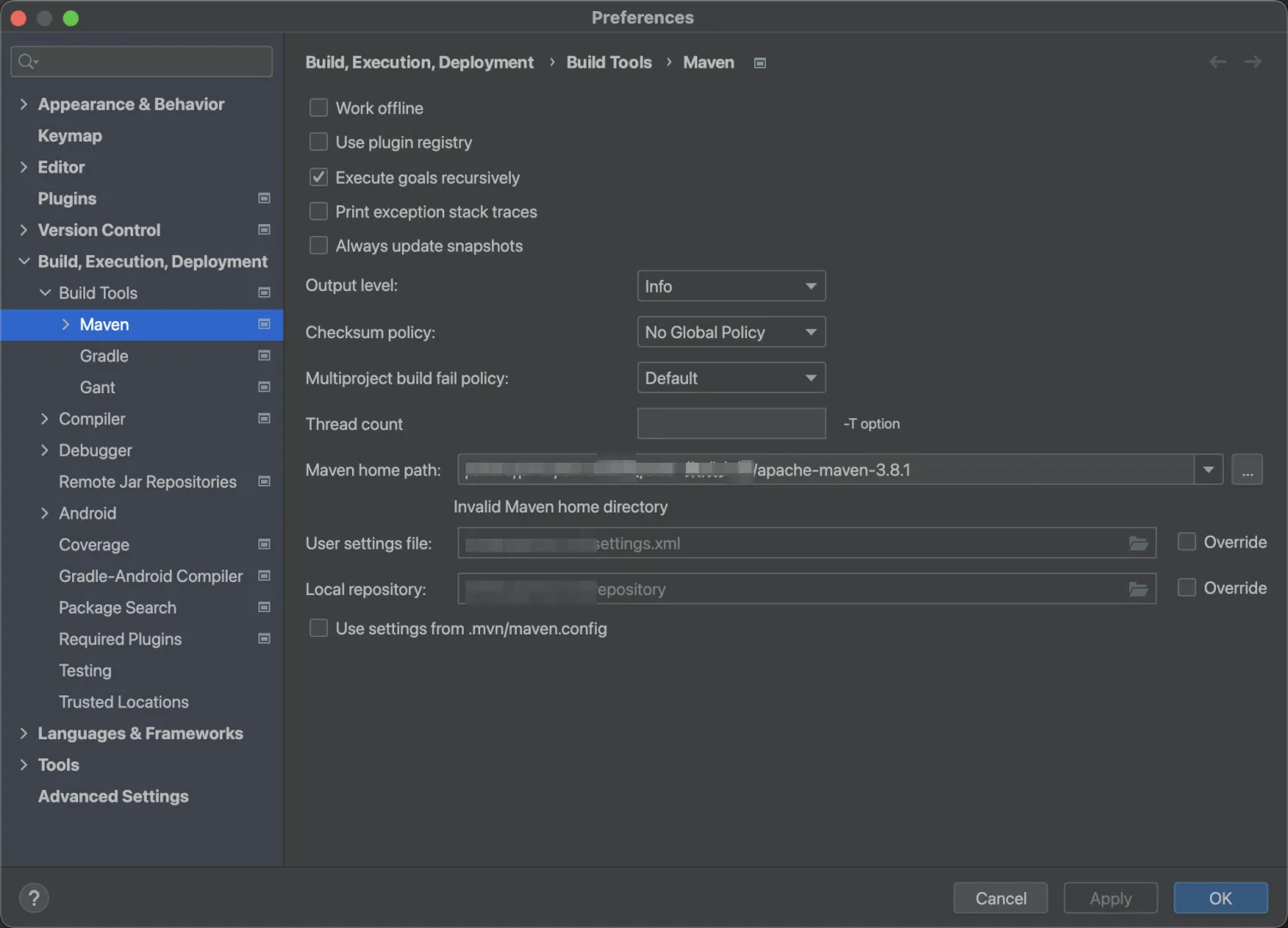
This topic only provides a relatively simple demo for your reference. If you need to develop more complex examples, you can download the appropriate version of Maven for your development environment and configure it in IntelliJ IDEA through the following path.
Open IntelliJ IDEA, in the menu bar, select IntelliJ IDEA > Preferences > Build, Execution, Deployment > Build Tools > Maven.
Under Maven home path, specify the path where the Maven installation package is located.
Procedure
Step 1: Obtain an OceanBase Cloud connection string
Log in to the OceanBase Cloud console. On the Instances page, expand the target instance and click Create under the target instance.
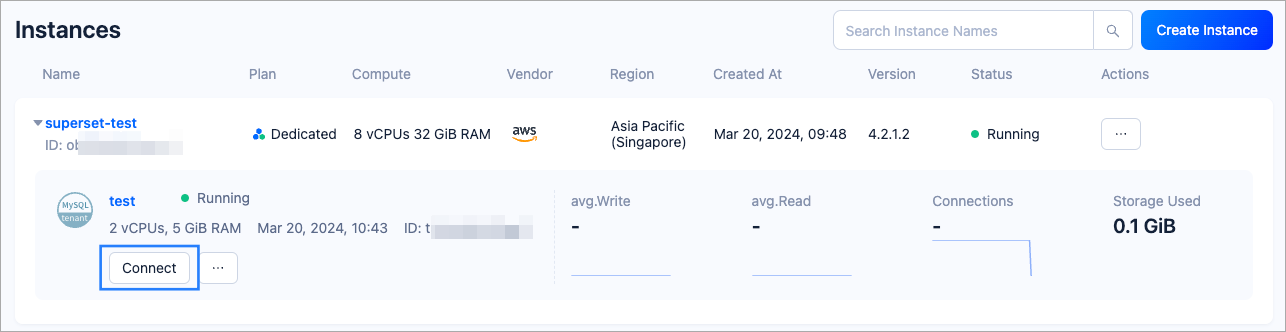
In the pop-up window, click Connect with Public IP.
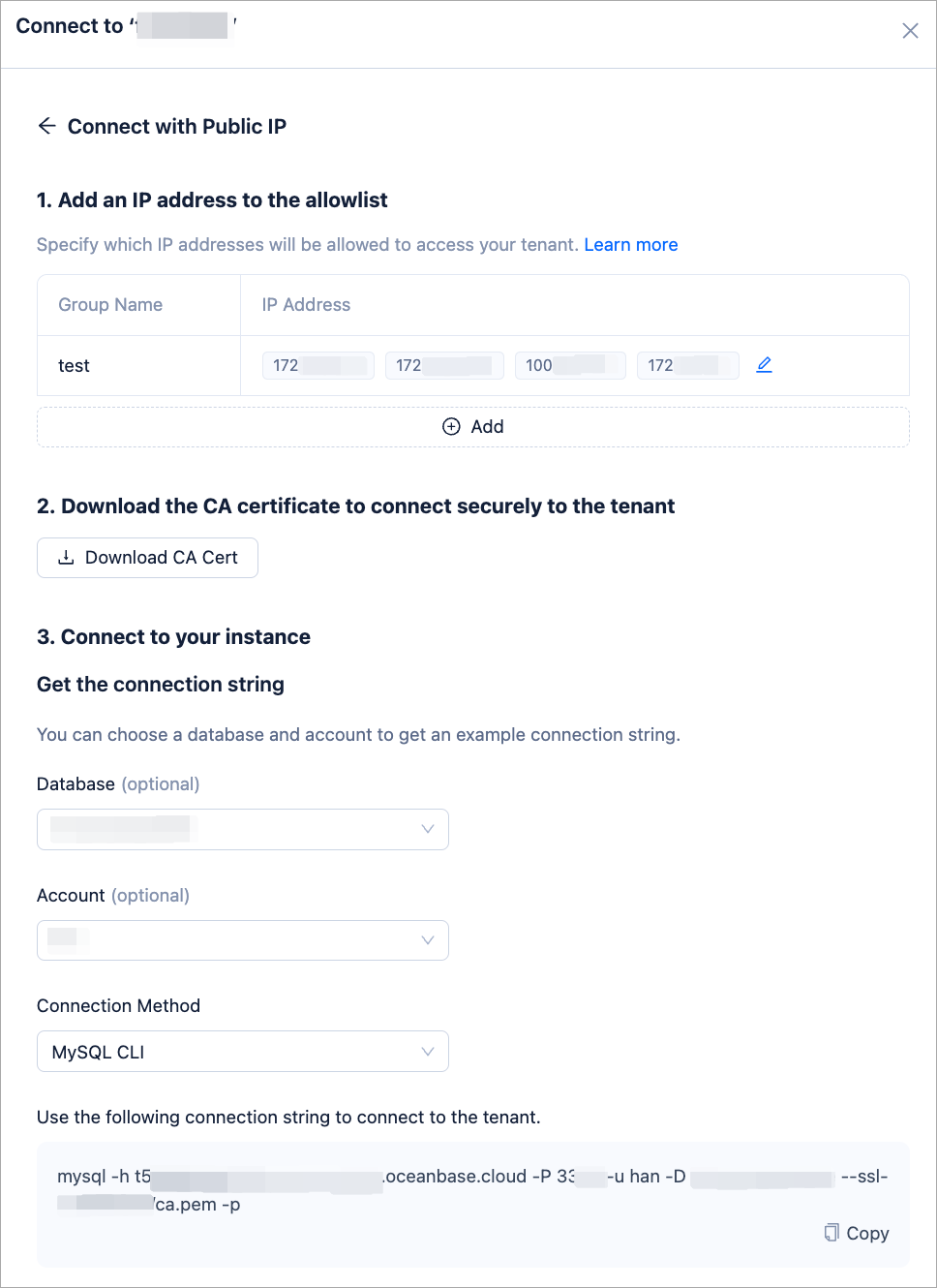
In the Connect with Public IP window, complete the following settings to generate the connection string:
Under 1. Add an IP address to the allowlist, click Add to add your exit IP address(es) used for the connection to the allowlist.
(Optional) Under 2. Download the CA certificate to connect securely to the instance, download the CA certificate and complete the verification.
Under 3. Connect to your instance, click the drop-down list for Database and Account to create a database and an account for the connection. Select MySQL CLI as the connection method.
Notice
Please keep your password in a secure place after creating your account.
Step 2: Run the sample project
Unzip the downloaded sample project and open it in IntelliJ IDEA.
Note
By default, the sample project uses MySQL Connector/J 5.x. If you need to use MySQL Connector/J 8.x, you need to make the following modifications to the sample project:
- Replace
Class.forName("com.mysql.jdbc.Driver");withClass.forName("com.mysql.cj.jdbc.Driver");in theJDBCtest.javafile. - If MySQL Connector/J 8.x ≤ 8.0.31, in the
pom.xmlfile, update theversionof the dependency to 8.0.27. If MySQL Connector/J 8.x ≥ 8.1, update thegroupIdtocom.mysql,artifactIdtomysql-connector-j, andversionto 8.0.33. If MySQL Connector/J 8.x is between 8.0.31 and 8.1, both dependencies can be used.
- Replace
Modify the database connection parameters in the project code based on the connection string information obtained in Step 1: Obtain an OceanBase Cloud connection string.
Connection connection = DriverManager.getConnection("jdbc:mysql://{host}:{port}/{dbname}?user={username}&password={******}");- host: Taken from the
-hparameter in the connection string, which is the hostname of OceanBase Cloud database. - port: Taken from the
-Pparameter in the connection string, which is the OceanBase Cloud database connection port. - dbname: Taken from the
-Dparameter in the connection string, which is the name of the database to be accessed. - username: Taken from the
-uparameter in the connection string, which is the account name. - password: Taken from the
-pparameter in the connection string, which is the account password.
//Example
Connection connection = DriverManager.getConnection("jdbc:mysql://t5******.aws-ap-southeast-1.oceanbase.cloud:3306/integrations-test?user=test&password=******");
Notice
If using MySQL Connector/J 8.x, ensure that the account password does not contain
#, otherwise, it may cause errors when running the sample project.- host: Taken from the
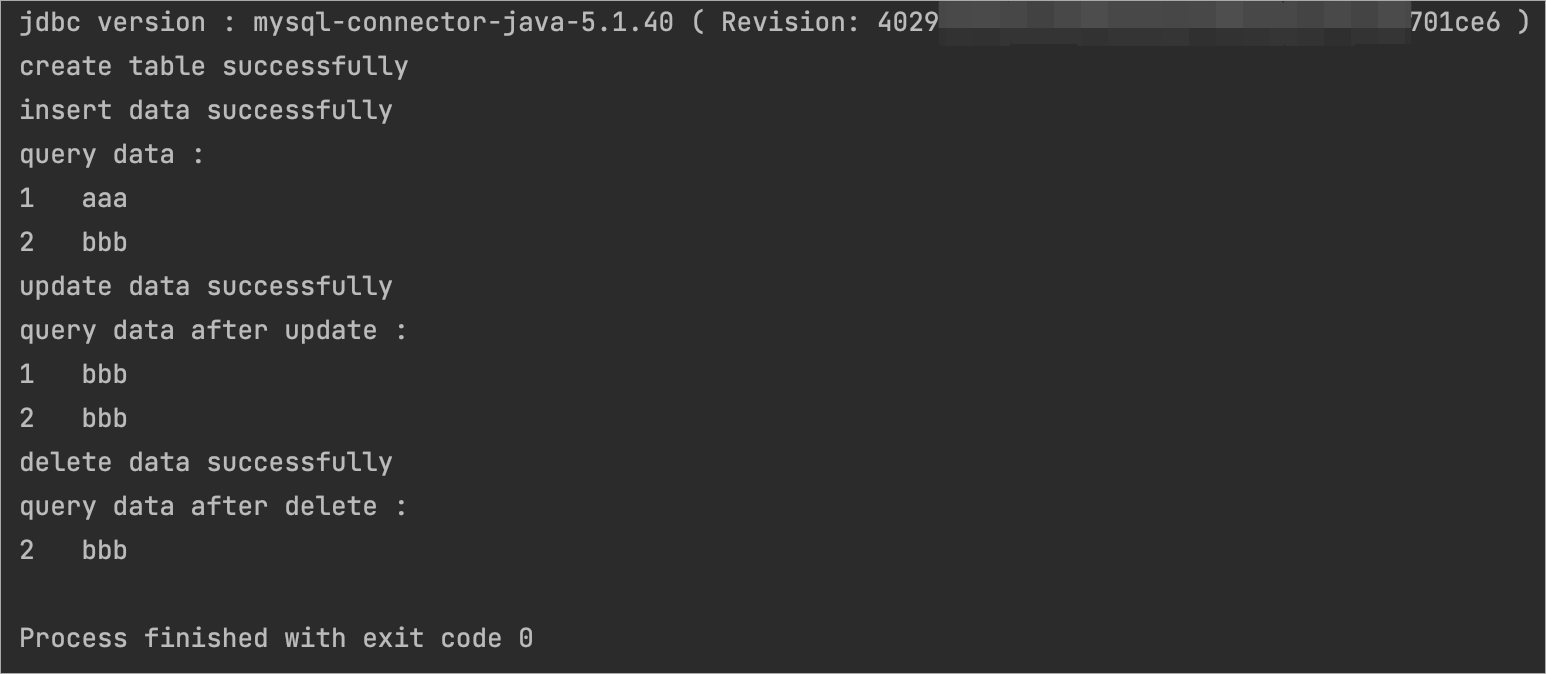
Run the sample project in IntelliJ IDEA. If you get the following result, it means that the database connection is successful, and the sample project runs correctly.
Project code overview
The sample project JDBCDemo used in this document has the following directory structure:
JDBCDemo
├── src
│   └── main
│       └── java
│           └── JDBCTest.java
└── pom.xml
src: Source code root directory.main: Main code directory containing the main logic of the application.java: Java source code directory.JDBCTest.java: Main class containing logic for creating tables and inserting data.pom.xml: Maven project configuration file used to manage project dependencies and build settings.
Explanation of pom.xml
The pom.xml file is the Maven project configuration file, which defines information such as project dependencies, plugins, and build rules. Maven is a Java project management tool that can automatically download dependencies, compile, and package projects.
The pom.xml file in this topic mainly includes the following parts:
File declaration statement.
Declares that this file is an XML file, uses XML version
1.0, and uses character encodingUTF-8.<?xml version="1.0" encoding="UTF-8"?>Configuration of POM namespace and POM model version.
- Specifies the POM namespace as
http://maven.apache.org/POM/4.0.0throughxmlns. - Specifies the XML namespace
http://www.w3.org/2001/XMLSchema-instancethroughxmlns:xsi. - Specifies the POM namespace as
http://maven.apache.org/POM/4.0.0and the location of the POM's XSD file ashttp://maven.apache.org/xsd/maven-4.0.0.xsdthroughxsi:schemaLocation. - Specifies that this POM file uses the POM model version
4.0.0through<modelVersion>.
<project xmlns="http://maven.apache.org/POM/4.0.0" xmlns:xsi="http://www.w3.org/2001/XMLSchema-instance" xsi:schemaLocation="http://maven.apache.org/POM/4.0.0 http://maven.apache.org/xsd/maven-4.0.0.xsd"> <modelVersion>4.0.0</modelVersion> <!-- Other configurations --> </project>- Specifies the POM namespace as
Basic information configuration.
- Specifies that the project belongs to the organization
org.examplethrough<groupId>. - Specifies the name of the project as
JDBCDemothrough<artifactId>. - Specifies the version number of the project as
1.0-SNAPSHOTthrough<version>.
<groupId>org.example</groupId> <artifactId>JDBCDemo</artifactId> <version>1.0-SNAPSHOT</version>- Specifies that the project belongs to the organization
Configuration of project dependencies.
- Adds the
mysql-connector-javadependency library for interacting with the database:- Specifies the group ID of the dependency as
mysql. - Specifies the artifact ID of the dependency as
mysql-connector-java. - Specifies the version number of the dependency as
5.1.40.
- Specifies the group ID of the dependency as
        <dependency>
            <groupId>mysql</groupId>
            <artifactId>mysql-connector-java</artifactId>
            <version>5.1.40</version>
        </dependency>
Note
The code in this section specifies that the project depends on MySQL Connector/J version 5.1.40. If you need information about other versions, refer to [MySQL Connector/J Archives](https://downloads.mysql.com/archives/c-j/).
- Adds the
Explanation of JDBCTest.java
The JDBCTest.java file is part of the sample project, demonstrating how to perform database operations using MySQL Connector/J. It first configures the database connection information, then creates a JDBCTest object to execute database operations. The code includes examples of creating tables, inserting data, updating data, deleting data, and querying data.
The JDBCTest.java file mainly contains the following parts:
Importing Java classes required for JDBC API usage:
Connectionfor establishing a connection with the database.DriverManagerfor managing a set of JDBC drivers.ResultSetfor handling data returned by SQL queries.Statementfor executing static SQL statements and returning results.
import java.sql.Connection;
import java.sql.DriverManager;
import java.sql.ResultSet;
import java.sql.Statement;
Creating a
JDBCTestclass and defining themainmethod as the entry point of the program.public class JDBCTest { public static void main(String[] args) { // Database connection information // Create data source // Create table // Insert data // Update data // Delete data // Query data // Delete table } }Defining database connection information.
- Uses
Class.forName()to load and register the MySQL JDBC driver. - Uses
DriverManager.getConnection()method to define the URL, username, and password for connecting to the database. You need to replace{host},{port},{dbname},{username}, andpasswordwith the actual database connection information.
Class.forName("com.mysql.jdbc.Driver"); // mysql-jdbc 5 // Class.forName("com.mysql.cj.jdbc.Driver"); // mysql-jdbc 8 Connection connection = DriverManager.getConnection("jdbc:mysql://{host}:{port}/{dbname}?user={username}&password={******}");- Uses
Creating and executing SQL statements.
   Statement stmt = connection.createStatement();
   stmt.execute("...");
Creating tables.
    // Drop the table named "test" if it exists
    stmt.execute("drop table if exists test");
    // Create a new table named "test" with two fields: integer "id" and character "name"
    stmt.execute("create table test (id int, name varchar(25))");
    // Print a message indicating that the table creation is successful
    System.out.println("create table successfully");
Inserting data.
    // Insert two rows of data into the "test" table
    stmt.execute("insert into test values (1, 'aaa'),(2, 'bbb')");
    // Print a message indicating that the data insertion is successful
    System.out.println("insert data successfully");
Querying data.
    // Print a message indicating querying data
    System.out.println("query data : ");
    // Execute the query SQL statement to get all the data in the "test" table
    ResultSet rs = stmt.executeQuery("select * from test");
    // Iterate through the result set
    while (rs.next()) {
        // Print the "id" and "name" fields of each data
        System.out.println(rs.getString("id") + "\t" + rs.getString("name"));
Updating data.
    // Update the "name" field of the record with id 1 in the "test" table to 'bbb'
    stmt.execute("update test set name = 'bbb' where id = 1");
    // Print a message indicating that the data update is successful
    System.out.println("update data successfully");
Deleting data.
    // Delete the "test" table
    stmt.execute("drop table test");
    // Close the result set, statement, and database connection
    rs.close();
    stmt.close();
    connection.close();
Exception handling.
Any exceptions that occur during the execution of the above database operations are caught, and error messages along with stack trace details are printed.
   } catch (Exception e) {
   System.out.println("error!");
   e.printStackTrace();
   }
Complete code display
<?xml version="1.0" encoding="UTF-8"?>
<project xmlns="http://maven.apache.org/POM/4.0.0"
         xmlns:xsi="http://www.w3.org/2001/XMLSchema-instance"
         xsi:schemaLocation="http://maven.apache.org/POM/4.0.0 http://maven.apache.org/xsd/maven-4.0.0.xsd">
    <modelVersion>4.0.0</modelVersion>

    <groupId>org.example</groupId>
    <artifactId>JDBCDemo</artifactId>
    <version>1.0-SNAPSHOT</version>

    <properties>
        <maven.compiler.source>8</maven.compiler.source>
        <maven.compiler.target>8</maven.compiler.target>
    </properties>

    <dependencies>
        <dependency>
            <groupId>mysql</groupId>
            <artifactId>mysql-connector-java</artifactId>
            <version>5.1.40</version>
        </dependency>
    </dependencies>
</project>
import java.sql.Connection;
import java.sql.DriverManager;
import java.sql.ResultSet;
import java.sql.Statement;

public class JDBCTest {

    public static void main(String[] args) {
        try {
            // Load driver
            Class.forName("com.mysql.jdbc.Driver"); // mysql-jdbc 5
            // Class.forName("com.mysql.cj.jdbc.Driver"); // mysql-jdbc 8

            // Create connection
            Connection connection = DriverManager.getConnection("jdbc:mysql://{host}:{port}/{dbname}?user={username}&password={******}");
            System.out.println("jdbc version : " + connection.getMetaData().getDriverVersion());
            Statement stmt = connection.createStatement();

            // Create table
            stmt.execute("drop table if exists test");
            stmt.execute("create table test (id int, name varchar(25))");
            System.out.println("create table successfully");

            // Insert data
            stmt.execute("insert into test values (1, 'aaa'),(2, 'bbb')");
            System.out.println("insert data successfully");

            // Query data
            System.out.println("query data : ");
            ResultSet rs = stmt.executeQuery("select * from test");
            while (rs.next()) {
                System.out.println(rs.getString("id") + "\t" + rs.getString("name"));
            }

            // Update data
            stmt.execute("update test set name = 'bbb' where id = 1");
            System.out.println("update data successfully");

            // Query data after update
            System.out.println("query data after update : ");
            rs = stmt.executeQuery("select * from test");
            while (rs.next()) {
                System.out.println(rs.getString("id") + "\t" + rs.getString("name"));
            }

            // Delete data
            stmt.execute("delete from test where id = 1");
            System.out.println("delete data successfully");

            // Query data after delete
            System.out.println("query data after delete : ");
            rs = stmt.executeQuery("select * from test");
            while (rs.next()) {
                System.out.println(rs.getString("id") + "\t" + rs.getString("name"));
            }

            // Drop table
            stmt.execute("drop table test");

            // Close
            rs.close();
            stmt.close();
            connection.close();
        } catch (Exception e) {
            System.out.println("error!");
            e.printStackTrace();
        }
    }
}
More information
In the OceanBase Database Open Source Community, there are also complete examples of Java sample applications. For more information, refer to Java Sample Application.