







DolphinScheduler supports OceanBase data sources. You can configure a data source of OceanBase Database in the MySQL compatible mode like a MySQL data source.
Configure an OceanBase data source for DolphinScheduler
Log on to the DolphinScheduler console. In the top navigation bar, click Datasource, and then click Create DataSource. On the Choose DataSource Type dialog box, select MYSQL. If you use DolphinScheduler of the latest version, you can select OCEANBASE as the data source type.
The following table describes the parameters for configuring an OceanBase data source for DolphinScheduler.
Parameter |
Description |
|---|---|
| Datasource | Select OCEANBASE. |
| Datasource Name | Enter the name of the data source. |
| IP | Enter the IP address for connecting to the OceanBase data source. |
| Port | Enter the port number for connecting to the OceanBase data source. |
| User Name | Enter the username for connecting to the OceanBase data source. |
| Password | Enter the password for connecting to the OceanBase data source. |
| Database Name | Enter the database name for connecting to the OceanBase data source. |
Perform the following steps to obtain information about the OceanBase data source.
Obtain an OceanBase Cloud connection string
Log in to the OceanBase Cloud console. On the Instances page, expand the target instance and click Create under the target tenant.
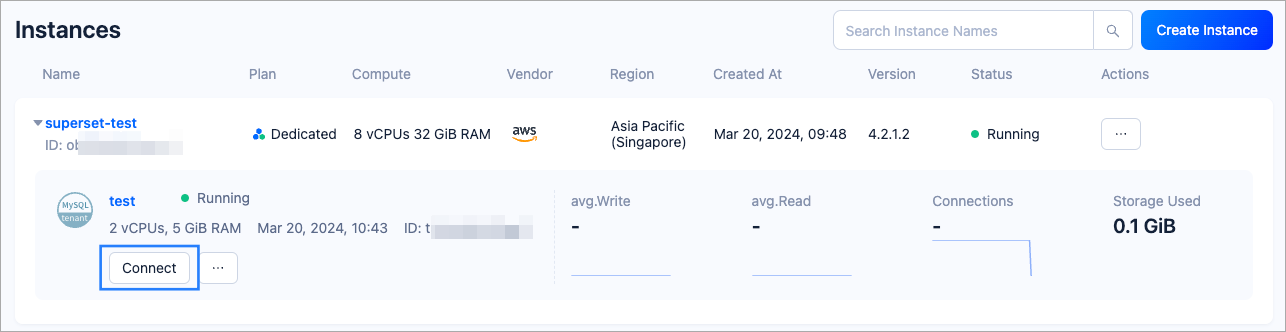
In the pop-up window, click Connect with Public IP.
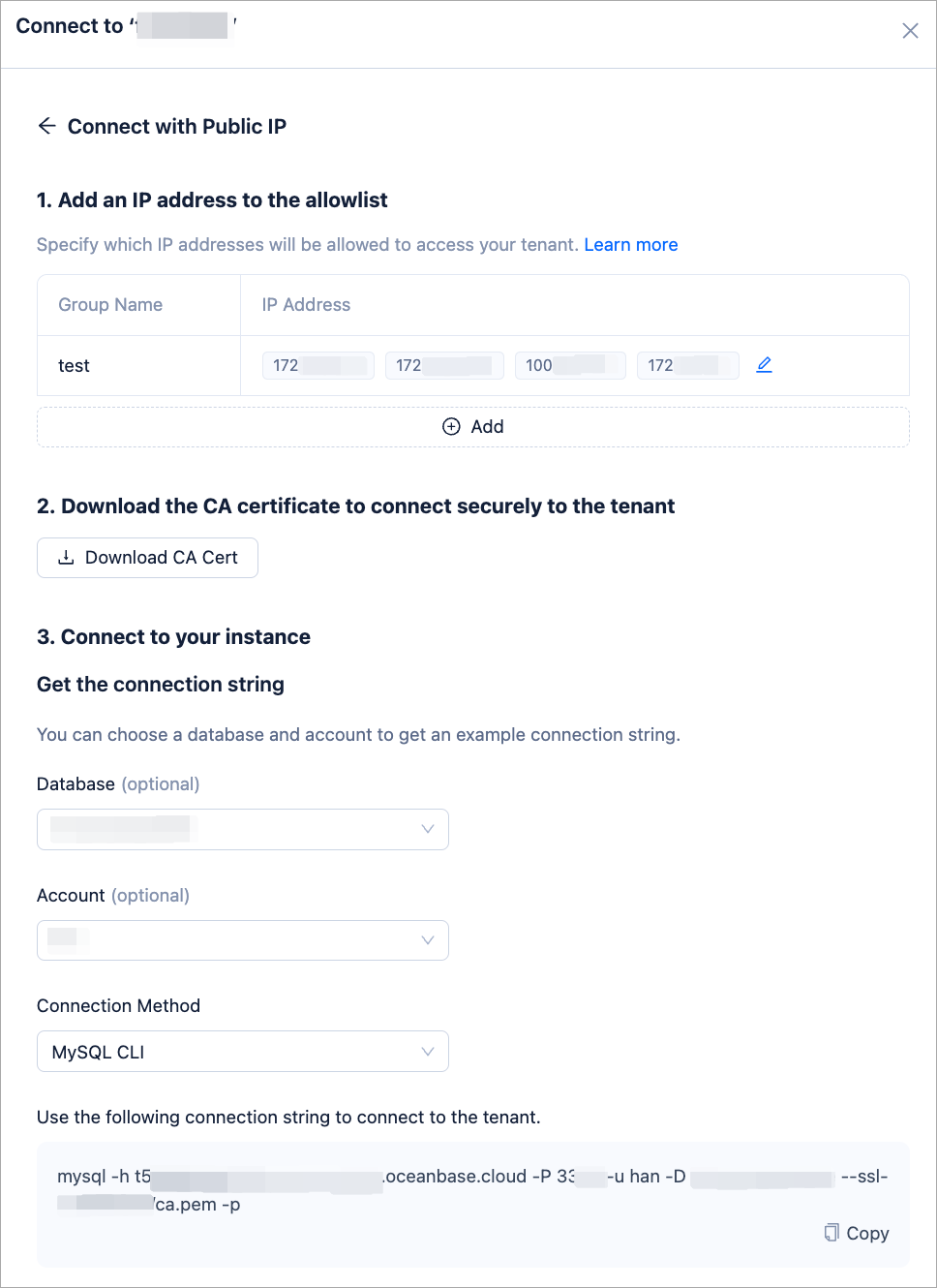
In the Connect with Public IP window, complete the following settings to generate the connection string:
- Under 1. Add an IP address to the allowlist, click Add to add your exit IP address(es) used for the connection to the allowlist.
- (Optional) Under 2. Download the CA certificate to connect securely to the tenant, download the CA certificate and complete the verification.
- Under 3. Connect to your instance, click the drop-down list for Database and Account to create a database and an account for the connection. Select MySQL CLI as the connection method.
Notice
Please keep your password in a secure place after creating your account.
For more information, visit DolphinScheduler Documentation.