







With the capacity diagnostics feature, you can obtain the resource usage and trends of clusters, tenants, databases, tables, and indexes in real time, and quickly identify potential capacity risks. This enables you to take timely actions such as capacity expansion to ensure stable system operation.
View capacity trends
Log in to the OceanBase Cloud console.
In the left-side navigation pane, click Instances.
In the instance list, find the target instance, click the instance name, and go to the Overview page of the instance.
In the Capacity Resources section, click View Capacity Trend.
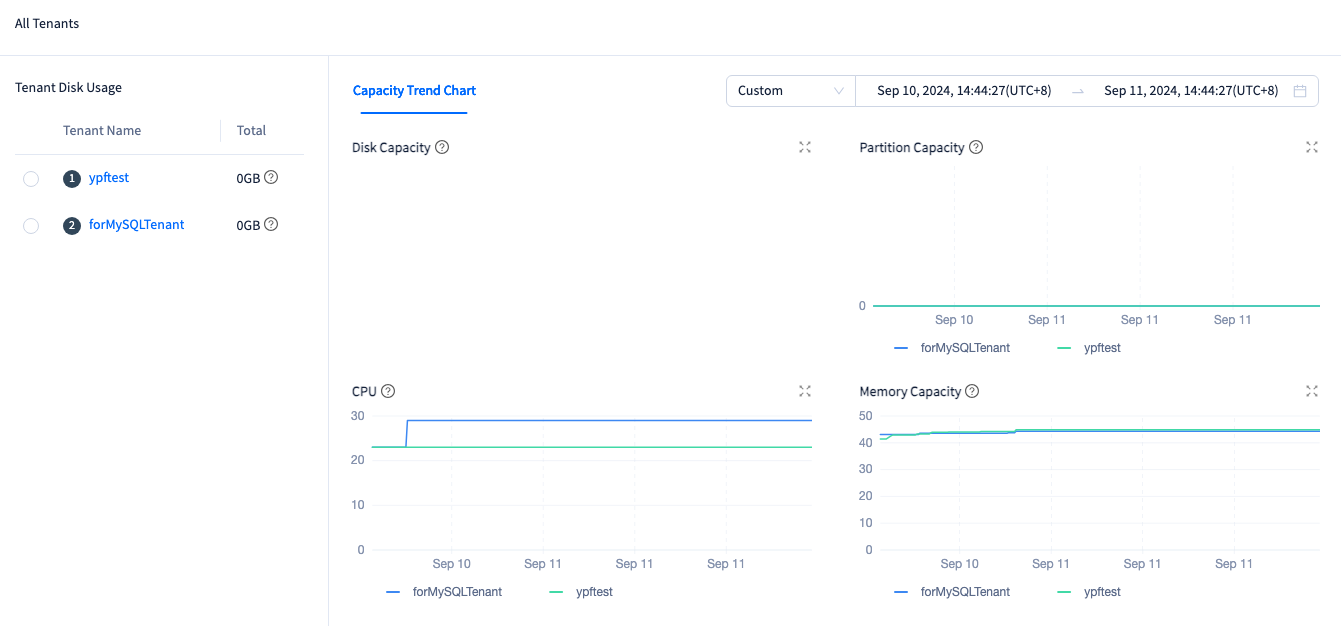
In the View Capacity Trend window, view the disk usage, partition usage, CPU usage, and memory usage of all tenants in the cluster instance.
In the left-side navigation pane, click the name of a tenant.
On the Capacity Trend Chart tab, view the disk usage, partition usage, CPU usage, and memory usage of all databases in the tenant.
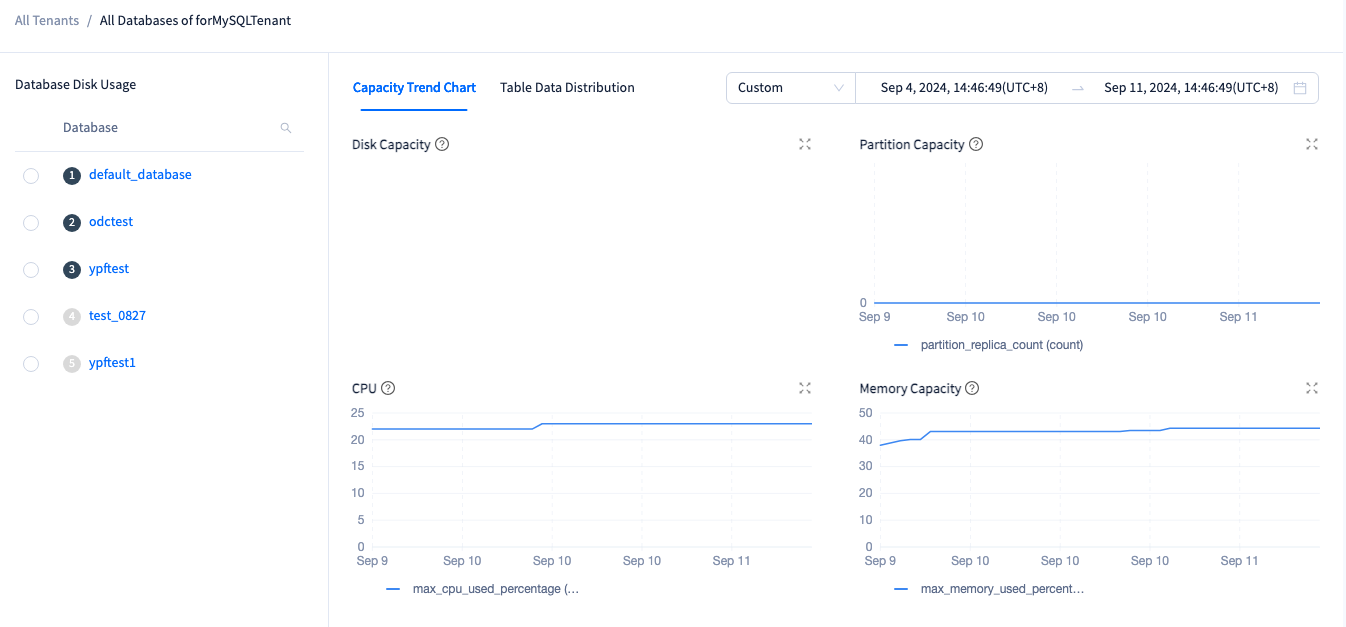
On the Table Data Distribution tab, view the Rows , Disk Usage , Data Size , Macroblock Usage , Partitions , and Auto-Increment Column Usage for all tables in all databases under the tenant.
In the left-side navigation pane, click the name of a database.
On the Capacity Trend Chart tab, view the disk usage and partition usage of all tables in the database.
On the Table Data Distribution tab, view the Rows , Disk Usage , Data Size , Macroblock Usage , Partitions , and Auto-Increment Column Usage of all tables in the database.
Note
When you hover the cursor over the name of a table, the system displays the capacity trend chart of the table.
In the left-side navigation pane, click the name of a table.
On the Capacity Trend Chart tab, view the disk usage and partition usage of the table.
On the Table Data Distribution tab, view the Rows , Disk Usage , Data Size , Macroblock Usage , Partitions , and Auto-Increment Column Usage of the table.
View storage forecast
Log in to the OceanBase Cloud console.
In the left-side navigation pane, click Instances.
In the instance list, find the target instance, click the instance name, and go to the Overview page of the instance.
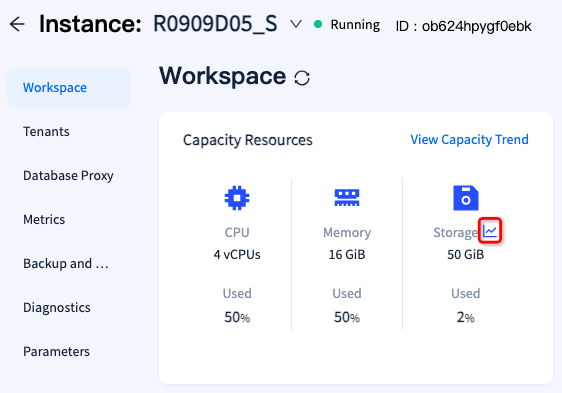
In the Capacity Resources section, click the icon as shown in the following figure.
In the pop-up window, view the storage forecast.