







On the Parameters page, you can search for a parameter to view information such as the current value, default value, whether a restart is required to take effect, and value range of the parameter. You can also modify parameters and cancel the modifications.
View parameters
Click the target cluster instance in the Instances list to go to the Overview page of the instance.
In the left-side navigation pane, click Parameters to go to the Parameters page. For more information about the supported parameters, refer to Parameters for cluster instances.
Enter a parameter name in the search box and click the Search icon to view details of the parameter. The Parameters list contains the following columns: Parameter Name, Current Value, Default Value, Effective Upon Restart, and Value Range.
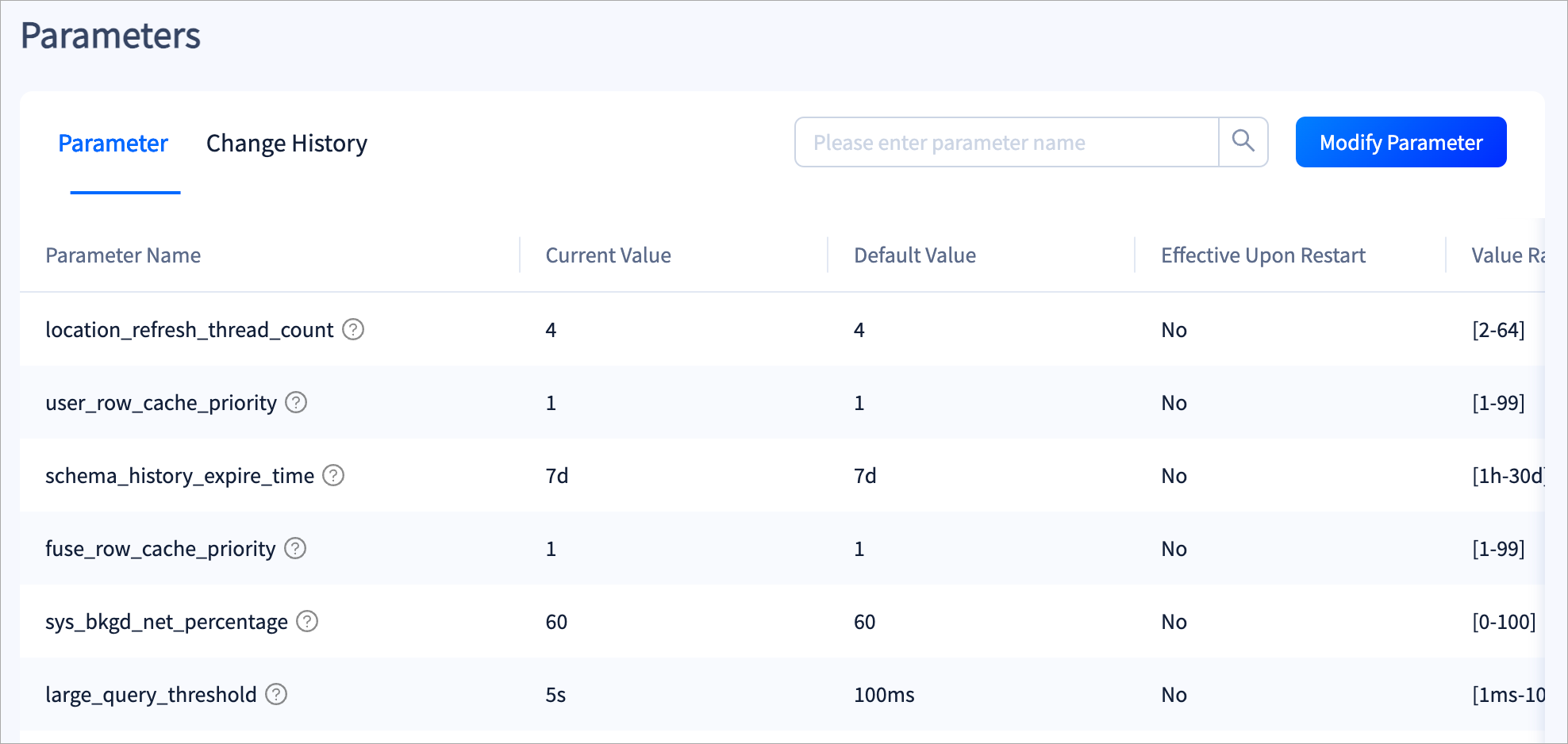
Click Modify Parameter in the upper-right corner, and modify the values in the Current Value column.
After the modification, click Submit to submit the modification. To restore the default settings, click Revoke All.
View the change history
Click the target cluster instance in the Instances list to go to the Overview page of the instance.
In the left-side navigation pane, click Parameters, and then click the Change History tab.
In the upper-right corner, specify a time range to view the change history during that period.
The change history list contains the following columns: Parameter Name, Old Value, New Value, Effective Or Not, and Modification Time.