







Log on to the OceanBase Cloud Platform (OCP) console. The Cluster Overview page automatically appears. To view the cluster overview data, the current logon user must have the management permission or read-only permission on clusters.
The Cluster Overview page displays the general information about clusters of the user, including the following sections: Top 5 Clusters by QPS,Top 5 Clusters by Elapsed Time of Major Compaction , Server Resources ,Resource Usage , and Clusters.
You can also take over or create a cluster. For more information, see Take over a cluster and Create a cluster.
Top 5 Clusters by QPS
This section displays top 5 clusters sorted by a specified performance metric in descending order in a specified time range. You can specify the performance metric and the time range as needed. You can click the zoom-in icon in the upper-right corner to zoom in the chart for a better view.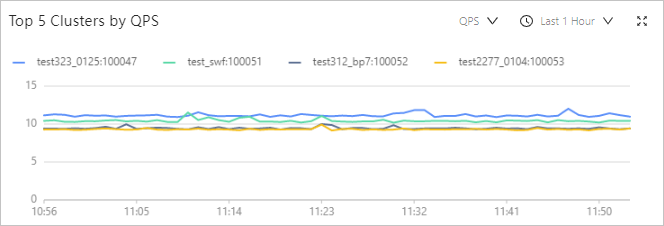
The following performance metrics are available: QPS (times/s), Query response time (us), Active sessions, and CPU Usage (percent) .
MetricDescriptionQPS The number of SQL statements processed per second in an OceanBase cluster managed by the current OCP cluster. It reflects the SQL statement processing performance of the OceanBase cluster. Query response time The average query response time of the cluster, in µs. Active sessions The total number of active sessions in the selected time range. CPU Usage (percent) The average CPU utilization of all OBServers in the cluster. The following time ranges are available: Last 1 Hour , Last 24 Hours , and Last 7 Days .
Top 5 Clusters by Elapsed Time of Major Compaction
This section displays a bar chart of top 5 clusters with the longest major compaction time in the last three days. A major compaction merges all dynamic and static data, which is time-consuming. When the incremental data generated through minor compactions reaches the specified threshold, a major compaction of data is performed to obtain a major version.
This section is empty if no major compaction has been performed in the last three days. You can click the zoom-in icon in the upper-right corner to zoom in the chart for a better view.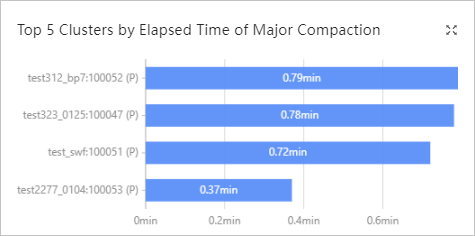
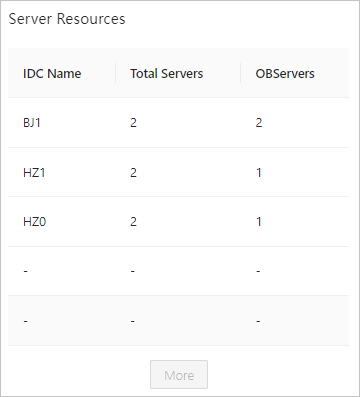
Server Resources
This section displays information about each IDC, including the name, total number of servers, and number of servers on which OBServer has been deployed. You can determine whether it is necessary to perform cluster scale-out based on such information.
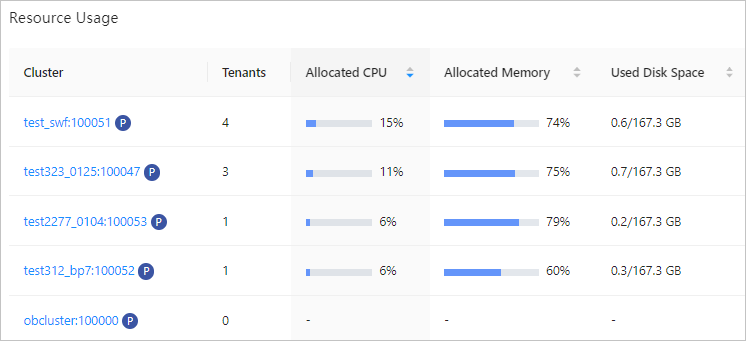
Resource Usage
This section displays the resource usage information of each cluster, including the cluster name, number of tenants, allocated CPU resources in percentage, allocated memory in percentage, and occupied disk space. You can sort clusters by the allocated CPU resources, allocated memory, and occupied disk space. Also, you can click the name of a cluster to go to the cluster details page. For more information, see Overview of the Cluster Details page.
Clusters
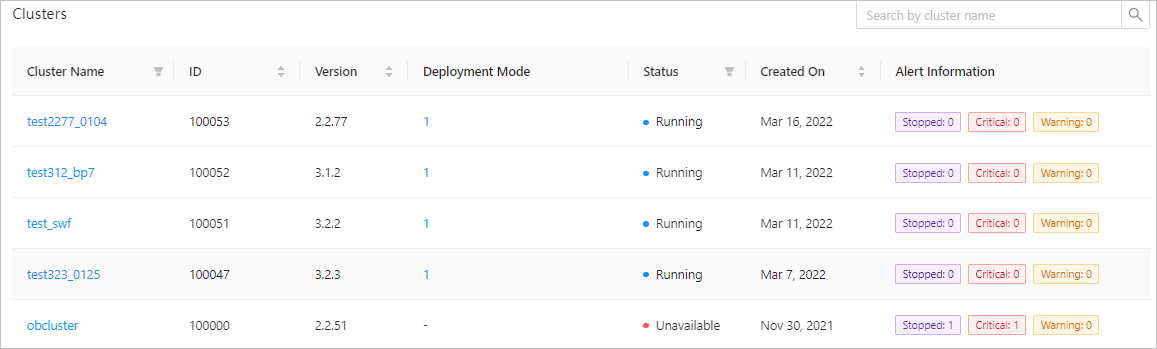
This section displays the name, ID, version, deployment mode, status, creation time, and alert information of each cluster.
You can click the name of a cluster to go to the cluster details page. For more information, see Overview of the Cluster Details page.
Cluster management operations
The following table describes the supported cluster management operations.
Operation |
Description |
|---|---|
| Take over a cluster | You can perform this operation to take over a cluster created in a command-line tool or another OCP cluster and maintain and manage the cluster through the current OCP cluster. |
| Create a cluster | You can perform this operation to create an OceanBase cluster in the OCP console. By default, the created cluster is maintained and managed by OCP. |
| Delete a cluster | You can perform this operation to delete or uninstall an OceanBase cluster managed by OCP. |
| Stop a cluster | You can perform this operation to stop a cluster managed by OCP. |
| Restart a cluster | You can perform this operation to restart a cluster managed by OCP. |
| Create a zone | You can perform this operation to create a replica for a cluster managed by OCP. |
| Restart a zone | You can perform this operation to restart all servers in a zone. |
| Stop a zone | You can perform this operation to stop all servers in a zone. |
| Delete a zone | You can perform this operation to delete a replica of a cluster managed by OCP. |
| Add an OBServer | You can perform this operation to add a server to a cluster managed by OCP. |
| Restart an OBServer | You can perform this operation to restart an OBServer of a cluster. |
| Stop an OBServer | You can perform this operation to stop an OBServer of a cluster. |
| Replace an OBServer | You can perform this operation to replace an OBServer of a cluster. |
| Delete an OBServer | You can perform this operation to delete an OBServer of a cluster. |
| Create a tenant | You can perform this operation to create a tenant in the OceanBase cluster. |
| Upgrade the version of an OceanBase cluster | You can perform this operation to upgrade the version of an OceanBase cluster. |
| Change the password | You can perform this operation to change the password of the root user of the SYS tenant in a cluster managed by OCP. |
| Create a standby cluster | You can perform this operation to create a standby cluster for the current cluster. |
| Routine primary/standby cluster switchover | You can perform this operation to switch a standby cluster to the primary role as needed. |
| Primary/Standby cluster switchover for disaster recovery | You can perform this operation to switch a standby cluster to the primary role for disaster recovery as needed. |
| Decouple a standby cluster from the primary cluster | You can perform this operation to decouple a standby cluster from the primary cluster so that the standby cluster becomes a new cluster irrelevant to the original primary cluster. |
| Enable automatic detection of deadlocks | You can perform this operation to enable automatic detection of deadlocks based on your business requirements. |
| Disable automatic detection of deadlocks | You can perform this operation to disable automatic detection of deadlocks based on your business requirements. |
| Download logs | You can perform this operation to download logs related to the OceanBase cluster, OBProxy, and host. |
| Disable SQL collection | You can perform this operation to disable SQL collection. |
| View the SQL collection enable/disable history | You can perform this operation to view the history of all SQL collection enable/disable operations. |
| Start the original primary cluster in read-only mode after a failover | You can perform this operation to start the original primary cluster in read-only mode after a failover. |
| View the topology of a cluster | You can perform this operation to view the logical relationships between zones and OBServer nodes in a cluster or tenant. |
| Overview of cluster tenant management | You can view the resource distribution information of all tenants, tenant list, and monitoring data of the top 5 tenants in the cluster that you manage on the overview page. |
| Performance monitoring | You can perform this operation to view the cluster performance data in different dimensions. |
| Performance report | You can learn of information such as the cluster load, performance, and SQL statements in a specified period from the performance report. |
| View unit distribution | You can perform this operation to view the physical resource distribution and usage of each tenant in the OceanBase cluster. |
| View resource usage | You can perform this operation to view resource usage tendency of the current cluster. |
| Health inspection | You can view basic inspection information and inspection results on the inspection page. |
| Modify the major compaction configuration | You can perform this operation to modify the strategies that apply to daily major and minor compactions. |
| Details of major compaction | You can view the details of the last major compaction. |
| Major compaction statistics | You can view the statistics of the last three major compactions. |
| Perform major compaction | You can perform this operation to compact incremental data with the baseline data. |
| Cluster backup and recovery | You can view the basic information, details, and backup strategies about the backup and recovery of the current cluster on the cluster backup and recovery page. |
| View parameters | You can perform this operation to view all the parameters of a cluster. |
| Modify parameters | You can perform this operation to modify the values of cluster parameters. |
| Types of cluster parameters | You can learn about the types of cluster parameters based on the description about the types of cluster parameters. |
| View the parameter modification history | You can perform this operation to view the history of parameter modifications. |
| Manage cluster parameter templates | A cluster parameter template contains predefined cluster parameters. You can use a parameter template to create a series of clusters that have similar configurations without the need to repeatedly configure cluster parameters. |