







This topic describes how to back up a cluster or a tenant immediately.
Prerequisites
Tenant backup is supported only in OceanBase V3.2.2-20220304134610 and later.
A cluster in logical backup mode supports only full backup. A cluster in physical backup mode supports both full backup and incremental backup.
Procedure
You can immediately back up a cluster or tenant. The following takes cluster backup as an example.
In the left-side navigation pane, choose Backup & Recovery > Backup . Then, click Back up Now in the upper-right corner of the page and choose Back Up Cluster from the drop-down list.
Select the objects that you want to back up.
Select the objects from the Backup Cluster drop-down list. The system automatically identifies Data and Backup Method of the cluster and automatically populates the fields of Storage Configuration .
If Backup Mode of the cluster is logical backup, you must first install the backup service. For more information, see Install a service.
Specify Storage Configuration.
If the cluster that you want to back up has a backup strategy, the fields in the Storage Configuration section are automatically populated.
Otherwise, you must manually specify the values. You can specify the values as prompted or by following the instructions of step 4 in Create a backup strategy.
After you specify the values, click Test .
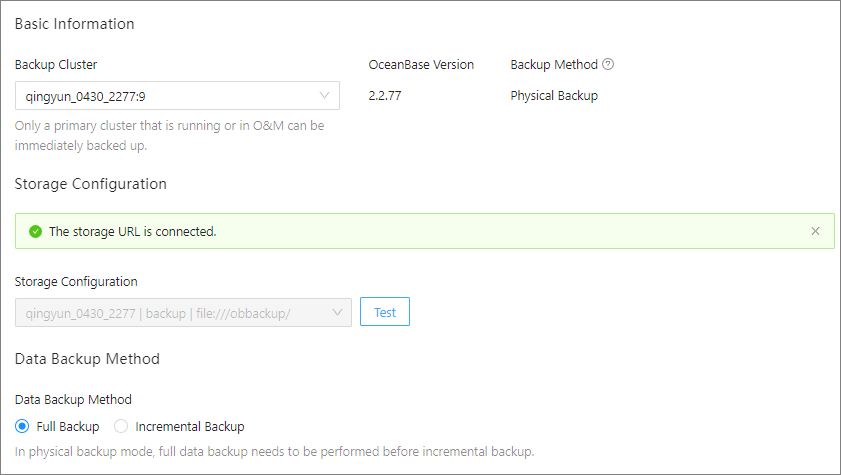
Select a data backup mode.
For physical backup, select a data backup mode. For logical backup, only full backup is supported. Notice
For physical backup, you must perform a full backup before you can perform an incremental backup. Otherwise, the following error message is returned in the
Check if ready to data backupstep: Full data backup needed before incremental data backup.If the error message "Cluster compaction needed before full data backup" is returned in the
Start cluster compact if necessarystep of a full backup, Perform a major compaction and click Retry .Click Back up Now .