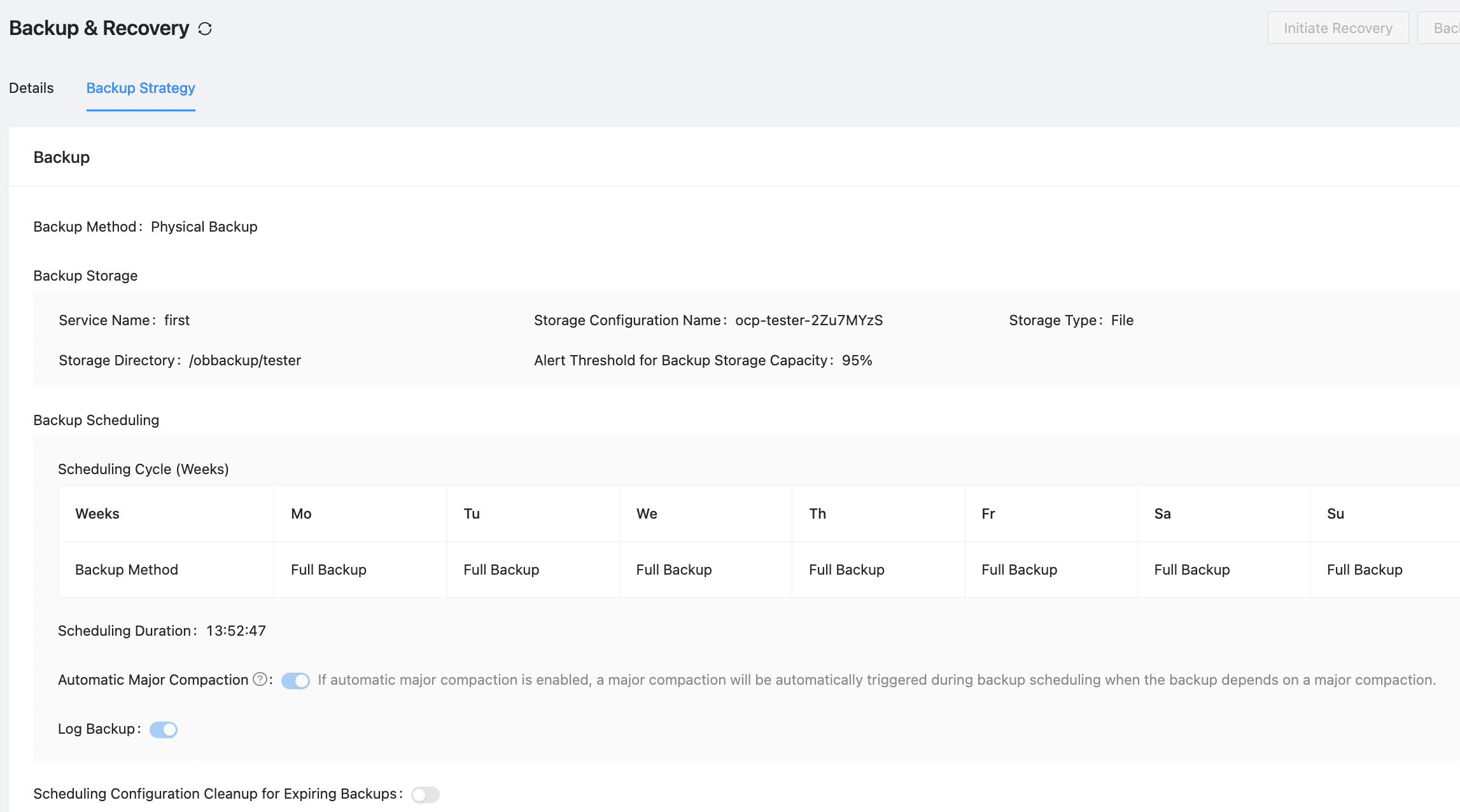
On the tenant backup and recovery page, you can back up a tenant and its cluster, and view the basic information and details about the backup and recovery for the current tenant, as well as the tenant's backup strategy.
Initiate a backup
Before recovering a tenant, you need to back up the tenant or its cluster.
In the left-side navigation pane, click Tenants to go to the Tenant Overview page.
Find the target tenant in the Tenants list, and click its name. In the left-side navigation pane of the Tenant Overview page that appears, click Backup & Recovery .
Back up the tenant or its cluster. You can also create a backup strategy for the cluster.
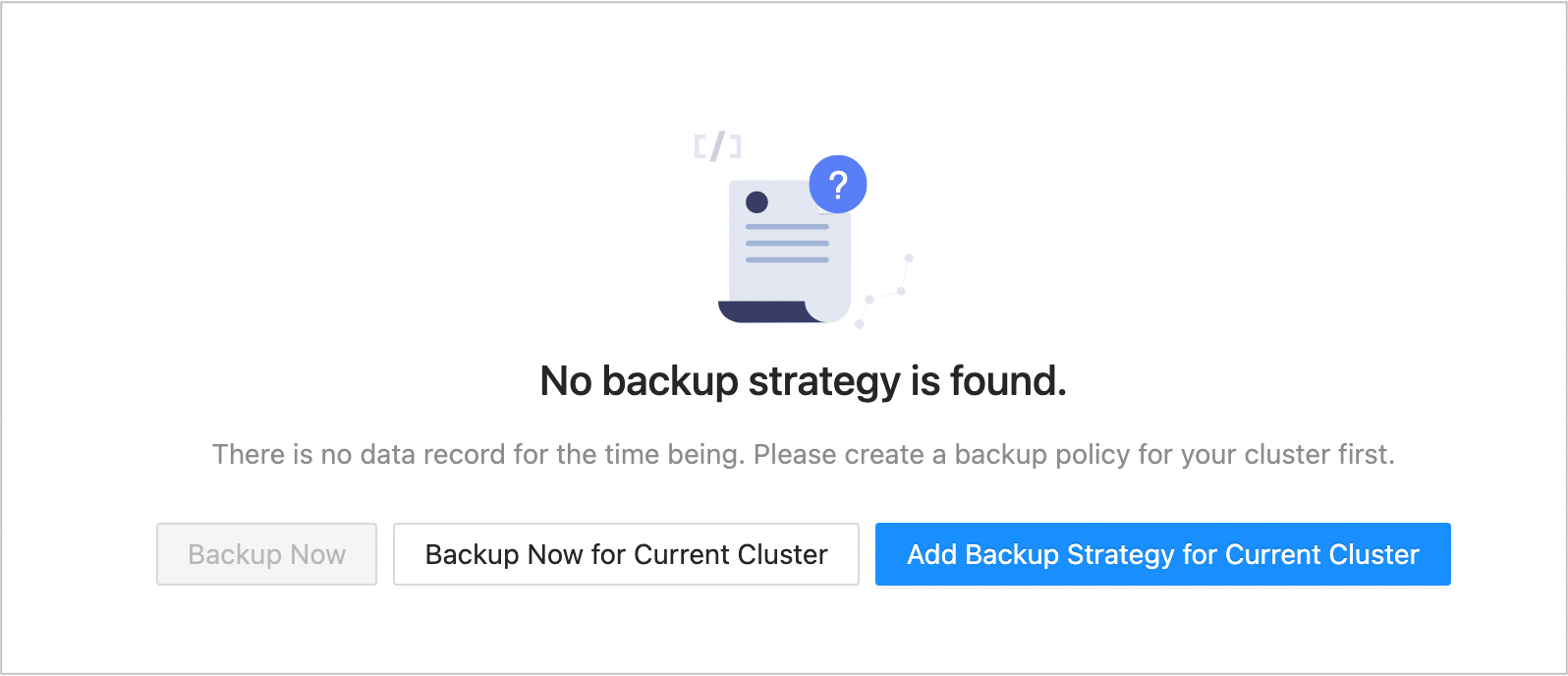
Click Backup Now . For information about the Storage Configuration and Data Backup Method parameters, see Back up now.
Note
Tenant backup is not supported in an OceanBase Database version earlier than V3.2.2-20220304134610.
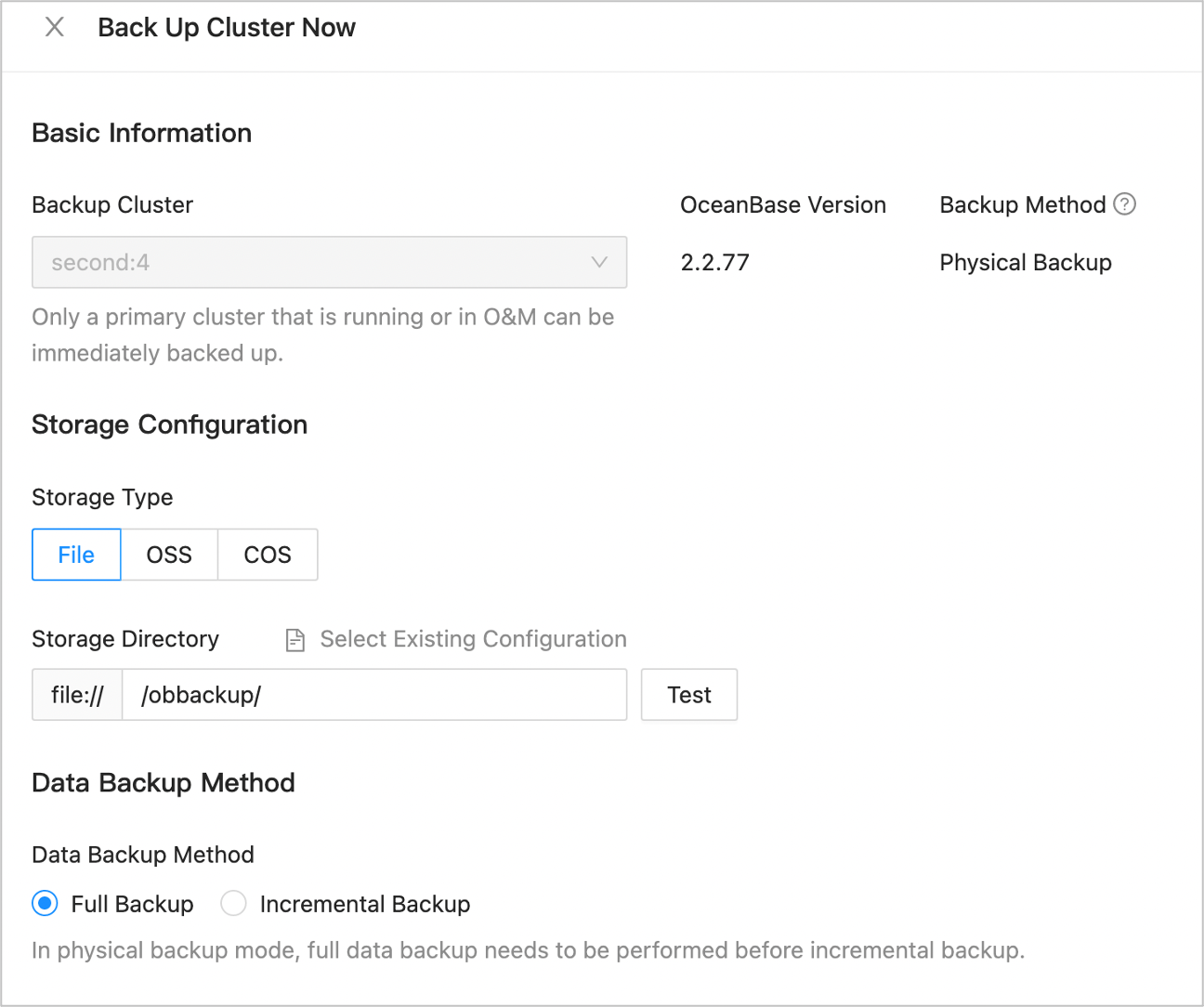
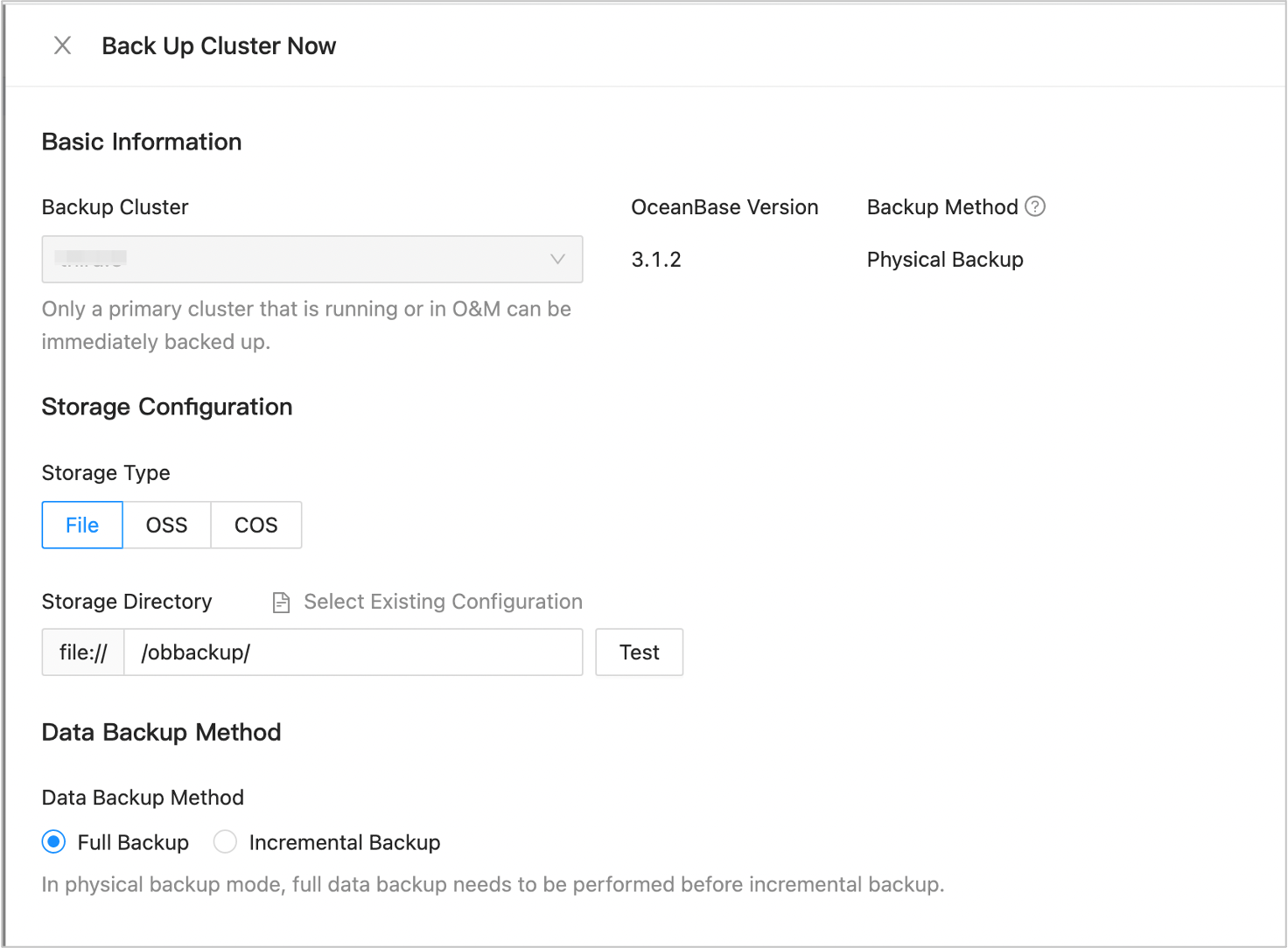
Click Backup Now for Current Cluster to back up the cluster of the tenant. For information about the Storage Configuration and Data Backup Method parameters, see Back up now.
You can also create a backup strategy for the cluster.
Click Add Backup Strategy for Current Cluster to create a backup strategy. For details of the configuration method, see Create a backup strategy.
Initiate a recovery
You can recover a tenant that has been backed up.
In the left-side navigation pane, click Tenants to go to the Tenant Overview page.
Find the target tenant in the Tenants list, and click its name. In the left-side navigation pane of the page that appears, click Backup & Recovery .
On the Backup & Recovery page that appears, you can perform the following operations:
Click Initiate Recovery to initiate a recovery if a backup strategy has been created for the cluster. For more information, see Initiate a recovery.
Click Backup Now to back up the tenant. For more information, see Back up now.
 ParameterDescription
Status The backup status. Valid values: Pending Backup Scheduling , In Progress , and No Backup Strategy . Backup Method The backup method, which is displayed if a backup strategy has been created for the cluster. Valid values: Physical Backup and Logical Backup . Backup File The size of the backup file, which is displayed if a backup strategy has been created for the cluster. Last Data Backup The time of the last backup. Log Backup Timestamp The latest time of log backup. Log Latency The latency between the backup data and the actual data, which is displayed if a backup strategy has been created for the cluster. View the backup details about the tenant.
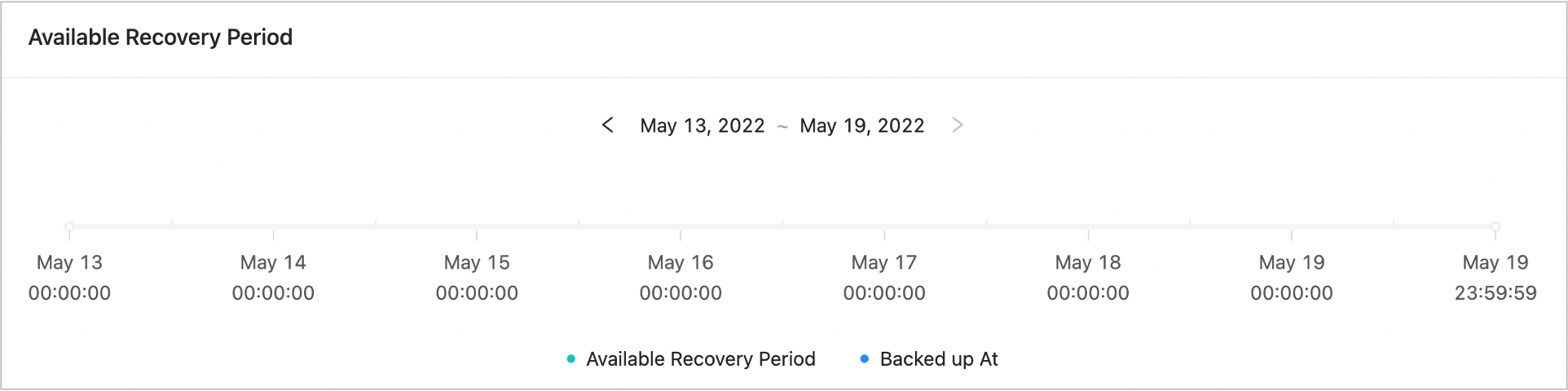
View the period during which data can be recovered.
If a backup strategy has been created for the cluster, you can view the recovery period and data backup points in time within the latest week. In the system, 7 days form a statistical period. Click < or > to switch to another statistical period.
View data backup tasks.
Click the Data Backup Tasks tab. You can filter the data backup tasks by time and view the following information about the tasks: ID, Data Backup Method, Backup Set ID, Start Time, End Time, Status, Second Backup, and Actions .
View recovery tasks.
Click the Recovery Tasks tab. You can filter the recovery tasks by time and view the following information about the tasks: ID, Backup Cluster, Backup Tenant, Target Cluster, Target Tenant, Start Time, End Time, Status, Backup Method, Recovery Time, and Storage Directory . You can also handle failed recovery tasks.

If a backup strategy has been created for the cluster, you can click the Backup Strategy tab and view the details about the backup strategy.