







This topic describes the host monitoring feature of OceanBase Cloud Platform (OCP).
Prerequisites
The logged-on user in the OCP console has the read-only permission on the target host.
Procedure
Log on to the OCP console.
Click Hosts .
In the Hosts list, find the host that you want to monitor and click its IP address.
On the page that appears, click the Monitoring tab.
On the Monitoring tab, set monitoring parameters and view the monitoring data.

Turn off Real-time : After you set Select Time in section ① and Stat Period in section ②, the system displays the performance monitoring data based on the values of the two parameters.
Turn on Real-time : The system displays real-time monitoring data of the host.
Click the Host Performance and Host Resources tabs to view the corresponding monitoring data.
For more information about monitoring metrics, see Metrics.
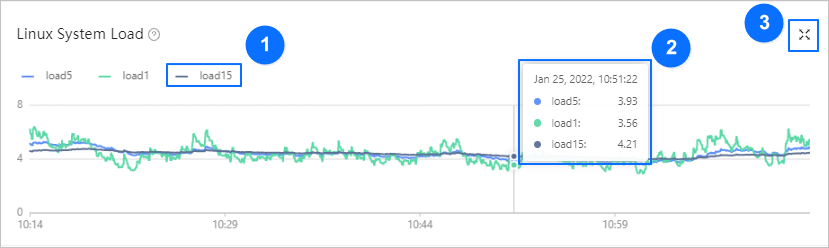
The following features enable you to better view and analyze the performance monitoring data on a trend chart. You can learn about the features with the help of the figure below.
View the trend details of a metric over a specific period. To use this feature, drag the pointer over the period to select this period. The system will then zoom in to display the trend details. After you view the trend details, double-click the trend chart to return to normal.
Hide the data of a submetric. To use this feature, click the icon of the submetric. The submetric will then turn gray and its data will be hidden from the chart.
View data at a specific time point. To use this feature, move the pointer over this time point on the trend chart.
Zoom in on the trend chart. To use this feature, click the zoom-in icon in the upper-right corner. The preceding features ①, ②, and ③ are also applicable to a zoomed-in chart.