







If you already have a primary cluster, you can create a standby cluster for it.
Prerequisite
You have the permissions to manage the cluster.
Procedure
Log on to the OceanBase Cloud Platform (OCP) console.
The Cluster page appears.
You can go to the Create Standby Cluster page in the following ways:
Click Create Cluster in the upper-right corner of the Cluster page. On the Create Cluster page, select Standby Cluster for Cluster Type , and select the corresponding primary cluster from the Primary Cluster drop-down list.
In the Clusters list on the Cluster page, find the target primary cluster and click its name. In the upper-right corner on the Overview page, click the More icon and select Create Standby Cluster .
On the Create Cluster page, configure the deployment mode of the standby cluster.
By default, three zones are added for a cluster. To deploy more than three zones for the cluster, click Add to add new zones.
To deploy less than three zones for the cluster, click the Delete icon next to the zone to be deleted.
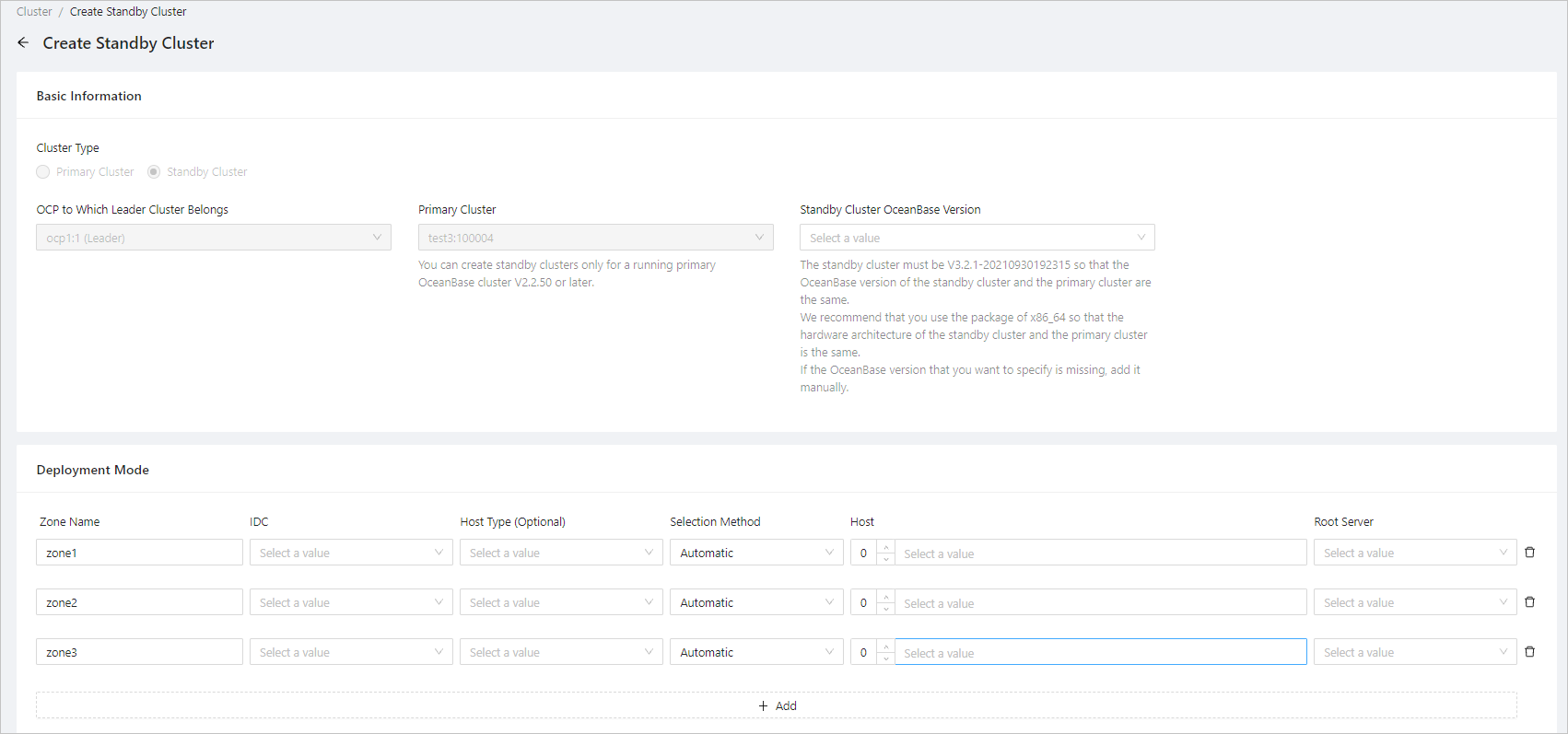
The following table describes the settings for each zone.
ParameterDescriptionZone Name Generally, a default name is provided. You can set a custom name as needed. IDC The IDC of the zone. Each zone can be deployed in only one IDC. Host Type Optional. If you select a host type, the host list is filtered based on the host type. Selection Method Select Automatic or Manual . Host You can select multiple IP addresses. If Selection Method is set to Automatic , you only need to enter the number of hosts, and OCP automatically selects the specified number of hosts from the available hosts. If Selection Method is set to Manual , you need to manually select the IP addresses from the list. Root Server You can select an IP address for the Root Server. Click Submit .
In the message that appears, confirm the information and then click OK .