







Generally, when you change the schema of a table, the table must be locked, which will block business requests. To resolve this issue, ODC V4.2.0 and later provide the online schema change feature. This topic describes how to submit a ticket to perform a online schema change task.
Notice
Online schema change tasks are supported only in MySQL tenants of OceanBase Database, and require OceanBase Migration Service (OMS) Enterprise Edition or Community Edition.
Background information
Technical mechanism
The principle of a online schema change involves creating a temporary table, copying the data from the original table to the temporary table, altering the schema of the temporary table, then copying all the data back to the original table, and finally switching to the new table.
The execution process of online schema changes is as follows:
Create a temporary table.
Change the schema of the temporary table.
Copy all data.
Synchronize incremental data.
Verify the data consistency.
Kill the session.
Switch to the new table.
Execution process of a online schema change ticket

Submit a online schema change ticket.
Perform a precheck on the entered SQL statement.
Approve the task process.
Execute the online schema change task.
Operations supported for online schema changes
Category |
Operation |
Supported |
Remarks |
|---|---|---|---|
| Column operations | Change the column type | Yes | |
| Rearrange columns (to move a column before or after another or to the first position) | Yes | ||
| Change the character set | Yes | ||
| Rename columns | No | ||
| Add columns | Yes | ||
| Drop columns | No | ||
| Add primary key columns | No | ||
| Primary key operations | Add a primary key | Yes | The target table must have a non-null unique key. |
| Modify a primary key | Yes | The target table must have a non-null unique key. | |
| Drop a primary key | Yes | The target table must have a non-null unique key. | |
| Partition operations | Drop partitions | Yes | |
| Truncate partitions | No | ||
| Repartition a table | Yes | ||
| Change a non-partitioned table into a partitioned table | Yes | ||
Considerations
Make sure that the database has sufficient disk space.
Make sure that the table contains a primary key or a non-null unique key, and does not contain a foreign key.
If you execute other DDL operations on a table on which a online schema change task is being performed, the task will fail.
The table name must not exceed 54 characters in length in MySQL mode of OceanBase Database.
When ODC connects to an instance of OceanBase Database Community Edition, the data source configuration information must contain the cluster name and a sys tenant account.
By default, ODC locks the user and closes the session to prevent data writes during table name switching. In MySQL mode of OceanBase Database V4.2.5 and later, and earlier than V4.3.0, you can configure the database to avoid data writes by using the
LOCK TABLEstatement. For information about the configuration, see the Create a online schema change task section.If you execute other DDL operations on a table on which a online schema change task is being performed, the task will fail.
Create a online schema change task
In this section, OceanBase Database Community Edition and OMS Enterprise Edition are used to change the type of the birth column in the student table to date. The project name used in this example is odc_4.2.0, and the database name is odc_test.
(Optional) Install OceanBase Database Community Edition. If you have configured a cluster, skip this step.
Note
When you create an OceanBase data source in OMS Enterprise Edition, the cluster name must be specified. If OceanBase Database is in standalone mode, you cannot create a data source. For more information about how to deploy a cluster, see Solution 2: Deploy an OceanBase cluster.
Install the config server. The config server serves as an API for OceanBase Database Proxy (ODP) to fetch the RootService list of OceanBase Database. After the config server address is configured, OceanBase Database automatically registers the RootService list with the config server.
Note
If you deploy a cluster by using OceanBase Cloud Platform (OCP) rather than OCP Express, skip this step. For a cluster created in OCP, the OCP address is automatically set as the config server address of OceanBase Database.
Install OMS. For more information, see Deployment types. This topic takes OMS Enterprise Edition as an example. You can load the OMS Enterprise Edition installation package by using Docker. You can also install OMS Community Edition and configure related settings if needed.
Configure ODC metadata and enable the online schema change feature.
a. Configure OMS information in ODC.
Connect to the MetaDB of ODC and configure the URL and login authorization information of OMS. The URL of OMS is in the format of
http://${oms_host}: ${oms_port}. The authorization information of OMS is a Base64-encoded value in the format ofusername:password. After the configuration, restart ODC for the configured OMS information to take effect.The syntax is as follows:
# Configure the URL of OMS.
update config_system_configuration set `value` = '${oms_url}' where `key` = 'odc.osc.oms.url';

# Configure the authorization information of OMS.
update config_system_configuration set `value` = '${oms_authornazition}' where  `key` = 'odc.osc.oms.authorization';

# Configure the region of OMS, such as cn-anhui.
update config_system_configuration set value = '${oms_region}' where `key` = 'odc.osc.oms.region'
Here is an example:
# Set the URL of OMS to http://localhost:8089.
update config_system_configuration set `value` = 'http://localhost:8089' where `key` = 'odc.osc.oms.url';

# Configure the authorization information of OMS. In this example, the username is `test` and the password is `123456`, which are Base64-encoded into `dGVzdDoxMjM0NTY=`.
update config_system_configuration set `value` = 'dGVzdDoxMjM0NTY=' where `key` = 'odc.osc.oms.authorization';

# Configure the region of OMS, such as cn-anhui, which is specified when OMS is installed. For more information, see the OMS installation procedure.
update config_system_configuration set value = 'cn-anhui' where `key` = 'odc.osc.oms.region'
b. Enable the online schema change feature. At present, the online schema change feature is available for ApsaraDB for OceanBase but unavailable for OceanBase Database Community Edition. Therefore, you must configure the MetaDB of ODC and enable this feature by using an SQL statement.
```shell
update config_system_configuration set value = 'true' where `key` = 'odc.features.task.osc.enabled';
```
Create a data source in ODC and synchronize data to it.
Notice
When using OceanBase Database Community Edition, you need to configure the
systenant account settings during data source creation in ODC.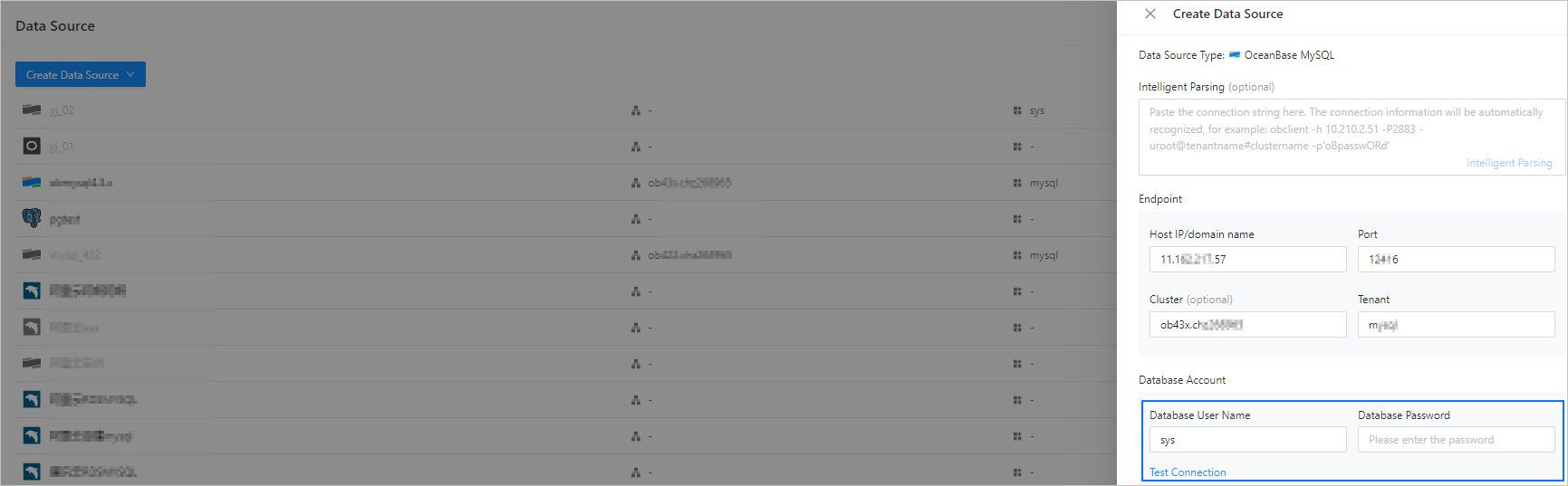
In the SQL window, write an SQL statement to create a table named
studentin theodc_testdatabase.
CREATE TABLE `odc_test`.`student` (
`id` int(11) COMMENT 'student id' NOT NULL,
`name` varchar(120) COMMENT 'student name' NULL,
`birthday` datetime(0) COMMENT 'student birthday' NOT NULL,
`province` varchar(120) COMMENT 'student province' NULL,
`city` varchar(120) COMMENT 'student city' NULL,
`mobile_phone` int COMMENT 'student mobile_phone' NULL,
`email` varchar(120) COMMENT 'student email' NULL,
`create_time` datetime(0) COMMENT 'update time' NULL,
CONSTRAINT `cons_id` PRIMARY KEY (`id`)
) DEFAULT CHARSET = utf8mb4 COLLATE = utf8mb4_general_ci ;
Lock an account or lock a table.
In MySQL mode of OceanBase Database of a version earlier than V4.2.5, table locking is not supported when you change the schema of a table. Instead, you need to specify the account to be locked. When switching to the new table by using the
RENAME TABLEstatement, ODC runs thealter table user lock accountcommand for the locked account and closes the session to terminate all processes under the locked account.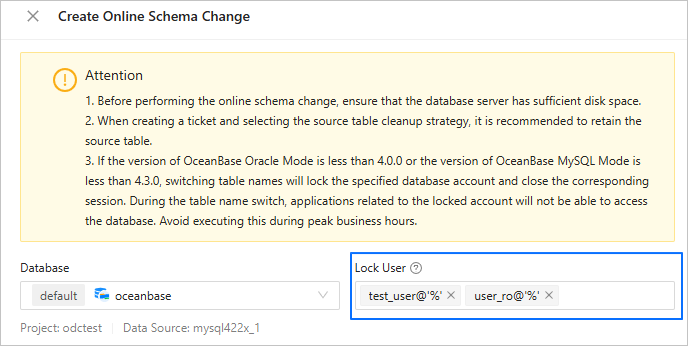
In MySQL mode of OceanBase Database V4.2.5 and later but earlier than V4.3.0, ODC no longer locks an account for table locking when you change the schema of a table. You need to ensure that the ODP version is V4.3.1 or later, and perform the following steps before executing a online schema change task to lock the table; otherwise, the table lock will fail.
Modify ODP parameters.
alter proxyconfig set proxy_id=1;
alter proxyconfig set client_session_id_version=2;
alter proxyconfig set enable_single_leader_node_routing = false;
Modify tenant-level parameters.
alter system set enable_lock_priority=true;Modify the version range of OceanBase Database in MySQL mode that supports the table lock feature.
By default, the table lock feature is supported in OceanBase Database V4.2.5 to V4.2.9 in MySQL mode. To modify the version range, you can connect to the MetaDB of ODC and execute the following SQL statement:
insert into config_system_configuration( key, application, profile, label, description, value) values('odc.osc.support-lock-table-ob-version-json', 'odc', 'default', 'master', 'control odc enable lock table version, default is ["4\\.2\\.[5-9].* "]', '$expected version range');The value of the
'$expected version range'field is a JSON array whose elements follow Java wildcard rules. For example, if you want to change the version range to V4.2.5 to V4.2.9 and V4.3.5, specify["4\\\\.2\\\\.[5-9].*", "4.3.5.*"].Verify whether the table lock is successful. To do so, run the
lock tablecommand in ODC to lock a temporary table, and then use a new link to insert data into the temporary table. If the insertion operation is blocked, the table lock task is effective.create table test_table(id int not null primary key); session 1: session 2 lock table test_table; insert into test_table values(1); Blocking data insertion... unlock table test_table; The data is inserted.
Create a online schema change task.
On the Tickets tab, choose Online Schema Change > Create New.
In the Create Online Schema Change panel, configure the following parameters.
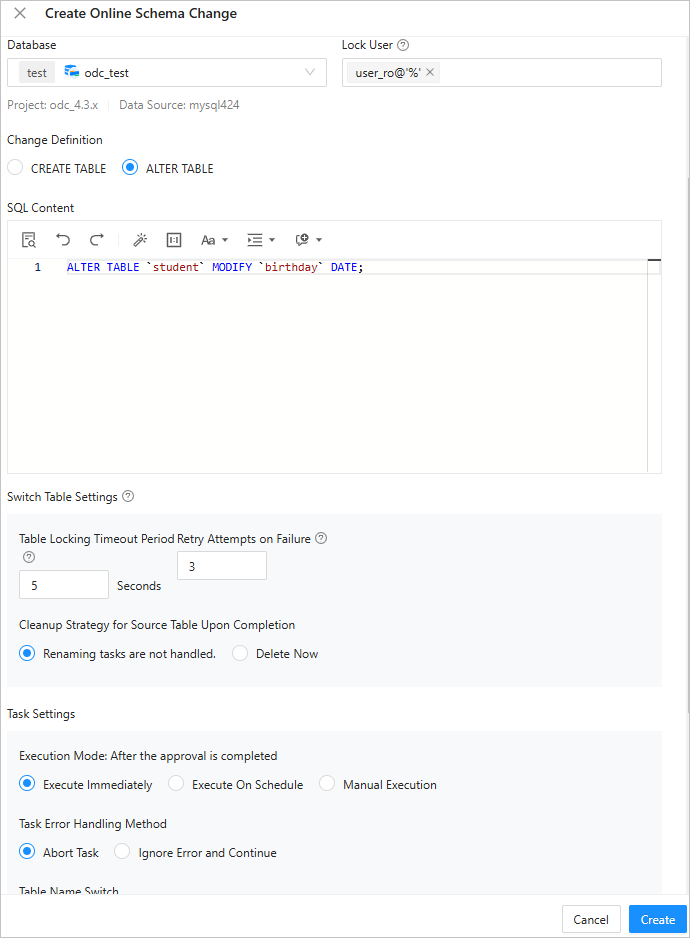 ParameterDescription
Database Select the database to which the database change task belongs. Lock User - If you specify to lock a user, ODC will lock the specified database account and close all sessions of this account before table name switching. This is to reduce the impact on businesses while ensuring data consistency during table name switching.
- If no account is specified, ODC will not lock any account or close any session. In this case, you must manually ensure data consistency during table name switching.
Notice
You cannot execute the online schema change tasks of a table and its related table simultaneously.
Change Definition - CREATE TABLE: If other syntaxes are not supported in OceanBase Database, you need to use the
CREATEstatement. - ALTER TABLE: In OceanBase Database V4.0.0 and later, you can use the
ALTERstatement in ALTER TABLE OFFLINE mode.
SQL Content Enter the SQL script in the editing section. Switch Table Settings Switch to the target table after data consistency is verified. - Table Locking Timeout Period: The table is locked during table switching. If table switching is not completed within the timeout period, the switching fails.
- Retries: If table switching is not completed within the specified period of time, a retry can be automatically initiated.
- Cleanup Strategy for Source Table Upon Completion: You can select Renaming tasks are not handled to rename the source table without deleting it, or select Delete Now to delete the source table after the online schema change task is completed.
Task Settings - Select Execute Immediately, Execute On Schedule, or Manual Execution.
- The online schema change tool provides two error handling methods:
- Abort Task: This is the default option. When you select this option, the task is aborted if an error occurs when you run the script.
- Ignore Error and Continue: When you select this option, the system skips the statement where an error occurs and continues to execute other statements in the script.
- Select Automatic Switch or Manual Switch.
Description Optional. Additional information about the task, which cannot exceed 200 characters in length. Click Create.
After the online schema change task is generated, choose Tickets > Online Schema Change and view the task information in the task list.

View a online schema change task
View task information
In the online schema change task list, click View in the Actions column of the target task.
In the Task Details panel, click the Task Information tab to view the database, type, risk level, and SQL content of the task.
Click Initiate Again to initiate the online schema change task again.
View task process
In the Task Details panel, click the Task Process tab and view information such as the task initiation status, precheck, approval status, execution status, and execution result.
View execution records
In the Task Details panel, click the Execution Records tab to view the DDL statements of the new and source tables, and the task progress.
View task logs
In the Task Details panel, click the Task Logs tab to view all logs and alert logs of the task.
Parameter |
Description |
|---|---|
| All Logs | Displays the complete information of all task logs, including INFO, ERROR, and WARN logs. You can click Search, Download, or Copy to search for, download, or copy all logs. |
| Alert Logs | Displays the ERROR and WARN logs of the task. When a task fails, you can view the error messages in the alert logs. You can click Search, Download, or Copy to search for, download, or copy alert logs. |