







This topic describes how to use OceanBase Migration Service (OMS) to migrate incremental data from an Oracle-compatible tenant of OceanBase Database, which can be a physical data source, a public cloud OceanBase data source, or a standalone data source, to a MySQL database.
Prerequisites
You have created dedicated database users in the source Oracle-compatible tenant of OceanBase Database and the target MySQL database for data migration and granted the required privileges to the users. For more information, see Create a database user.
You have created data sources for the source and target databases. For more information, see Create an OceanBase data source and Create a MySQL data source.
Limitations
OMS supports MySQL 5.5, 5.6, 5.7, and 8.0.
OMS does not support the migration of tables without primary keys from an Oracle-compatible tenant of OceanBase Database to a MySQL database.
OMS does not support triggers in the target database. If triggers exist in the target database, the data migration may fail.
OMS supports the migration of only objects whose database name, table name, and column name are ASCII-encoded and do not contain special characters. The special characters are line breaks, spaces, and the following characters:
. \ | " ' \ ` ( ) = ; / \ &.OMS does not support a standby OceanBase database as the source.
Considerations
If you use OceanBase Database V4.x, we recommend that you enable log archiving. If you enable log archiving, OMS implements incremental synchronization by consuming archive logs after clogs are recycled. For more information about how to enable log archiving, see Preparations.
If the UTF-8 character set is used in the source database, we recommend that you use a compatible character set, such as UTF-8 or UTF-16, in the target database to avoid garbled characters.
If the clocks between nodes or between the client and the server are out of synchronization, the latency may be inaccurate during incremental synchronization.
For example, if the clock is earlier than the standard time, the latency can be negative. If the clock is later than the standard time, the latency can be positive.
In a task for migrating data from an Oracle-compatible tenant of OceanBase Database of a version earlier than V3.2.x to a MySQL database, if the source table is a multi-partition table with a global unique index and you update the values of the partition key of the table, data may be lost during migration.
If you change the unique index in the target database, you must restart the data migration task to avoid data inconsistency.
A difference between the source and target table schemas may result in data consistency. Some known scenarios are described as follows:
When you manually create a table schema in the target database, if the data types of any columns are not supported by OMS, implicit data type conversion may occur in the target database, which causes inconsistent column types between the source and target databases.
If the length of a column in the target database is shorter than that in the source database, the data of this column may be automatically truncated, which causes data inconsistency between the source and target databases.
If you select only Incremental Synchronization when you create the data migration task, OMS requires that the archive logs in the source database be retained for more than 48 hours.
If the source and target table objects differ only in capitalization of their names, the data migration result may not be as expected because the object names in the source or target database are case-insensitive.
At present, the data migration task does not support tables without a non-null unique key. To avoid duplicate data in case of task restart and other exceptions, we recommend that you configure a non-null unique key for each table.
If you perform incremental synchronization with OceanBase Database as the source or reverse incremental synchronization with OceanBase Database as the target and the database table objects contain UDT columns, the incremental synchronization task may fail due to unsupported UDT columns.
Procedure
Create a data migration task.
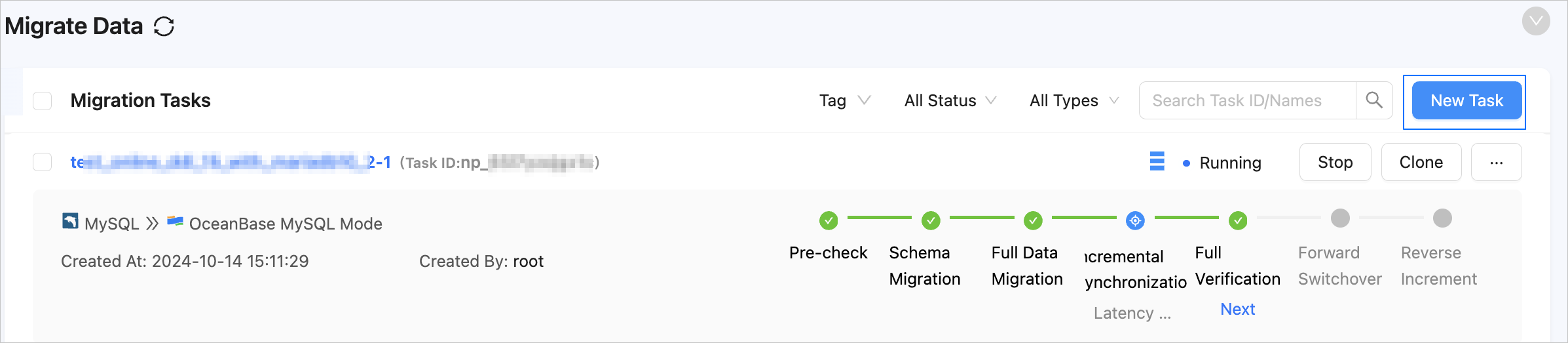
Log in to the OMS console.
In the left-side navigation pane, click Data Migration.
On the Data Migration page, click Create Task in the upper-right corner.
On the Create Task page, specify the name of the migration task.
We recommend that you set it to a combination of digits and letters. It must not contain any spaces and cannot exceed 64 characters in length.
Notice
The task name must be a unique identifier in the OMS system.
In the Select Source and Target step, configure the parameters.
 ParameterDescription
Source If you have created a data source for the Oracle compatible mode of OceanBase Database, which can be a physical data source, a public cloud OceanBase data source, or a standalone data source, select it from the drop-down list. If not, click New Data Source in the drop-down list and create one in the dialog box that appears on the right. For more information about the parameters, see Create a physical OceanBase data source, Create a public cloud OceanBase data source, or Create a standalone OceanBase data source. Target If you have created a MySQL data source, select it from the drop-down list. If not, click New Data Source in the drop-down list and create one in the dialog box that appears on the right. For more information about the parameters, see Create a MySQL data source. Tag (Optional) Click the text box and select a tag from the drop-down list. You can also click Manage Tags to create, modify, and delete tags. For more information, see Use tags to manage data migration tasks. Click Next. In the Select Migration Type step, specify the migration types for the migration task.
At present, only DML synchronization is supported for Incremental Synchronization. You can select operations as needed. For more information, see Configure DDL/DML synchronization.
Click Next. In the Select Migration Objects step, specify the migration objects for the migration task.
You can select Specify Objects or Match by Rule to specify the migration objects. The following procedure describes how to specify migration objects by using the Specify Objects option. For information about the procedure for specifying migration objects by using the Match by Rule option, see Configure matching rules.
Notice
If a database or table name contains double dollar signs ("$$"), you cannot create the migration task.
OMS automatically filters out unsupported objects. For information about the SQL statements for querying objects, see SQL statements for querying database objects.

In the Select Migration Objects section, select Specify Objects.
In the Source Object(s) list, select the objects to be migrated. You can select tables and views of one or more databases as the migration objects.
Click > to add the selected objects to the Target Object(s) list.
OMS also allows you to import objects by using text, rename objects, configure row filters, view column information, and remove one or all objects to be migrated.
Note
When you select Match by Rule to specify migration objects, object renaming is implemented based on the syntax of the specified matching rules. In the operation area, you can only set filter conditions. For more information, see Configure matching rules.
OperationStepsImport objects - In the Target Object(s) list, click Import Objects in the upper-right corner.
- In the dialog box that appears, click OK.
Notice
This operation will overwrite previous selections. Proceed with caution. - In the Import Objects dialog box, import the objects to be migrated.
You can import CSV files to rename databases/tables and set row filtering conditions. For more information, see Download and import the settings of migration objects. - Click Validate.
- After the validation succeeds, click OK.
Rename objects OMS allows you to rename migration objects. For more information, see Rename a migration or synchronization object. Configure settings OMS allows you to filter rows by using WHEREconditions. For more information, see Use SQL conditions to filter data.
You can also view column information of the migration objects in the View Column section.Remove one or all objects OMS allows you to remove one or all objects to be migrated to the target database during data mapping. - To remove one migration object:
In the Target Object(s) list, move the pointer over the target object and click Remove. - To remove all migration objects:
In the Target Object(s) list, click Remove All in the upper-right corner. In the dialog box that appears, click OK.
Click Next. In the Migration Options step, configure the parameters for incremental synchronization.
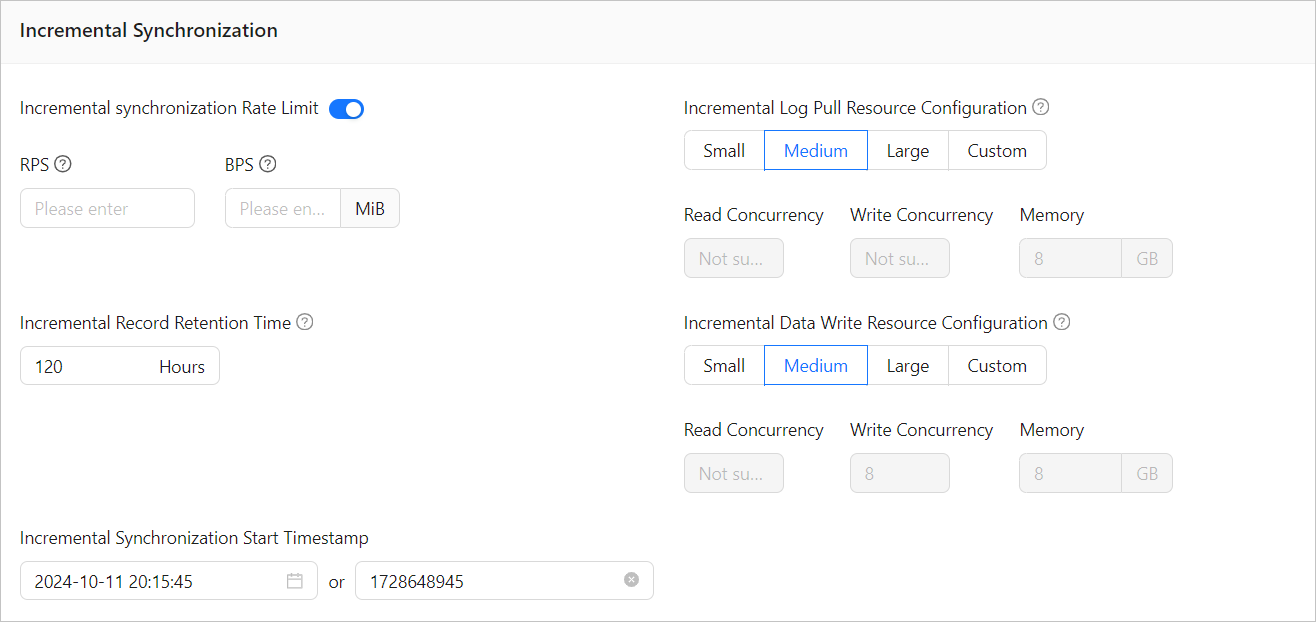 ParameterDescription
Incremental Synchronization Rate Limit You can choose whether to limit the incremental synchronization rate as needed. If you choose to limit it, you must specify the RPS and BPS. The RPS specifies the maximum rows of data synchronized to the target database per second during incremental synchronization, and the BPS specifies the maximum amount of data in bytes synchronized to the target database per second during incremental synchronization. Note
The RPS and BPS values specified here are only for throttling. The actual incremental synchronization performance is subject to factors such as the settings of the source and target databases and the instance specifications.
Incremental Log Pull Resource Configuration You can select Small, Medium, or Large to use the corresponding default value of Memory. You can also customize the resource configurations for incremental log pull. By setting the resource configuration for the Store component, you can limit the resource consumption of a task in log pull in the incremental synchronization stage. Notice
In the case of custom configurations, the minimum value is
1, and only integers are supported.Incremental Data Write Resource Configuration You can select Small, Medium, or Large to use the corresponding default values of Write Concurrency and Memory. You can also customize the resource configurations for incremental data writes. By setting the resource configuration for the Incr-Sync component, you can limit the resource consumption of a task in data writes in the incremental synchronization stage. Notice
In the case of custom configurations, the minimum value is
1, and only integers are supported.Incremental Record Retention Duration The duration that incremental parsed files are cached in OMS. A longer retention duration results in more disk space occupied by the Store component. Incremental Synchronization Start Timestamp The timestamp after which data is to be migrated. The default value is the current system time. For more information, see Set an incremental synchronization timestamp. Click Precheck to start a precheck on the data migration task.
During the precheck, OMS checks the read and write privileges of the database users and the network connectivity of the databases. A data migration task can be started only after it passes all check items. If an error is returned during the precheck, you can perform the following operations:
Identify and troubleshoot the issue and then perform the precheck again.
Click Skip in the Actions column of a failed precheck item. In the dialog box that prompts the consequences of the operation, click OK.
Click Start Task. If you do not need to start the task now, click Save to go to the details page of the task. You can start the task later as needed.
You can click Configure Validation Task in the upper-right corner of the data migration details page to compare the data between the source and target databases. For more information, see Create a data validation task.
OMS allows you to modify the migration objects when the data migration task is running. For more information, see View and modify migration objects. After the data migration task is started, it is executed based on the selected migration types. For more information, see the View migration details section in View details of a data migration task.