







You must configure data sources before you create a data migration task. Before you start data migration, you can create an Oracle data source as the source or target. This topic describes how to create an Oracle data source in OceanBase Migration Service (OMS).
Procedure
Log in to the OMS console.
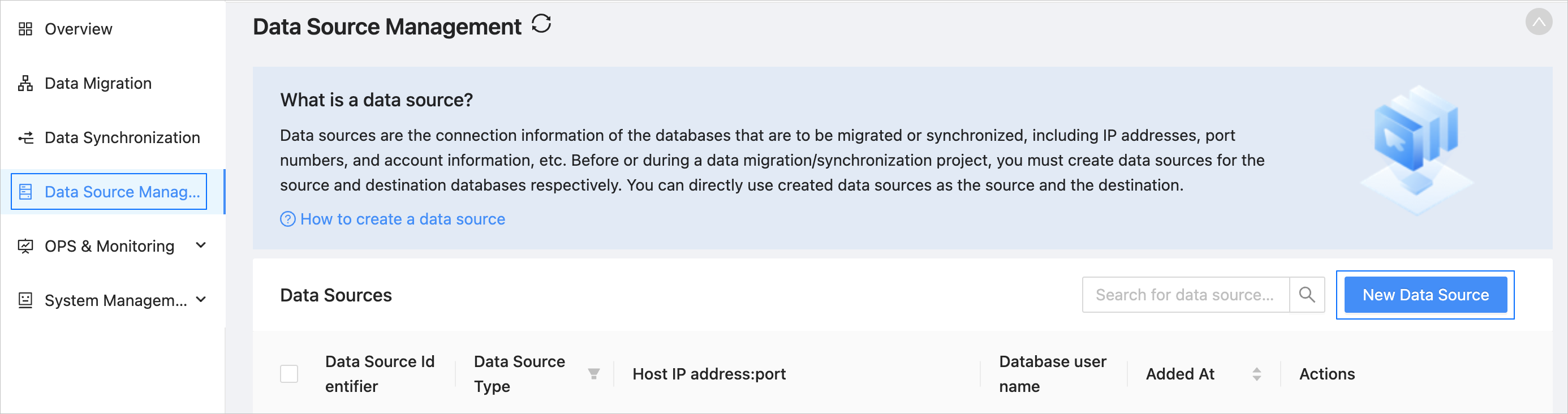
In the left-side navigation pane, click Data Source Management.
On the Data Source Management page, click New Data Source in the upper-right corner.
In the New Data Source dialog box, select Oracle for Data Source Type and configure the following parameters.
ParameterDescriptionData Source Identifier We recommend that you set it to a combination of digits and letters. It must not contain any spaces and cannot exceed 32 characters in length.
Notice
The data source identifier must be globally unique in OMS.Region Select the region where the data source resides from the drop-down list. The region is the value that you set for the cm_regionparameter when you deploy OMS.
Notice- This parameter is displayed only when multiple regions are available.
- Make sure that the mappings between the data source and the region are consistent. Otherwise, the migration and synchronization performance can be poor.
Database Attributes Valid values: Primary Database, Primary Database + Standby Database, and Standby Database. Select an attribute to configure the corresponding parameters.
Note
If you select Primary Database + Standby Database or Standby Database, you must specify the Active Data Guard (ADG) mode for the Oracle database. The ADG mode is specified for Oracle databases of a version later than 11g by default.Host IP Address The IP address of the host where the database is located. You must specify the IP address of the physical server that hosts the Relational Database Service (RDS). Do not enter the IP address of any middleware. Port The port number of the host where the database is located. Database Username The name of the Oracle database user for data migration or synchronization. We recommend that you create a dedicated database user for the migration or synchronization task. Database Password The password of the database user. Service Name The service name of the Oracle database. Schema Name (Optional) The schema name of the Oracle database.
Note- If this parameter is specified, you can select only migration or synchronization objects in the specified schema when the data source serves as the source of a data migration or synchronization task.
- If this parameter is not specified, you can select all accessible schemas as the migration or synchronization objects.
Remarks (Optional) Additional information about the data source. (Optional) If you need to consume data from Kafka to sync to the target database during incremental synchronization, select Obtain Incremental Data through Kafka in the New Data Source dialog box, and configure the parameters.
 ParameterDescription
Kafka Data Source After selecting to obtain incremental data through Kafka, it is necessary to bind the Kafka data source. Kafka stores the Oracle incremental log information converted by OGG for OMS consumption. If not bound, Oracle incremental synchronization will obtain incremental data through the LOGMINER method. Topic Select a topic from the drop-down list for the current Kafka data source. Incremental Message Format Currently supports ogg_jsonandogg_json_row. For thekafka.propsconfiguration file, see the following section. For more details, see Using the JSON Formatter.kafka.propsconfiguration file reference:-- The topic name is the table name. If you have specified a topic, use the topic name directly. gg.handler.kafkahandler.topicMappingTemplate=${tableName} -- Change to JSON format. gg.handler.kafkahandler.format=json -- Add the path where the Kafka library files are located. gg.classpath=dirprm/:/opt/oracle/ogg_kafka/lib/kafka_libs/* gg.handler.kafkahandler.includeTokens=true gg.handler.kafkahandler.format.metaColumnsTemplate=${objectname[table]},${optype[op_type]},${timestamp[op_ts]},${currenttimestamp[current_ts]},${position[pos]},${alltokens[tokens]},${primarykeycolumns[primary_keys]} -- Shard by table name to ensure the order of data in the same table. gg.handler.kafkahandler.keyMappingTemplate=${tableName} gg.handler.kafkahandler.mode=op -- If you use the ogg_json_row message format, configure the following parameters. When an Update modifies the primary key, OGG will split the "op_type": "U" in the message format into "op_type": "D" and "op_type": "I" (i.e., delete then insert data), and will not include before and after. -- Change to json_row format. gg.handler.kafkahandler.format=json_row gg.handler.kafkahandler.format.pkUpdateHandling=delete-insert -- If you need to deliver the CSN, XID, and TXIND of a transaction, configure the following parameters. gg.handler.kafkahandler.format.metaColumnsTemplate=${objectname[table]},${optype[op_type]},${timestamp[op_ts]},${currenttimestamp[current_ts]},${position[pos]},${alltokens[tokens]},${primarykeycolumns[primary_keys]},${csn},${xid},${txind}Click Test Connection to test the network connection between OMS and the data source, and the validity of the username and password.
After the test is passed, click OK.