







This topic describes how to create an alert channel.
Background information
Alerting is a standalone feature. If you do not configure and subscribe to alert channels, you can view alerts only on the Alert Events page of the OceanBase Cloud Platform (OCP) console. To receive alert notifications, you must configure and subscribe to an alert channel.
Notifications are sent through the alert channel. The following channel types are supported:
HTTP
Custom script: OCP supports Python and Bash scripts. For more information, see Custom script channel.
Note
You can configure the time variables for alert aggregation when you configure a channel. After an alert channel is updated, the channel restarts alert aggregation. If an alert has not been cleared at that time, you may receive the alert notification again during the aggregation period.
OCP provides a default alert channel. You need to configure it before use and you cannot delete it.
Prerequisites
The basic information of the recipients is configured.
The logged-on user has administrator permissions.
Procedure
Note
We recommend that you read Examples of alert channel configuration before you perform the following steps.
Log on to the OCP console.
In the left-side navigation pane, choose System Management > Alerts .
On the Alert Channel Configuration tab, click Create Channel .
Configure the basic information of the channel as prompted.
If you set Group Message Channel to Yes, the system will push notifications even if no one subscribes to the channel.
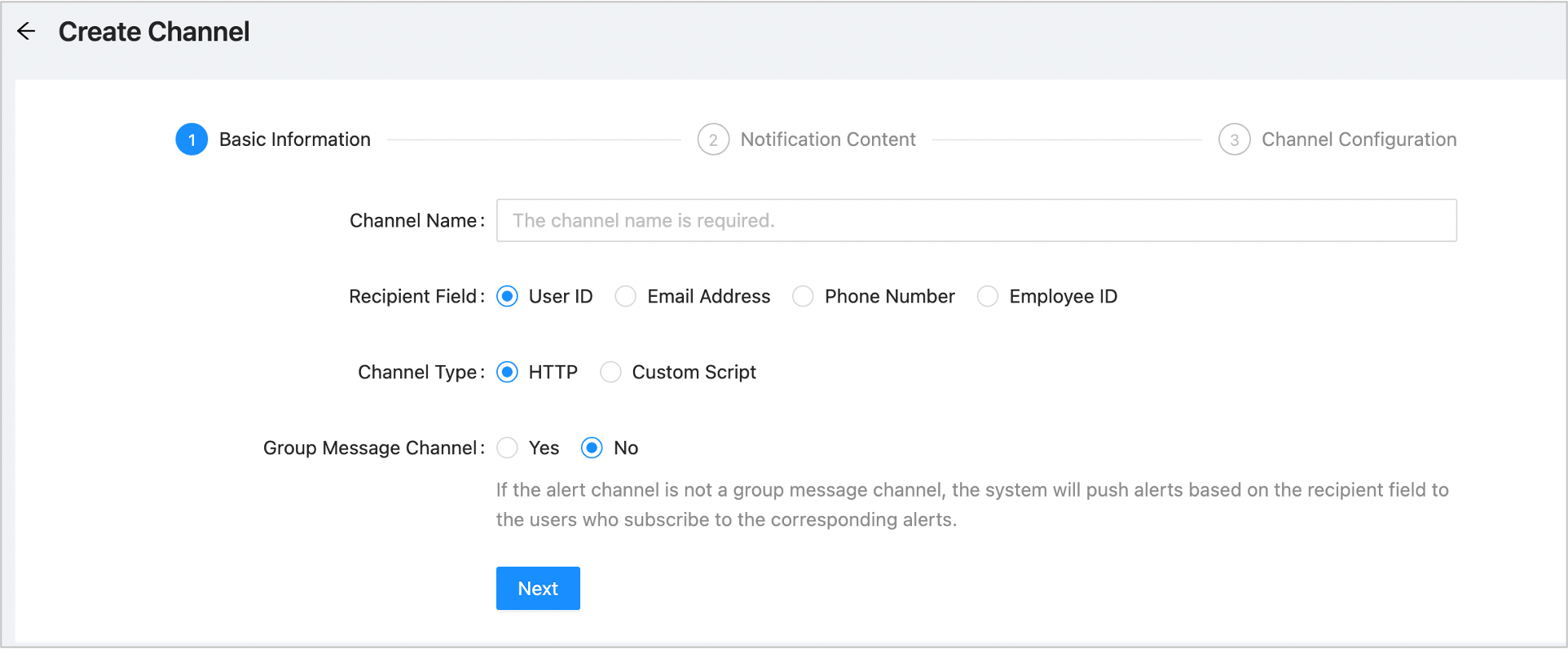
Click Next .
Specify Notification Content .
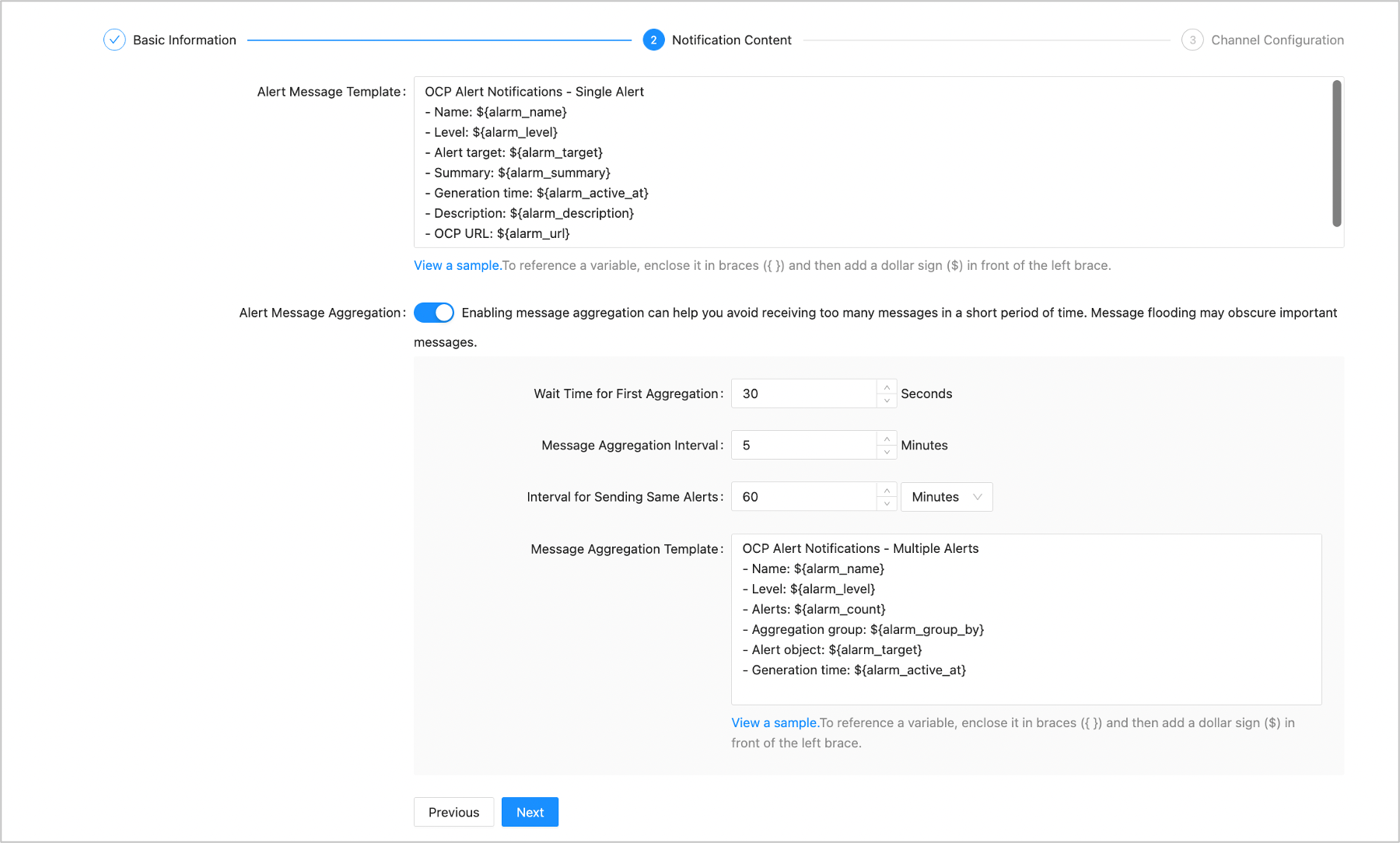
Complete the channel configuration as prompted. The parameters varies with the channel type. In the following example for description, the channel type is HTTP.
ParameterDescriptionRequest Method Select the request method as needed. Proxy Specify the proxy server that sends alerts, in the format of http:ip:port. In the format, ip represents the IP address of the proxy server, and port represents the port number that is assigned to send alerts. For example, if the IP address of the proxy server is 192.168.0.1 and port 80 is assigned, you can set Proxy tohttp:192.168.0.1:80.URL Template Enter the URL for sending alert information. Header Template Enter the template for HTTP headers. Separate multiple parameters with line breaks. Example: unknow Content-Type:application/json x-lt-openKey:diskJitterAlarm charset:utf-8Body Template Enter the template for the notification content. 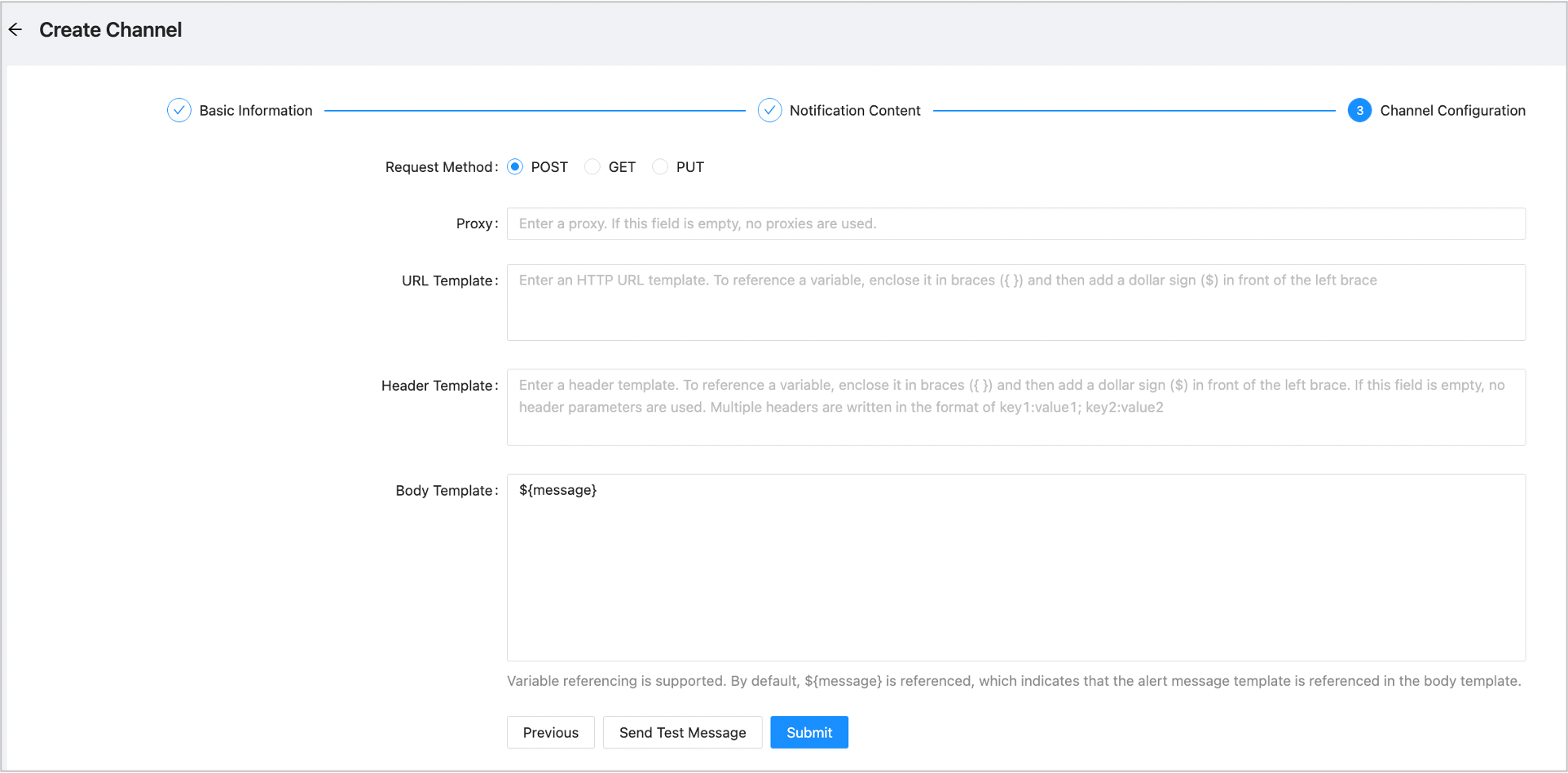
Click Send Test Message . If the message is sent, click Submit .
