







To facilitate alert subscription, OceanBase Cloud Platform (OCP) allows you to create alert groups.
Manage alert groups
Log on to the OCP console.
In the left-side navigation pane, choose System Management > Alerts .
On the Alert Item Configuration tab, click Group Management to go to the Group Management page.
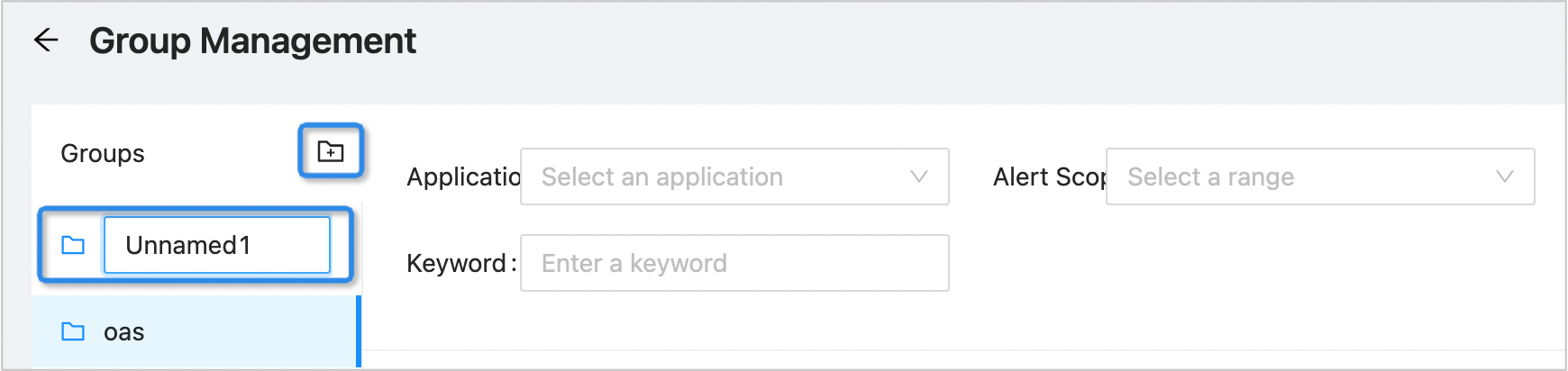
Create a custom group: Click the Create icon on the right of Groups and enter the name of the new group.
Change the name of a group. Click the more icon ( ... ) on the right of a specific group and select Rename .
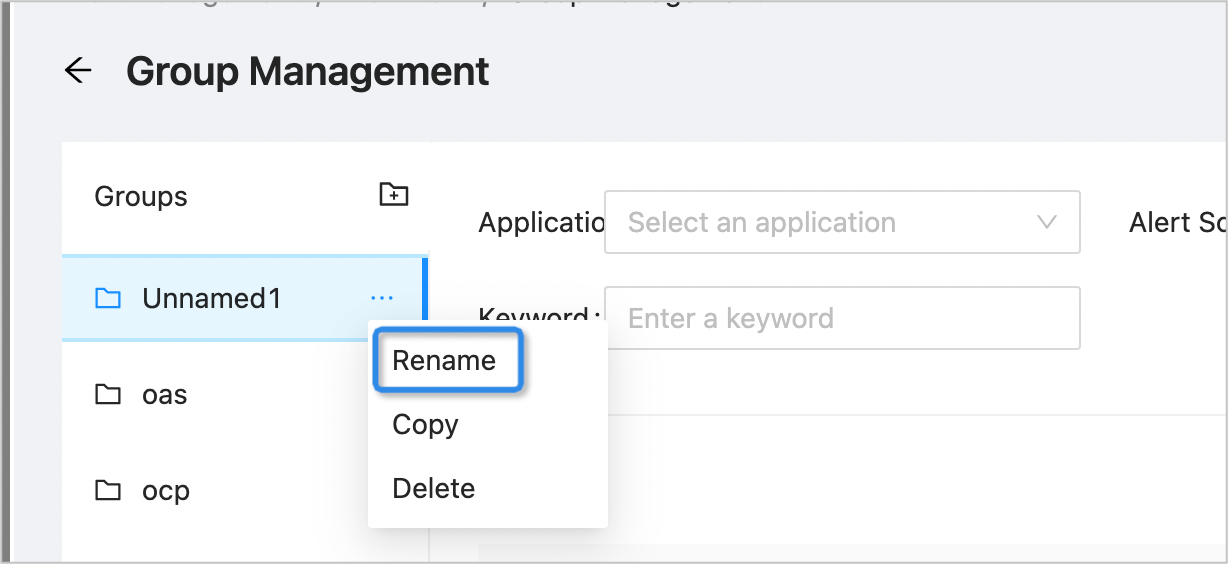
Copy a group: Click the more icon ( ... ) on the right of a specific group and select Copy .
Enter the name of the new group in the Saved As text box. The new group contains the information of the alert items in the original group.
Delete a group: Click the more icon ( ... ) on the right of a specific group and select Delete .
Note
Built-in groups in the system cannot be renamed or deleted.
View alert items in a group
In the left-side navigation pane, choose System Management > Alerts .
On the Alert Item Configuration tab, click Group Management to view all the alert groups.
Click the name of an alert group. The alert items in the group are displayed on the right side of the page.
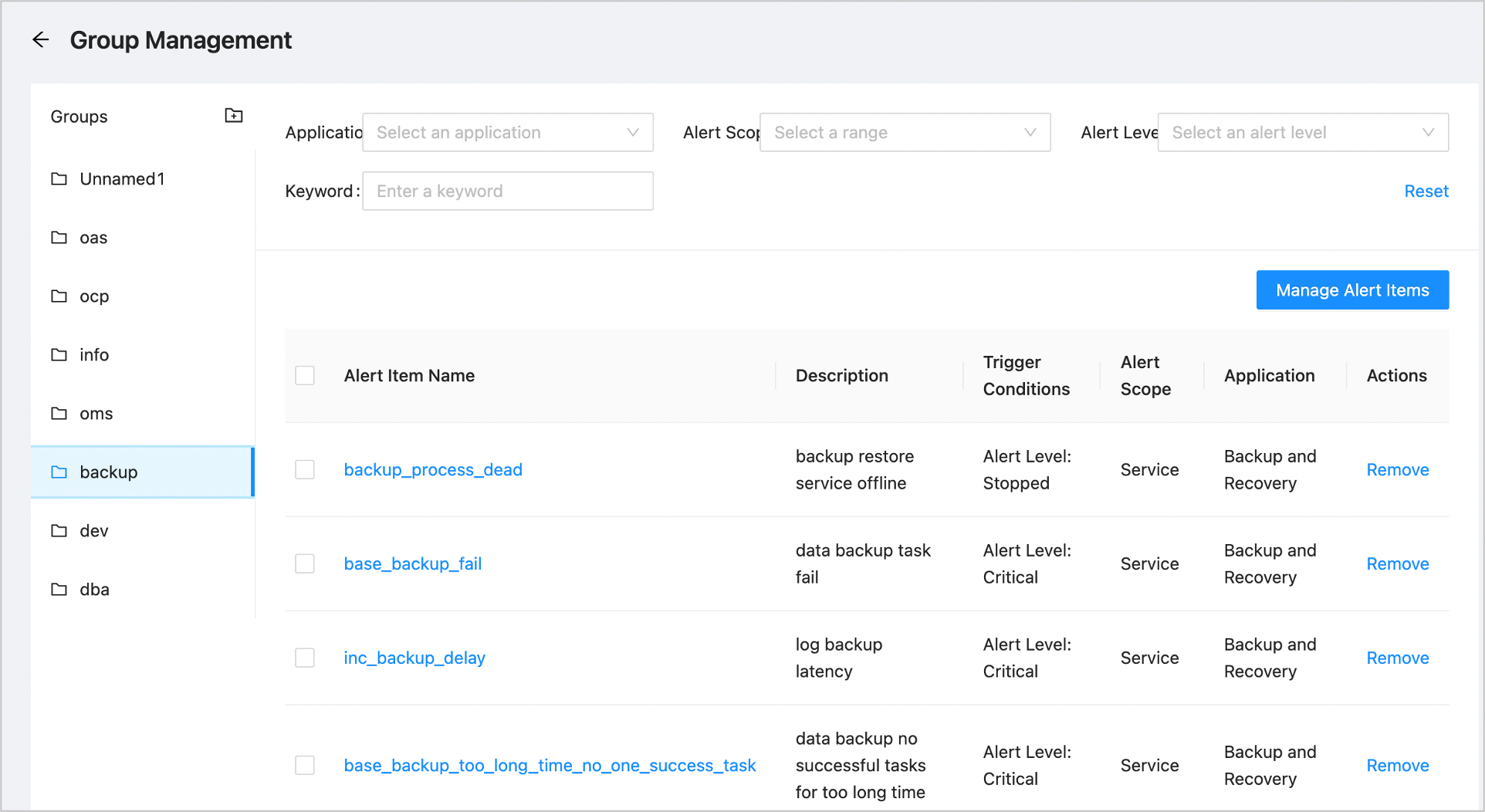
Specify search criteria in the search bar in the upper part of the page to view alert items that meet the search criteria.
Add alert items to a group
In the left-side navigation pane, choose System Management > Alerts .
On the Alert Item Configuration tab, click Group Management .
Select the target group and click Manage Alert Items .
The Manage Alert Items dialog box appears. All alert items that can be added to the group are displayed in the left-side pane, and those already added to the group are displayed in the right-side pane. Note
Ensure that each alert item is added to an alert group so that related personnel can be notified in case alerts are generated for the alert time.
Add alert items to the group: Select to-be-added alert items in the left-side pane and click the > icon.
Remove alert items from the group: Select to-be-removed alert items in the right-side pane and click the < icon.
Remove alert items from a group
In the left-side navigation pane, choose System Management > Alerts .
On the Alert Item Configuration tab, click Group Management .
Select the target alert group. All the alert items in the group are displayed on the right side of the page.
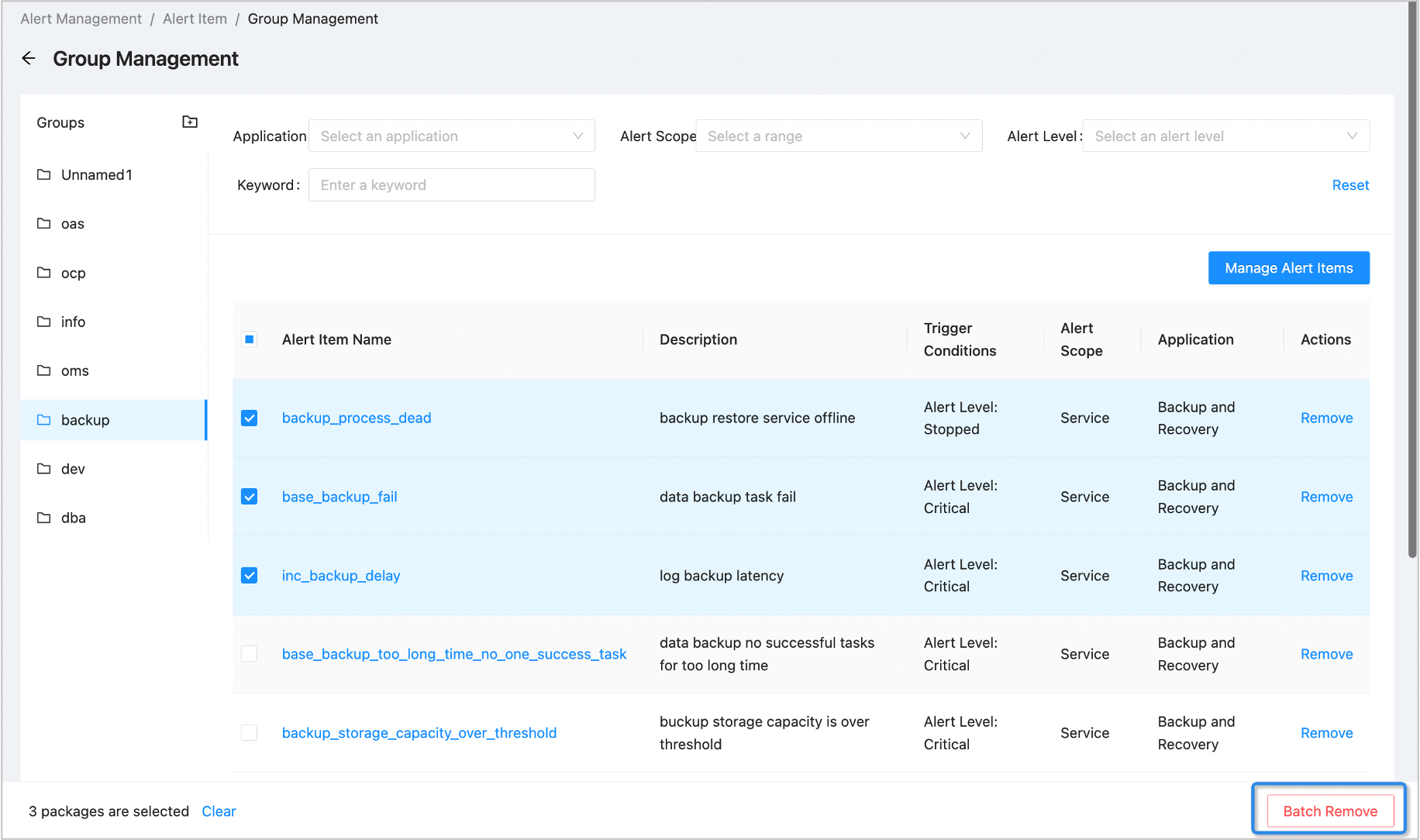
Click Remove in the Actions column of an alert item to remove this alert item from the group. You can also select multiple alert items and click Batch Remove to remove the alert items.
Note
This operation only removes alert items from a group. It does not delete the alert items.
Default groups
The system provides six default groups that you can edit but cannot delete.
Name |
Description |
|---|---|
| dba | The alert group intended for database administrators to keep an eye on. This group generally contains OBServer related alerts such as OceanBase cluster alerts, OceanBase Database tenant alerts, and OBServer alerts. |
| dev | The alert group intended for O&M personnel to keep an eye on. This group generally contains server and network related alerts. |
| oms | This alert group contains OMS related alerts. |
| backup | The alert group intended for backup and recovery administrators to keep an eye on. This group generally contains alerts related to backup and recovery. |
| info | This group contains reminder information, for example, reminders of the results of O&M operations. |
| ocp | This group contains alerts related to OCP components, such as OCP-Agent, MetaDB, OBProxy on which MetaDB depends, and internal OCP components. |