







This topic describes how to manage plans.
Applicability
This topic applies only to OceanBase Cloud Platform (OCP) Enterprise Edition. OCP Community Edition does not support this feature.
Prerequisites
Make sure that you have the following permissions:
- Resource Permissions: Cluster Maintenance or Tenant Maintenance permission
- Menu Permissions: Permission on the Plan Management menu of O&M Management
Procedure
Create a plan
When the existing plans cannot meet your business needs, you can create a custom plan as needed. For example, you can define the effective scope, increment factor, and whether to enable automatic execution for a plan. To create a custom plan, perform the following steps:
Log on to the OCP console.
In the left-side navigation pane, choose O&M Management > Plan Management.
Click the Plan tab.
Click Create Plan in the upper-right corner.
In the panel that appears, configure the plan parameters and then click OK.
The following table describes the plan parameters.
ParameterDescriptionPlan Name The name of the custom plan. Plan Type The type of the plan. For more information about plan types, see the Plan types section in Overview. Object The objects to which the plan applies. The object type varies based on the plan type. If you select All for this parameter, the plan applies to all existing and future objects of the same type. You can select Excluded Objects on the right to exclude objects that do not need to use this plan. increment factor The ratio for increasing resources. This parameter is displayed only when Plan Type is set to Increase tenant memory resource, Increase tenant CPU resource, or Increase OBProxy memory and connection limitation. The value range is 1% to 100%. The default value is 20%. Max server memory percentage The maximum memory usage of the server of the OBProxy cluster. This parameter is displayed only when Plan Type is set to Increase OBProxy memory and connection limitation. The value range is 50% to 99%. The default value is 90%. Automatic Execution Specifies whether to automatically execute the plan. By default, automatic execution is disabled. 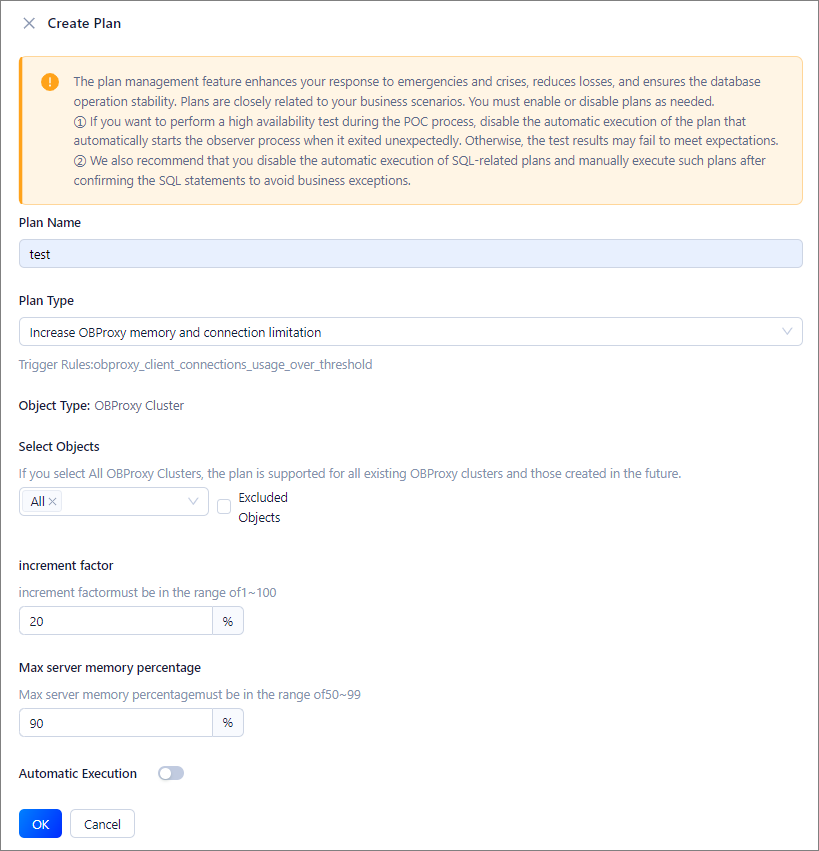
Enable or disable a plan
The plan management feature enhances your response to emergencies and crises, reduces losses, and ensures the database operation stability. Plans are closely related to your business scenarios. You must enable or disable plans as needed.
- If you want to test the high-availability performance of your database during proof of concept (PoC), disable automatic execution of the plans whose type is set to Start observer process when it exited unexpectedly. Otherwise, the test results may not be as expected.
- We also recommend that you disable the automatic execution of SQL-related plans and manually execute such plans after confirming the SQL statements to avoid business exceptions.
Log on to the OCP console.
In the left-side navigation pane, choose O&M Management > Plan Management.
Click the Plan tab.
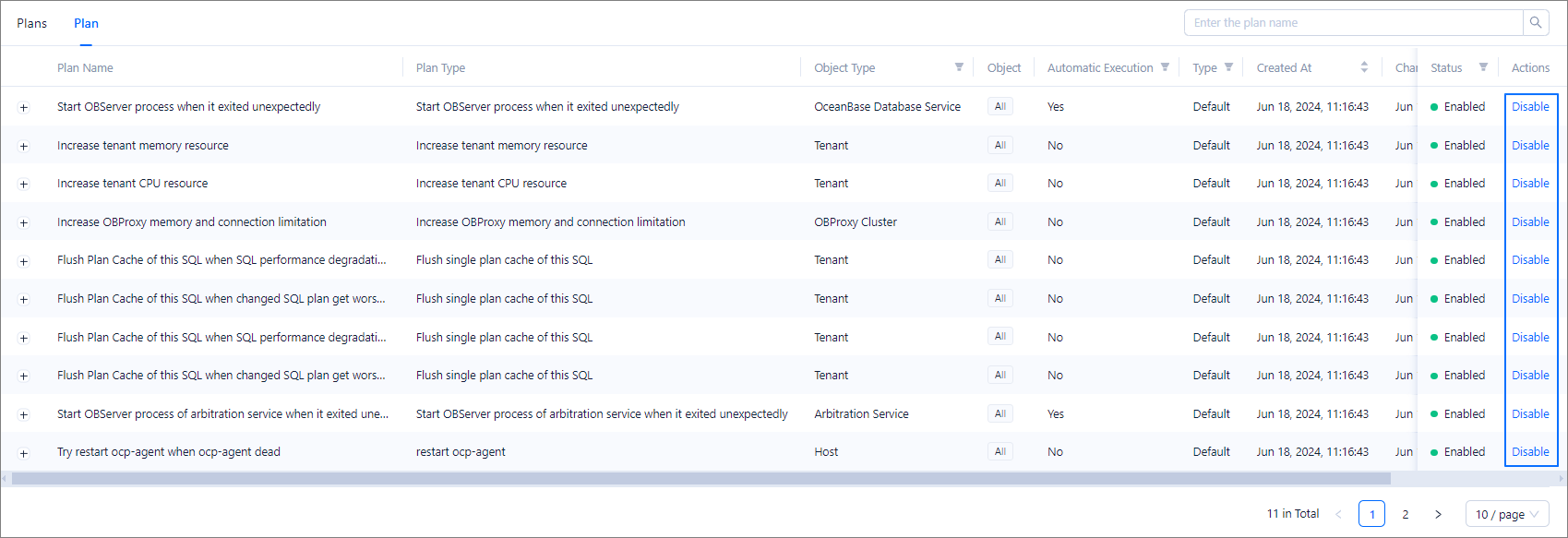
Find the target plan and click Enable or Disable in the Actions column.
Execute a plan
For a plan for which the automatic execution is disabled, you can perform the following steps to manually execute it when the corresponding event occurs:
Log on to the OCP console.
In the left-side navigation pane, choose O&M Management > Plan Management. The Plans tab automatically appears.
Find the target plan and click Execute in the Actions column.
In the panel that appears, click OK.
Notice
View the operations to be performed by the plan to avoid causing other issues.
Edit a plan
You can edit only a custom plan. To edit a custom plan, perform the following steps:
Log on to the OCP console.
In the left-side navigation pane, choose O&M Management > Plan Management.
Click the Plan tab.
Find the target plan and click Edit in the Actions column.
In the panel that appears, modify the information about the plan.
For more information about the parameters, see the Create a plan section in this topic.
Delete a plan
You can delete only a custom plan when it no longer applies to your business scenarios. To delete a custom plan, perform the following steps:
Log on to the OCP console.
In the left-side navigation pane, choose O&M Management > Plan Management.
Click the Plan tab.
Find the target plan and click Delete in the Actions column.
In the dialog box that appears, click OK.