






OceanBase Developer Center (ODC) allows you to visualize the creation of tables. This topic describes how to create a table in the ODC console.
Background information
Logical table
ODC V4.3.2 and later allow you to configure multiple (or a single) physical database as a logical database and create logical tables to query and manage a large number of databases and tables. For more information, see Manage logical databases.
Note
If you do not have the required privileges on the logical database, you can apply for the required privileges in the Apply for database privileges section on the project or ticket page.
Logical table expression rules
| Rule type | Rule name | Example |
| Simple rules | Sequential order | db.test_[0-7]: creates eight tables. |
| Aligned sequential order |
|
|
| Prefix-based sequential order (without prefix padding) | db.test_[0-8:2]: creates five tables with a step length of 2 (db.test_0, db.test_2, db.test_4, db.test_6, and db.test_8). |
|
| Prefix-based sequential order (with zero-padded prefix) | db.test_[00-07:3]: creates three tables with a step length of 3 (db.test_00, db.test_03, and db.test_06). |
|
| Centered order | db.test_[00-31]_t: suffix shadow table. |
|
| Multi-level rules | Date-based order | db.test_[01-12]_[01-31]: creates tables with 12 months and 31 days each, that is, 12 × 31 tables. |
| Multi-level sequential order | db.test_[01-12:2]_[01-31:2]: creates tables for single months (1, 3, 5, ..., 11) with odd days in each month (1, 3, 5, ..., 31), that is, 6 × 16 tables. |
|
| Rules for databases and linked tables | Same-name rule | db_[00-31].test: defines a test table in each database from db_00 to db_31. |
| Evenly distributed rule | db_[00-31].test[0000-1023]: evenly distributes a total of 1,024 tables across each database from db_00 to db_31. |
|
| Enumeration rules | Simple enumeration | db.test_[1,3,6,8,9]: creates five tables in the specified database. |
| Complex enumeration rule | Evenly distributes tables across specified databases by using multiple expressions: db.test_[1,3,6,8,9] and db.test_[2,4,5,7,10]. |
|
| Enumeration rules for databases | Create the same rule in databases | db_[00-31].test_[[00-31]]: creates tables that match test_[00-31] in each database from db_00 to db_31. |
| Enumeration in databases | db_01.test_[1,2,4,6,7],db_02.test_[2,3,5,7,9],db_03.test_[1,4,6,7,9]: creates five tables in each of the three databases. |
|
| Uneven tables in databases | db_01.test_[1-7],db_02.test_[10-15]: creates seven tables in database db_01 and six tables in database db_02. |
Create an internal table

The preceding figure shows the seven steps involved in creating an internal table:
Specify the basic information.
Set columns.
Set indexes.
Set constraints.
Set partitioning rules.
Verify the SQL statement.
Complete the table creation.
Create an external table
An external table is a logical table object. Its data is stored in an external storage system instead of the database. For more information, see Overview.
ODC V4.3.3 and later versions support creating external tables by executing SQL commands in the SQL window, which maps external files to the ODC database via specified file paths. You can view the created external tables from the resource tree list. For details, please refer to OceanBase Create External Table.
You can use the CREATE EXTERNAL TABLE statement to create an external table.
Notice
- External tables are read-only. You can query an external table, but cannot perform DML operations on external tables.
- You need to specify the
secure_file_privvariable before you create an external table in ODC by using a local file. To specify the variable, you can connect to OceanBase Database only by using a local Unix socket. ODC does not support this connection method, and you must use OBClient to configure the connection.
- Create an external file.
- Create an external table in the SQL window of ODC by executing SQL statements.
- View the external table in the resource tree.
Procedure
Create an internal table
The following example describes how to create a table named employee in the odc_test database in the SQL window. The table contains the emp_no, birthday, name, and gender columns.
Note
All data in this example is for reference only. You can replace the data as needed.
Step 1: Specify the basic information
Log in to the database and go to the SQL window. You can click Table in the left-side navigation pane to view tables. To create a table, click + next to Table Name in the table list.
On the create table tab that appears, set the Table Name, Storage Mode, and Description parameters.
Note
- In MySQL compatible mode, you also need to set the default character set and default collation.
- After you specify the basic information and go to the "Set columns" step, the basic information is submitted.
- OceanBase Database V4.3.0 and later allow you to configure columnar storage.
Step 2: Set columns
Note
ODC V4.2.3 and later allow you to create a table that contains fields of spatial data types in OceanBase MySQL compatible mode or MySQL.
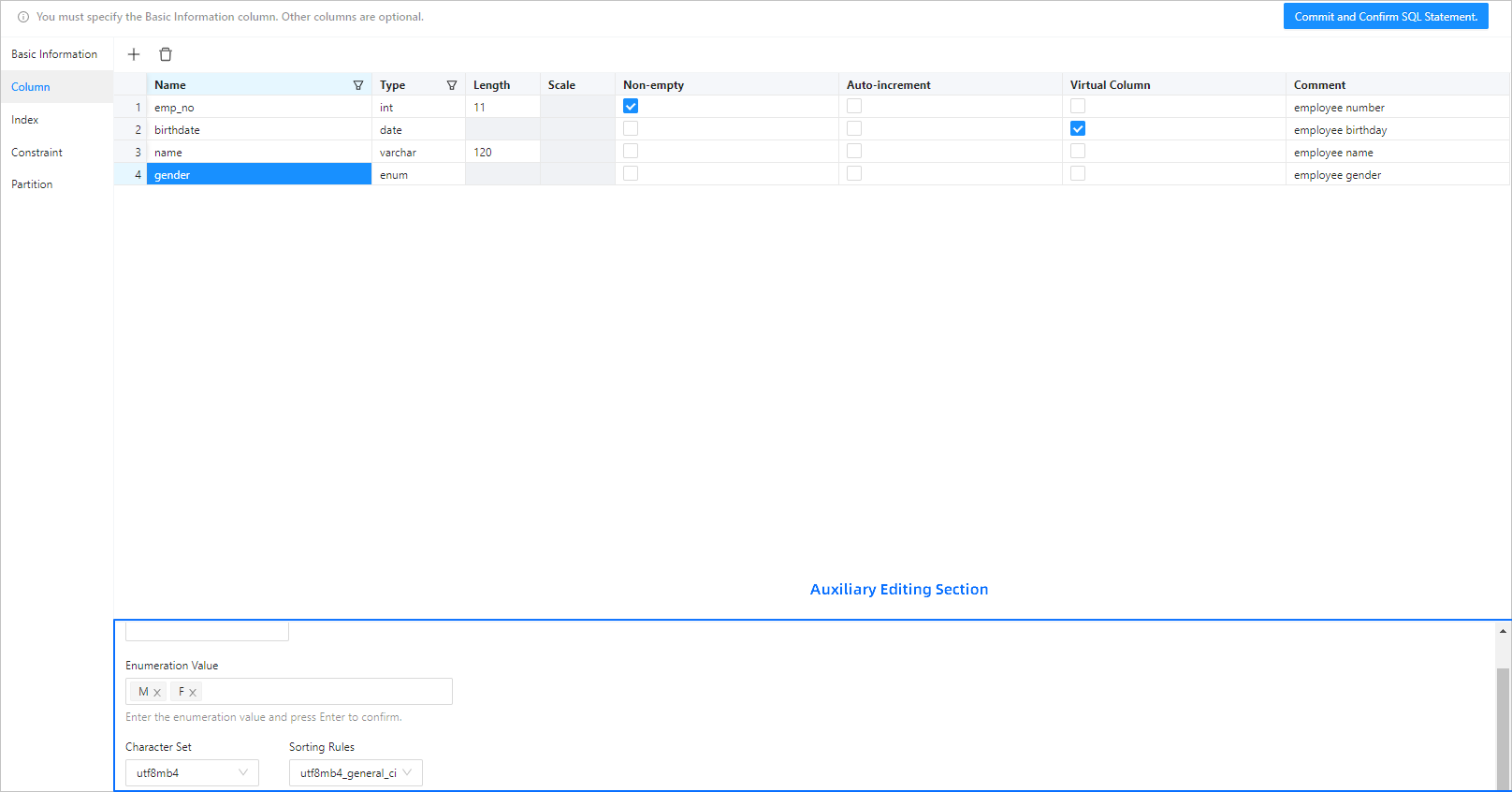
The following figure shows the information that you need to specify when you add a column.
Note
- After you copy a row, you can paste the row by using the Command+V or Ctrl+V shortcut keys.
- The auxiliary editing section at the bottom of the page displays additional information about the selected column.
- The basic information and column settings are required. The settings in other parameters are optional. After you specify the basic information and column settings, you can submit the settings and confirm the SQL statement to create the table.
Step 3: Set indexes
If a table contains a large amount of data, you can use indexes to accelerate data queries. An index is a data structure that pre-sorts the values of one or more columns in a table. You can directly locate records that meet the conditions by using indexes.
The following figure shows the information that you need to specify when you set an index.

Step 4: Set constraints
Constraints are used to specify data rules for a table. A data operation that violates the constraints is terminated.

ODC allows you to set the following four types of table constraints:
Primary Key Constraint: defines a primary key to uniquely identify each row of data in the table. A primary key constraint can be a field or a group of fields. You can set only one primary key constraint for a table, and you cannot modify the primary key constraint after you configure the constraint.
Unique Constraint: ensures that the data in a field or a group of fields is unique in the table. You can set multiple unique constraints in one table.
Foreign Key Constraint: establishes a connection between one or more columns in the data of two tables. The foreign key constraint maintains the data consistency and integrity between associated tables. After you set the foreign key constraint, you cannot create a new one or modify the existing one.
Check Constraints: verifies the data in the database based on the configured check rules when you edit the data, and allows you to modify the data only if the data verifies.
Step 5: Set partitioning rules
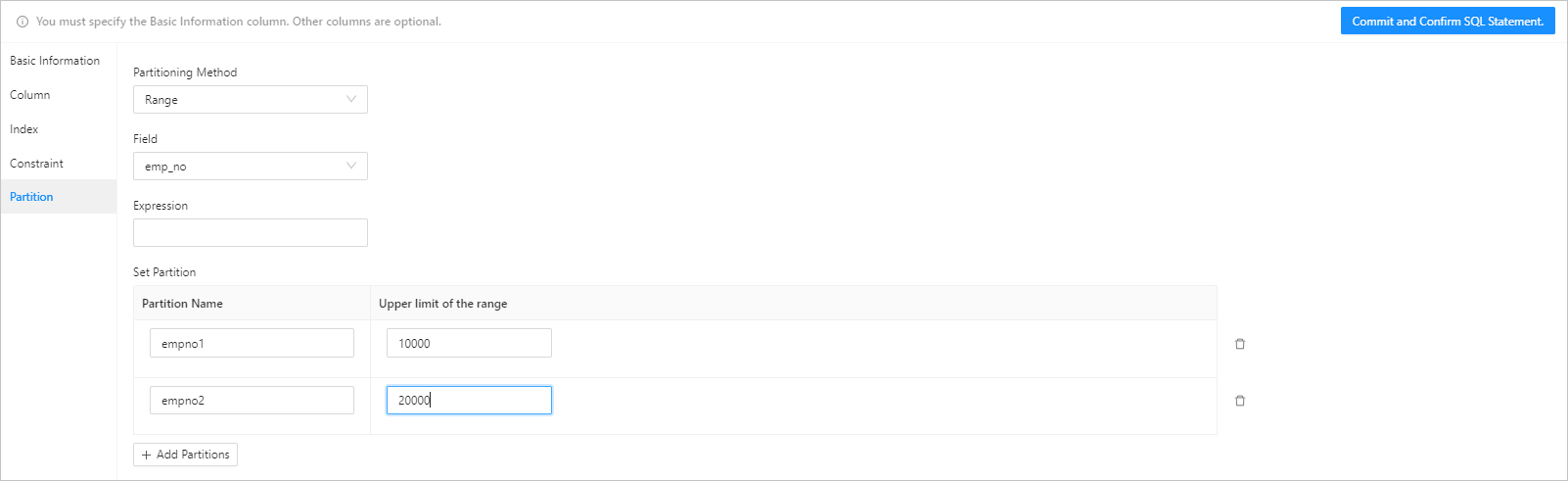
You can partition a table that contains a large amount of data. After a table is partitioned, data of the table is stored in multiple tablespaces. The system does not scan the entire table each time it queries data. In ODC V4.3.3 and later, you can view subpartitions.
In MySQL compatible mode, OceanBase Database supports the following six partitioning methods: KEY, HASH, RANGE, RANGE COLUMNS, LIST, and LIST COLUMNS.
In Oracle compatible mode, OceanBase Database supports the following three partitioning methods: LIST, RANGE, and HASH.
Step 6: Confirm the SQL statement
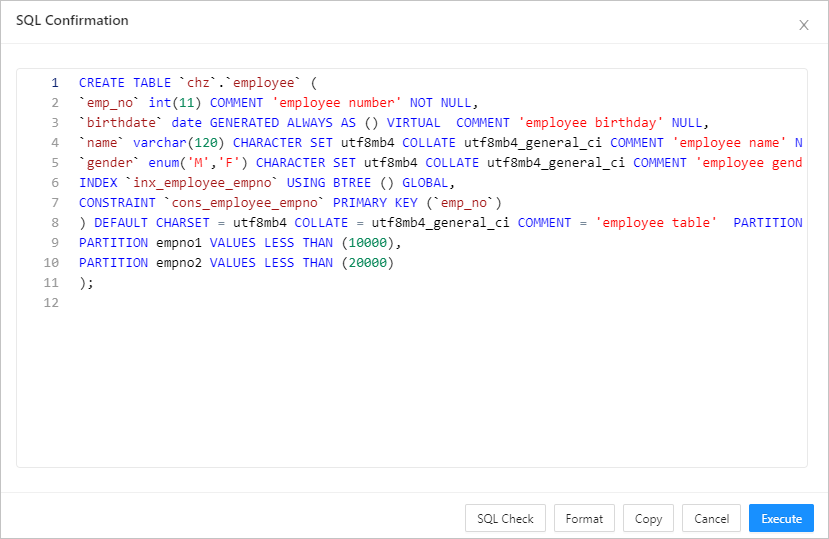
After you click Submit, you can view the statement on the SQL confirmation page. You can perform SQL Check and Format operations on the statement to facilitate viewing.
The syntax is as follows:
CREATE TABLE table_name (column_name column_type, column_name column_type,.......);
The following table describes the parameters.
Parameter |
Description |
|---|---|
| CREATE TABLE | The CREATE TABLE statement creates a table with a specified name. You must have the privilege to create tables. |
| table_name | The name of the table. The table name must conform to the identifier naming rules. |
| column_name column_type | The name and data type of each column in the table. Separate the tuples of multiple columns with commas (,). |
Step 7: Complete the table creation
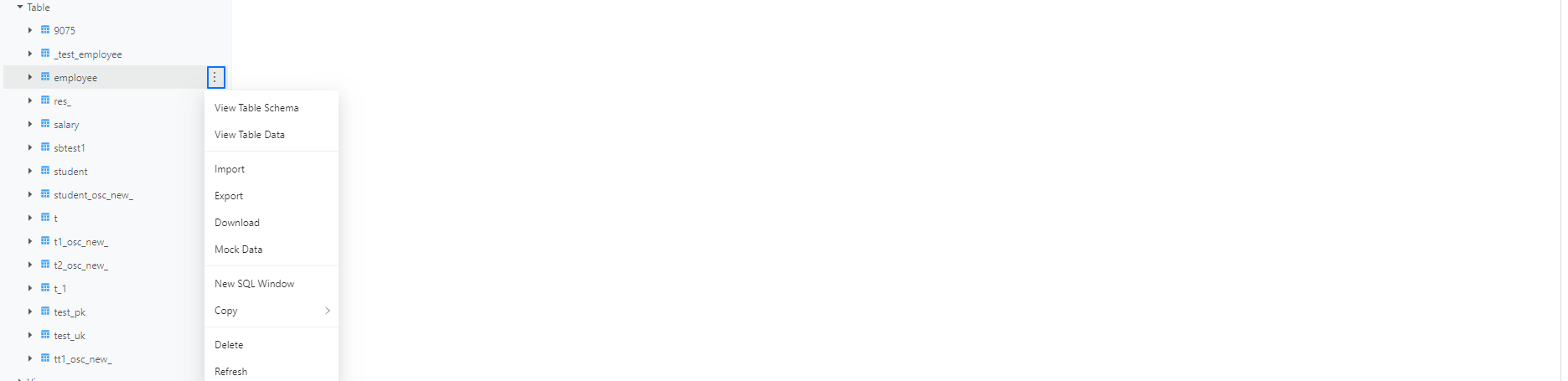
Click Execute. After the table is created, the employee table appears in the table list in the left-side navigation pane.
Note
You can click the More icon next to a table name in the table list in the left-side navigation pane, and select View Table Schema, View Table Data, Import, Export, Download, Mock Data, New SQL Window, Copy, Delete, or Refresh from the context menu to manage or operate the table.
You can use the SELECT statement to query data in the new table.
The syntax is as follows:
SELECT
 column_name,
 column_name
FROM
 table_name [WHERE Clause] [LIMIT N] [ OFFSET M]
The following table describes the parameters.
Parameter |
Description |
|---|---|
| SELECT | The keyword that indicates the name of the statement. You can use the SELECT statement to read one or more records. |
| column_name | The name of the column to be queried. An asterisk (*) indicates to query all columns. |
| WHERE | The keyword of the condition clause. |
| LIMIT | The number of records to be returned. |
| OFFSET | The data offset for the SELECT statement. By default, the offset is 0. |
Here is an example:
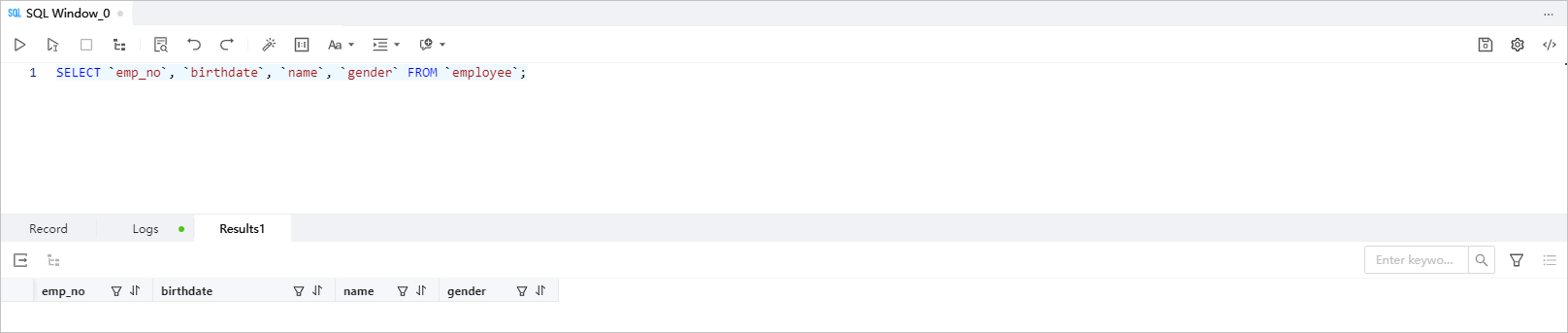
SELECT `emp_no`, `birthdate`, `name`, `gender` FROM `employee`;
Step 1: Specify the basic information
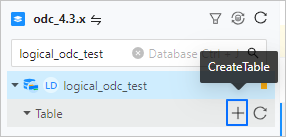
Log in to the database and go to the SQL window. You can click Table in the left-side navigation pane to view tables. To create a table object, click + next to Table in the left-side navigation pane.
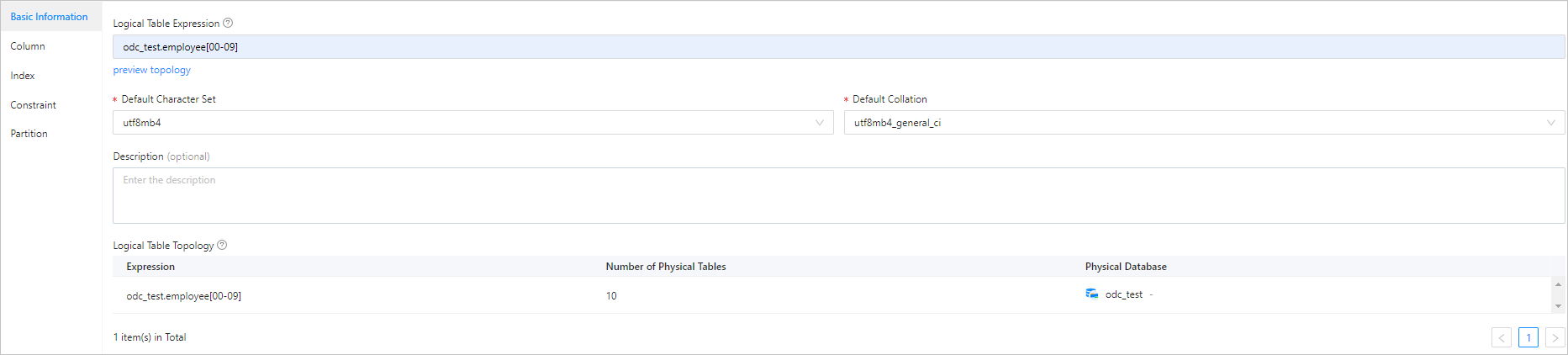
On the create table tab that appears, set the Basic Info parameters such as Logical Table Expression and Description.
Notice
- The logical table expression must contain the database name. In the
odc_test.employee[00-09]expression, for example,odc_testindicates the database name,employeeindicates the table name, and[00-09]indicates to create 10 tables. - The default name of the generated logical table consists of the non-number strings shared by the physical tables. For example, if the names of the physical tables are
db.test_0,db.test_1,db.test_2, anddb.test_3, the generated logical table is namedtest, and its expression isdb.test_[0-3]. For more information, see the description of logical table expression rules.
- The logical table expression must contain the database name. In the
Step 2: Set columns
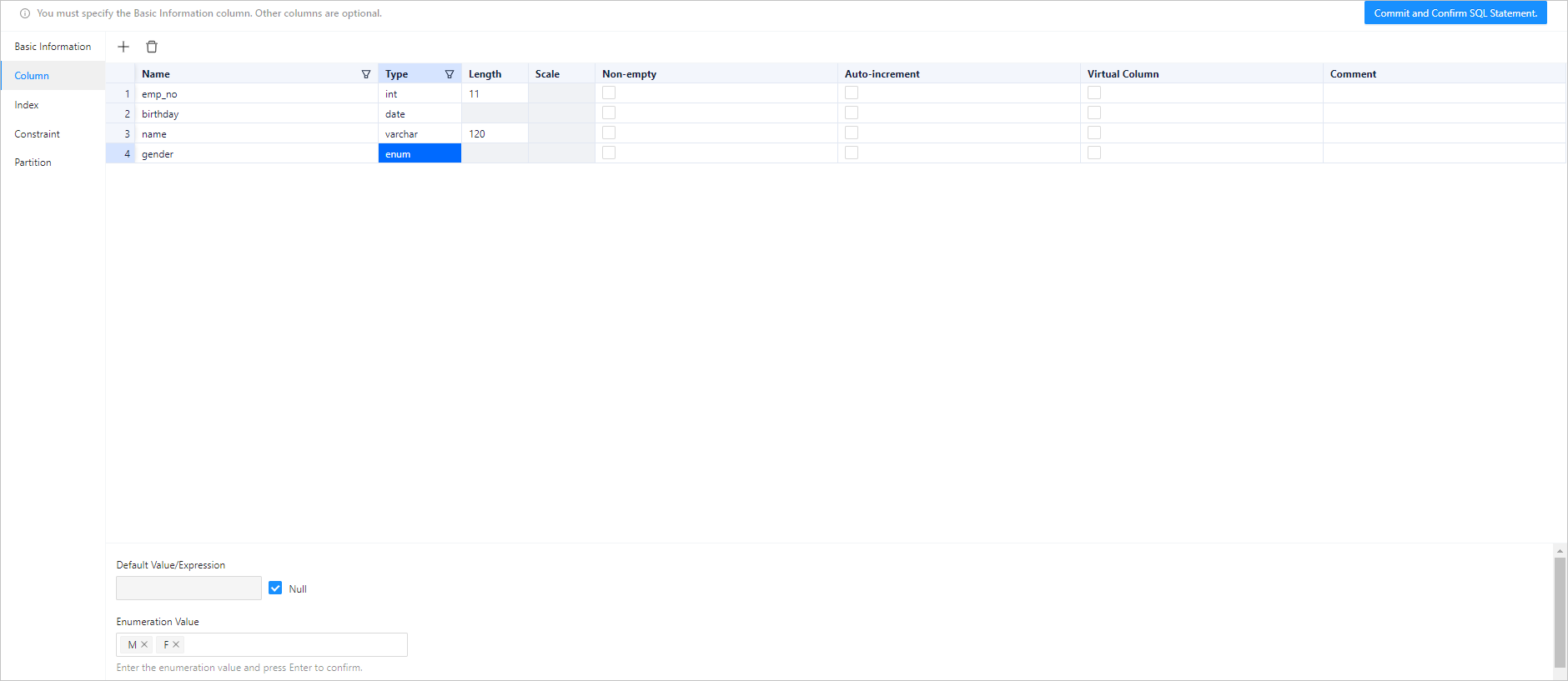
The following figure shows the information that you need to specify when you add a column.
Note
- After you copy a row, you can paste the row by using the Command+V or Ctrl+V shortcut keys.
- The auxiliary editing section at the bottom of the page displays additional information about the selected column.
- The basic information and columns parameters are required. The other parameters are optional. After you specify the basic information and columns parameters, you can submit the parameters and confirm the SQL statement to create the table.
Step 3: Set indexes
If a table contains a large amount of data, you can use indexes to accelerate data queries. An index is a data structure that pre-sorts the values of one or more columns in a table. By using indexes, you can directly locate records that meet the conditions.
The following figure shows the information that you need to specify when you set an index.

Step 4: Set constraints
Constraints are used to specify data rules in a table. A data operation that violates the constraints is terminated.

ODC supports the following four types of table constraints:
Primary Key Constraint: A primary key uniquely identifies each row of data in a table. A primary key constraint is one or more fields that uniquely identify each row of data in a table. You can set only one primary key constraint for a table, and you cannot modify the primary key constraint after you configure the primary key constraint.
Unique Constraint: Ensures that data in one or more fields is unique in the table. You can set multiple unique constraints for one table.
Foreign Key Constraint: A foreign key is one or more columns that establish a link between the data in two tables. The foreign key constraint maintains the data consistency and integrity between associated tables. After you configure a foreign key constraint, you cannot create a new foreign key constraint or modify the existing foreign key constraint.
Check Constraints: The check constraint verifies the data in the database based on the configured check rules when you edit the data. Data modification is allowed only after the verification is passed.
Step 5: Set partitioning rules
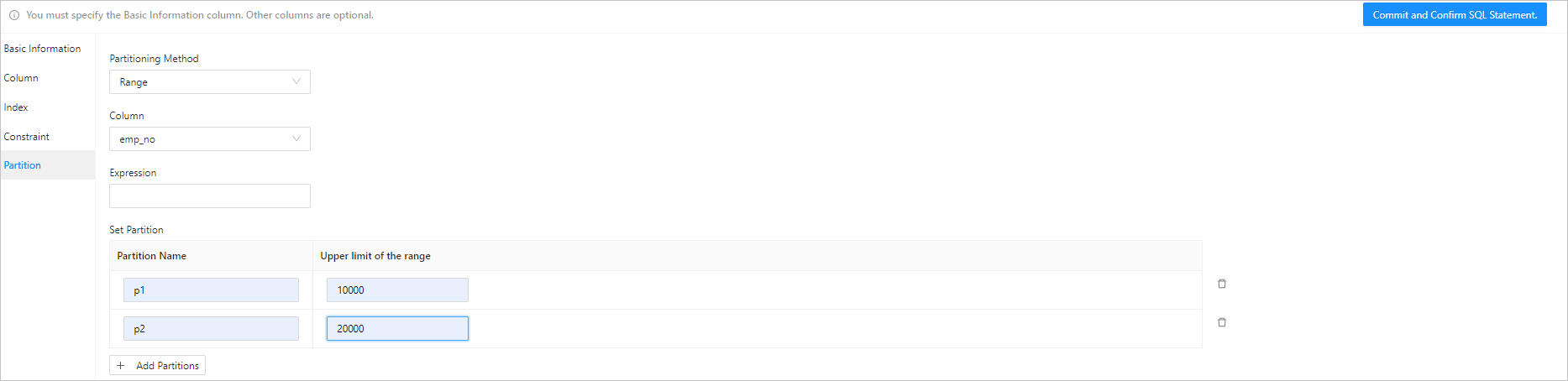
You can partition a table that contains a large amount of data. After a table is partitioned, data of the table is stored in multiple tablespaces. The system does not scan the entire table each time it queries data.
In MySQL compatible mode, OceanBase Database supports the following partitioning methods: KEY, HASH, RANGE, RANGE COLUMNS, LIST, and LIST COLUMNS.
In Oracle compatible mode, OceanBase Database supports the following three partitioning methods: LIST, RANGE, and HASH.
Step 6: Confirm the SQL statement
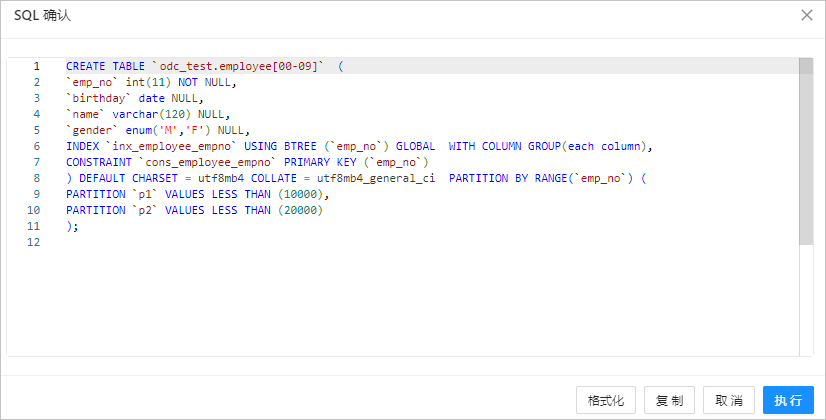
After you click Commit, you can view the statement on the SQL confirmation page. You can also click Format to format the statement for easier viewing.
The syntax is as follows:
CREATE TABLE table_name (column_name column_type, column_name column_type,.......);
Parameter description: | Parameter | Description | | --- | --- | | CREATE TABLE | Creates a table with the specified name. You must have the privilege to create tables. | | table_name | The name of the table created. The table name must conform to the identifier naming rules. |
| column_name column_type | specifies the name and data type of each column in the table. Separate the names of multiple columns with commas (,). |
Step 7: Complete the table creation process.
Click Execute. After the table is created, the employee table appears in the table list in the left-side navigation pane.
Create an external table
The example in this section describes how to create an external table named employee in the odc_test database in the SQL window by mapping the specified file in Alibaba Cloud OSS to the odc_test database.
Create an external file.
Create a directory named
external tableon the OSS console.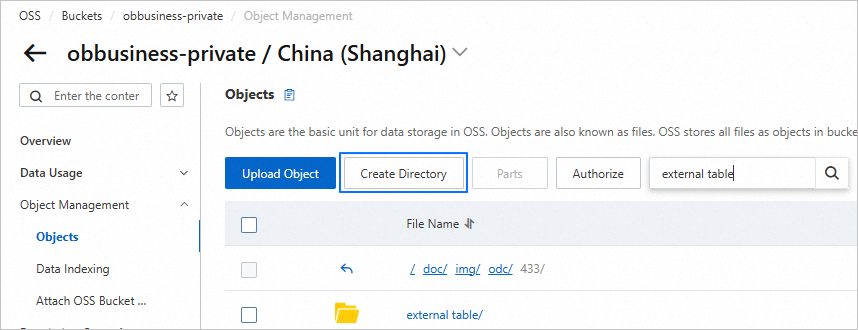
Upload the
employee.csvfile to theexternal tabledirectory.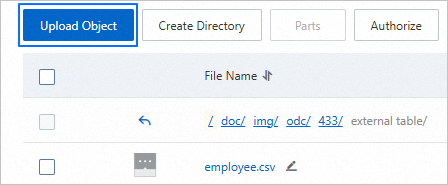
Copy the path of the
employeetable, such ashttps://ob*********.oss-cn-shanghai.aliyuncs.com/doc/img/odc/433/external%20table/employee.csv.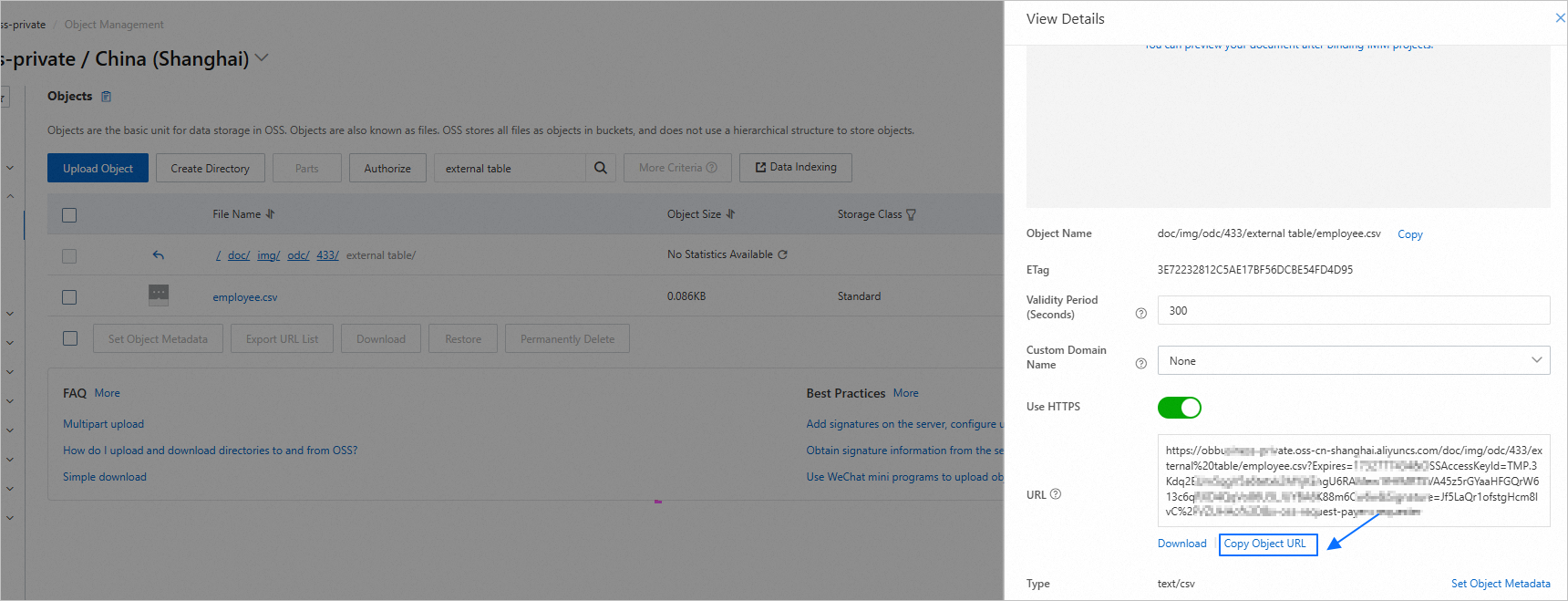
In the SQL window of ODC, execute the following SQL statement to create a table named
employee.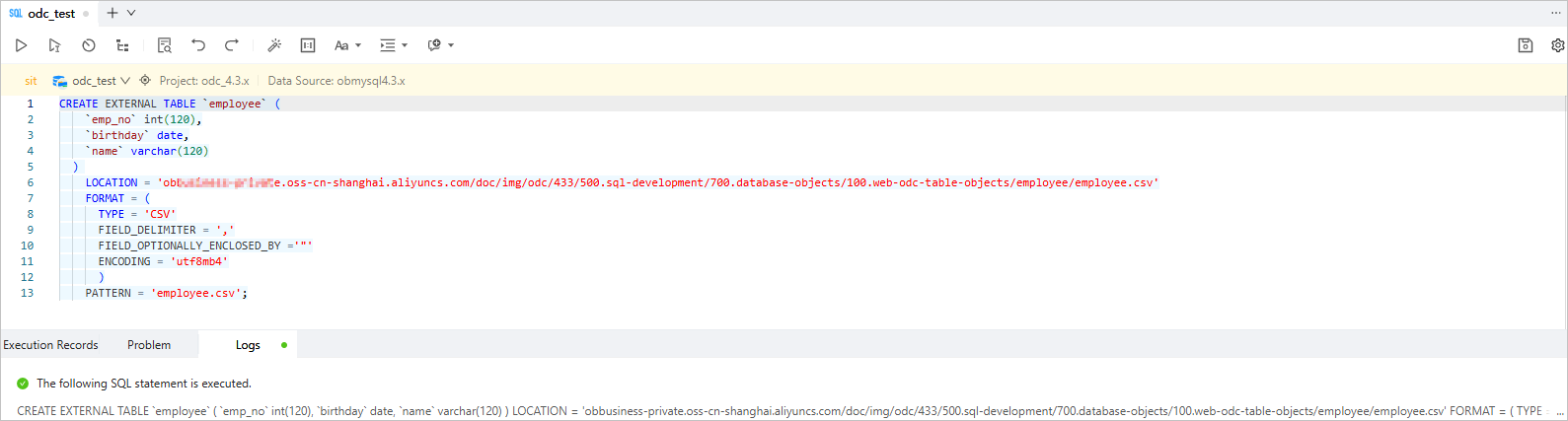
CREATE EXTERNAL TABLE `employee` (
   `emp_no` int(120),
   `birthday` date,
   `name` varchar(120)
)
   LOCATION = 'ob*********.oss-cn-shanghai.aliyuncs.com/doc/img/odc/433/500.sql-development/700.database-objects/100.web-odc-table-objects/employee/employee.csv'
   FORMAT = (
      TYPE = 'CSV'
      FIELD_DELIMITER = ','
      FIELD_OPTIONALLY_ENCLOSED_BY ='"'
      ENCODING = 'utf8mb4'
      )
   PATTERN = 'employee.csv';
The
LOCATIONoption specifies the path where the external table is stored.Local location format:
LOCATION = '[file://] local_file_path'. If you use theLocationformat, you must set the system variablesecure_file_privto specify an accessible path. For more information, see secure_file_priv.Remote location format:
LOCATION = '{oss|cos|S3}://$ACCESS_ID:$ACCESS_KEY@$HOST/remote_file_path', where$ACCESS_ID,$ACCESS_KEY, and$HOSTare required for accessing Alibaba Cloud OSS, Tencent Cloud Object Storage (COS), or Amazon Simple Storage Service (S3).
FORMAT = ( TYPE = 'CSV'... )specifies the CSV format of the external file. The parameters are described as follows:TYPE: the type of the external file.LINE_DELIMITER: the line delimiter for the CSV file. The default value isLINE_DELIMITER='\n'.FIELD_DELIMITER: the field delimiter for the CSV file. The default value isFIELD_DELIMITER='\t'.ESCAPE: the escape character for the CSV file, which can be only 1 byte in length. The default value isESCAPE ='\'.FIELD_OPTIONALLY_ENCLOSED_BY: the characters that enclose the fields in the CSV file. By default, this parameter is left empty.ENCODING: the character set encoding used by the file. For all character sets supported in MySQL compatible mode, see Character sets. If this parameter is not specified, the default value UTF8MB4 takes effect.NULL_IF: the strings to be treated as NULL values. By default, this parameter is left empty.SKIP_HEADER: specifies to skip the file header, and specifies the number of lines to skip.SKIP_BLANK_LINES: specifies whether to skip blank lines. The default value isFALSE, which specifies not to skip blank lines.TRIM_SPACE: specifies whether to remove leading and trailing spaces from fields in the file. The default value isFALSE, which specifies not to remove leading and trailing spaces from fields in the file.EMPTY_FIELD_AS_NULL: specifies whether to treat empty strings as NULL values. The default value isFALSE, which specifies not to treat empty strings as NULL values.
The
PATTERNoption specifies a regular pattern string to filter files in theLOCATIONdirectory. For each file in the directory specified byLOCATION, if the file path matches the pattern string, the external table accesses the file. Otherwise, the external table skips the file. By default, if this parameter is not specified, all files in the directory specified byLOCATIONare accessible to the external table. The external table stores the list of files that match theLOCATIONstring specified byPATTERNin the system table of the database. During a scan, the external table accesses external files based on this list.
In the left-side navigation pane, view the employee table in the external table list.