






This topic describes the basic operations you can perform by using Web ODC.
Create a user
Example: Create a user named ODCUSER1 in ODC as the administrator and grant the permissions of the system_admin role to the user.
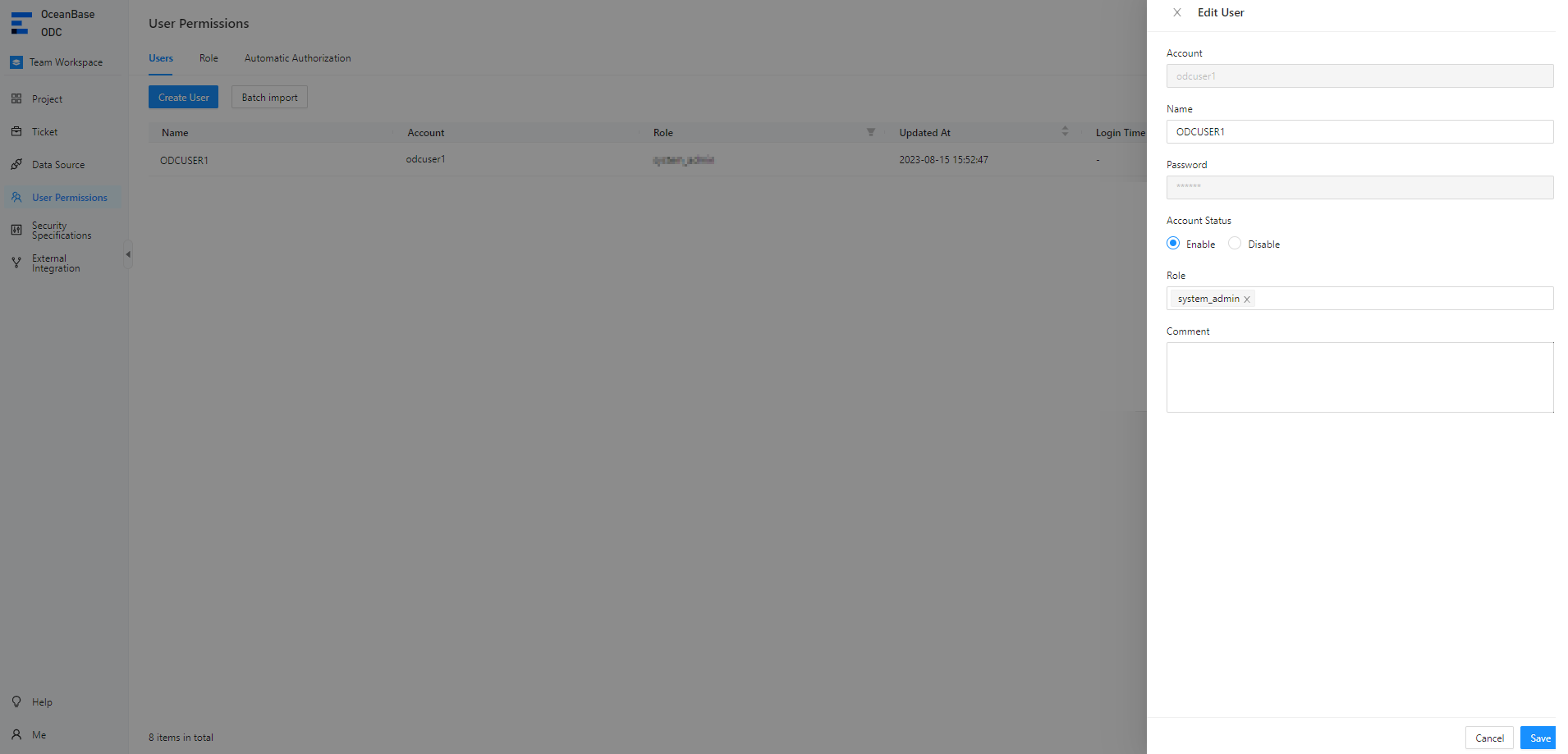
Log in to Web ODC. In the left-side navigation pane of the project collaboration window, choose User Permissions > User, click Create User.

On the Create User page that appears, specify the user and role information.
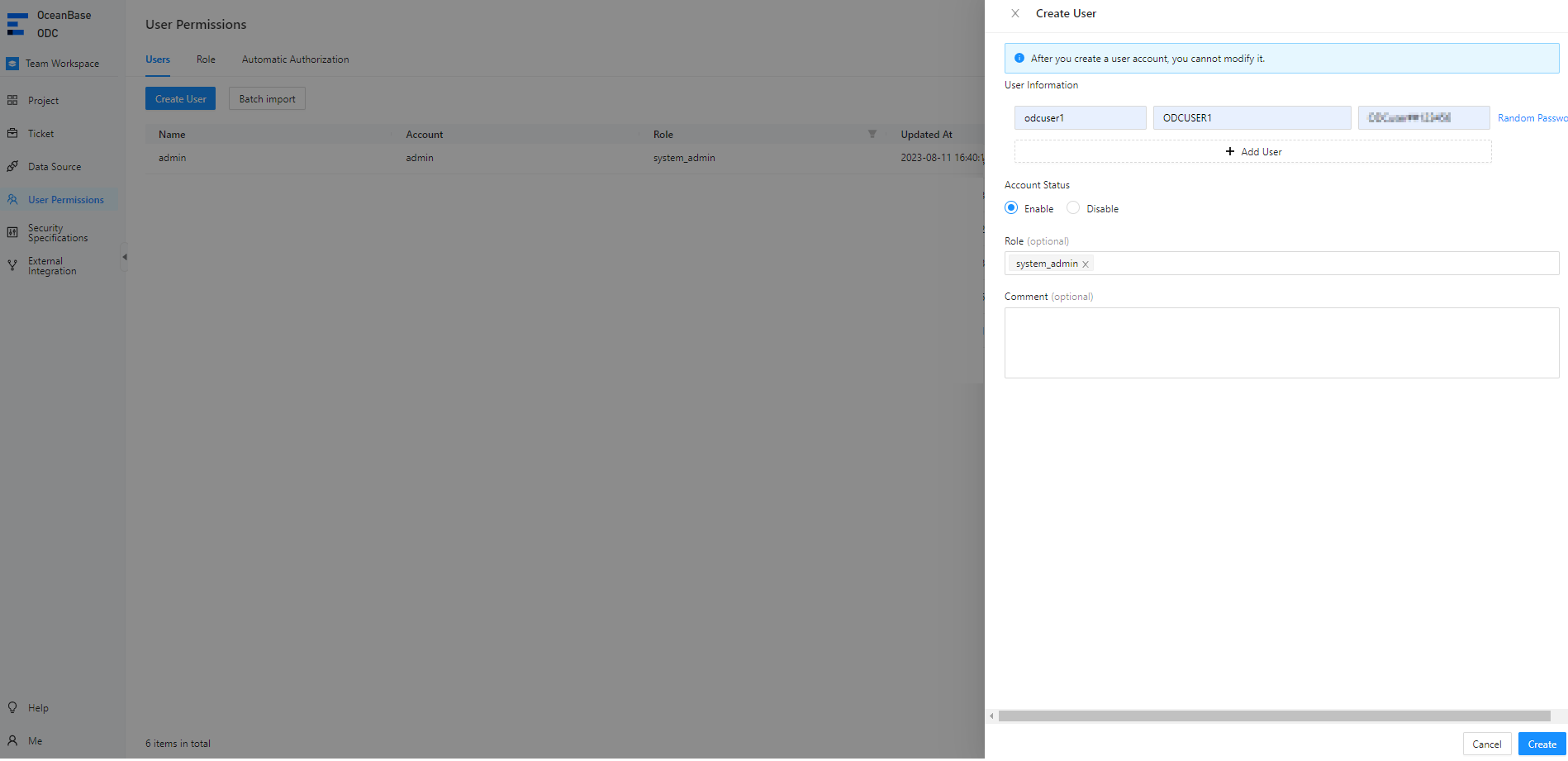
This parameter is optional. You can assign multiple roles to a user. Click the field. In the drop-down list, select the roles that you want to assign to all users that you have created. If no role is available, go to the Create Role page to create one.
Click Create to submit the user information.
Create a data source
Create an OceanBase data source
Example: Create an OceanBase MySQL compatible mode data source in ODC.
Parameter |
Example value |
|---|---|
| Data source name | mysql4.2.0 |
| Host IP address | xxx.x.x.x |
| Port number | 8080 |
| Cluster name | odc_cluster |
| Tenant name | mysql_tenant |
| Database username | odc |
| Database password | ****** |
| sys tenant account | test |
| sys tenant password | ****** |
Obtain the connection information or connection string of the data source instance. The connection string is in the format of mysql -h host name -P port number -u database username@tenant name # cluster name -D default database -p 'database password'. Here is an example:
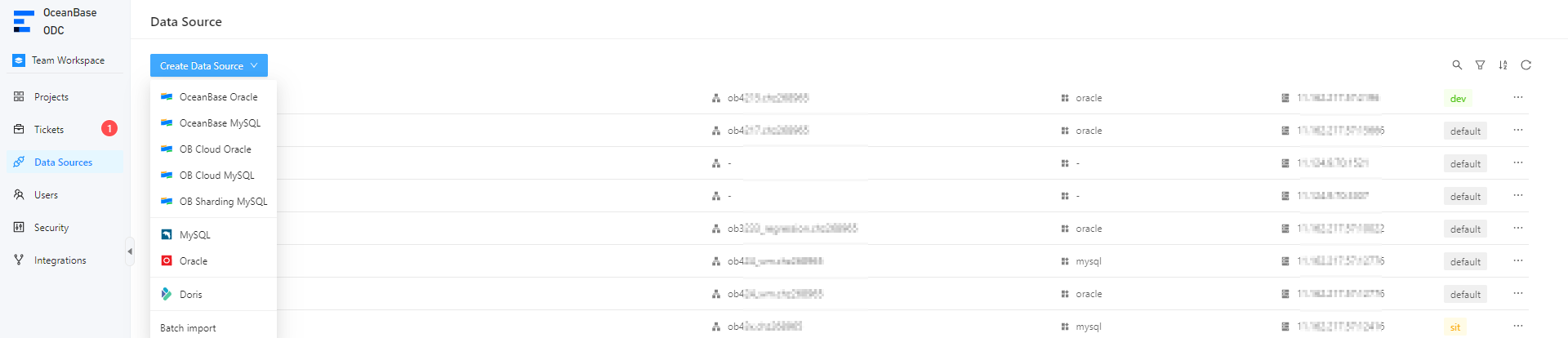
-hxxx.x.x.x -P8080 -uodc@mysql_tenant#odc_cluster -Dodc -p'******'In the left-side navigation pane of the project collaboration window, choose Data Source > Create Data Source > OceanBase MySQL Compatible.
ODC supports the following OceanBase database types:
OceanBase MySQL compatible mode or OceanBase Oracle compatible mode: a database instance that you build in your own environment.
MySQL compatible mode of OceanBase Cloud or Oracle compatible mode of OceanBase Cloud: a database instance on Alibaba Cloud.
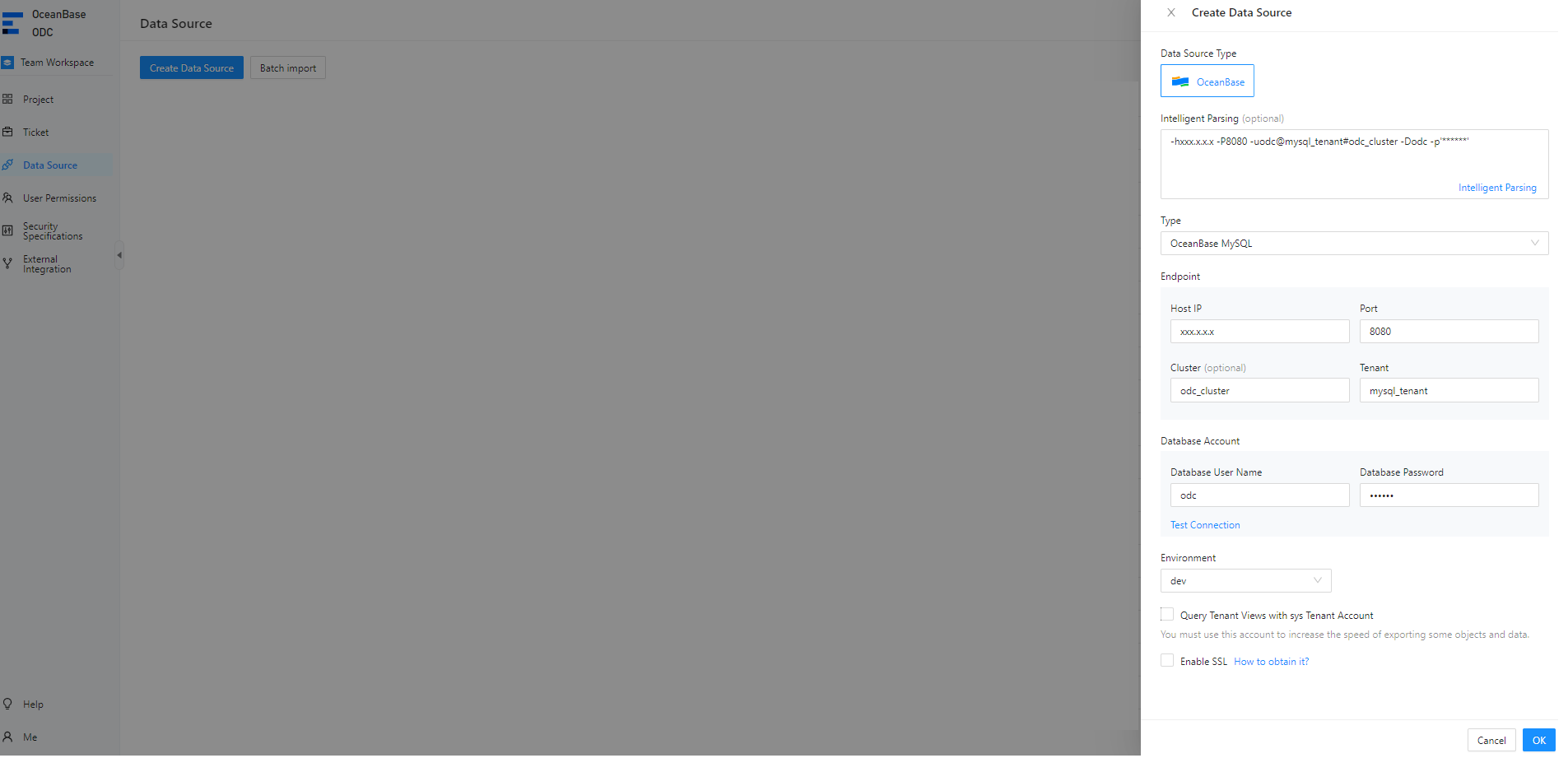
In the Create Data Source panel, specify the following parameters.
Note
If you already have a connection string of the MySQL database, you can directly obtain the required information from the connection string or use the intelligent parsing feature on the tab.
 ParameterDescription
Data Source Type By default, the selected data source type is displayed. Intelligent Parsing You can paste a connection string to the field. ODC automatically identifies the string and fills in the corresponding values. Endpoint - Host IP/domain name: the IP address of the server where the target database is located.
- Port: the port number of the server where the target database is located.
- Cluster: the name of the cluster where the target database is located. This parameter is not required for logical databases.
- Tenant: the name of the tenant in which the target database is located. This parameter is not required for logical databases.
Note
If the tenant is created on Alibaba Cloud or in OCP, you can obtain the host name and port number from the information page of the tenant in which the target database is located. Default port number: 8989.
Database Account - Account: the username of an account created in the tenant. In MySQL compatible mode, this account must have the privilege to access the default database.
- Password: the password of the account created in the tenant. You can click Test Connection next to the password field to test whether you can connect to the target database.
Note
- An error will be returned if the configurations such as the username, password, and network settings are invalid.
- You can only connect to a database in the current tenant. Otherwise, a test failure error will be returned.
- Before you save the settings, you can click Test Connection to test the database connection. If the database username and password are correct, the system returns a message indicating that the connection succeeded. In ODC V4.0.0 and later, you can save the connection without setting the database account and password.
Environment You can select an environment type as needed. Valid values: dev, sit, and prod. Note
For more information about data source configurations, see Manage data sources.
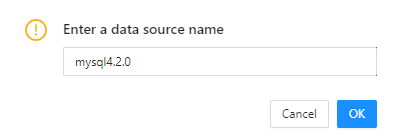
Click OK in the lower-right corner of the panel. In the dialog box that appears, enter a connection name to create the data source.
Create a MySQL data source
Note
ODC V4.2.2 and later allow you to create a MySQL data source and manage data in a MySQL database through ODC. For more information about limitations on MySQL data sources, see Limitations.
Example: Create a MySQL data source in ODC.
Parameter |
Example value |
|---|---|
| Data Source Name | mysql4.2.2 |
| Host IP Address | xxx.x.x.x |
| Port | 8080 |
| Database Username | odc |
| Database Password | ****** |
Log in to Web ODC. In the left-side navigation pane of the project collaboration window, choose Data Source > Create Data Source > MySQL.
In the Create Data Source panel, specify the following information.
Note
If you already have a connection string, you can directly obtain the required information from the connection string or use the intelligent parsing tool provided on the tab to fill in the information.
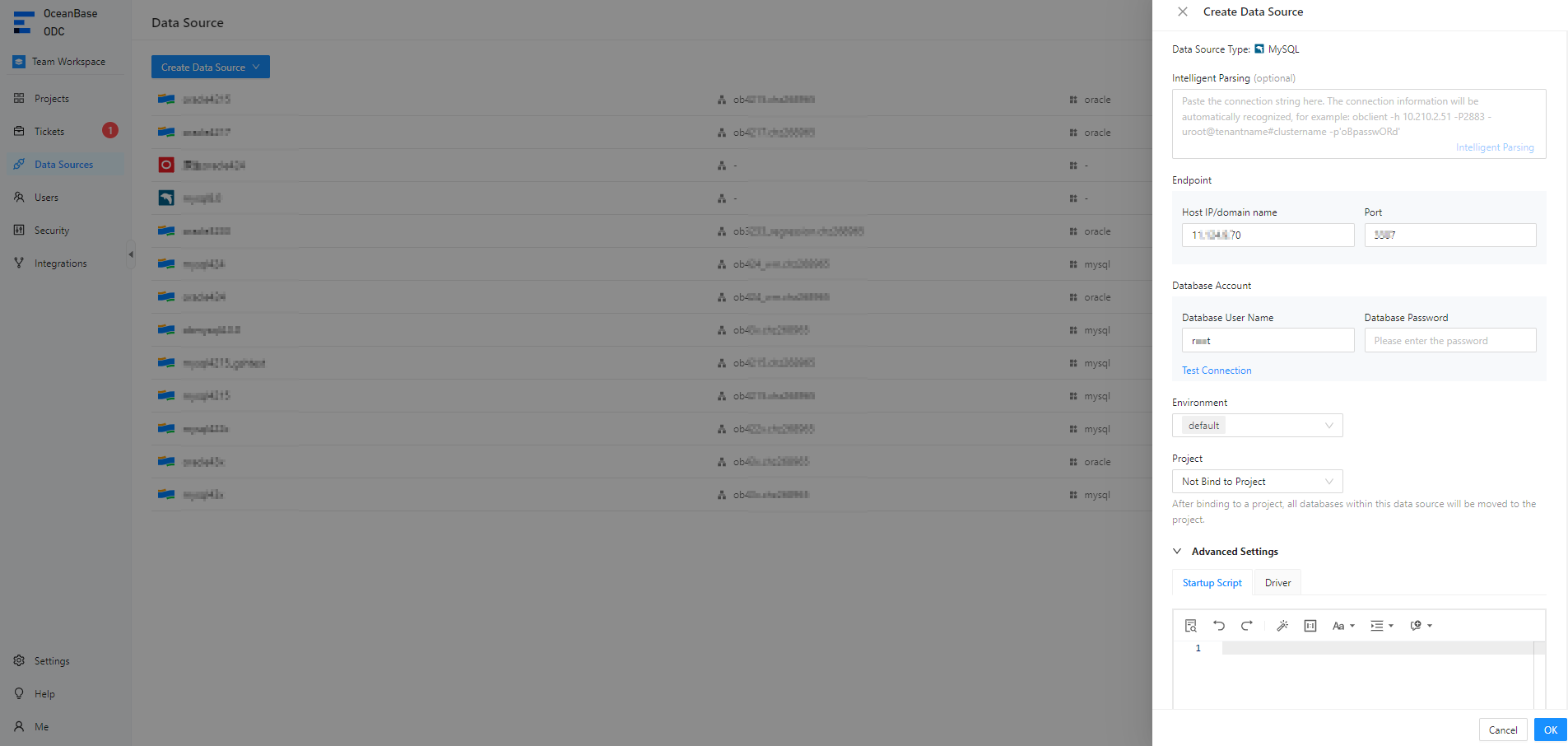 ParameterDescription
Data Source Type By default, the selected data source type is displayed. Intelligent Parsing You can paste a connection string to the field. ODC automatically identifies the string and fills in the corresponding values. Endpoint - Host IP: the IP address of the server where the target database is located.
- Port: the port number of the server where the target database is located.
Database Account - Username: the username of the MySQL database.
- Password: the password configured for the account in the MySQL database. You can click Test Connection next to the password field to test whether you can connect to the target database.
Note
- An error will be returned if the configurations such as the username, password, and network settings are invalid.
- Before you save the configurations, you can click Test Connection to test the database connection. If the database username and password are correct, the system returns a message indicating that the connection succeeded, Connection succeeded. ODC V4.0.0 and later allow you to save the connection without configuring a username and password.
Environment You can select the environment type. Common types include dev, sit, and prod. Project You can bind a data source to a project or leave it unbound. If you bind a data source to a project, the databases created under the data source will be automatically moved to the project. Advanced Settings - Session Init SQL: You can configure a SQL statement to initialize the connection session. Example:
set session ob_query_timeout=60000000 - Driver Attributes: You can configure driver attributes to connect to OceanBase Database and implement specific features.
Click OK in the lower-right corner of the panel.
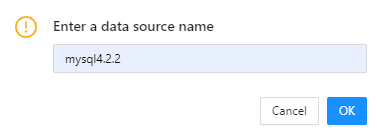
In the dialog box that appears, enter a data source name and click OK to save the current configurations to the ODC data source list.
Create an Oracle data source
Note
ODC V4.2.4 and later allow you to create an Oracle data source and manage data in an Oracle database through ODC. For more information about limitations on Oracle data sources, see Limitations
Example: Create an Oracle data source in ODC.
Parameter |
Example value |
|---|---|
| Data Source Name | oracle4.2.4 |
| Host IP Address | xxx.x.x.x |
| Port | 8080 |
| Database SID | test |
| Database Username | odc |
| Database Password | ****** |
Log in to Web ODC. In the left-side navigation pane of the project collaboration window, choose Data Source > Create Data Source > Oracle.
In the Create Data Source panel, specify the following information.
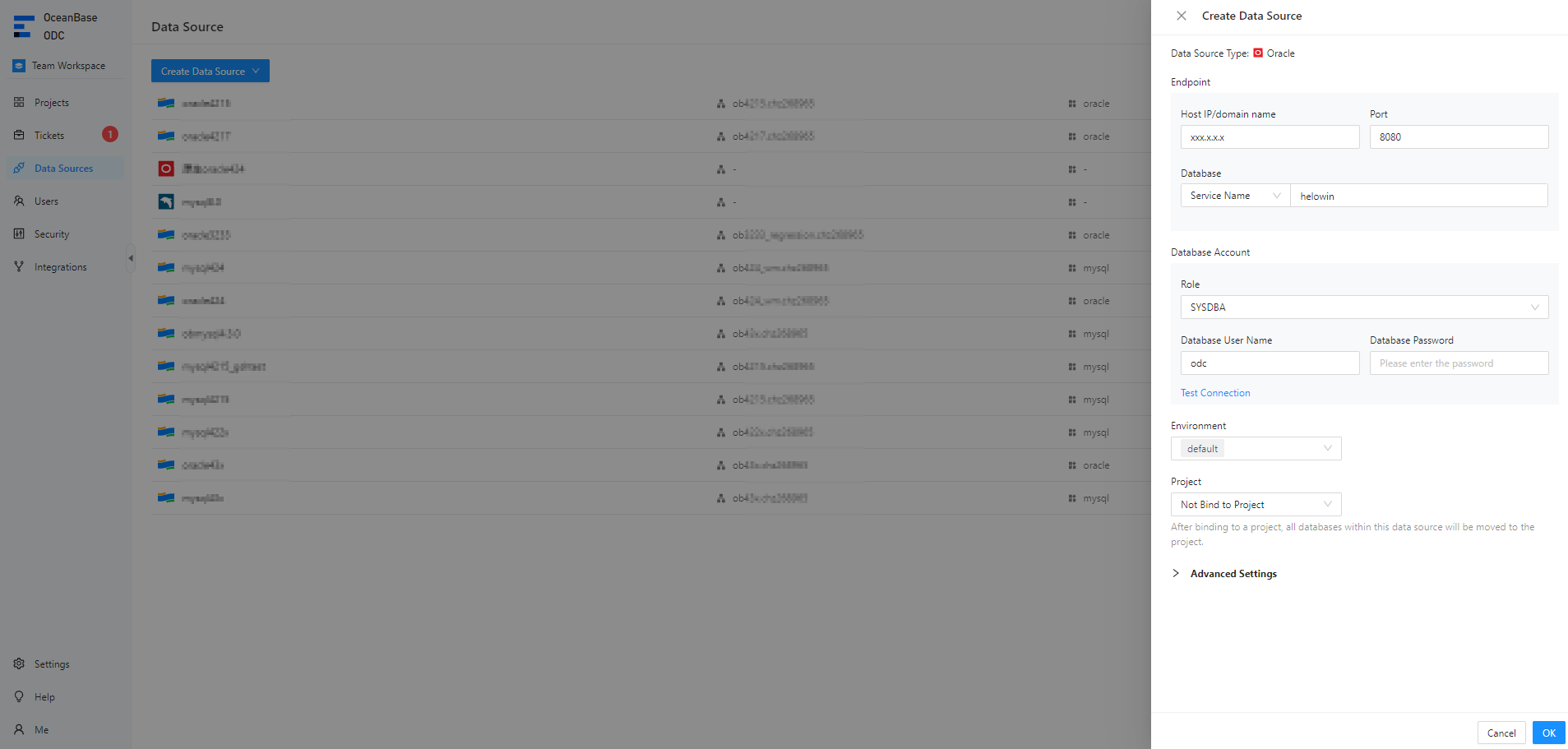 ParameterDescription
Data Source Type The data source type that you selected. Connection Address - Host IP/domain name: the IP address of the server where the target database is located.
- Port: the port number of the server where the target database is located.
- Database: the SID (instance name) or SERVICE_NAME (service name) of the database.
Database Account - Role: DEFAULT/SYSDBA/SYSOPER.
- Database Username: the username for logging in to the Oracle database.
- Database Password: the password created for the account in the Oracle database. You can click Test Connection next to the password field to test whether you can connect to the destination database.
Note
- An error will be returned if the configurations such as the username, password, or network settings are invalid.
- Before you save the configurations, you can click Test Connection to test the database connection. If the database username and password are correct, the system returns a message indicating that the connection succeeded. In ODC V4.0.0 and later, you can save the connection without setting the database account and password.
Environment The environment type, such as dev, sit, or prod. Project The project to which the data source is bound, or no project. After a data source is bound to a project, the databases that you create automatically belong to the project. Advanced Settings - Startup Script: You can configure a connection session by using SQL statements. Example:
set session ob_query_timeout=60000000 - Driver Attributes: You can configure driver attributes to connect to OceanBase Database and implement specific features.
Click OK in the lower-right corner of the panel.
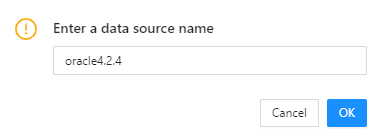
In the dialog box that appears, click OK to save the current configurations to the ODC data source list.
Create a project
Example: Create a project named odc_4.3.x in ODC.
Grant the project creation permission to the user as the ODC system administrator.
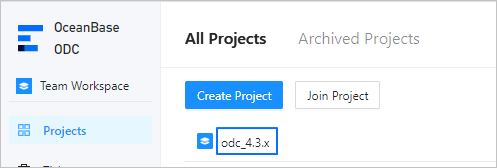
Choose Project > All Projects. On the page that appears, click Create Project.

On the Create Project page, configure the following parameters.
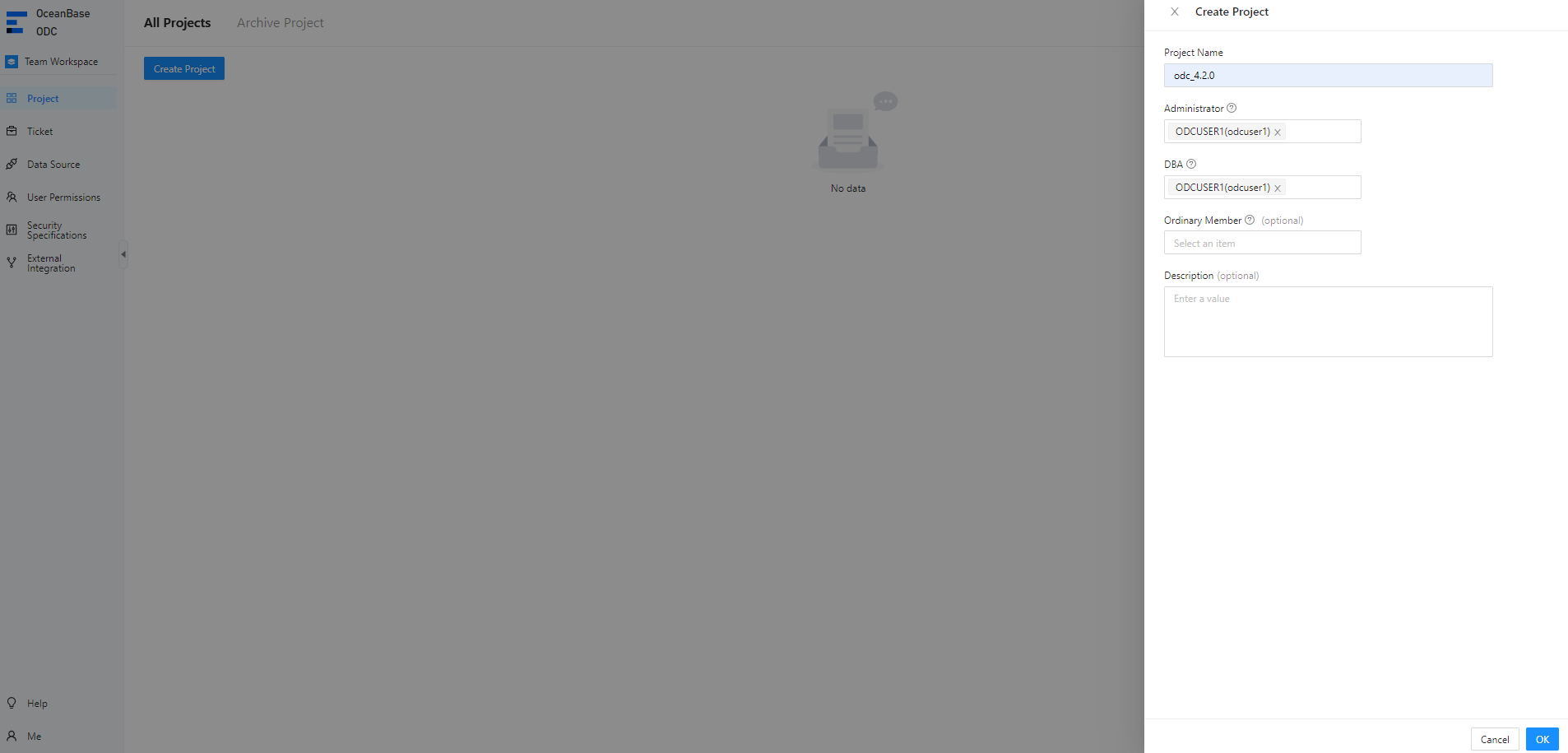 ParameterDescription
Project Name The name of the project. Administrator A user that manages all databases and members of the project. DBA A user that manages all databases of the project. Developer (Optional) A user that can log in to all databases of the project. Security Administrator (Optional) A user that can manage only sensitive columns of the project and participate in review. Participant (Optional) A user that can view basic project information, apply for database permissions, and submit tickets. Description (Optional) The description of the project. Click OK.
Note
If you do not have the permission to create a project, you can apply for project permissions on the Projects or Tickets tab to join an existing project. For more information, see Project Collaborative Management.
Add a database to the project
Example: Add the odc_test database to the odc_4.3.x project.
Parameter |
Example value |
|---|---|
| Project name | odc_4.3.x |
| Data source | obmysql4.3.X |
| Database name | odc_test |
Choose Project > All Projects. On the tab that appears, click the project name odc_4.3.x.
On the Database tab, click Add Database.
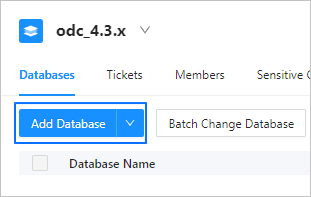
In the Add Database dialog box, select the created data source mysql410 and database odc_test, and then click OK.
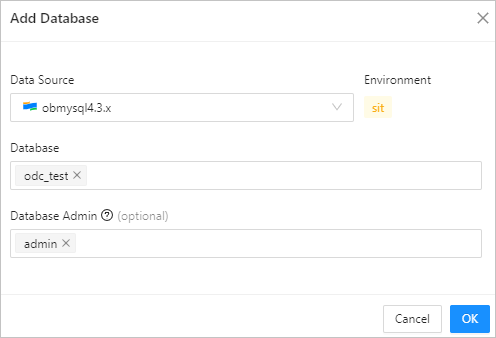
In the Database list, view the added database odc_test.
You can click the edit icon in the remarks to add remarks to the database for easy reference later.
Note
Only the project admin and project DBA can modify database remarks in the project.

In the Database list, click the database name odc_test or SQL Console, and then click Log on to Database in the operation column.

The SQL window appears.

Note
- If you do not have database permissions, apply for database permissions in the Projects > Databases/Tickets section.
- ODC V4.3.2 and later allow you to configure multiple (or single) physical databases as a logical database and logical tables for querying and managing a large number of databases and tables.
Edit and execute SQL statements
Example: In the SQL window, create a table in the database of the target project.
Parameter |
Example value |
|---|---|
| Project name | odc_4.2.0 |
| Data source | obmysql4.3.0 |
| Database name | odc_test |
| Table name | employee |
In the odc_4.2.0 project, click Log on to Database to go to the SQL window.

In the SQL window, edit an SQL statement to create a table named
employee.
CREATE TABLE odc_test.employee (
emp_no int(120) COMMENT 'Employee ID' NOT NULL,
birthday date COMMENT 'Birthday' NULL,
name varchar(120) COMMENT 'Employee name' NULL,
CONSTRAINT cons_employee_empno PRIMARY KEY (emp_no)) DEFAULT CHARSET = utf8mb4 COLLATE = utf8mb4_general_ci;
In the SQL window, click
 to switch databases.
After you complete writing SQL statements, click Run F8 in the toolbar to run all SQL statements in the current SQL window.
FeatureDescriptionRun F8 Runs all SQL statements in the current window. Run current statement (F9) Runs all the selected SQL statements or the SQL statement in the line where the pointer is located. Abort Aborts the statement that is being executed. 
On the result tabs, view the execution records and logs.

Note
If you do not have the table permission, you can query/export/update the table through Table Permission Application in Tickets.
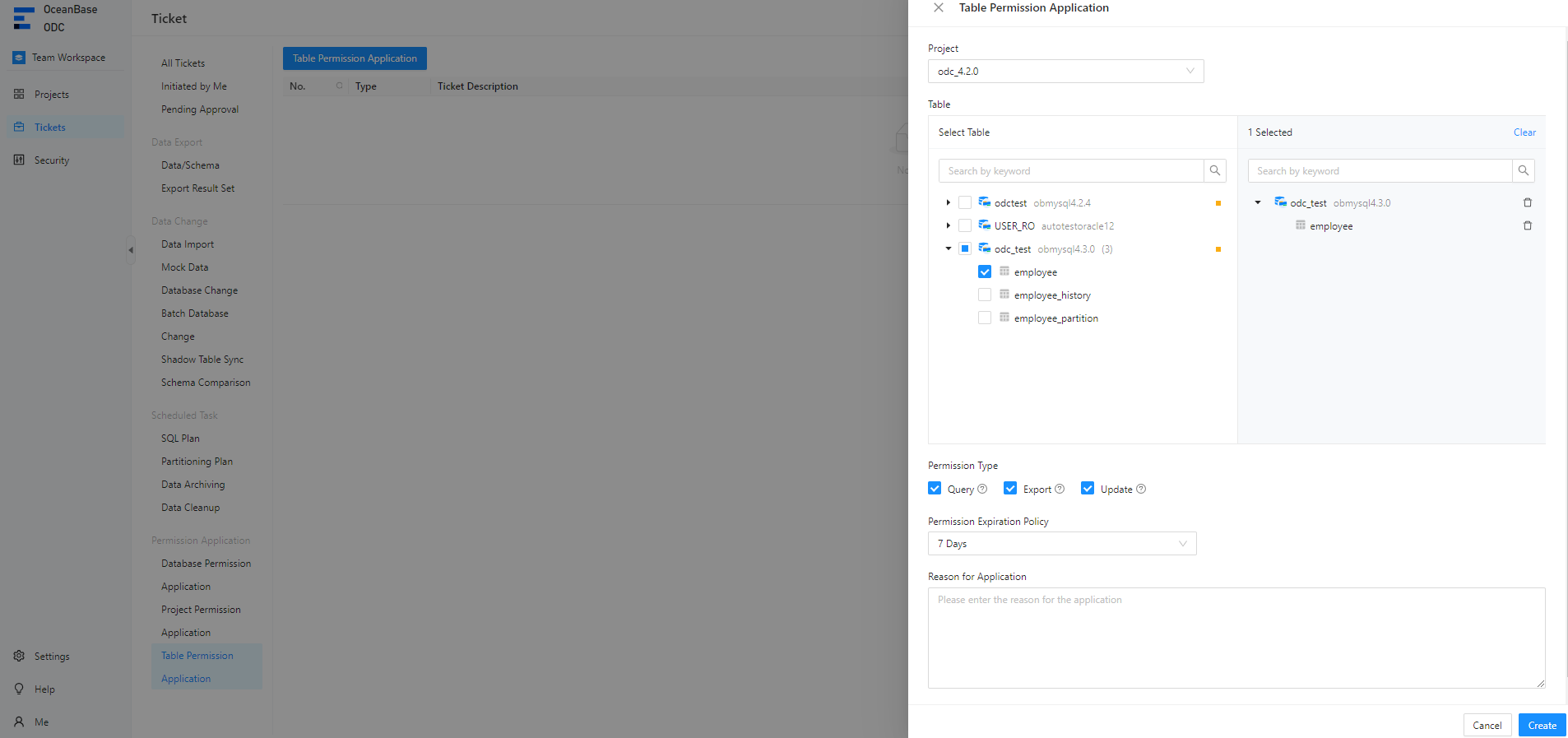
Create a database change task
Example: Change the value of name from xiaoguo to xiaofeng in the employee table in the odc_test database.
Parameter |
Example value |
|---|---|
| Project name | odc_4.2.0 |
| Data source | obmysql4.3.0 |
| Database name | odc_test |
| Table name | employee |
Choose Project > All Projects. On the tab that appears, click the project name odc_4.2.0.

On the Ticket tab, choose Database Change > Create Database Change Ticket > Create Database Change Ticket.
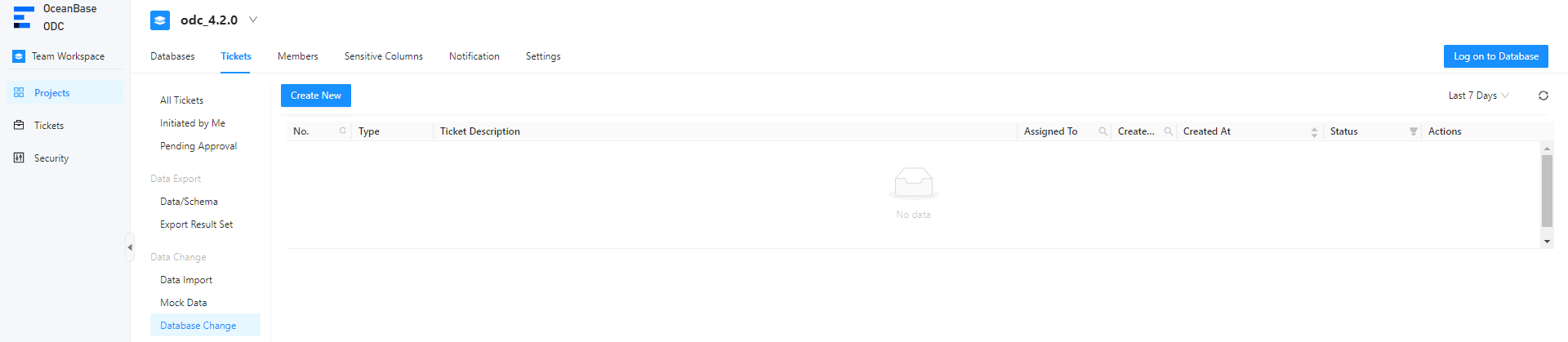
On the Create Database Change Ticket page, specify the following information.
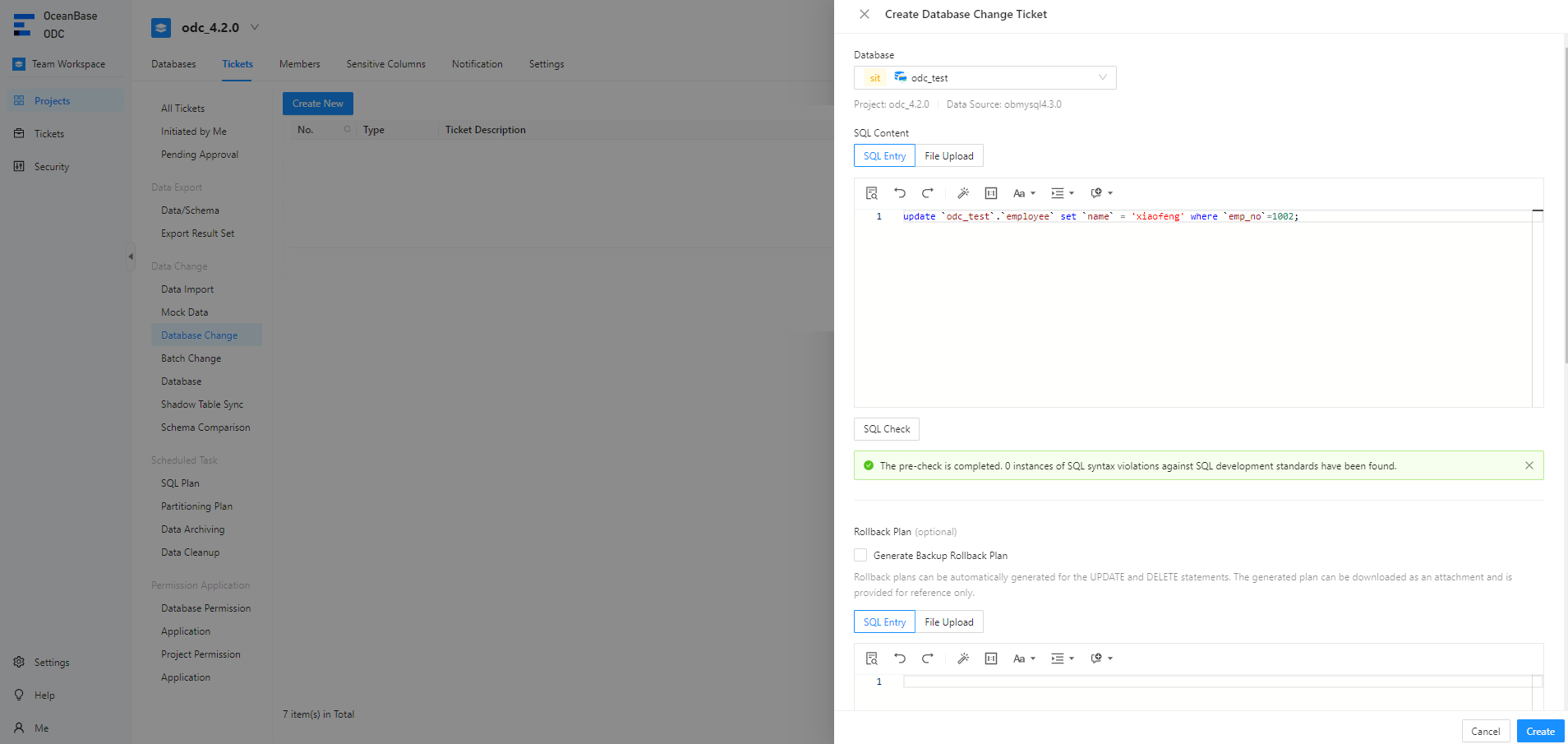
Click Create.
On the Ticket tab, you can view the approval status and basic information of the task in the Database Change list.

Note
- ODC V4.3.2 and later allow you to configure multiple (or a single) physical database as a logical database and logical tables to query and manage a large number of databases and tables.
- If you do not have the required privileges on the logical database, you can apply for the required privileges on the Privileges tab of the project or ticket page.