






This topic introduces some common tips for SQL development and operations in ODC.
Background information
OceanBase Developer Center (ODC) is an open-source, enterprise-grade collaborative database development tool designed to improve the security, efficiency, and teamwork of SQL development. As a core component of the OceanBase ecosystem, ODC supports multiple data sources (such as OceanBase, MySQL, and Oracle) and provides full lifecycle management, from SQL writing and execution to change management. ODC also offers many convenient features to support database development and maintenance.
Quickly reuse SQL statements
Reuse built-in snippets
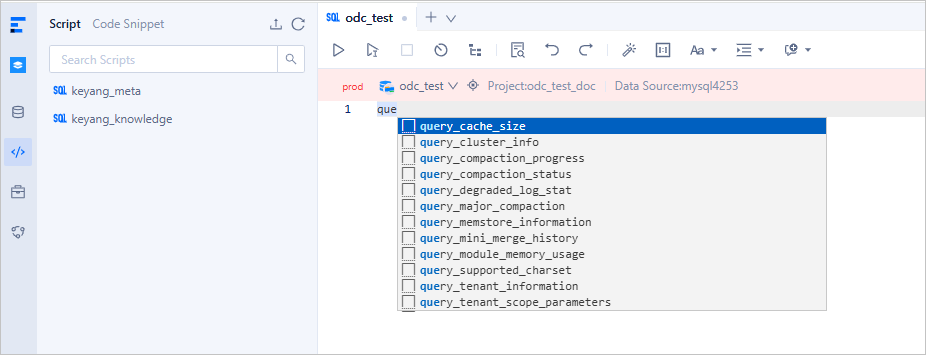
ODC comes with over 30 built-in code snippets. By typing keywords like query_, create_, or stats_ in the SQL window, you can easily access relevant snippets. Selecting a snippet will automatically insert the corresponding SQL template into the editor. These built-in snippets cover common tasks such as checking table data sizes, viewing available cluster resources, creating tenant resource pools, and more.
Reuse custom snippets
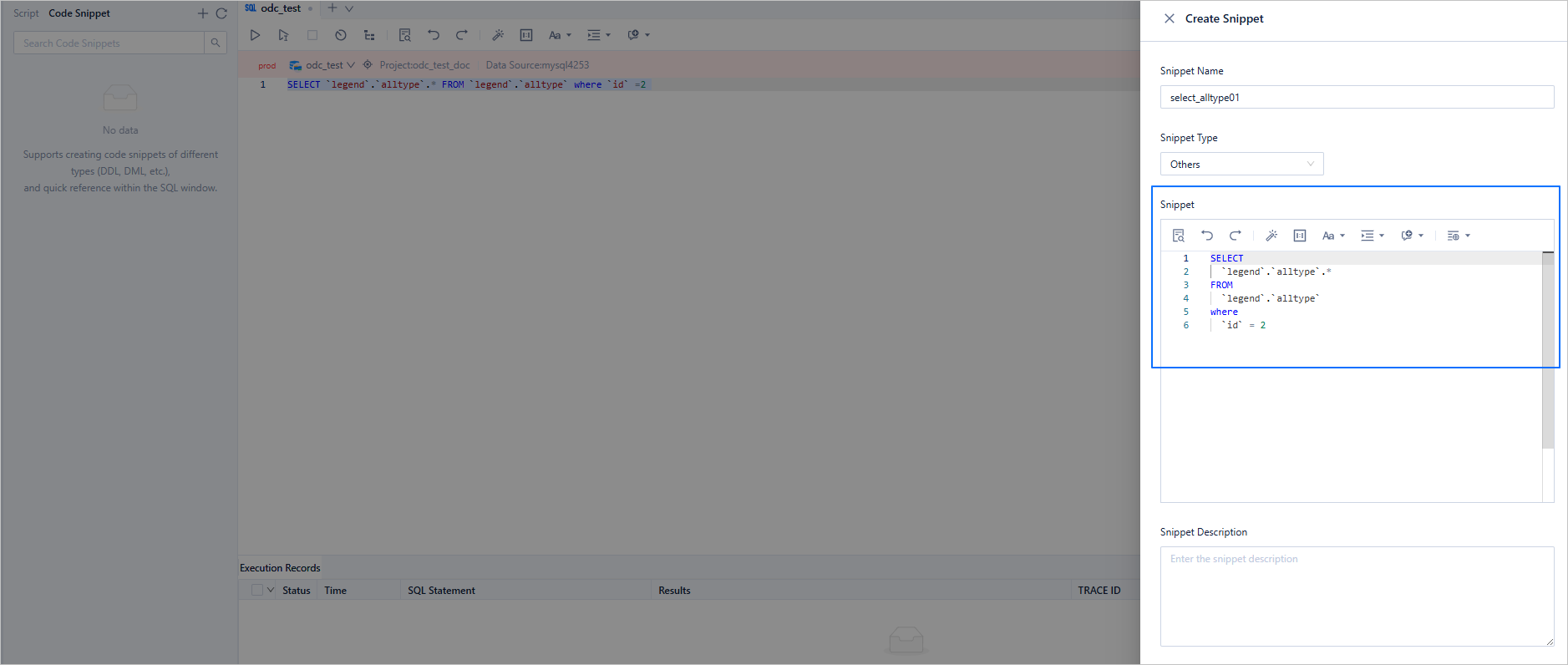
In addition to built-in snippets, you can also create and reuse your own custom snippets. Navigate to the snippet management page to create a snippet. Once saved, custom snippets can be accessed just like built-in snippets by typing matching keywords in the SQL window.
Quickly reuse SQL window content
Manage script files
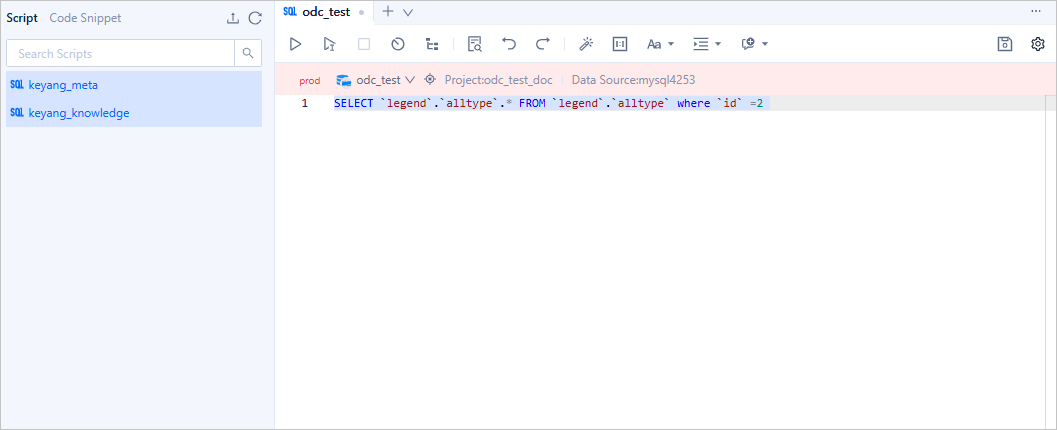
When developing SQL, you often need to share your work or reuse it in different environments. Manually copying and pasting across multiple windows can be time-consuming and error-prone. To solve this, ODC provides script management features that allow you to save SQL window content as script files, and supports batch download and import of scripts for easy reuse.
Execute script files
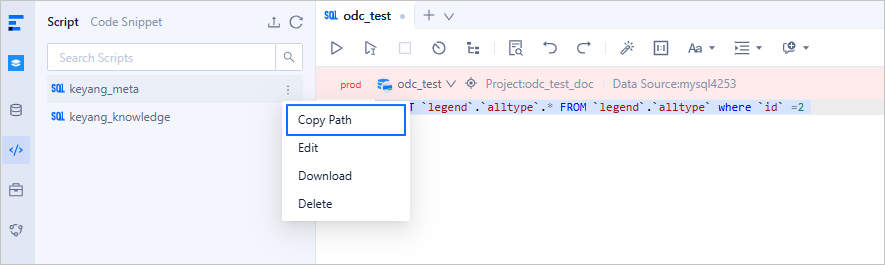
Saved scripts can be executed by double-clicking the script name to open it in a SQL window, or directly from the command line. Right-click the target script, select Copy Path, and then use the source command in the command-line window to execute it.
Quickly view object DDL in SQL window
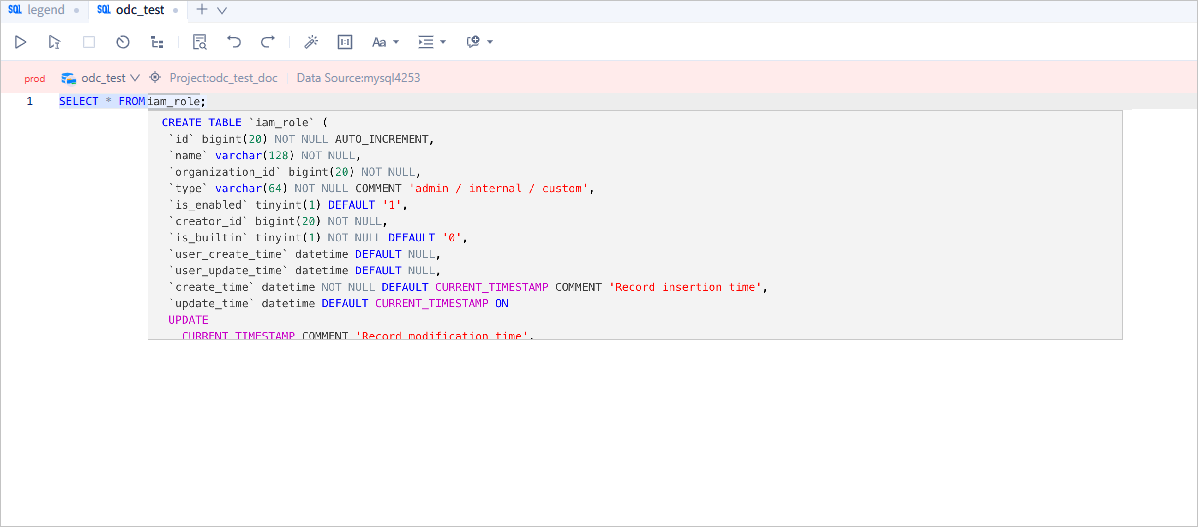
While writing SQL, you often need to quickly check the DDL of a database object. Instead of navigating through a lengthy path to the object details, starting from ODC V4.3.4, you can simply hover over the object name to view its DDL directly.
Manage result sets
ODC offers a wide range of result set management features. This section highlights some lesser-known but very useful features.
Pin result set tabs
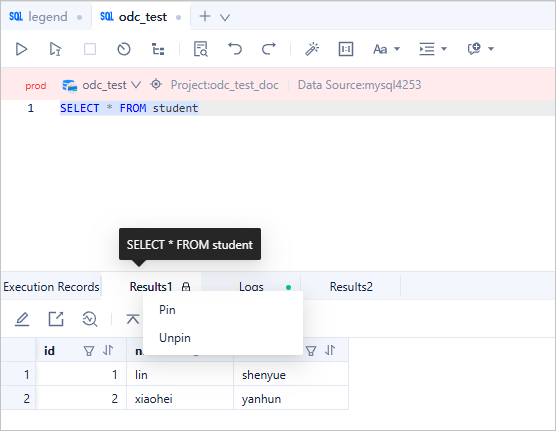
If you want to compare multiple executions of the same SQL, you can hover over a result tab to preview the SQL statement associated with it. Right-click the tab to pin it. A pinned result set will not be overwritten by subsequent query executions.
Useful features in the result set toolbar
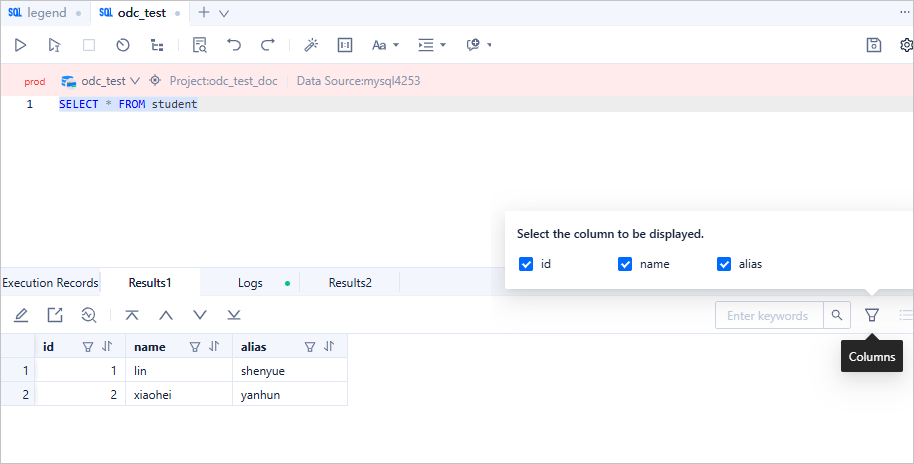
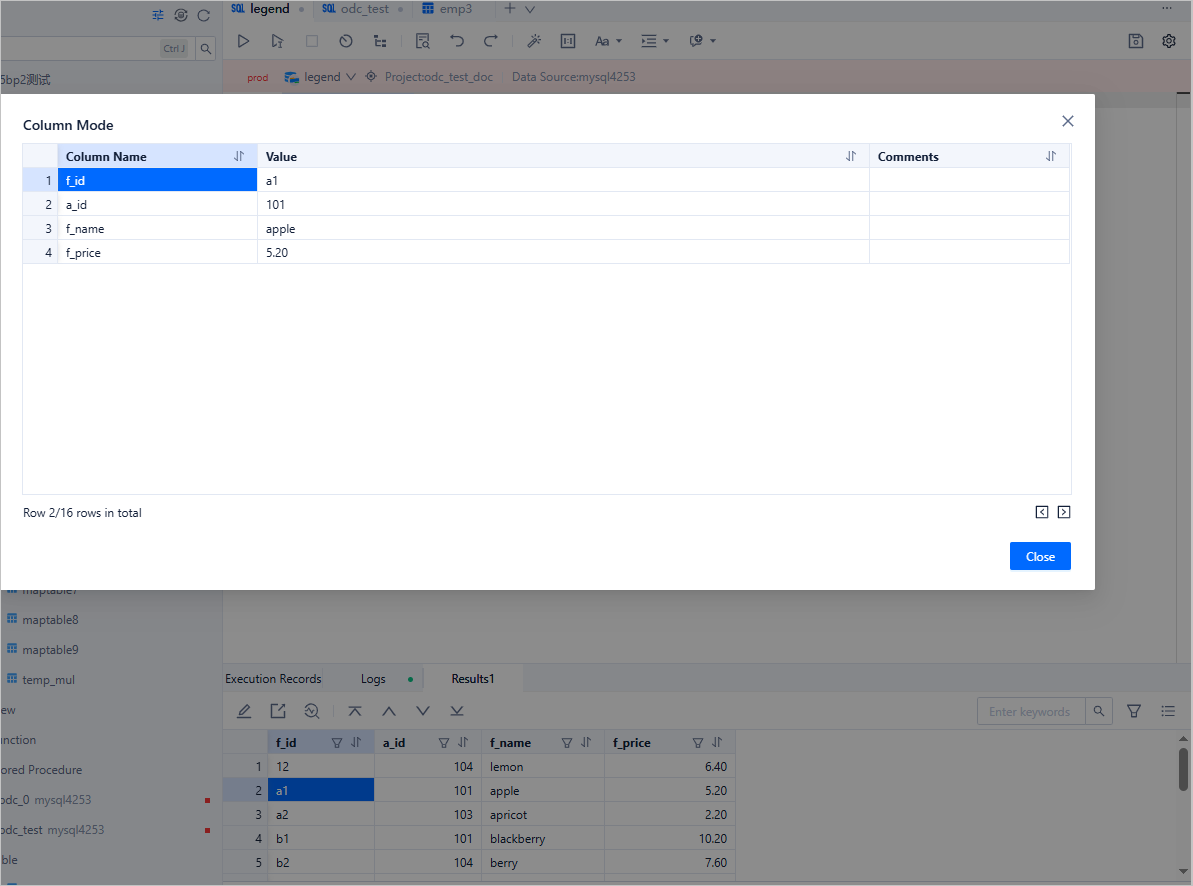
The result set toolbar provides options for editing, downloading, real-time analysis, searching, column filtering, and column view modes. In particular, the Real-Time Analysis feature is very helpful for diagnosing SQL issues. See Understanding real-time SQL diagnostics for OceanBase AP for details.
Here is a quick look at two features:
Column filtering: Hide unnecessary columns from the query result.
Column mode: Switch to column view to easily review data when there are many columns.
Handle result set content
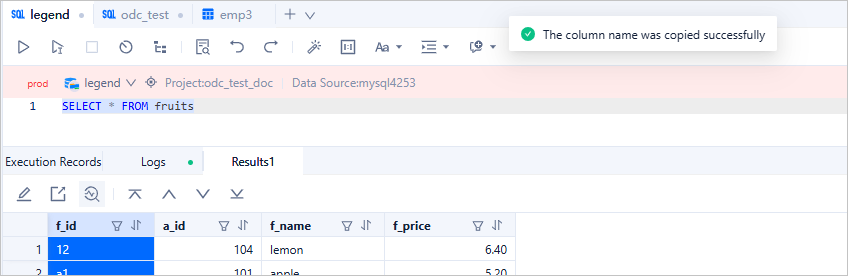
Copy column names
Double-click a column name to quickly copy it.
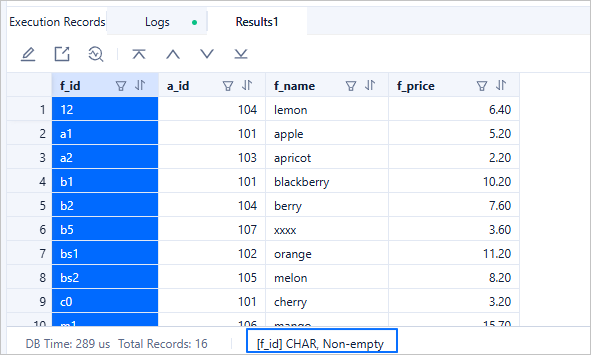
View column properties
Select a column to view its comments, field type, and other details in the status bar.
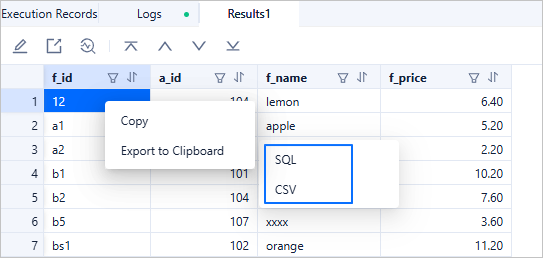
Export selected results
If you need to export specific rows, columns, or cells, select the desired content, right-click, and choose Export to Clipboard. You can then paste the content as SQL or CSV format into your target document.
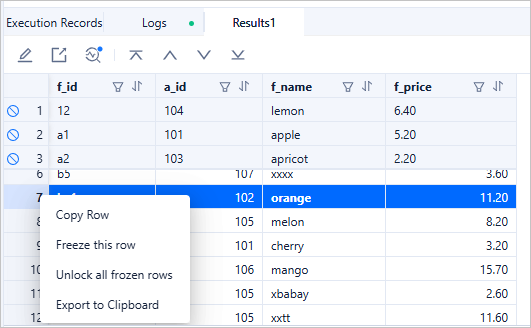
Compare rows
Use the Freeze this row feature to lock a reference row and scroll to compare different rows side-by-side.
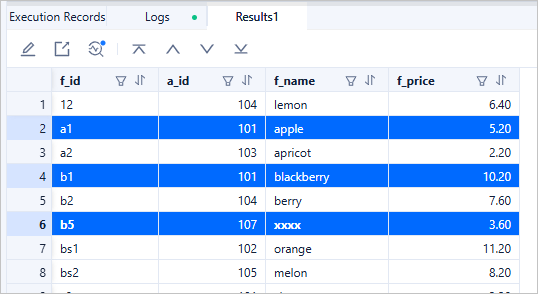
Select multiple rows and columns
- Use the Shift key to select a continuous block of rows or columns.
- Use the Command/Ctrl key to select non-continuous rows or columns.
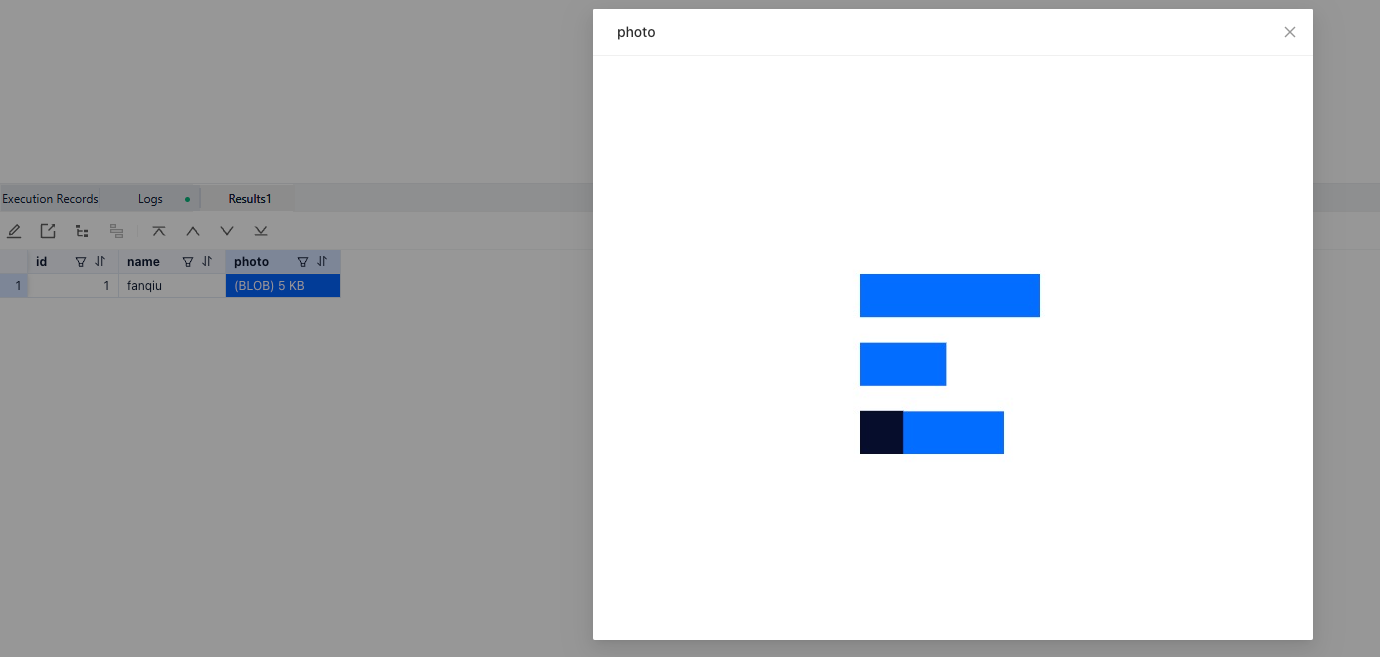
View images in the result set
If the result set contains large objects (LOBs), ODC provides a LOB viewer that allows you to view images directly.
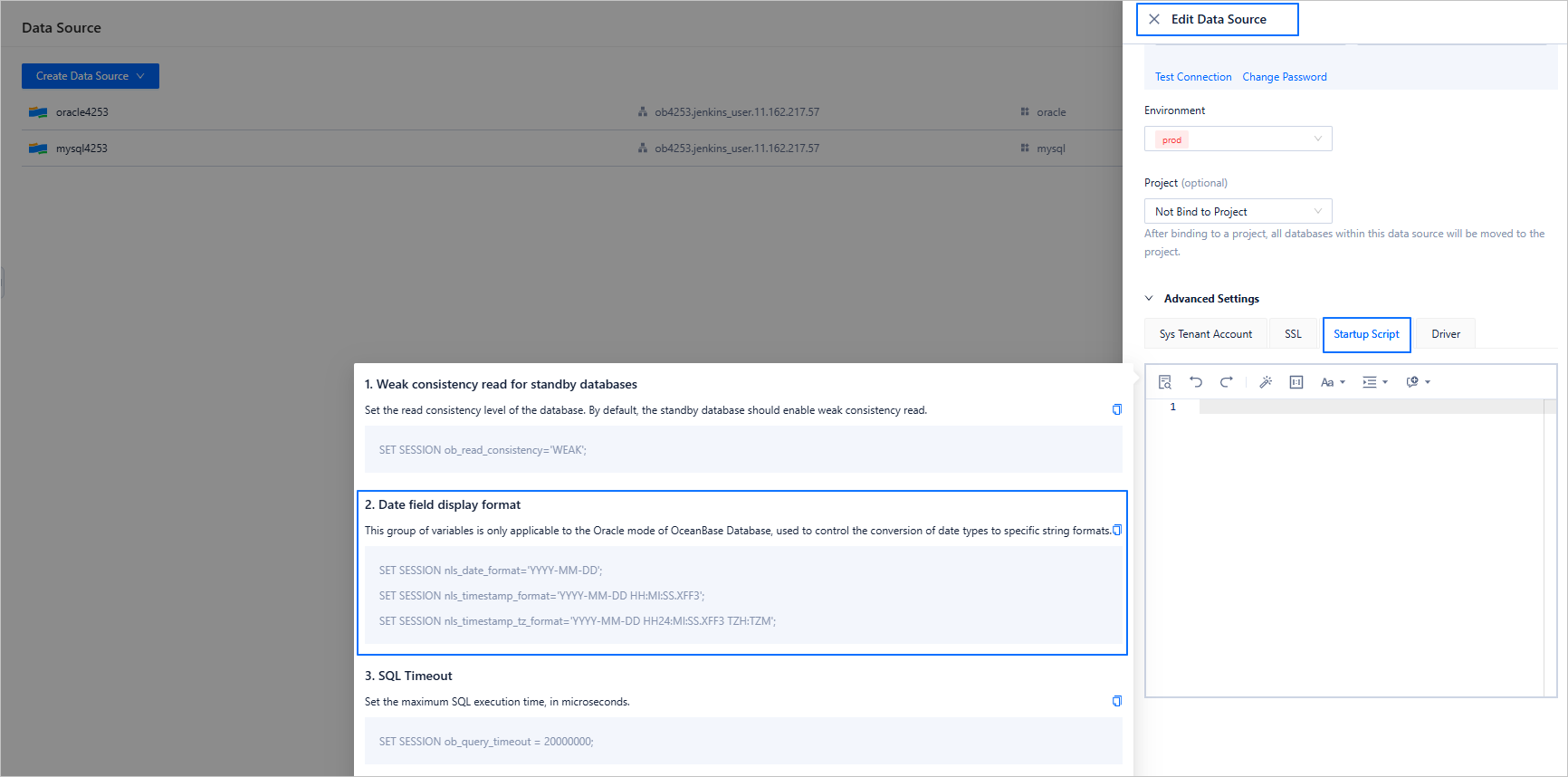
Set the date format for query results
Instead of manually setting the date format every time with SET SESSION nls_date_format='YYYY-MM-DD';, you can configure a default date format at the data source level. Edit the data source settings and adjust the Startup Script.
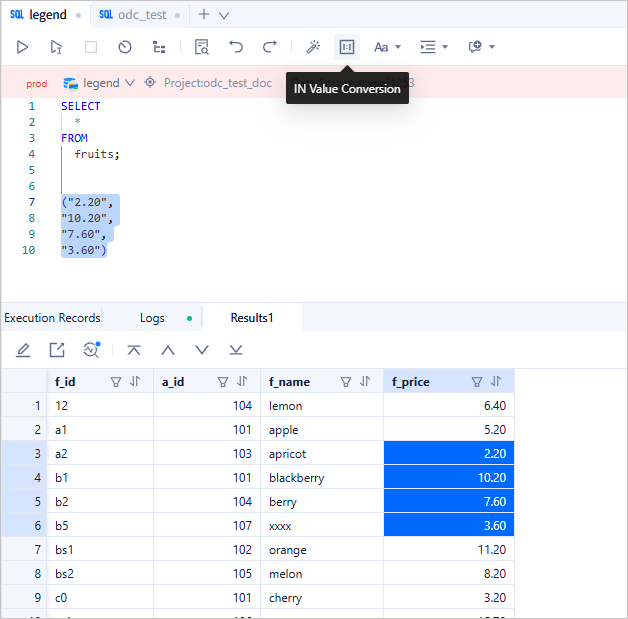
Convert selected column values into WHERE conditions
If you want to perform a secondary query or data correction based on query results, ODC provides a handy feature to convert selected column values into an IN clause format, saving you from manually quoting and separating values.
Quickly create a ticket
During SQL development, you may often need to initiate tasks such as database changes or data imports/exports. Tickets can be created via:
- The Ticket module.
- The Project module under ticket subcategories.
- The Workspace, using the recently used databases section.
- The SQL Console, under the ticket section.
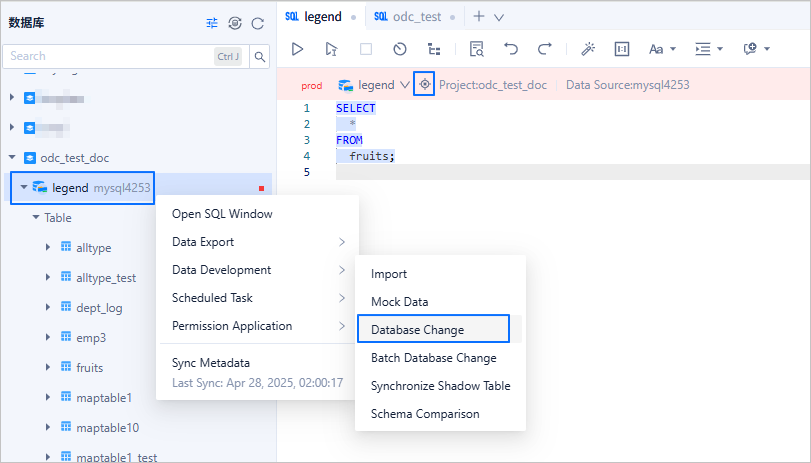
Additionally, you can initiate a ticket directly from the resource tree. For example, if you are working on the legend database and need to submit a change, simply locate the database in the resource tree, right-click it, and start a ticket.
Drag and drop to generate SQL statements
To quickly generate a query for a table, simply drag the table from the resource tree into the SQL window. A SELECT statement for the table will be automatically generated.
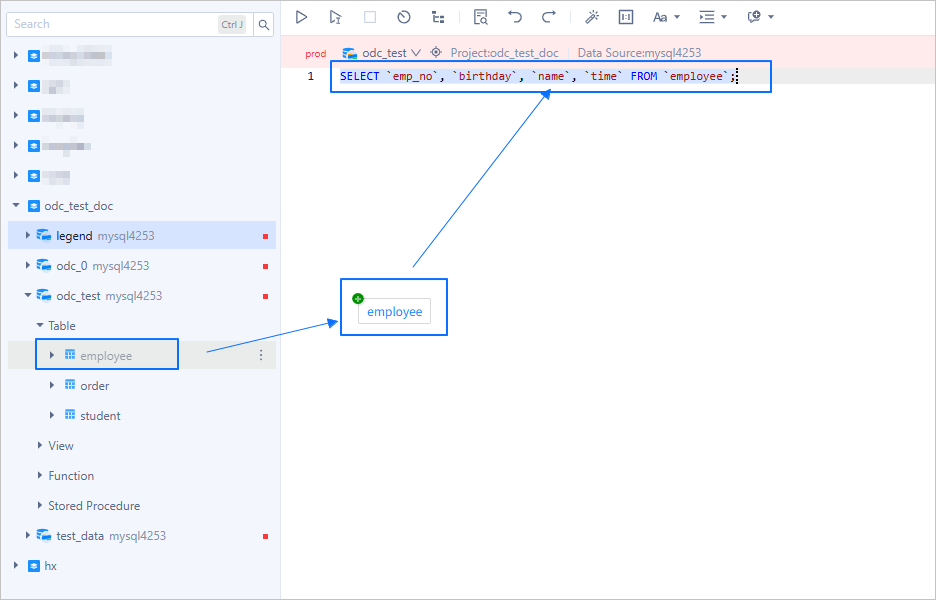
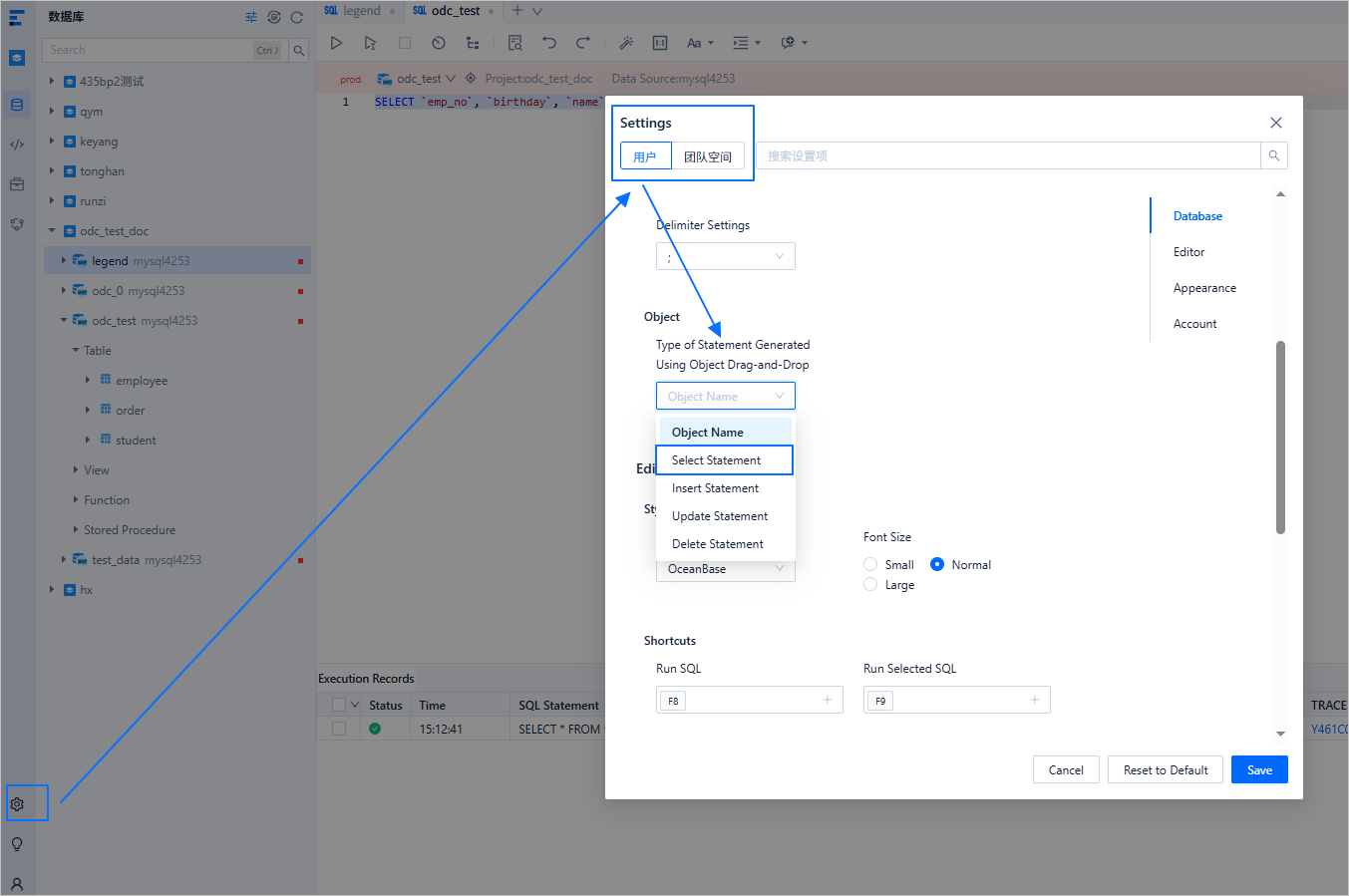
By default, dragging inserts only the table name. You can customize the drag-and-drop behavior in your user settings.
Quickly search for objects
During SQL development, you often need to switch databases or locate specific objects. You can use ODC's global search feature by clicking the search button to bring up the search window. It supports search by project, data source, and database dimensions.
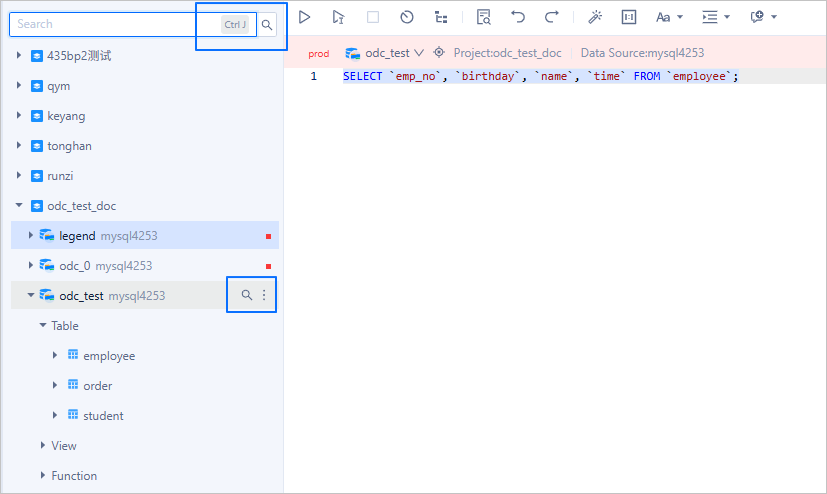
Depending on the search result:
- Project: Locates the project in the resource tree.
- Data source: Locates the data source in the resource tree.
- Database: Locates the database in the resource tree and opens a SQL window for it.
- Database object (such as a table): Locates the object and opens its DDL tab.
Customize your development environment
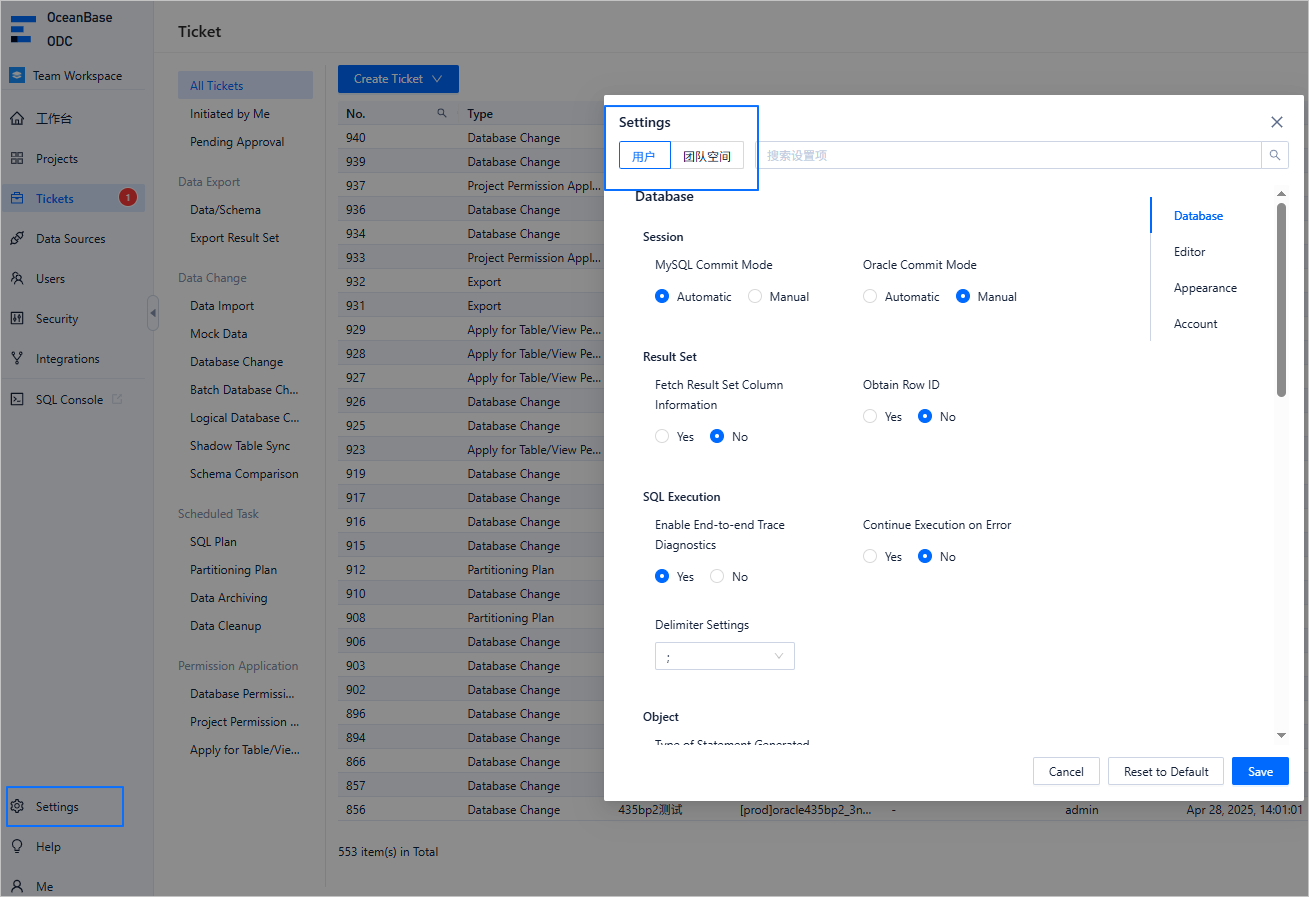
Every developer has their own preferences. ODC allows you to configure personal preferences and workspace-level constraints through the settings center.
Notice
Workspace-level configurations require workspace admin privileges.
Customize editor styles
At the user level, you can configure session commit modes, result set and SQL execution behaviors, editor themes, font sizes, and shortcut key mappings.
Restrict user behavior within a workspace
You can impose constraints on certain features to maintain workspace stability. For example, you can:
- Set a Query Row Limit to restrict the number of rows returned by any SQL query.
- Allow or restrict Schema Replacement during Import Tickets based on your workspace needs.