






Background information
In ODC V4.3.2 and later, you can run time-consuming SQL statements in logical database change tasks to change data in the logical database without causing statement execution timeout.
Note
- If you do not have the required privileges on the logical database, you can apply for the required logical database privileges by clicking Apply for database privileges in the project or ticket.
- For more information about logical databases and physical databases, see Manage logical databases.
Considerations
Only MySQL and OceanBase MySQL compatible mode data sources are supported.
Only DDL changes are supported.
SQL check specifications and SQL window specifications included in the ODC security specifications are not supported.
Create a logical database change task
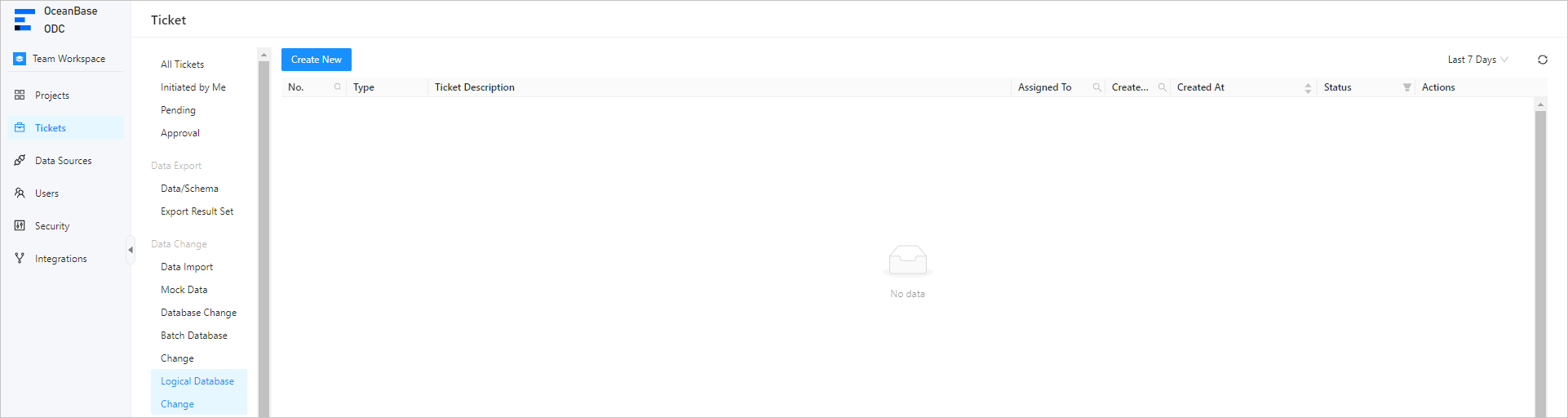
In the Project > Ticket list, click Logical Database Change.
Create a logical database change task from the project list.

Create a logical database change task from the ticket list.
On the Create Logical Database Change page, specify the following parameters.
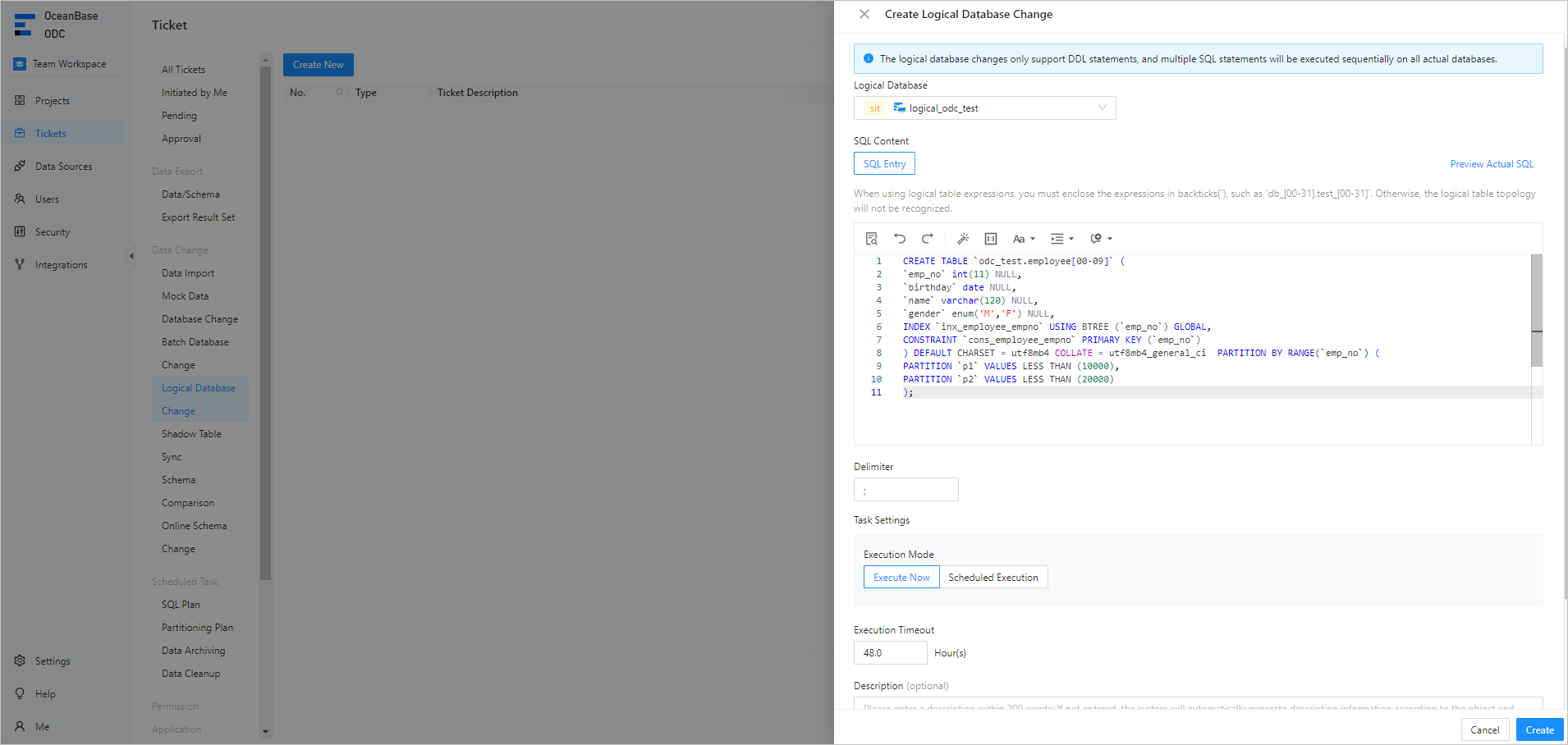 ParameterDescription
Logical Database The logical database to be changed. SQL Content The method for writing SQL statements. Valid values: SQL Entry and SQL File. The SQL entry method is the default method. Delimiter The delimiter. Task Settings Specify whether to Execute Immediately or Execute On Schedule. Timeout The timeout period in hours for statement execution. Specify the timeout period in the Execution Timeout field. The default timeout period is 48 hours, with a maximum of 480 hours. Description The description of the task. You can enter up to 200 characters in the Ticket Description field. This parameter is optional. Click Create.
After the task is created, you can go to Ticket > Logical Database Change to view the task information.
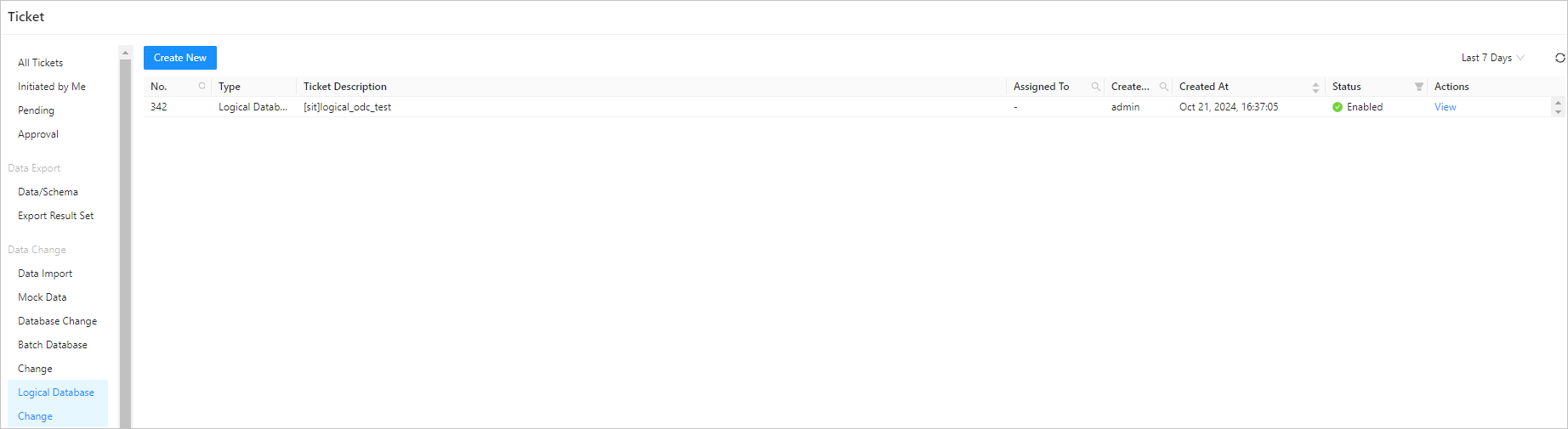
View the logical database change task
View task information
In the logic database change list on the Ticket page, click View in the Actions column of the target work order.
On the task details panel, click the Basic Information tab to view the information such as the logic database, task type, risk level, and SQL statement.
Click Initiate Again to initiate the logic database change task again.
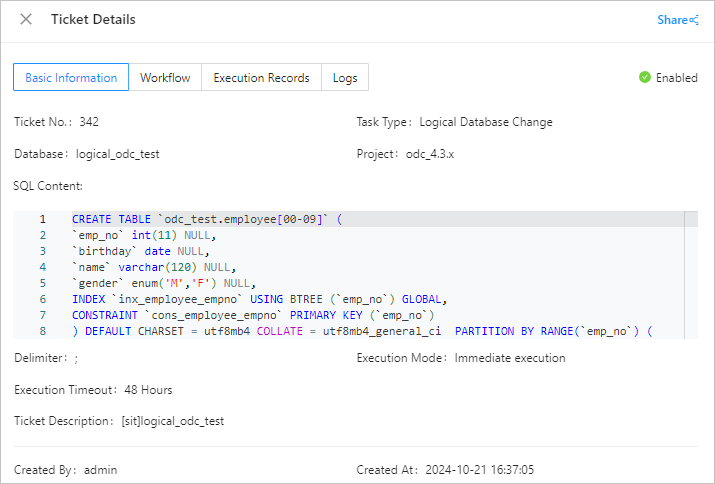
View the task process
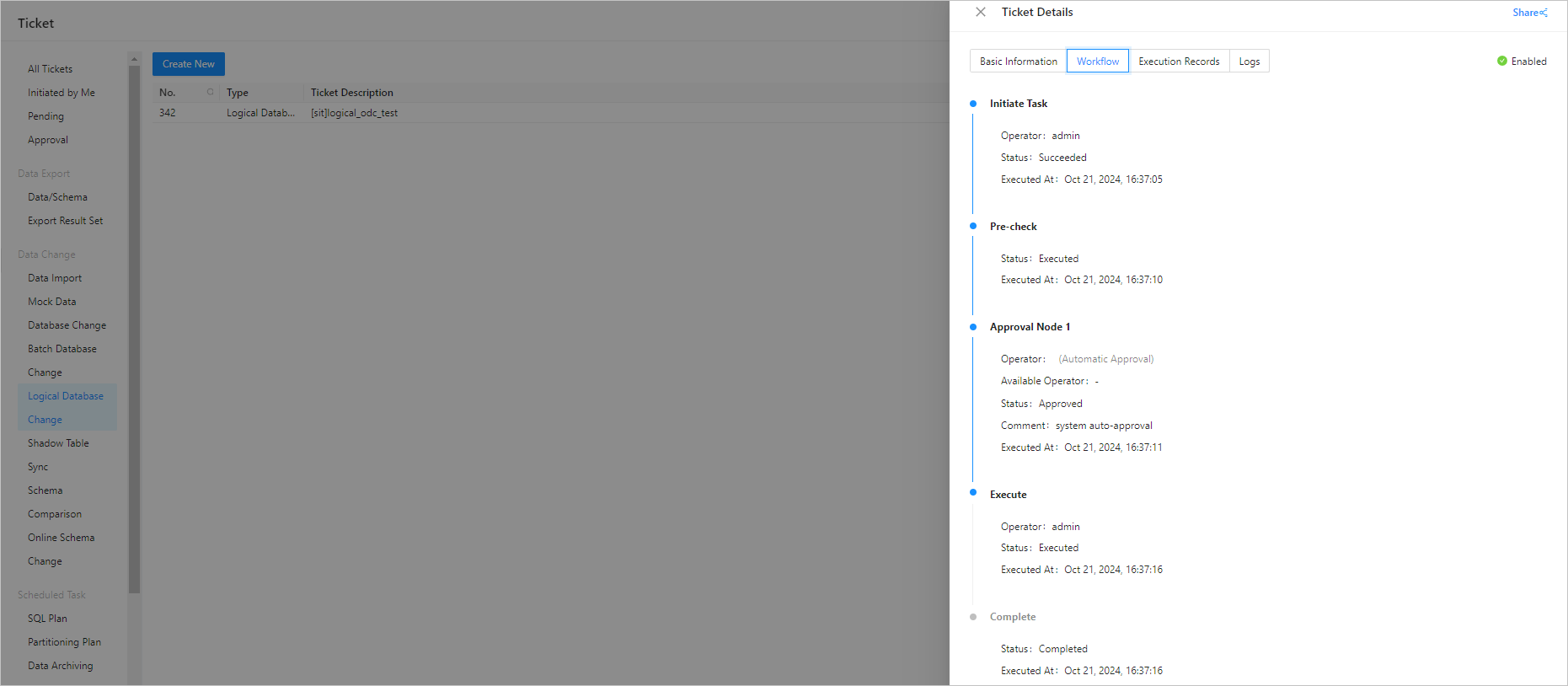
In the task details panel, click the Workflow tab to view the status of the task initiation, approval, execution, and execution result.
View the task execution records
In the task details panel, click the Execution Records tab to view the task execution status.
Task logs
In the task details panel, click the Logs tab to view all task logs and alert logs.
Parameter |
Description |
|---|---|
| All logs | The All Logs section displays extensive information about the task, including INFO, ERROR, and WARN logs. You can click Find, Download, or Copy to search for, download, or copy the information in the All Logs section. |
| Alert logs | The Alert Logs section displays only the ERROR and WARN logs of the task. When a task fails, you can view the error information in the alert logs. You can click Find, Download, or Copy to search for, download, or copy the information in the Alert Logs section. |