OceanBase Developer Center (ODC) allows you to create a view on a GUI. This topic describes how to create a view in the ODC console.
Overview
A view is a virtual table whose structure and data are derived from part of the data in one or more tables, and obtained through a SELECT query statement. A view does not contain actual data.
Uses of views
Simplify data query operations: A view can combine data required from different tables into a single table. You can use views to convert multi-table queries into single-table queries.
Limit data access: You can use views to grant access only to specific data to specific users. Users can view only the data displayed in the view.
The preceding figure shows the five steps involved in creating a view:
Specify the basic information.
Select the base table.
Select fields.
Verify the SQL statement.
Complete the view creation.
In this example, a salary view is created in ODC by combining the name field from the employee table and the budget and dept_name fields from the consumer table.
Note
All data used in this example is for reference only. You can replace the data as needed.
Procedure
Step 1: Specify basic information
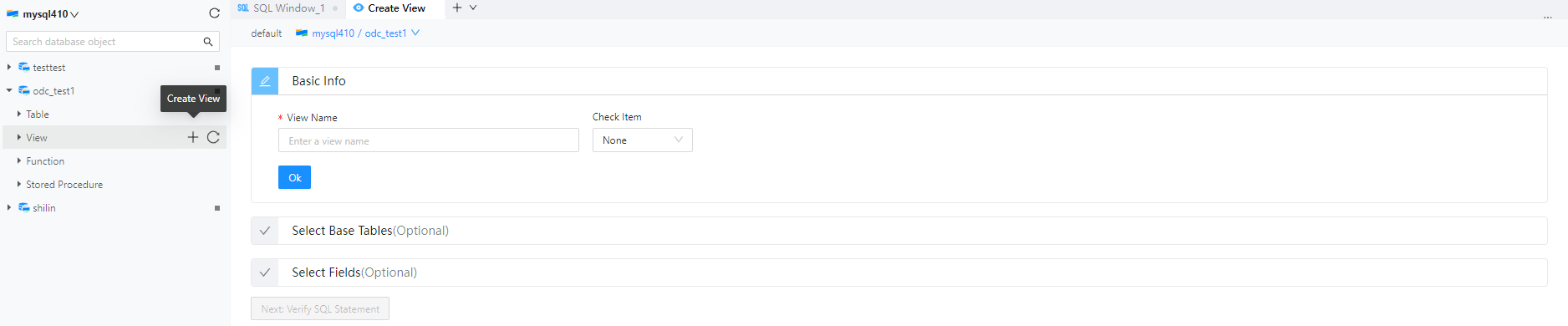
Log in to OceanBase Developer Center (ODC) and click the name of the target connection to go to the corresponding connection management page. You can click View in the left-side navigation pane to get a list of views. To create a view, click + in the upper-right corner of the view list or click Create in the top navigation bar.
On the Basic Info tab, specify the View Name and Check Item parameters.
View Name: the name of the view.
Check Item: the constraint check for data written. In the Oracle compatible mode of OceanBase Database, only read operations are supported. Default value: None.
After you specify the basic information, click OK in the lower-left corner of the tab to complete this step.
After you complete the basic information settings, you can click Next: Verify SQL Statement at the bottom of the page to go to the Verify SQL step, or you can go to the next step that requires base table selection.
Step 2: Select base tables
After you specify the basic information, you can perform the operations of Step 2, namely, base table selection. This step can be skipped.
On the Select Base Tables tab, the left-side list displays the base tables that can be selected in a hierarchical manner based on schema > database > table/view. The list supports search. You can select the target table or view from the list, click the Add button next to the list, and then add the selected table or view to the table operations section on the right.
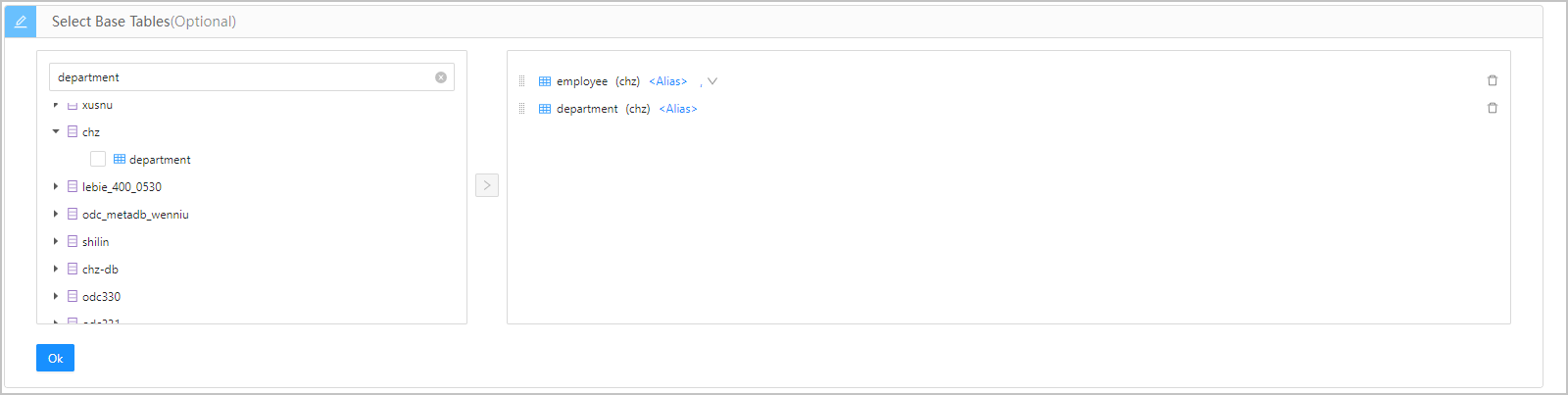
In the table operations section, you can perform the following operations on the selected base tables:
Parameter |
Description |
|---|---|
| Set alias | You can set an alias for the selected base table. This is an optional operation. To set an alias, click <Alias> next to the table name and enter an alias in the text box. |
| Set relationship | When two or more tables are selected in the table operations section, you can select the relationship between tables from the drop-down list. The default value is none, and you do not need to set the relationship for the last table. To set the relationship, click the drop-down list icon  next to the alias, and select JOIN, INNER JOIN, LEFT JOIN, RIGHT JOIN, CROSS JOIN, FULL JOIN, UNION, UNION ALL, INTERSECT, MINUS, LEFT OUTER JOIN, RIGHT OUTER JOIN, or FULL OUTER JOIN from the drop-down list. next to the alias, and select JOIN, INNER JOIN, LEFT JOIN, RIGHT JOIN, CROSS JOIN, FULL JOIN, UNION, UNION ALL, INTERSECT, MINUS, LEFT OUTER JOIN, RIGHT OUTER JOIN, or FULL OUTER JOIN from the drop-down list. |
| Change order | You can directly drag the selected base tables in the table operations section to change the order. The relationship for the last table changed will be cleared. |
| Delete a base table | You can click the Delete icon next to each table in the table operations section to delete the table. The relationship for the last table changed will be cleared. |
After you complete the selection and settings of base tables, click OK in the lower-left corner of the tab to complete this step.
Step 3: Select fields
After you select the base tables, you can perform the operations of Step 3, namely, field selection. You cannot perform field selection if you skip Step 2.
On the Select Fields tab, the left-side list displays the fields in the base tables selected in Step 2 in a hierarchical manner based on schema > database > table/view. The list supports search. You can select the target field from the list, click the Add button next to the list, and then add the selected field to the field operations section on the right.
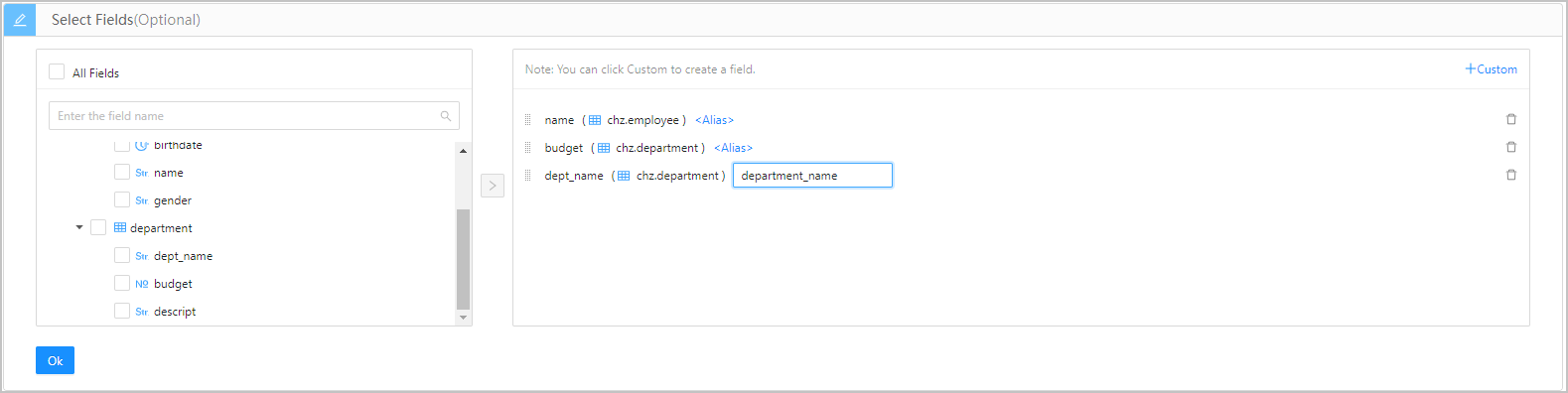
In the field operations section, you can perform the following operations on the selected fields:
Parameter |
Description |
|---|---|
| Set alias | You can set an alias for the selected field. This is an optional operation. To set an alias, click <Alias> next to the field name and enter an alias in the text box. |
| Change order | You can directly drag the selected fields in the field operations section to change the order. |
| Delete a field | You can click the Delete icon next to each field in the field operations section to delete the field. |
| Add a custom field | You can click +Custom in the upper-right corner of the field operations section to add a field. You need to specify the field name and alias for the new field. |
After you complete the selection and settings of fields, click OK in the lower-left corner of the tab to complete this step.
Step 4: Confirm the SQL statement
After you specify all the preceding parameters, click Next: Verify SQL Statement on the page to go to the statement editing page.

On the statement editing page, the corresponding view definition statement is generated based on the information specified on the Basic Info, Select Base Tables, and Select Fields tabs. If the statement contains definitions of more than two tables, you need to complete the statement based on the relationships between the tables and the logical conditions. After you complete the view creation statement, click the Create button in the upper-right corner of the page to complete the view creation.
You can edit the view statement on the SQL creation confirmation page. The syntax is as follows:
CREATE VIEW view_name AS
SELECT
  column1,
  column2.....
FROM
  table_name
WHERE
  [condition];
Step 5: Complete the view creation
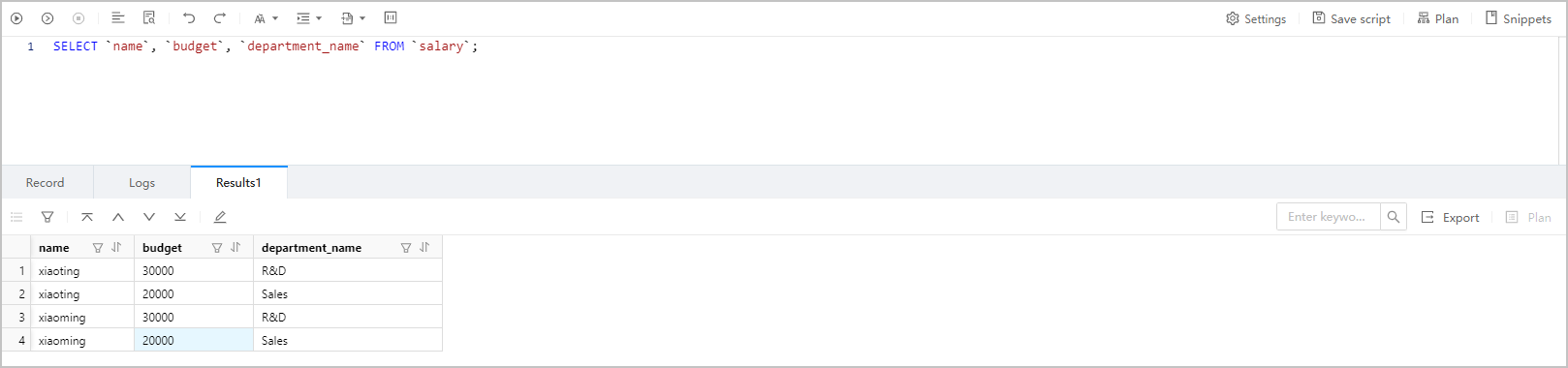
Click Create. After the view is created, you can use the SELECT statement to query the view, just like querying a table.

Note
In the view list in the left-side navigation pane, click the More icon in the name of the view that you want to manage. A pop-up list appears, providing the following options for you to manage and operate the target view object: View View Properties, View View Data, Export, Download, Copy, and Delete.
The syntax is as follows:
SELECT
column1,
column2.....
FROM
table_name;
Here is an example:
SELECT `name`, `budget`, `department_name` FROM `salary`;