After upgrading OceanBase Cloud Platform (OCP), you must log on to the OCP console to verify the OceanBase Database Proxy (OBProxy) feature is working properly.
Procedure
Log on to the OCP console by using the admin account.
In the left-side navigation pane, click OBProxy and check the OBProxy cluster list.
If OBProxy was deployed before the upgrade, the existing OBProxy will be assigned to an OBProxy cluster named legacy_cluster after the upgrade.
Associated OceanBase clusters include all existing OceanBase clusters before the upgrade.
In the left-side navigation pane, click OBProxy and check the monitoring feature.
In Top 5 Monitoring Metrics, check whether graphs are properly displayed.
In the cluster list, click the name of an OBProxy cluster to go to its Overview page.
In the left-side navigation pane, click Performance Monitoring. On the System Monitoring tab, check whether OBProxy's second-level monitoring metrics are pulse-shaped graphics. If yes, check the value of the
prometheus_sync_intervalparameter. We recommend that you change the value to 1 second.
In the left-side navigation pane, click OBProxy and check the parameter modification feature.
In the cluster list, click the name of an OBProxy cluster to go to its Overview page.
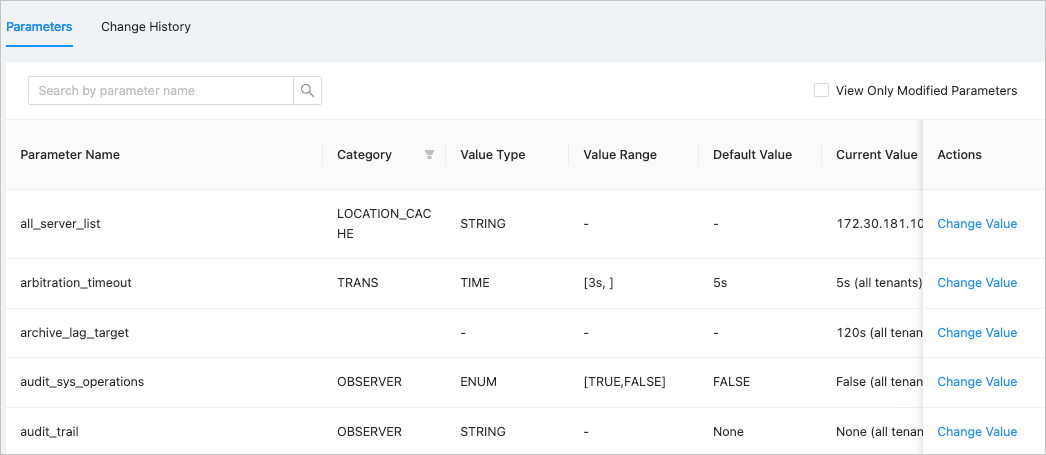
In the left-side navigation pane, click Parameter Management.
On the Parameters tab, randomly select a parameter and modify it. If the modification fails, check whether the OCP address is in the default CIDR block allowlist of OBProxy. If not, manually change the value of the OBProxy parameter
skip_proxy_sys_private_checktoTrue.